How to Auto Restart Samsung Phone for Better Speed
 Yaskar Jung ShahUpdated: Jul 27, 2026·16 min read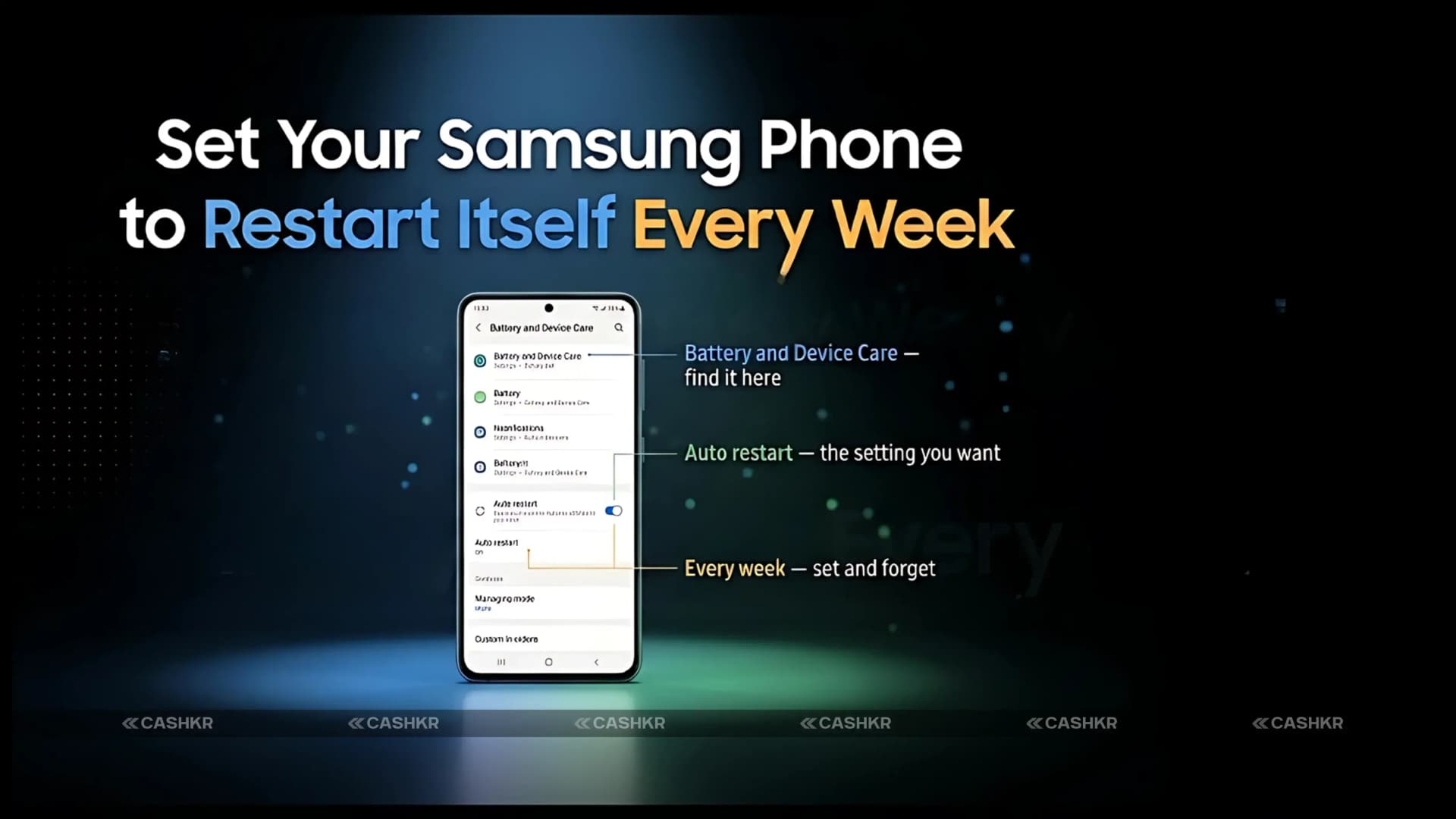
How to enable auto restart on Samsung Galaxy for better performance.

Get the Cashkr app for faster payouts

Every Samsung Galaxy phone slows down over time. It is not a defect or a sign that the phone is aging badly. It is physics. Background apps accumulate. Temporary files pile up. RAM fills with data from sessions long since finished. The phone starts doing more work than it needs to, and the result is sluggishness, occasional lag, and slightly shorter battery life.
The fix is a restart. A simple full power cycle clears everything and lets the phone start fresh. The problem is remembering to do it regularly. Most people restart their phone only when something goes visibly wrong, by which point performance has already degraded for days or weeks.
Samsung has built a feature into every Galaxy phone that solves this automatically. It is called "Auto Optimization," and it includes an automatic restart function that reboots your phone at a scheduled time while you are sleeping, without any manual action from you. You set it once and forget it.
This guide explains exactly how to turn it on, when to schedule it, and what else you can do alongside it to keep your Samsung phone running at its best.
What this guide covers: Why phones slow down and why restarting helps. What Samsung's Auto Optimization and Auto Restart features do. Step-by-step setup instructions for all Samsung Galaxy phones. The conditions that must be met for the automatic restart to run. Five additional maintenance tips to pair with the auto restart. A full Samsung phone maintenance checklist.
Understanding what causes slowdown helps you understand why a scheduled restart is so effective.
Background apps accumulate: Every app you open stays partially active in the background even after you close it. This is intentional because it makes reopening apps faster. But over days of use, dozens of apps may be sitting in the background consuming RAM and occasionally running tasks you are unaware of.
Temporary files and cache build-up: Apps constantly write temporary files to storage as they run. These cache files are meant to speed up future loads, but over time they accumulate into gigabytes of data that consume storage space and slow file system operations.
RAM fills gradually: Physical RAM is finite. As more apps load and more data accumulates in memory, the phone has to work harder to allocate resources to new tasks. When RAM is nearly full, the system slows down as it manages what to keep and what to discard.
Minor software processes get stuck. Occasionally a system process, an app's background service, or a sync task gets stuck in a loop consuming resources without completing. These stuck processes are invisible to the user but steadily consume battery and CPU capacity. A restart clears all of them instantly.
A restart clears all of these simultaneously. Background apps are fully closed. Temporary files are flushed. RAM is cleared to its baseline state. Stuck processes are terminated. The phone boots back to a clean starting point and runs faster and more efficiently than it did before.
Doing this once a week is the difference between a phone that feels fast throughout its ownership and one that feels progressively slower every month.
Auto Optimization is a feature built into Samsung's Device Care system on all Galaxy phones. It includes an option called Auto Restart that allows the phone to restart itself automatically at a scheduled day and time when the phone meets certain conditions.
The restart only happens when all required conditions are met. If any condition is not satisfied at the scheduled time, the phone skips the restart and waits for the next scheduled occurrence.
| Condition Required | Why This Condition Exists |
|---|---|
| The screen must be off | Ensures the restart does not interrupt an active call, game, or task |
| The phone must not be in use | Prevents data loss from apps actively saving or processing |
| Battery above 30% | Ensures enough power to complete restart and full boot safely |
| SIM lock must be disabled | Prevents the phone from getting stuck on PIN screen after restart |
These four conditions together ensure that the automatic restart never interrupts something important, never drains the battery during the restart process, and never leaves the phone stuck at a PIN entry screen when no one is around to enter the code.
Best time to schedule: Set the auto restart for between 2 AM and 4 AM on a weekday or weekend when you are reliably asleep and not using the phone. This ensures all four conditions are almost always met and the restart completes before you need the phone in the morning.
This setup takes under two minutes. Follow these steps exactly on your Samsung Galaxy phone.
Step 1. Open Settings. Tap the Settings icon from your home screen or app drawer. On all Samsung Galaxy phones, Settings is the grey gear icon.
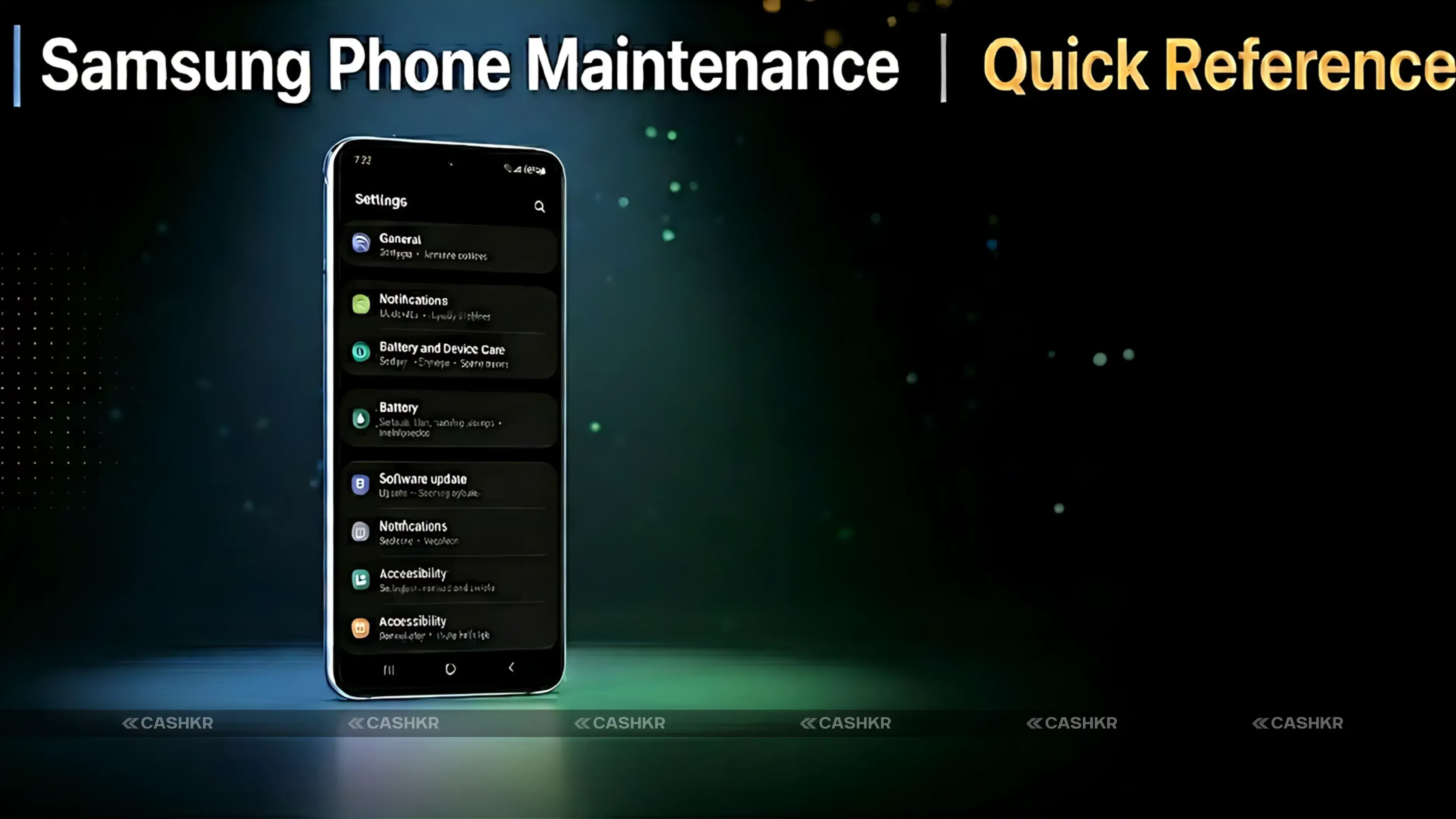
Step 2. Go to Battery and Device Care Scroll down in Settings and tap Battery and Device Care. On some older Samsung phones this section may be labeled "Device Care" or "Device Maintenance." The icon is typically a battery with a wrench.
Step 3. Tap Auto Optimization. Inside Battery and Device Care, look for a section called Additional Care or scroll to find Auto Optimization. Tap it to open the auto-optimization settings.
Step 4. Select Auto Restart. Inside Auto Optimization, you will see an option called Auto Restart. Tap on it.
Step 5. Turn Auto Restart On: Toggle the Auto Restart switch to the on position. The toggle will turn active, and additional scheduling options will appear below it.
Step 6. Choose your preferred day and time. Select which days of the week you want the automatic restart to occur and set the time. For most users, setting it to every day at 3 AM or once a week on a Sunday at 3 AM works well. Tap Save or Confirm when done.
That is the complete setup. The phone will now automatically restart at your chosen schedule whenever all four conditions are met. No further action is required from you.
Cannot find the option? Navigation paths vary slightly across Samsung Galaxy models and One UI versions. If Battery and Device Care does not show Auto Optimization, try searching for Auto Restart directly in the Settings search bar at the top of the Settings screen. Type "Auto Restart," and it should appear as a direct result.
When the scheduled time arrives and all four conditions are met, here is what the phone does:
The phone saves any unsaved state from background apps and then powers off completely. It goes through a full restart cycle, during which all temporary memory is cleared, all background processes are terminated, and all cached data in RAM is wiped. The phone then boots back to the lock screen, ready for the next day.
The entire process typically takes between 60 and 90 seconds depending on the phone model and how many apps were running. On a newer Galaxy phone with a fast chip, the restart and boot cycle completes in under 60 seconds.
If you wake up during the restart, you will see the Samsung boot animation on screen. The phone will return to the lock screen shortly and operates normally from that point. No data is lost and no settings are changed by the automatic restart.
Auto restart handles the most impactful single maintenance action. These five additional practices work alongside it for comprehensive phone health.
Use Device Care Optimize Now monthly. Go to Settings, then Battery and Device Care, and tap Optimize Now. This runs a quick cleanup that closes unnecessary background apps, removes junk files, and checks battery optimization settings. It takes about 30 seconds and is a good complement to the weekly auto restart.
Clear app cache for slow or heavy apps. When a specific app starts feeling slow or takes longer to load than usual, clearing its cache often restores its speed. Go to Settings, then Apps, then select the app and tap Storage. Tap Clear Cache. This removes the app's saved temporary files without deleting your account data or settings within the app.
Keep software updated with Samsung releases. One UI updates that include performance improvements, memory management optimizations, and security patches. Go to Settings, then Software Update, then Download and Install. Running an outdated One UI version leaves performance improvements on the table that Samsung has already prepared for your phone.
Manage background app permissions. Some apps run in the background constantly even when you never actively use them. Go to Settings, then Battery and Device Care, then Battery, then Background Usage Limits, and restrict apps that do not need to run in the background. Fewer background processes means more available RAM and better battery life between charges.
Keep storage below 80% capacity. When internal storage gets nearly full, the file system has to work harder to find space for new data and for temporary files created during normal app operation. Delete unused apps, transfer photos to cloud storage or an SD card, and remove downloaded files you no longer need. Keeping at least 20 percent of internal storage free maintains consistent performance over time.
Also Read: Oppo Reno 16 Pro Specs Leaked: 200MP and Action Button
A Samsung Galaxy phone that restarts automatically once a week runs noticeably better than one that never gets restarted until something goes wrong. The Auto Optimization feature is free, built into every Galaxy phone, and takes less than two minutes to set up. The only reason not to use it is not knowing it exists.
Set the scheduled restart for a time you are reliably asleep, confirm all four conditions will typically be met at that time, and leave it running. Pair it with the five additional maintenance tips and your Samsung phone will stay closer to its out-of-box performance for the entire time you own it.
Quick summary: Open Settings, then Battery and Device Care, then Auto Optimization, then Auto Restart. Turn it on. Set your preferred day and time. Best time: 2 AM to 4 AM when the phone is idle, charged above 30%, and screen is off. The phone restarts automatically, clears RAM, flushes cache, and boots fresh. Pair with monthly Optimize Now app cache clearing and software updates for best results.
1. How do I automatically restart my Samsung phone on a schedule?
Go to Settings, then Battery and Device Care, then Auto Optimization, then Auto Restart. Turn on the toggle and set your preferred day and time. The phone will restart automatically at the scheduled time whenever it is idle, the screen is off, the battery is above 30%, and no SIM lock is active.
2. Will I lose any data if my Samsung phone restarts automatically?
No. The automatic restart does not delete any personal data, photos, apps, contacts, or settings. It only clears temporary RAM data and closes background processes, exactly like a manual restart. All your content remains exactly as you left it.
3. What if my Samsung phone does not restart at the scheduled time?
The auto restart only runs when all four conditions are met: screen off, phone not in use, battery above 30%, and SIM lock disabled. If any condition is not met at the scheduled time, the phone skips that restart and waits for the next scheduled occurrence. Check your battery level and confirm the SIM PIN is disabled if restarts are not happening.
4. How often should I schedule the automatic restart on my Samsung phone?
Once a week is recommended for most users. Heavy users who install and uninstall many apps frequently, game for long sessions, or use many apps throughout the day may benefit from scheduling the restart two or three times per week. Light users who primarily call, text, and browse can restart once per week or even once every two weeks.
5. What is the best time to schedule the Samsung auto restart?
Set it between 2 AM and 4 AM when you are reliably asleep and not using the phone. At this time the screen is typically off, the phone is idle, and if it is plugged in overnight, the battery will be well above 30%. All four required conditions are usually met during this window.
6. Does the Samsung auto-restart feature affect the SIM card or mobile data?
Yes, briefly. During the restart the phone disconnects from the mobile network and reconnects after booting. This takes approximately 15 to 30 seconds after the boot completes. Any calls or messages during this brief window will not reach the phone but will be delivered once the network connection is re-established.
7. Does automatic restart actually improve Samsung phone performance?
Yes. A restart clears RAM, terminates stuck background processes, flushes temporary file caches, and closes all background apps simultaneously. These are the primary causes of gradual performance slowdown over days of continuous use. Regular scheduled restarts prevent the slowdown from accumulating rather than waiting to address it after it becomes noticeable.
8. Can I still manually restart my Samsung phone if I use the auto-restart feature?
Yes. The auto restart schedule does not prevent manual restarts. If you notice sluggishness or want to restart at any time, you can still do so normally by holding the power button and selecting Restart. Manual and scheduled restarts achieve the same result and can be used together freely.
9. Where is auto-optimization on my Samsung phone if I cannot find it?
Go to Settings and use the search bar at the top of the screen. Type "Auto Restart," and it should appear as a direct result. The exact menu path can vary across One UI versions. On One UI 6 and above, the path is typically Settings, then Battery and Device Care, then Auto Optimization. On older One UI versions, it may be under Device Care then Additional Care.
10. What else should I do alongside auto-restart to maintain Samsung phone performance? Run Optimize Now from Device Care once a month, clear the cache for any apps that feel slow, keep One UI software updated, restrict background app permissions for apps you rarely use, and keep internal storage below 80 percent capacity. Together with the weekly auto restart, these practices keep most Samsung Galaxy phones running at close to launch performance throughout their ownership period.
Sell with Cashkr
Cashkr buys used devices at a fair price with free doorstep pickup and same-day payment across 2,000+ pincodes. Get an upfront quote in seconds.
Sell Old Phone OnlineCheck your phone's value in seconds
Written by

Google Find My Device guide, locate your phone in minutes.

Recycle old devices in India and earn instant cash today

Learn how to sell refurbished devices online and maximize profit.
Prepare smartphones for resale & sell old phones easily with Cashkr.

Support the circular economy by selling old phones on Cashkr today.

Reduce e-waste by selling old devices through Cashkr’s eco-friendly process.


