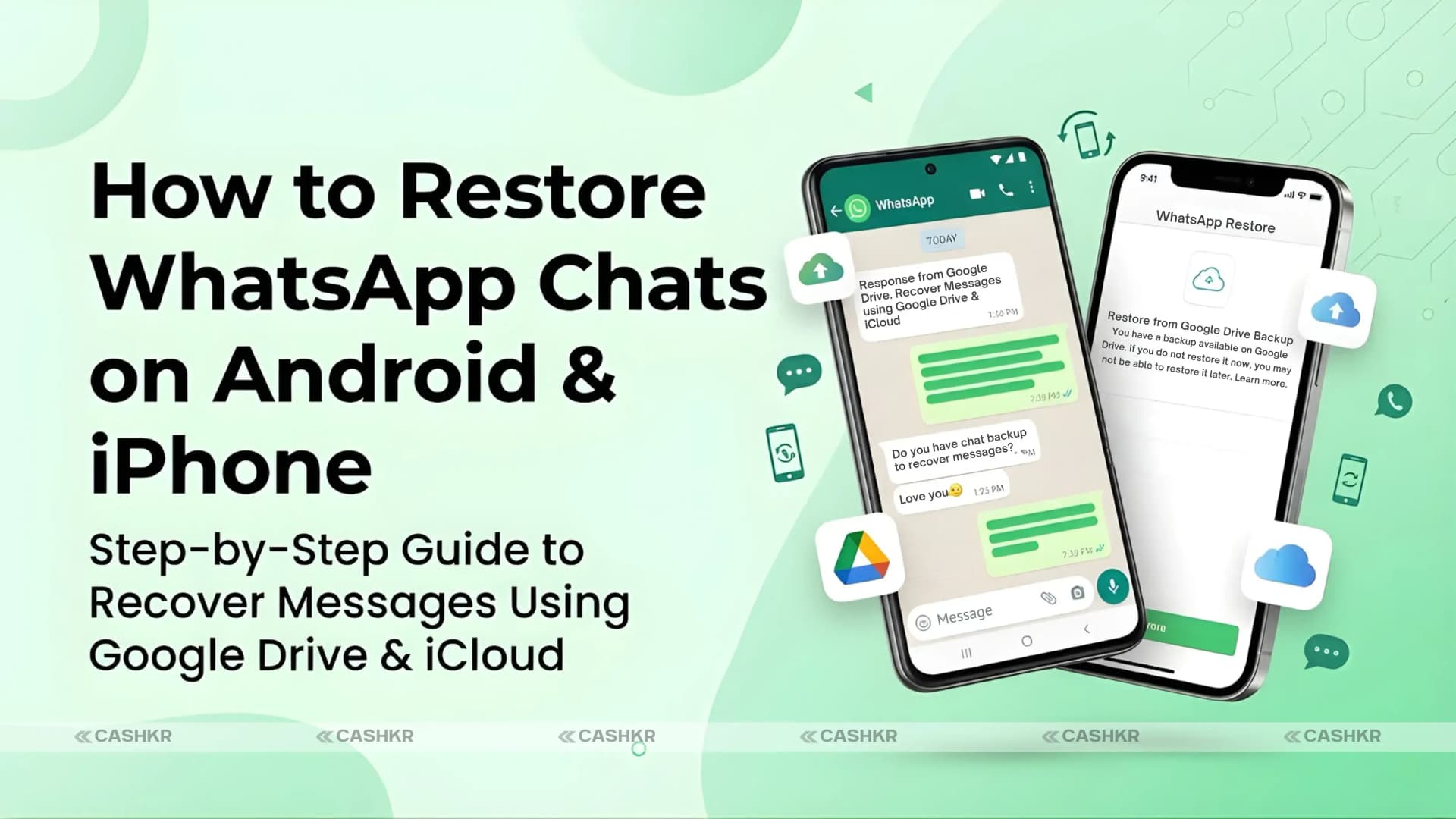
How to Restore WhatsApp Chats on Android and iPhone: Step-by-Step Guide
It can be stressful to lose your phone or switch to a new one, especially if your WhatsApp chats are missing. Since WhatsApp is used by millions and often holds important messages, photos, and memories, it’s good to know there are simple ways to back up and restore your chats on both Android and iPhone. This blog will walk you through the steps to restore your WhatsApp chats and set up automatic backups so you can keep your messages safe.
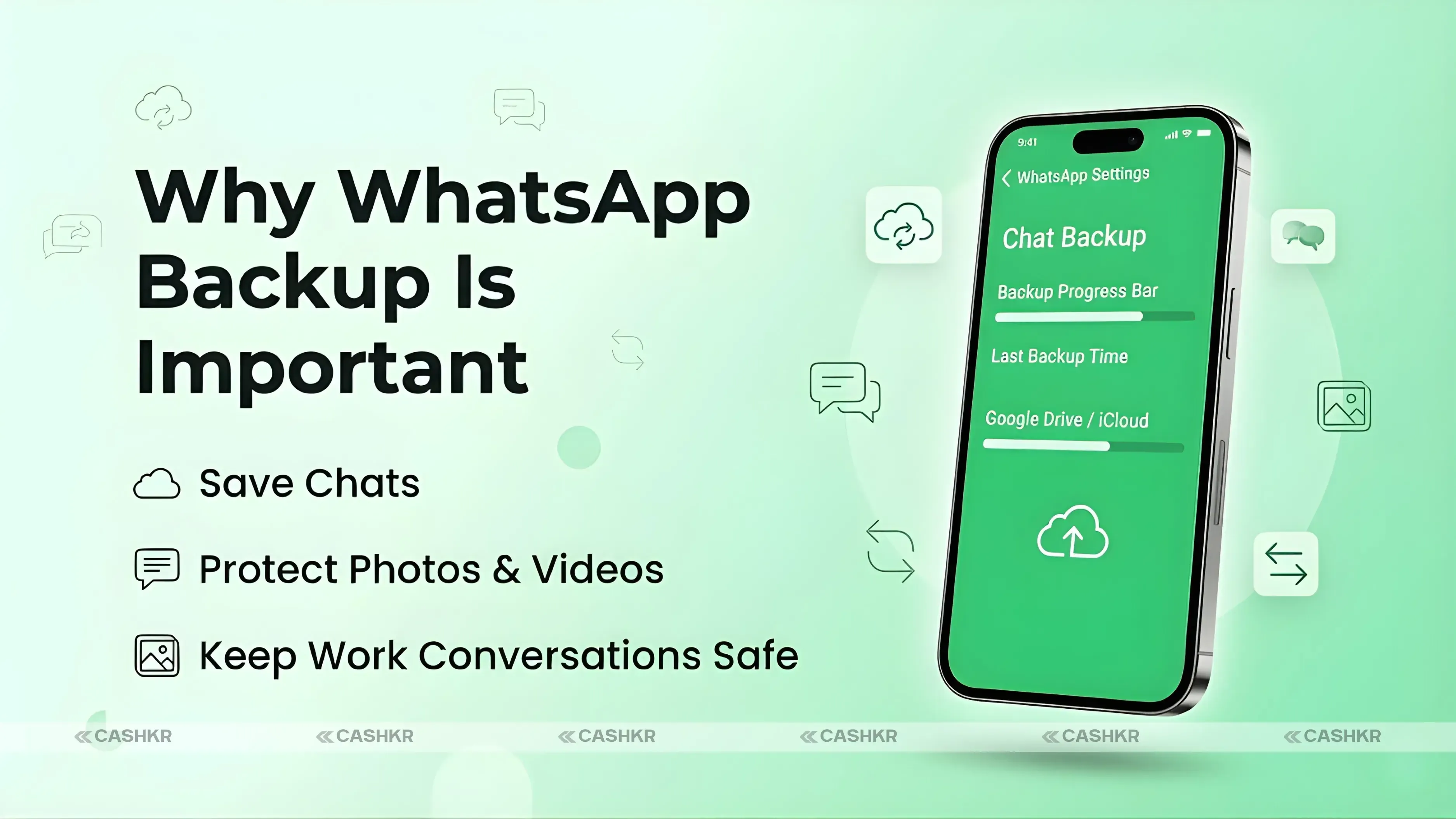
Why Backing Up WhatsApp Chats Is Important
Your WhatsApp chats might include personal messages, work conversations, photos, videos, and documents. Losing these can be frustrating, but making regular backups keeps your chat history safe. Both Android and iPhone let you back up your chats to the cloud:
• Android: Uses Google Drive for chat backups.
• iPhone: Uses iCloud for chat backups.
Remember, you can’t use linked devices like WhatsApp Web, Mac, or Windows to back up or restore chats. You’ll need to use the main phone where you first set up your WhatsApp account for these steps.
Things to Check Before Restoring WhatsApp Chats
Before you start restoring your chats, check that you have these things ready:
- Active Google Account (Android) or iCloud Account (iPhone): Required to store your backups.
- Sufficient Storage: Ensure there is enough free space on both your device and your cloud account.
- Google Play Services (Android): Required for backing up chats to Google Drive.
- Stable Internet Connection: Recommended for faster backup and restore.
- Latest WhatsApp Version: Always update WhatsApp to ensure compatibility with the latest backup features.
How to Restore WhatsApp Chats on Android
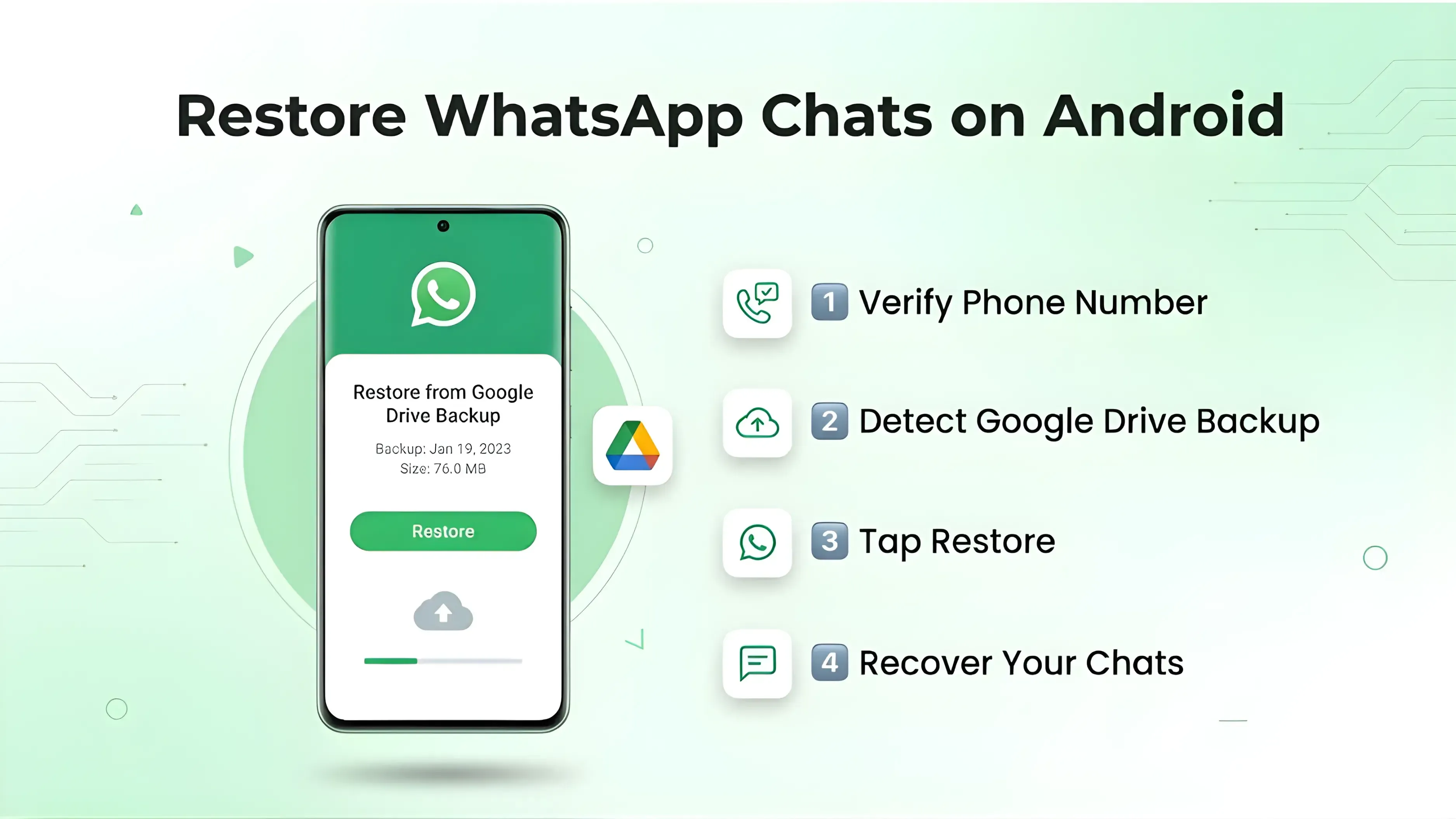
If you’ve already backed up your WhatsApp messages to Google Drive, restoring them on Android is easy. Just follow these steps:
- Open WhatsApp on your Android phone.
- Tap the three-dot menu in the top-right corner.
- Go to Settings > Chats > Chat backup.
- Tap Back Up to create a fresh backup before restoring if needed.
- To restore chats, uninstall and reinstall WhatsApp.
- Open WhatsApp and verify your phone number.
- When prompted, tap Restore to retrieve your chats from Google Drive.
Tip: If you don’t see the restore button, check that you’re signed into the same Google Account you used for the backup and that your phone number matches.
How to Restore WhatsApp Chats on iPhone
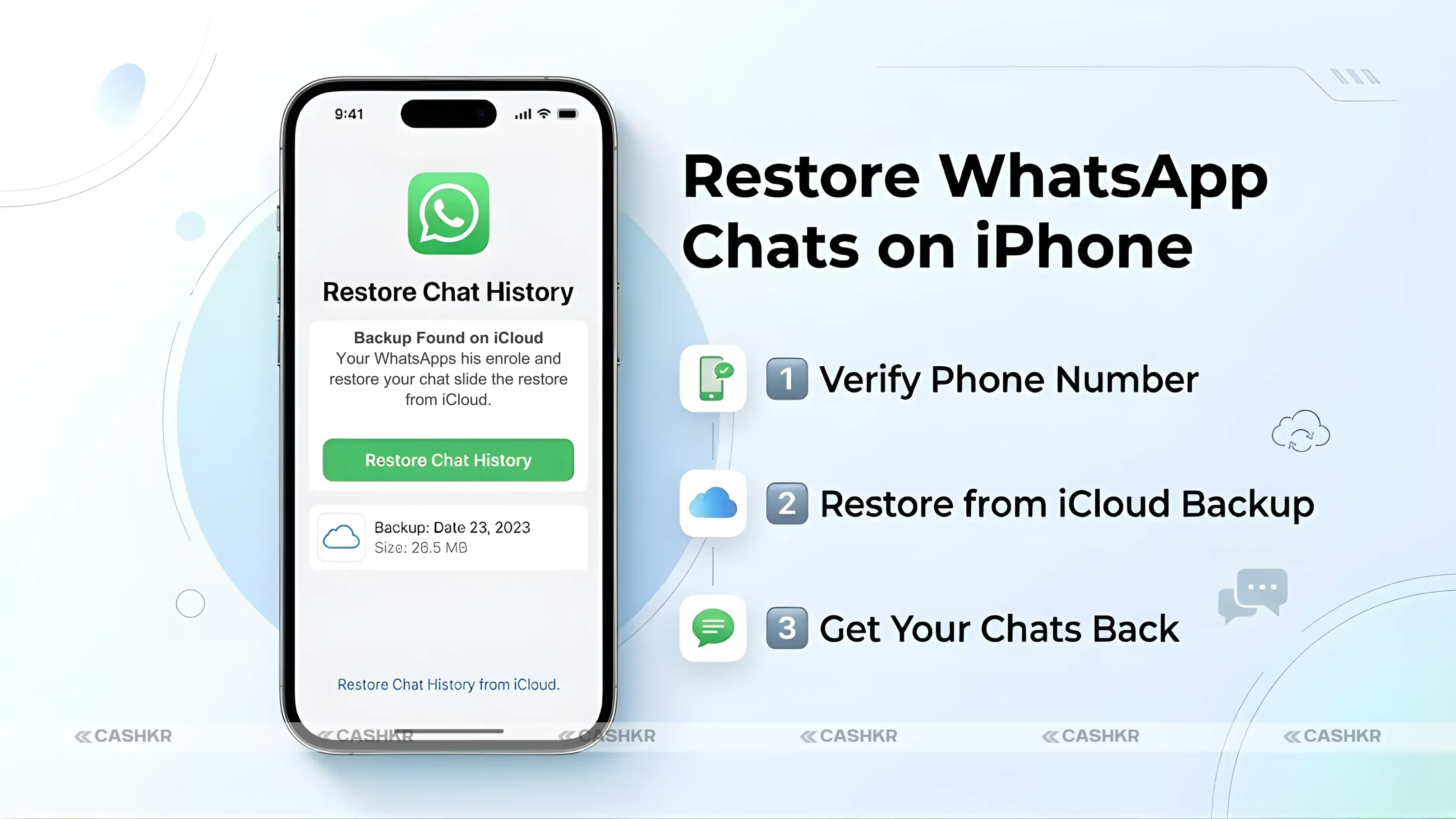
If you use an iPhone, you can restore your WhatsApp chats with iCloud. Here’s how:
- Open WhatsApp on your iPhone.
- Tap your profile picture in the top-left corner.
- Navigate to Chats > Chat Backup.
- Tap Back Up Now to create a current backup if necessary.
- Uninstall and reinstall WhatsApp.
- Verify your phone number and tap Restore Chat History when prompted.
Tip: Make sure you are logged into the same Apple ID used for the backup. WhatsApp will only restore backups from the same account and phone number.
How to Set Up Automatic Backups on Android
To keep your WhatsApp messages safe, it’s a good idea to set up automatic backups. Here’s how to do it on Android:
- Open WhatsApp and go to Settings > Chats > Chat backup.
- Tap Back up to Google Drive and select a backup schedule: Daily, Weekly, or Monthly.
- Choose the Google Account where you want to save your chats. If you don’t have a Google Account connected, tap Add account and log in.
- Enable Backup using cellular if you want to use mobile data in addition to Wi-Fi.
Tip: Including videos in your backups will increase storage usage, so enable this only if necessary.
How to Set Up Automatic Backups on iPhone
If you have an iPhone, you can also set up automatic backups with iCloud:
- Open WhatsApp and go to Settings > Chats > Chat Backup.
- Tap Auto Backup and select a backup frequency: Daily, Weekly, or Monthly.
- Choose whether to include videos in your backup.
- Ensure that your iCloud storage has enough space to accommodate the backup.
Tip: Regular backups prevent the loss of media and messages, especially when switching devices or performing iOS updates.
Troubleshooting WhatsApp Backup and Restore
Sometimes, restoring your WhatsApp chats doesn’t go as planned. Here are some common problems and how to fix them:
Restore Button Not Showing
• Ensure you’re logged into the correct Google or iCloud account.
• Verify the phone number matches the backup.
Insufficient Cloud Storage
• If your free Google Drive or iCloud storage isn’t enough for big backups, you might need to upgrade your storage plan.
Slow Backup or Restore
• Use a stable Wi-Fi connection.
• Skip backing up videos if you want the process to go faster.
Device Compatibility Issues
• Make sure WhatsApp is up to date.
• Keep in mind, some older Android or iOS versions might not work with the latest backup features.
Tips to Maintain WhatsApp Backup Efficiency
• Regular Backups: Set your backups to run at least once a week to keep your chats up to date.
• Exclude Large Media: Skip videos if you have limited storage space.
• Check Storage Often: Make sure to check your Google Drive or iCloud storage regularly.
• Use Same Phone Number: You can only restore backups with the same phone number you used before.
Final Verdict
Restoring WhatsApp chats on Android and iPhone is easy when you know the steps. Backing up your chats to Google Drive or iCloud helps you keep your important messages, photos, and videos safe. Setting up automatic backups is a great way to ensure you don’t lose anything when switching devices.
When you know how to restore and back up your WhatsApp chats, you can keep your conversations safe and stay connected with friends, family, and coworkers without worry.
FAQs
1. How can I restore WhatsApp chats on Android?
To restore WhatsApp chats on Android, you need a previous backup saved on Google Drive. Install or reinstall WhatsApp on your phone, verify your phone number, and sign in to the same Google account used for the backup. WhatsApp will automatically detect the backup and give you the option to restore your chat history.
2. How do iPhone users restore WhatsApp chat history?
iPhone users can restore their WhatsApp chats using iCloud backup. After reinstalling WhatsApp and verifying the same phone number, the app will detect the available iCloud backup. You simply need to tap the restore option to recover your chat history and media.
3. Why is it important to back up WhatsApp chats?
Backing up WhatsApp chats is important because it protects your messages, photos, videos, and documents from being lost if you change phones or accidentally delete the app. Regular backups ensure that your conversations remain safe and can be easily restored whenever needed.
4. Where are WhatsApp backups stored on Android and iPhone?
On Android devices, WhatsApp backups are stored in Google Drive, while on iPhone devices, they are stored in iCloud. These cloud storage services allow users to restore their chat history when reinstalling WhatsApp or switching to a new device.
5. What should I check before restoring WhatsApp chats?
Before restoring WhatsApp chats, ensure you are logged in to the same Google or iCloud account used for the backup. Your phone number must also match the one used during the backup process. Additionally, your device should have enough storage space and a stable internet connection to complete the restoration successfully.
6. Can I restore WhatsApp chats without a backup?
No, WhatsApp chats can only be restored if a previous backup exists. If you have never backed up your chats to Google Drive or iCloud, it will not be possible to recover your old messages after reinstalling the app.
7. How can I enable automatic WhatsApp backups on Android?
Android users can enable automatic backups by opening WhatsApp settings and navigating to the chat backup section. From there, you can choose how often backups should occur, such as daily, weekly, or monthly, and select the Google account where the backups will be stored.
8. How do automatic WhatsApp backups work on iPhone?
Automatic backups on iPhone are managed through iCloud. Users can enable the auto backup feature in WhatsApp settings and choose a backup frequency. This allows WhatsApp to regularly save chat data to iCloud without requiring manual backups.
9. Why is the restore option sometimes not visible in WhatsApp?
The restore option may not appear if you are logged into a different Google or iCloud account than the one used for the backup. It may also happen if the phone number used during verification does not match the number associated with the backup.
10. What can I do if WhatsApp backup or restore is slow?
Slow backup or restore speeds are often caused by unstable internet connections or large media files in chats. Using a stable Wi-Fi connection and limiting video backups can help improve the speed of the process.
If you want to sell your old devices then,
click here.
 Yaskar Jung ShahUpdated: Jul 23, 2026·11 min read