Google Find My Device: Track, Ring or Erase a Lost Phone
 Yaskar Jung ShahUpdated: Sep 23, 2026·15 min read
Google Find My Device guide, locate your phone in minutes.
Lost Your Android Phone? Google Can Help You Find It Right Now
You reach into your pocket, but your phone is missing.
You check your bag, your desk, and the sofa cushions, but still find nothing. That sinking feeling is one of the most stressful parts of an ordinary day.
Many people do not realize that if you have an Android phone and a Google account, you already have a free tool that can show your phone’s location, make it ring at full volume even if it is on silent, lock it so others cannot access it, and erase it remotely if needed.
This tool is called Google Find My Device. It works through any web browser and is completely free. This guide will walk you through each step in simple language so you can use it right away.
- Before you keep reading, open android.com/find on any device, sign in with your Google account, and see if your phone appears on the map. If it does, Find My Device is already set up on your phone.
What Is Google Find My Device?
Google Find My Device is a free service included with every Android phone. When you sign in with your Google account, it connects automatically. There is nothing extra to install or set up.
The service uses GPS, Wi-Fi, and mobile network signals to locate your phone. This information is linked to your Google account and can be accessed from any device at android.com/find.
Show location | Your phone appears as a dot on a Google Map in real time |
Last known spot | If phone is offline, shows where it was last connected |
Play Sound | Rings at full volume for 5 minutes, even if phone is on silent |
Secure Device | Locks phone with a new PIN, shows your message on the lock screen |
Erase Device | Permanently wipes all data as a last resort |
For Find My Device to work, your phone needs to be on, connected to Wi-Fi or mobile data, and signed into a Google account. If the phone is off or not online, you will only see its last known location.
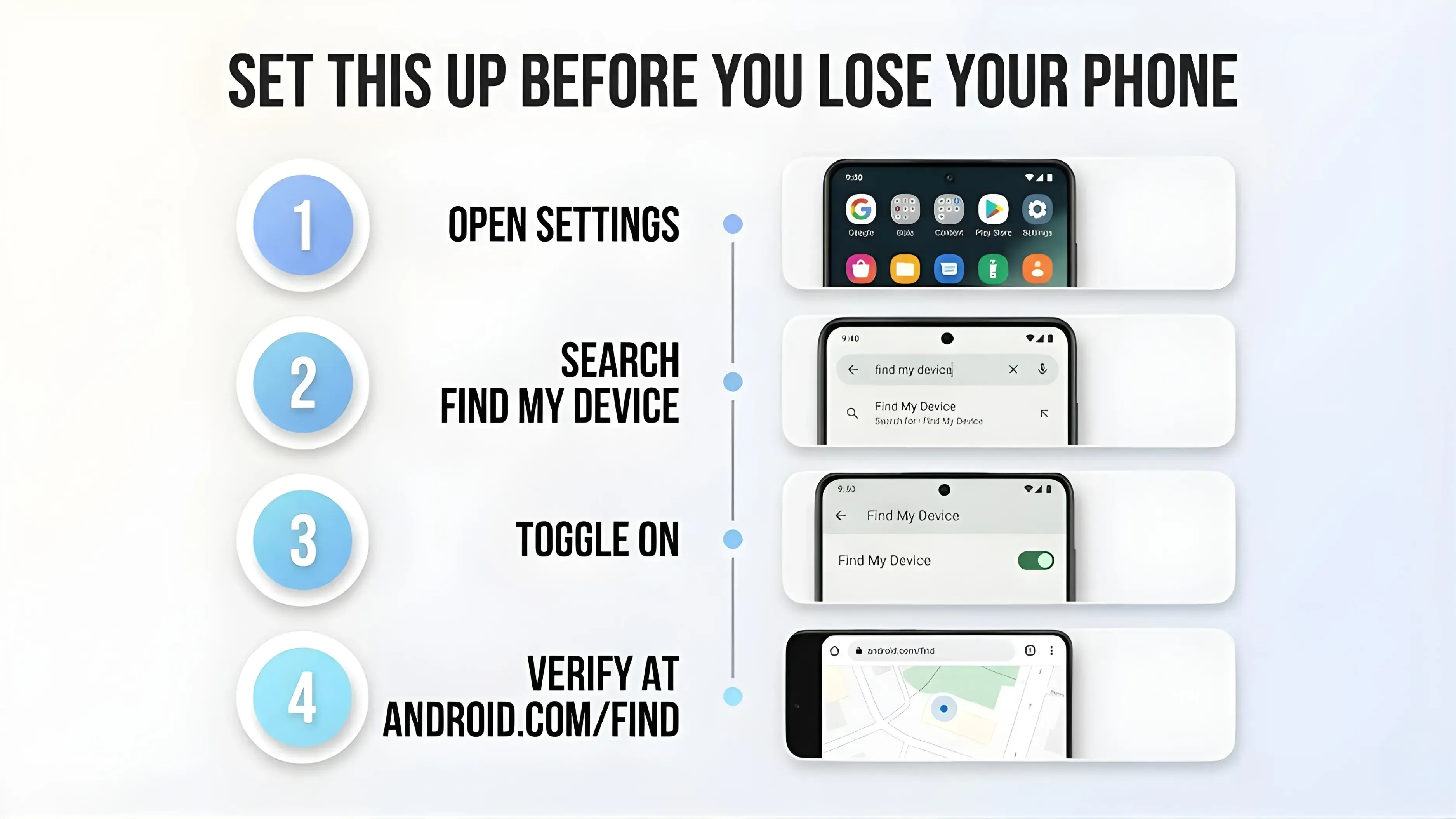
Set This Up Before You Lose Your Phone
Find My Device is usually turned on by default on most Android phones. Still, it only takes a few seconds to check now, and doing so makes sure you are protected before anything happens.
Step 1: Open Settings. Tap the Settings app on your Android phone. It looks like a gear or wheel icon.
Step 2: Search for Find My Device. Tap the search bar at the top of Settings, then type "Find My Device." Tap the result. Or go to Settings > Google > Find My Device.
Step 3: Make sure it is turned on. You will see a toggle. If it is grey or off, tap it to turn it blue or green. That means it is active.
Step 4: Verify it is working. Open any browser on another device and go to android.com/find. Sign in with your Google account. If your phone appears on the map, you are all set.
Write down your Google account email address and keep it somewhere other than your phone. You can use a notebook, save it in another email account, or write it on paper. You will need this to log in if your phone is lost.
How to Find Your Lost Phone Right Now: Step by Step
As soon as you notice your phone is missing, follow these steps. Acting quickly gives you a better chance of finding it before the battery runs out or someone turns it off.
Step 1: Borrow another device. Use a laptop, tablet, or a friend's phone. Open any web browser. Chrome, Safari, Firefox, anything. You do not need to install anything.
Step 2: Go to android.com/find. Type this address in the browser’s address bar and press Enter. You can also search for 'find my device' in Google, and a map with your phone’s location may appear in the search results.
Step 3: Sign in with your Google account. Use the same Google account that is set up on your lost phone. Enter your email and password. If two-step verification is on, Google will send a code to your backup email or recovery number.
Step 4: Select your device. If you have more than one Android device, a dropdown at the top lets you choose the right phone. Select the missing one.
Step 5: Read the location on the map. Your phone appears as a dot on the map. Zoom in to see the exact street or building. A timestamp shows when the location was last updated. If offline, this is the last known location.
Step 6: Choose your next action. Three options appear on the left: Play Sound, Secure Device, and Erase Device. See the table below for guidance on which to use.
Which Action Should You Choose?
| Play Sound | Phone is nearby, at home, office, or in a vehicle | Rings at full volume for 5 minutes even if phone is on silent or Do Not Disturb |
| Secure Device | Phone may be with a stranger or left somewhere public | Locks with a new PIN. Add a message and your number on lock screen for a finder |
| Erase Device | Phone is confirmed stolen and cannot be recovered | Permanently wipes all data. Warning: erasing stops all location tracking immediately |
If you think your phone is nearby, try Play Sound first. Use Secure Device if someone else might have your phone. Only use Erase Device as a last resort, because after erasing, you cannot track the phone anymore.
Other Ways to Track a Lost Android Phone
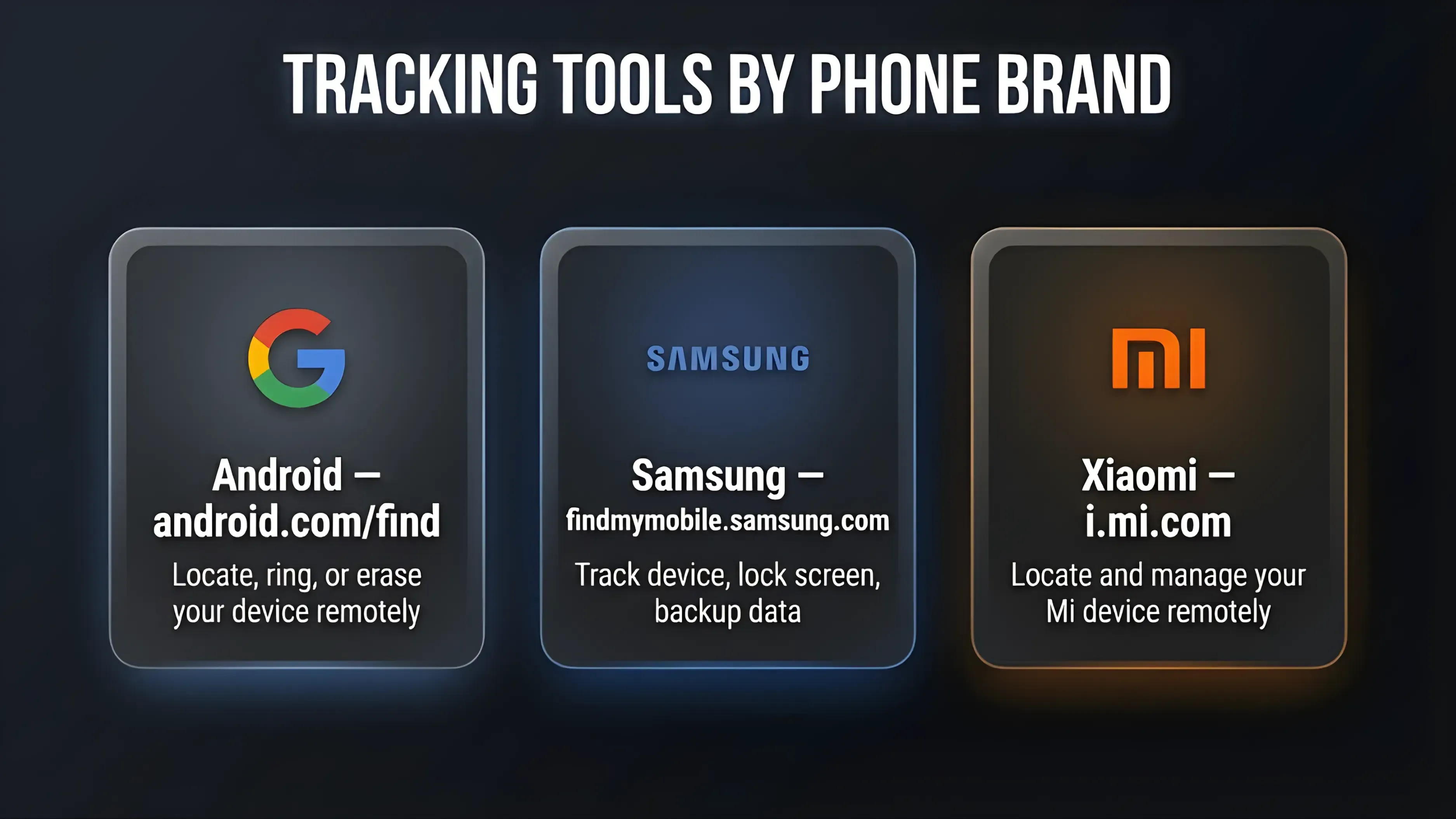
Google Find My Device works on nearly all Android phones, but some brands also offer their own tracking tools with extra features.
Samsung phones: Use Find My Mobile at findmymobile.samsung.com. Sign in with your Samsung account. Samsung's tool lets you remotely unlock the phone without knowing the PIN, retrieve recent call logs, and back up data before erasing.
Xiaomi, Redmi, and Poco phones: Use Mi Find Device at i.mi.com. Sign in with your Mi Account. It lets you locate, ring, lock, and erase your device, similar to Google's tool.
Google Maps Timeline: If you are unsure where you left your phone, Maps Timeline can show where your phone has been. Go to maps.google.com, click your profile photo, select Your Timeline, and check today’s route. This shows past locations, not live tracking, but it can help you retrace your steps.
Call your number: Borrow a friend's phone and call your own number. Someone honest may have picked it up and kept it safe. If you were at a restaurant, shop, or cinema, call to ask the staff if anyone handed it in.
Also Read: HP OmniBook X Flip vs Lenovo IdeaPad 5x: Which to Buy?
What to Do If Your Phone Is Stolen
If Find My Device shows your phone in an unfamiliar place or the location is moving, someone may have taken it. Here is what you should do, step by step.
1. Do not go to retrieve it yourself: If the location shows an area you are not familiar with, do not go alone. Your safety matters far more than the phone. Share the location with the police instead.
2. Lock your phone right away: Go to android.com/find and select Secure Device. Set a new PIN and add your backup contact number as a message on the lock screen. This prevents anyone from accessing your apps and data.
3. Find your IMEI number and file a complaint: The IMEI is a unique 15-digit number that identifies your phone. Dial *#06# on any phone to see it, or check your original box or purchase receipt. File a police complaint (FIR) at your nearest station and include the IMEI. In India, you can also report it at ceir.gov.in to have the device blocked nationwide.
4. Block your SIM card: Call your carrier, such as Jio, Airtel, Vi, or BSNL, and ask them to block your SIM right away. This prevents anyone from using your number or data. Your carrier will give you a replacement SIM with the same number.
5. Secure your online accounts: Go to myaccount.google.com, click Security, then Your Devices, and sign out of the lost phone. Change your Google password immediately. Then change the passwords for any banking apps, UPI apps like Paytm and PhonePe, and any social media or email accounts you've logged in to.
If your banking apps used biometric login on the stolen phone, call your bank’s customer care right away and ask them to deactivate that device. Most Indian banks have a 24-hour helpline for this.
5 Things to Do Right Now to Be Prepared
The best time to set up phone tracking is before you need it. These five steps take less than 10 minutes.
- Confirm Find My Device is on: Go to Settings, then Google, then Find My Device, and make sure the toggle is enabled.
- Write down your Google account email address and store it somewhere other than your phone.
- Note your IMEI number: Dial *#06# and it appears on screen. Save it in your email or write it in a notebook.
- Add an emergency contact to your lock screen: Settings> Lock Screen> Add Text. Use a family member's number so a finder can reach you.
- Back up your phone regularly: Settings> Google> Backup> Back Up Now. If the phone is ever erased, you lose nothing important.
Final Verdict
Losing a phone is stressful, but you are not helpless.
Google gives every Android user free tools to locate, secure, and protect their device from any web browser. If your phone goes missing, go to android.com/find, sign in, and take action. Ring it if it might be nearby, lock it if someone else may have it, and erase it only as a last resort to protect your data.
Most importantly, take a few minutes today to make sure Find My Device is active on your phone. The peace of mind is worth the short time it takes to check.
- Quick reminder: Go to android.com/find now, sign in with your Google account, and check if your phone appears on the map. If it does, you are protected. If not, go to Settings, then Google, then Find My Device, and turn it on.
FAQs
1. Can I find my lost Android phone if it is switched off?
Advertisement
Not in real time. If the phone is off, Find My Device cannot show the current location. It will display the last known location from before the phone was switched off. Once the phone is turned back on and reconnects to Wi-Fi or mobile data, the location will update automatically.
2. Does Google Find My Device work without internet on the phone?
No. The phone needs an active mobile data or Wi-Fi connection to show a live location. If the SIM is removed or the phone is in flight mode, Find My Device will only show the last known location from when it was last online.
3. How accurate is Google's phone location tracking?
In open outdoor areas with a clear GPS signal, accuracy is typically within 5 to 10 metres. Indoors or in dense urban areas, it may range from 50 to 100 metres. The timestamp on the map tells you how recently the location was recorded.
4. Can I track a phone using just the phone number?
No. Google Find My Device requires access to the Google account signed in to the phone. If someone claims they can track a phone using only a phone number and charges a fee, it is almost certainly a scam.
5. What happens after I remotely erase my phone?
Once you erase the phone using Find My Device, all data is wiped, and tracking stops immediately. The device is removed from your Google account. This is why erasing should always be the absolute last option, used only when you are certain the phone cannot be recovered.
6. Does Find My Device work on iPhones?
No. Find My Device is for Android phones only. Apple has its own equivalent service called Find My, available at iCloud.com or through the Find My app on another Apple device.
7. Can a thief disable Find My Device?
Yes, if a thief performs a factory reset on the phone, Find My Device stops working. This is why locking the phone quickly with Secure Device is so important. A locked phone with a new PIN cannot be factory reset without knowing the PIN, which keeps tracking active for longer.
8. What should I do if the phone's location is not updating?
The phone is likely offline. It may be out of battery, switched off, in a signal dead zone, or with mobile data turned off. Check back periodically. When the phone comes back online, the location will update, and Google may send you an email notification.
9. How do I find my IMEI number if I no longer have the phone?
Check the original box the phone came in. The IMEI is printed on a sticker on the box. You can also find it on your purchase receipt or invoice, or in your email if you registered the device. In India, if you have filed a police complaint, you can also check CEIR at ceir.gov.in.
10. Is Google Find My Device really free?
Yes, completely free. There is no subscription, no app to buy, and no hidden charges. It is built into every Android phone that is signed into a Google account and accessible from any browser at android.com/find.
If you want to sell your old devices, then click here.
Recommended for you
Sell with Cashkr
Got an old phone lying around?
Cashkr buys used devices at a fair price with free doorstep pickup and same-day payment across 2,000+ pincodes. Get an upfront quote in seconds.
Sell Old Phone OnlineCheck your phone's value in seconds
Written by
Yaskar Jung Shah
Advertisement
Advertisement