How to Switch Off an iPhone: Easy Guide for All Models
 Yaskar Jung ShahUpdated: Aug 14, 2026·16 min read
Learn how to switch off an iPhone using buttons, settings.

Get the Cashkr app for faster payouts

Do you want to switch off your iPhone but don't know how? This article has easy-to-follow steps for all iPhone models, whether you have a new Apple iPhone 17 or an older one. Learn how to turn off your device quickly and effortlessly.
There are several reasons why you might wish to switch off your iPhone. You may save battery life, fix small technical problems, or get a respite from incessant notifications by turning off your iPhone. Every Apple user should know when and how to turn off their iPhone.
One of the primary reasons to turn off your iPhone is to conserve battery life. If you know you won't be using your iPhone for an extended period, turning it off can significantly extend its battery. This feature is especially useful when traveling or during times when access to power is limited.
At times, your iPhone may have minor problems. This can be solved by turning off your iPhone and switching it on again. The procedure is similar to rebooting your computer. These steps may solve many of the problems you may be having with your iPhone.
When you really need to pay attention, like when you're in a conference or alone, turning off your iPhone can help you stay focused. You won't get calls, texts, or other notifications when you turn off your iPhone. It also helps keep things private.
If you have an iPhone X or later, your iPhone uses Face ID. Turning off these iPhone models involves a specific button combination. This method is designed to prevent accidental shutdowns while providing an easy way to turn off your iPhone when needed.
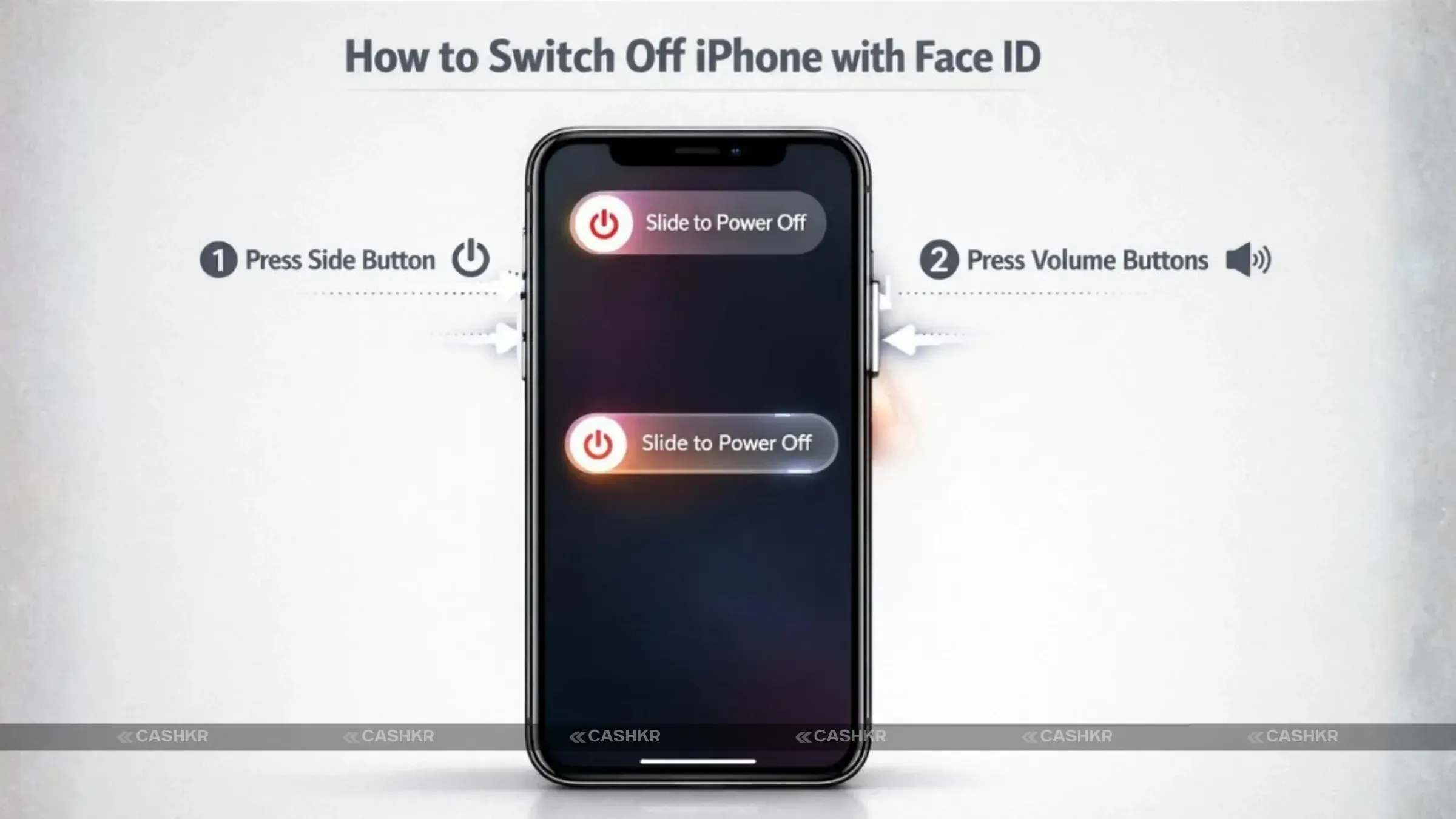
Here's how to turn off your iPhone with Face ID. The process involves a few simple steps:
Press and hold the side button and one of the volume buttons simultaneously. Continue to press and hold until the power-off slider appears on the screen.
Drag the slider to the right to completely turn off your iPhone.
Also Read: Samsung Galaxy S25 Ultra Under ₹80,000: Get ₹40,000 Off
This method works on all iPhone models that feature Face ID, including the iPhone X, iPhone 13, and potentially future models like the iPhone 17. If your device does not have a home button, it most likely uses Face ID, and this method applies.
If the power-off slider doesn't appear when you press and hold the side button and volume button, ensure you are pressing both buttons at the same time. If the issue persists, force restart the device by quickly pressing the volume up button, then the volume down button, and then pressing and holding the side button until the Apple logo appears.
For older iPhone models with a home button, such as the iPhone 6 and iPhone 8, the process to turn off your iPhone is slightly different but equally straightforward. This method relies on the side button (also known as the power button) to access the power-off slider.
To turn off your iPhone with a home button, follow these steps:
Press and hold the side button (the power button) on the right side of your iPhone.
Continue to hold the side button until the power-off slider appears on the screen.
Drag the slider to power down your iPhone.
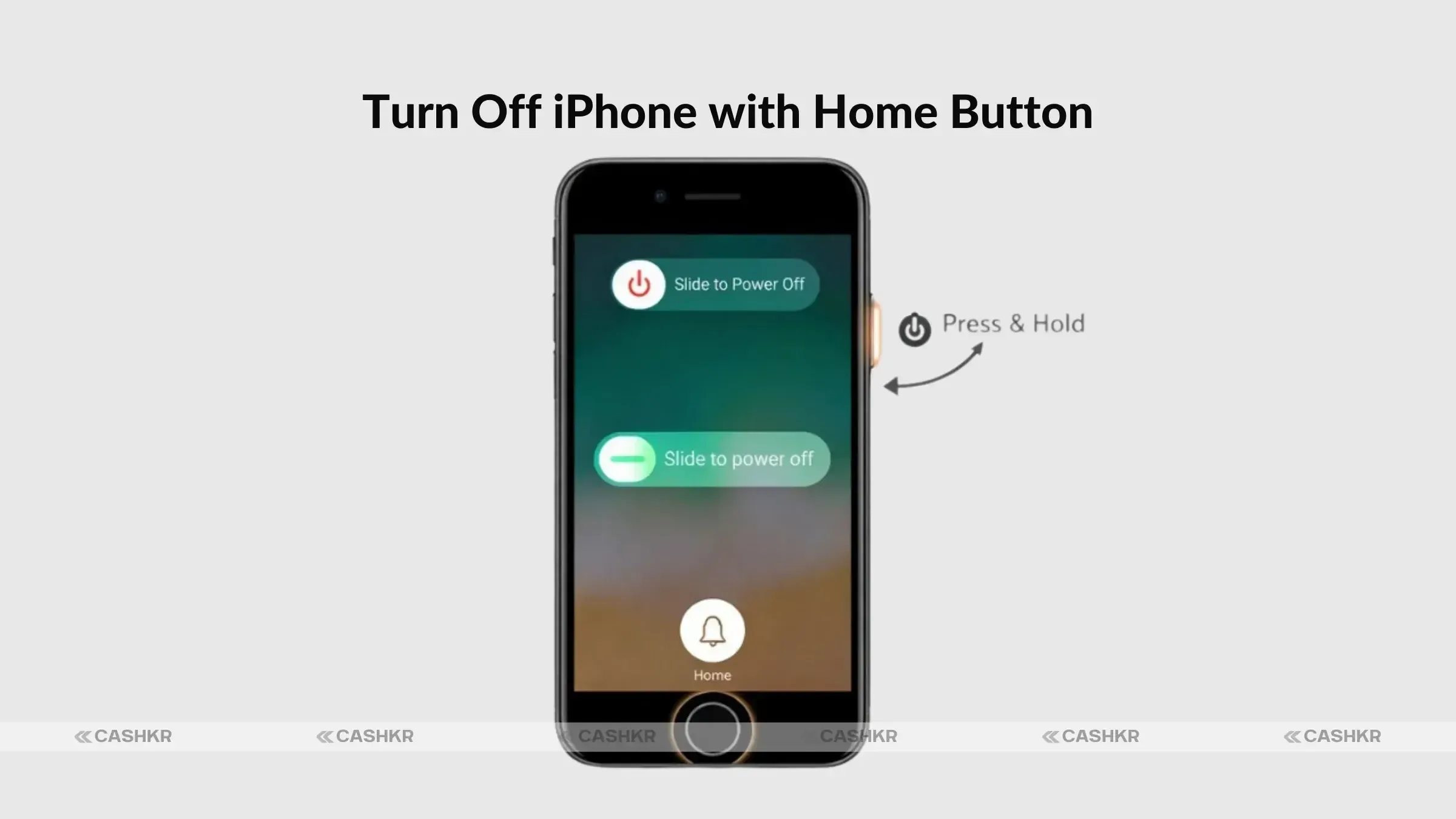
This method is applicable to iPhone models including the iPhone 6, iPhone 7, and iPhone 8. These devices feature a physical home button on the front and use the side button for turning the device off. Ensure that the button is functional to successfully turn off your iPhone.
If you are unable to bring up the power-off slider by pressing and holding the side button, ensure that the button is not physically damaged. If the button is working but the slider still doesn't appear, try force restarting your iPhone. If problems still occur, go to settings.
Another simple way to turn off your iPhone is by going to the settings app. This method works for all iPhone models, whether they have Face ID or a home button. Using buttons or settings allows users to shut down, which ensures the device is turned off. This method is also applicable to the Apple iPhone 17.
Here's how to turn off your iPhone. First, you need to access the settings, which you can do by following these steps:
Tap the setting icon on your home screen.
Scroll down and tap General.
At the bottom of the General page, tap the Shut Down option.
The power-off slider will then appear. Drag the slider to turn off your iPhone completely.
One good thing about the settings technique is that you don't have to press any buttons. If you can't use the side button or the volume buttons, this is incredibly helpful. Any iPhone owner can utilize this strategy because it works on all versions of iOS.
Make sure you're in the General settings menu if you can't find the Shut Down option. This method might not work if your iPhone is stuck. If that's the case, try restarting it by force. Also, check that your iPhone has the most recent version of iOS. Apple frequently upgrades system files to keep devices stable.
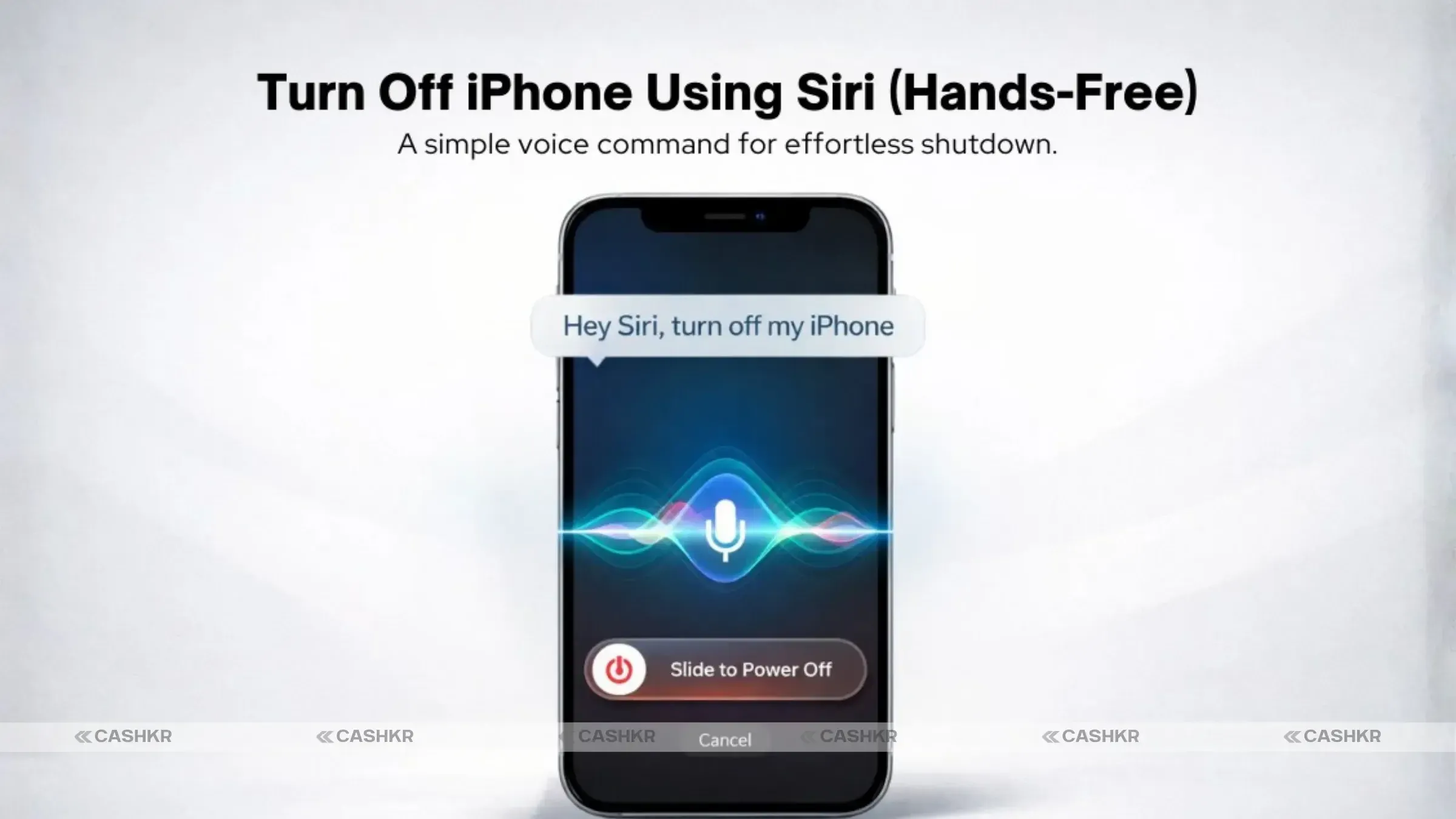
If you prefer a hands-free approach, Siri can help you turn off your iPhone without pressing any buttons. This method leverages Apple's voice assistant to turn your iPhone off with a simple voice command and makes turning it off even easier. This is also available for the Apple iPhone 17.
To turn off your iPhone using Siri, first, make sure that “Hey Siri” is enabled in your settings. To do this, go to Settings and tap Siri & Search, then enable Listen for “Hey Siri.” After enabling, say “Hey Siri, turn off my iPhone.” Siri will ask you to confirm your request. Tap “Confirm” or "Power off" to turn off your iPhone.
The benefit of using voice commands to turn off your iPhone is that you don't need to press any physical buttons. It is especially useful if you have difficulty using buttons or if your buttons are not working correctly. Voice commands also make multitasking more efficient, since you can turn off your iPhone hands-free.
Also Read: Top 5 Phone Selling Apps: Which Offers the Best Deals?
If Siri doesn’t respond when you say “Hey Siri,” make sure that Siri is enabled in your settings. Also, check if your microphone is working correctly. If Siri still does not understand your command, try speaking clearly and ensure there is minimal background noise. Sometimes Siri requires a stable internet connection to function properly.
Turning off your device is not always necessary, but there are situations where it can be beneficial. Whether it's to conserve battery life, resolve software issues, or ensure privacy, knowing when to turn off your iPhone can enhance your overall user experience and device health.
One of the main reasons to switch off your iPhone is to save battery life. Turning off your iPhone can save a lot of battery life if you know you won't be using it for a long time, like overnight or when you're traveling. This functionality is quite helpful if you can't get to a power source.
If your iPhone is acting up or running slowly, turning it off and then back on again can often fix the problem. This method clears the device's memory and resets its software, just like rebooting a computer. It's a quick and straightforward technique to fix little problems without having to go through more complicated stages to find the problem.
When you need to keep anything private or stop someone from getting into your phone without permission, it can be a smart idea to switch it off. For example, if you're crossing borders or going to a private meeting, turning off your device will stop any possible data leaks or unwanted spying. It's a good idea to switch off your iPhone for security reasons.
Follow the steps for switching off your iPhone to restart it. To do this, you usually have to press and hold either the power button and one of the volume buttons on newer devices or simply the side button on older models. Instead of sliding the slider to turn off the power, seek for a way to restart.
When to Restart Your Device
When your device is acting slowly, as when apps take a long time to load or it seems to be running slowly in general, restarting it can help. It's also a good idea to restart your computer after installing new software to make sure all the changes take effect. This procedure is not the same as a full shutdown, which takes longer than just turning off your iPhone.
Fixing Restart Problems
You might need to do a hard restart if your iPhone is frozen and won't resume properly. To achieve this, swiftly push and release the volume up button, then the volume down button, and finally press and hold the side button until the Apple logo shows. This makes the iPhone reboot.
In short, you may turn off your iPhone in several ways, such as by using physical buttons, going to settings, or using Siri. For Face ID models like the iPhone X and later, press and hold the side button and a volume button at the same time. Press and hold the side button on Home button models. You can choose how to shut down your device by using buttons or settings. It's crucial to know how to turn off your iPhone to keep it healthy, save battery life, and protect your privacy. Whether you opt for buttons or settings, powering off your iPhone periodically can help resolve minor issues and optimize performance. So, schedule a shutdown every now and then and switch it back on.
1. How do I Switch off my iPhone with Face ID?
To switch off your iPhone with Face ID, press and hold the side button and one of the volume buttons simultaneously until the power-off slider appears. Then, drag the slider to the right to turn off your iPhone. This method applies to iPhone X and later models. These Apple models are using Face ID.
2. Can I turn off my iPhone with the Home button?
Yes, if your iPhone has a home button, you can turn off your iPhone by pressing and holding the side button until the power-off slider appears. Then, drag the slider to shut down your device. This method is applicable to older iPhone models like the iPhone 6 and iPhone 8.
3. Can Siri turn off my iPhone?
Yes, Siri can turn off your iPhone. Ensure “Hey Siri” is enabled in your settings, then say “Hey Siri, turn off my iPhone.” Siri will ask you to confirm. Confirm to shut down your device. This procedure is a hands-free way to turn off your iPhone for all iPhone models. You can tap "Power off" to confirm.
4. Why doesn’t the power button show the power menu?
If the power button doesn’t show the power menu, ensure you are pressing and holding it correctly. On newer models, you need to press and hold the side button along with a volume button. If the issue persists, check your button settings by going to settings or try a force restart.
5. How do I restart my iPhone?
To restart your iPhone, follow the same steps as turning it off, but instead of dragging the power-off slider, tap the Restart option when it appears. This will turn off your iPhone briefly and then turn on your iPhone automatically. This method is applicable for all iPhone models from Apple.
6. What should I do if my iPhone is frozen and I can’t turn it off?
If your iPhone is frozen and you can’t turn off your iPhone normally, perform a force restart. Press and quickly release the volume up button, then press and quickly release the volume down button. Finally, press and hold the side button until the Apple logo appears. The device will then restart.
7. How can I turn off my iPhone without pressing buttons?
You may turn off your iPhone without using the buttons by asking Siri or heading to settings. Say "Hey Siri, turn off my iPhone" after turning on "Hey Siri." You can also go to Settings > General > Shut Down and move the slider. This solution works with all versions of iOS.
8. Is it safe to turn off my iPhone daily?
Yes, it is generally safe to turn off your iPhone daily. Regularly turning off your device can help clear its memory and improve performance. However, it’s not necessary to do this every day unless you notice specific issues. Apple always gives recommendations in Apple Support to prolong device health.
9. What should I do if the power slider doesn’t show up?
If the power-off slider doesn’t appear when you press and hold the buttons, make sure you are pressing the correct buttons simultaneously (the side button and a volume button on newer models). Also, ensure that your buttons are not damaged. If problems still occur, try a force restart.
10. How do I schedule an auto power-off for my iPhone?
Right now, iOS doesn't have a built-in way to set up an automatic shutdown. You might be able to locate third-party programs on the Apple App Store that do this, but they might not always work as well as they should. You can also discover more choices for making power management easier in the settings.
If you want to sell your old devices then, click here.
Sell with Cashkr
Cashkr buys used devices at a fair price with free doorstep pickup and same-day payment across 2,000+ pincodes. Get an upfront quote in seconds.
Sell Old Phone OnlineCheck your phone's value in seconds
Written by

Honor 600 Pro and Honor 600 price in India along with full details.
Infinix GT 50 Pro price in India triggers and 6500mAh at Rs. 35K.