Vivo X300 Camera Settings: 8 Changes That Make a Real Difference
The Vivo X300 stands out for its excellent camera system in 2026. However, great hardware alone is not enough to get the best results. Most smartphones, including the Vivo X300, are set up for convenience by default, not for the highest image quality. The default mode is fine for quick photos, but it does not take full advantage of ZEISS optics or AI processing.
This guide explains eight settings changes that can noticeably improve your photos and videos. Each tip is described in simple terms, with advice on when and why to use it. No matter what you like to shoot—portraits, landscapes, street scenes, social media, or video—you’ll find something here to help you get better results right away.
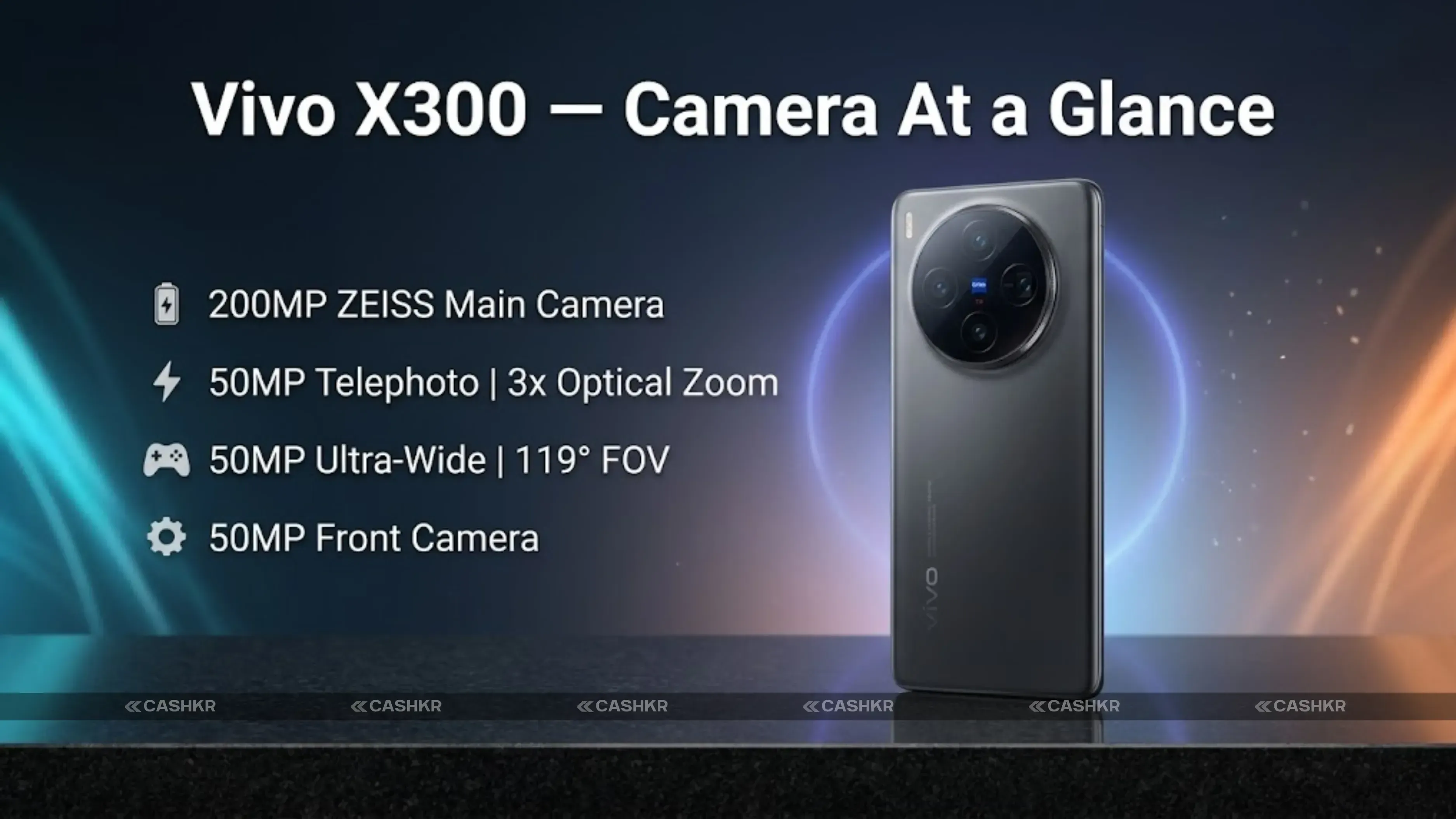
Camera specs: 200MP ZEISS main camera | 50MP periscope telephoto (3x optical) | 50MP ultra-wide (119-degree field of view) | 50MP front camera | Default shooting resolution: 12.5MP pixel-binned for better quality
Understanding the Default 12.5MP Setting
Before you start changing settings, it’s important to know that the Vivo X300’s default photo mode uses 12.5MP, not the full 200MP.
This isn’t a bug or a problem—it’s actually the best setting for most situations. The phone uses pixel binning, which means it combines data from several sensor pixels into one. This gives you a 12.5MP photo with much better color, dynamic range, and low-light performance than a straight 200MP shot.
Here’s an easy way to think about it: 200MP mode gives you higher resolution, but each pixel gets less light. The 12.5MP pixel-binned mode produces brighter, richer, and cleaner images that usually look better in everyday situations. Save 200MP for specific use cases covered in Setting 3 below. For everything else, the default 12.5MP output is the right choice.
To put it simply, pixel binning is like having 16 people measure a room and then averaging their results. The average is more accurate than any single measurement. The Vivo X300 combines 16 pixels into one for its 12.5MP photos, which leads to richer and more accurate images.
Night Mode is the most important setting to use on the Vivo X300 when you’re shooting in low light.
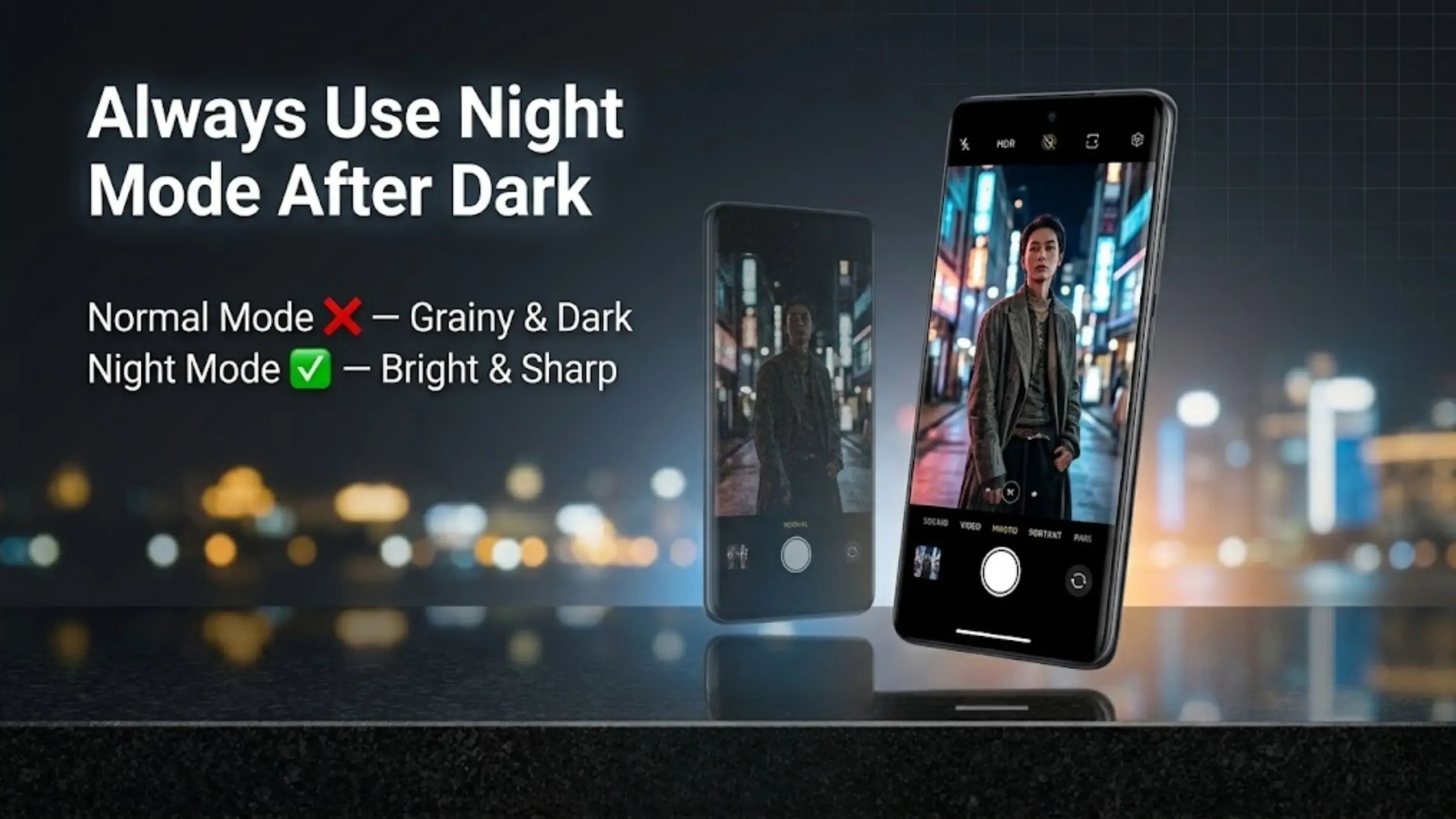
If you use standard Photo mode in a dim setting, the camera takes a quick shot that often looks dark and grainy. Night Mode works differently. It takes several shorter exposures over 1 to 3 seconds, then uses AI to combine them into one photo that’s brighter, sharper, and much less noisy than a regular shot.
Night Mode’s AI lines up the different exposures to make up for small hand movements, so you usually don’t need a tripod. The results are much better than what you get with standard mode.
Use Night Mode for indoor dining, night street scenes, concerts, events with low lighting, or any time auto mode gives you dark or grainy photos. Setting 1 Night Mode Switch to Night Mode in any dim environment. Hold the phone steady for 1 to 3 seconds while it processes. The longer it has, the cleaner the result.
Night Mode vs standard mode: In low light, Night Mode can produce photos that look like they were shot with a professional camera on a tripod. In standard mode, the same scene produces noisy, dark images with blown highlights. Always choose Night Mode after sunset or in indoor locations.
Setting 2: AI Scene Optimisation for Everyday Shooting
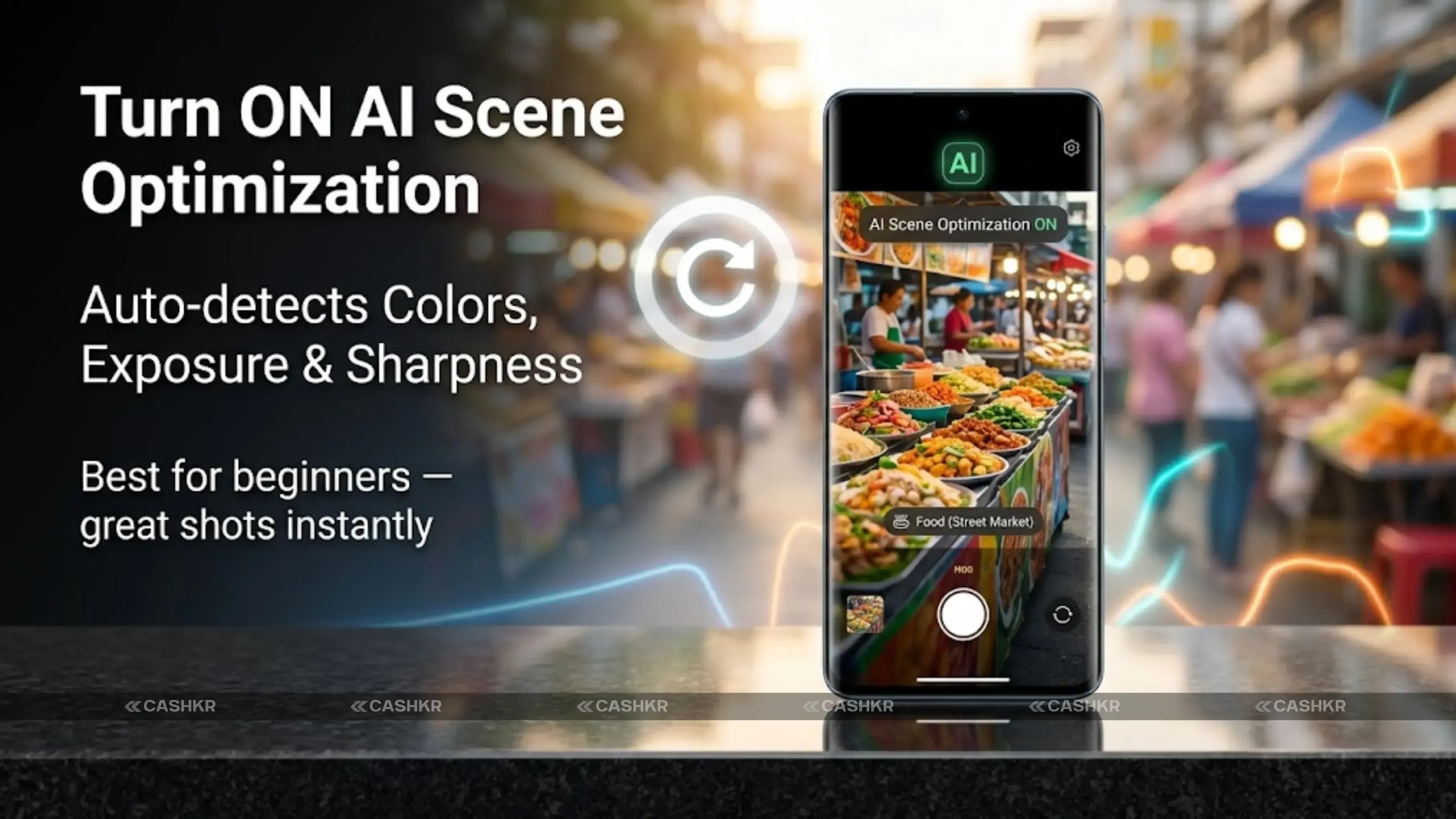
AI Scene Optimisation is a setting you can turn on or off, but most people should keep it on. When it’s on, the phone’s AI looks at the scene before you take a photo and automatically adjusts things like color, contrast, sharpness, exposure, and white balance. For example, it makes forests look greener, food look warmer and more detailed, and buildings look sharper.
On the Vivo X300, these adjustments are subtle and natural, unlike some phones that make photos look too saturated or fake. ZEISS color science helps keep everything looking true to life. If you like editing your photos later, turn off AI Scene Optimisation to get a more neutral image that’s easier to work with in Lightroom or Snapseed. If you want great photos straight from the camera, just leave it on.
Setting 2 AI Scene Optimisation Go to Camera Settings and ensure AI Scene Optimisation is toggled on. For Lightroom editors who prefer a neutral base, turn it off.
Setting 3: Ultra HD 200MP Mode and When to Actually Use It
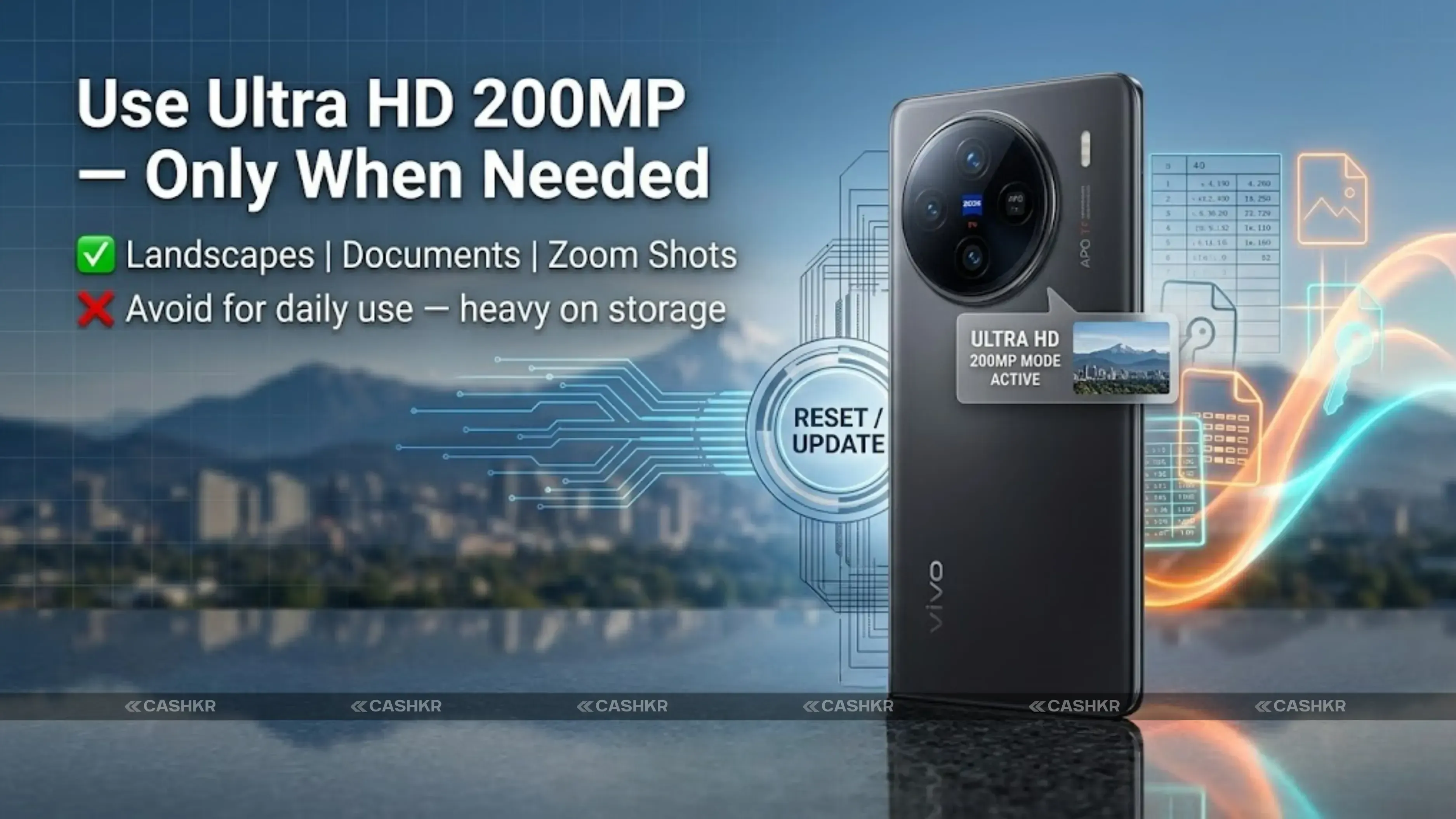
The 200MP mode is meant for times when you really need the highest resolution. It’s not designed for everyday photos.
When to use 200MP mode: capturing a document or whiteboard where you need to zoom into fine text later, landscape photography where you plan to make a large print or crop into a specific section, architecture photography where details in distant structures need to be resolved, and situations where you want to crop into a scene and still have enough pixels remaining for a full-quality image.
Don’t use 200MP mode for casual photos, social media, portraits, indoor shots, or any time you’ll just view the photo on a screen. The files are much bigger, take longer to process, and you won’t see the extra detail on most devices.
A good rule of thumb: use 200MP only if you plan to zoom in on the photo or print it very large. For everything else, the 12.5MP default works better. Setting 3 Ultra HD 200MP Open the camera app and tap the resolution selector at the top. Choose Ultra HD for documents, detailed landscapes, or large-print photography. Switch back to the default for everything else.
Be careful with storage: one 200MP photo can be over 50MB. If you shoot in 200MP mode all the time, your storage will fill up fast. Only use it when you really need that much detail.
Portrait mode on the Vivo X300 lets you pick different focal lengths, and your choice has a big impact on how your portraits turn out. The 50mm focal length is the classic choice for portraits. It keeps faces looking natural, with little distortion, and gives a smooth background blur. This is the best option for most portrait photos.
The 85mm focal length is the telephoto option for portraits. It slightly compresses facial features, which many people find flattering, and creates a stronger, more dramatic background blur. This gives you a look similar to professional portraits. Use 85mm when you want a more cinematic or magazine-style photo.
Avoid using the ultrawide lens for portraits. It makes faces look stretched and distorted, especially at the edges, and can make noses and faces appear wider. Always pick 50mm or 85mm for close-up photos of people. Setting 4 Portrait Focal Length In Portrait mode, tap the focal length selector. Choose 50mm for natural everyday portraits. Choose 85mm for flattering professional-style shots. Never use ultra-wide for faces.
Here’s a quick tip: if someone feels self-conscious about their appearance, use the 85mm setting. The slight compression makes faces look more balanced, and the stronger background blur helps the subject stand out.
Setting 5: Micro Movie Mode for Reels and Short-Form Content
If you make videos for Instagram Reels, YouTube Shorts, or other short-form platforms, try out Micro Movie Mode. This mode gives you AI-powered framing tips to help you create videos that look great.
You can also add cinematic effects and transitions, and the videos are automatically set up for the vertical format used on social media.
If you often make short videos, Micro Movie Mode saves you time on editing and helps you get polished results. Even if you only post a Reel now and then, it makes the process easier without needing editing skills.
Setting 5: Micro Movie Mode. Find Micro Movie in the shooting mode selector. Use it when creating content specifically for Instagram Reels, YouTube Shorts, or similar vertical video platforms.
Setting 6: Video at 4K 60fps With Stabilisation On
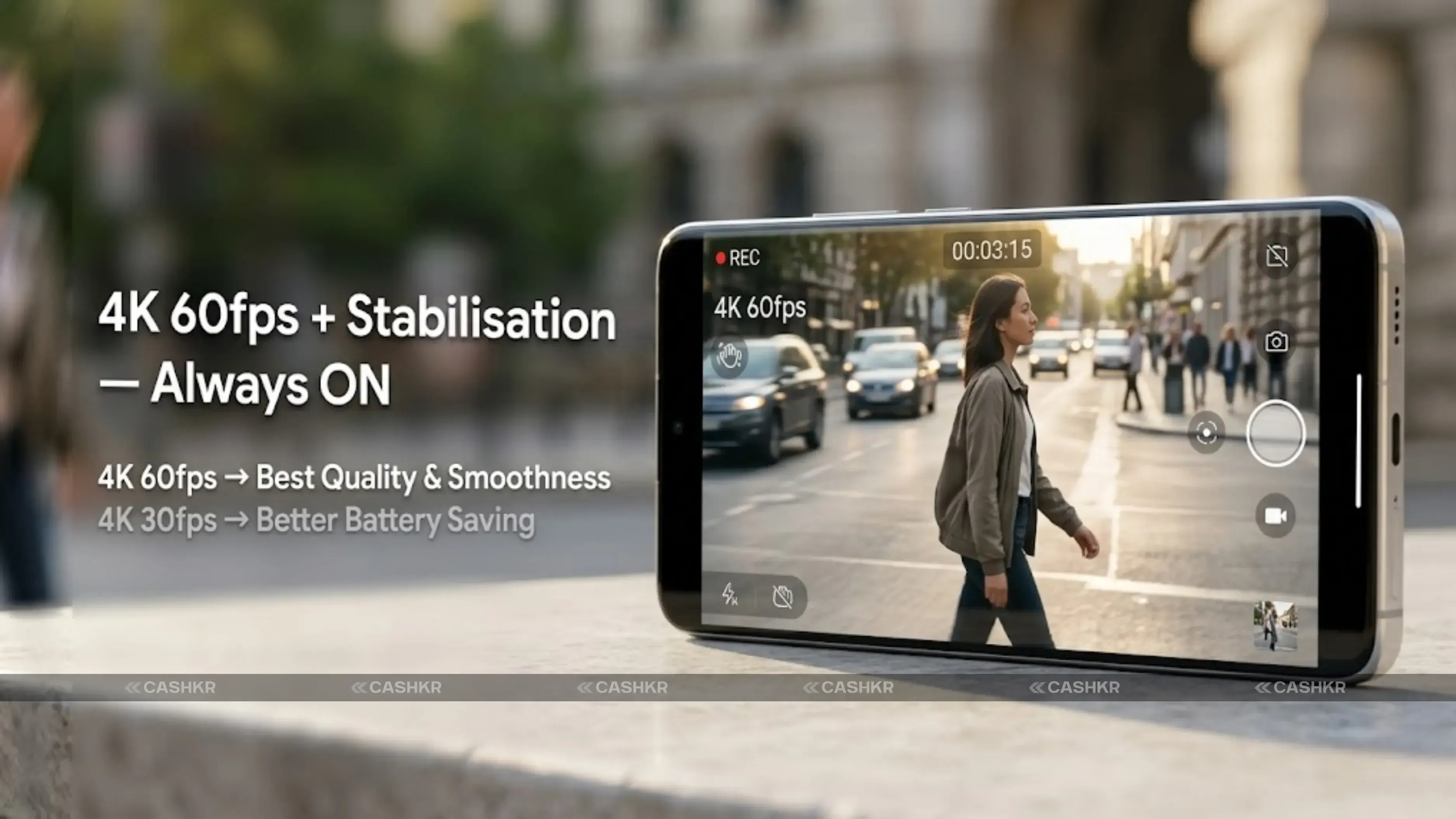
For most video recording on the Vivo X300, 4K at 60fps is the best high-quality setting. 4K at 30fps works well for still subjects when your phone is on a tripod or stable surface. If you’re moving while filming, 60fps makes motion look much smoother because it captures twice as many frames per second.
Always turn on stabilisation for handheld video. The Vivo X300 offers both OIS (hardware) and EIS (electronic) stabilisation. EIS uses a wider view and digitally smooths out the image. For walking shots, stabilisation makes a huge difference—without it, your footage will look shaky no matter how steady you are. The Vivo X300 can record in 8K, but this isn’t practical for everyday use. 8K files are huge and need a powerful computer to edit. Most platforms don’t support 8K, and most screens can’t show it. Only use 8K for special projects where you really need the highest resolution.
Setting 6 4K 60fps + Stabilisation Set video resolution to 4K and frame rate to 60fps. Enable both OIS and EIS stabilisation. Use 4K 30 fps only for stationary shots where you want to save storage space.
Setting 7: Pro Mode for Creative Control
Pro Mode gives you direct control over ISO, shutter speed, white balance, and focus. It is for users who are comfortable with manual exposure and want creative results beyond what the automatic modes produce.
For photos in daylight, set ISO to 100 or 200. Lower ISO means less noise and cleaner pictures. The phone will use a faster shutter speed to match, which works well in bright light. If you want a creative look in low light, instead of the polished Night Mode result, use ISO 800 to 1600 and a slower shutter speed. You’ll need a tripod or stable surface. This keeps the natural grain and mood of the scene.
To capture light trails, stars, or fireworks, use Pro Mode with a slow shutter speed. Automatic modes can’t create these effects because they don’t allow for long exposures.
Setting 7 Pro Mode Use ISO 100 to 200 in daylight. Use ISO 800 or higher in low light with a slower shutter speed. For light trails and creative long exposure shots, use a tripod and shutter speeds of 1 to 10 seconds.
Setting 8: Enable Stabilisation for All Video Recording
This is one of the easiest settings to change, and it makes a big difference in your videos. Go to video settings and confirm that stabilisation is turned on. On the Vivo X300, this appears as a toggle in the video recording settings. The default may be off or set to basic stabilisation rather than maximum. Choose the highest stabilisation level you can. For walking shots, this turns shaky footage into smooth, professional-looking video. The only downside is a small crop at the edges, but you’ll hardly notice it in the final video.
Setting 8 Video Stabilisation Go to Video settings and enable stabilisation. Set to the highest available level for walking shots. Accept the slight frame crop as the trade-off for dramatically smoother footage.
Best Settings by Shooting Scenario
Quick reference for every situation:
Shooting Scenario Best Mode Key Tip
Bright daylight
Photo mode + AI Scene ON
Keep ISO low, let phone decide exposure
Night streets
Night Mode
Hold steady or use a surface for best results
Indoor low light
Night Mode or Pro Mode
ISO 800 to 1600, slower shutter
Portraits
Portrait mode, 50mm or 85mm
Avoid ultrawide, use natural light
Documents and text
Ultra HD 200MP mode
Hold still, good lighting needed
Landscapes
Ultra HD or standard + AI ON
Use tripod for sharpest results
Mistakes to Avoid on the Vivo X300 Camera
Here are the most common habits that lower photo quality on the Vivo X300.
Using 200MP for everything: The 200MP mode is for specific situations only. Default 12.5MP pixel-binned output is better for casual photography, low light, and social media uploads.
Skipping Night Mode after dark: Standard Photo mode in dim light produces dark, noisy images. Night Mode always produces better results after sunset or in dimly lit indoor spaces.
Using an ultra-wide lens for portraits: The lens causes facial distortion. Always use the 50mm or 85mm focal length in Portrait mode for flattering results.
Shooting 8K video unnecessarily: 8K creates enormous files that most devices cannot display, and most editing setups cannot handle them smoothly. 4K 60fps is the best practical choice for high-quality video.
Forgetting stabilisation for video: Handheld video without stabilisation looks unprofessional, regardless of how steady you try to hold the phone. Always enable stabilisation for any moving video shots.
Ignoring Pro Mode for creative shots: Automatic modes cannot produce light trails, long exposures, or creative motion blur. Learn the basic Pro Mode settings and your creative range expands significantly.
The biggest mistake is leaving the camera in default Photo mode and never trying Night Mode, Portrait focal lengths, or 4K video. The Vivo X300’s great hardware is wasted if you only use the default settings.
Vivo X300 Camera Specifications
Main Camera
200MP ZEISS lens
Telephoto
50MP periscope, 3x optical zoom
Ultra-wide
50MP, 119-degree field of view
Front Camera
50MP
Default Output
12.5MP pixel-binned (16-in-1 pixel binning)
Max Resolution
200MP in Ultra HD mode
Video
Up to 8K recording
Recommended Video
4K 60fps with stabilisation
Final Verdict
The Vivo X300 can give you excellent photos and videos in any situation, as long as you use the right settings. ZEISS optics give you a strong base, and the AI processing adds results you can’t get by editing a bad photo later. But to get the most out of both, you need to set up your camera the right way.
Use Night Mode after dark, Portrait mode at 50mm or 85mm, 4K 60fps with stabilisation for video, 200MP only when you need high resolution, and Pro Mode for creative shots. These eight changes are quick to learn and will make a real difference in your photos.
Summary of 8 key changes: Night Mode in low light | AI Scene ON for most shooting | 200MP only for documents and crops | 50mm or 85mm for portraits | Micro Movie Mode for Reels | 4K 60fps for video | Pro Mode for creative long exposures | Stabilisation always on for video
FAQs
1. What is the best camera mode on the Vivo X300 for daily use?
The standard Photo mode with AI Scene Optimisation turned on is the best default for daily photography. Switch to Night Mode in any low-light situation for significantly better results.
2. Should I always shoot in 200MP on the Vivo X300?
No. The default 12.5MP pixel-binned output produces better real-world photos for most situations. Use 200MP mode only for documents, detailed landscapes, or photos where you will crop in heavily.
3. What focal length should I use for portraits on the Vivo X300?
Use 50mm for natural, everyday portraits and 85mm for flattering, more professional-looking results. Never use the ultra-wide lens for portraits as it causes facial distortion.
4. How do I improve low-light photos on the Vivo X300?
Switch to Night Mode in any dim environment. Night Mode takes multiple exposures and combines them using AI processing to produce brighter, sharper, cleaner images than standard Photo mode can achieve in low light.
5. What video settings should I use on the Vivo X300?
4K 60fps with stabilisation enabled is the best balance of quality and practicality for most video recording. Use 4K at 30 fps for stationary shots to save storage space. Avoid 8K unless you are archiving footage for a specific purpose.
6. What is Pro Mode on the Vivo X300, and when should I use it?
Pro Mode gives manual control over ISO, shutter speed, and white balance. Use it for creative long-exposure shots like light trails and fireworks, for low-light photography where you want to preserve grain and atmosphere, and when you want full creative control over the final image.
7. Does the Vivo X300 have video stabilisation?
Yes. The Vivo X300 supports both OIS hardware stabilisation and EIS electronic stabilisation. Enable the highest stabilisation level available in video settings for the smoothest handheld footage. This is especially important for walking shots.
8. What is Micro Movie Mode on the Vivo X300?
Micro Movie Mode is a shooting mode optimised for short-form vertical video content like Instagram Reels and YouTube Shorts. It provides AI framing suggestions and cinematic effects designed for social media platforms.
9. Why do my Vivo X300 photos look grainy in low light?
You are likely using standard Photo mode instead of Night Mode. Night Mode uses multiple exposures and AI processing to dramatically reduce noise and brighten low-light scenes. Always switch to Night Mode after sunset or in dimly lit indoor spaces.
10. How do I shoot light trails and long exposure photos on the Vivo X300?
Use Pro Mode with a slow shutter speed (1 to 10 seconds) and low ISO (100 to 200). A tripod or stable surface is essential. Auto modes cannot produce light trails because they always use the shortest exposure possible to avoid motion blur.
If you want to sell your old devices, then click here.
 Yaskar Jung ShahUpdated: Aug 11, 2026·17 min read