How to Turn Off YouTube Shorts on Android and iPhone
 Yaskar Jung ShahUpdated: Aug 10, 2026·15 min read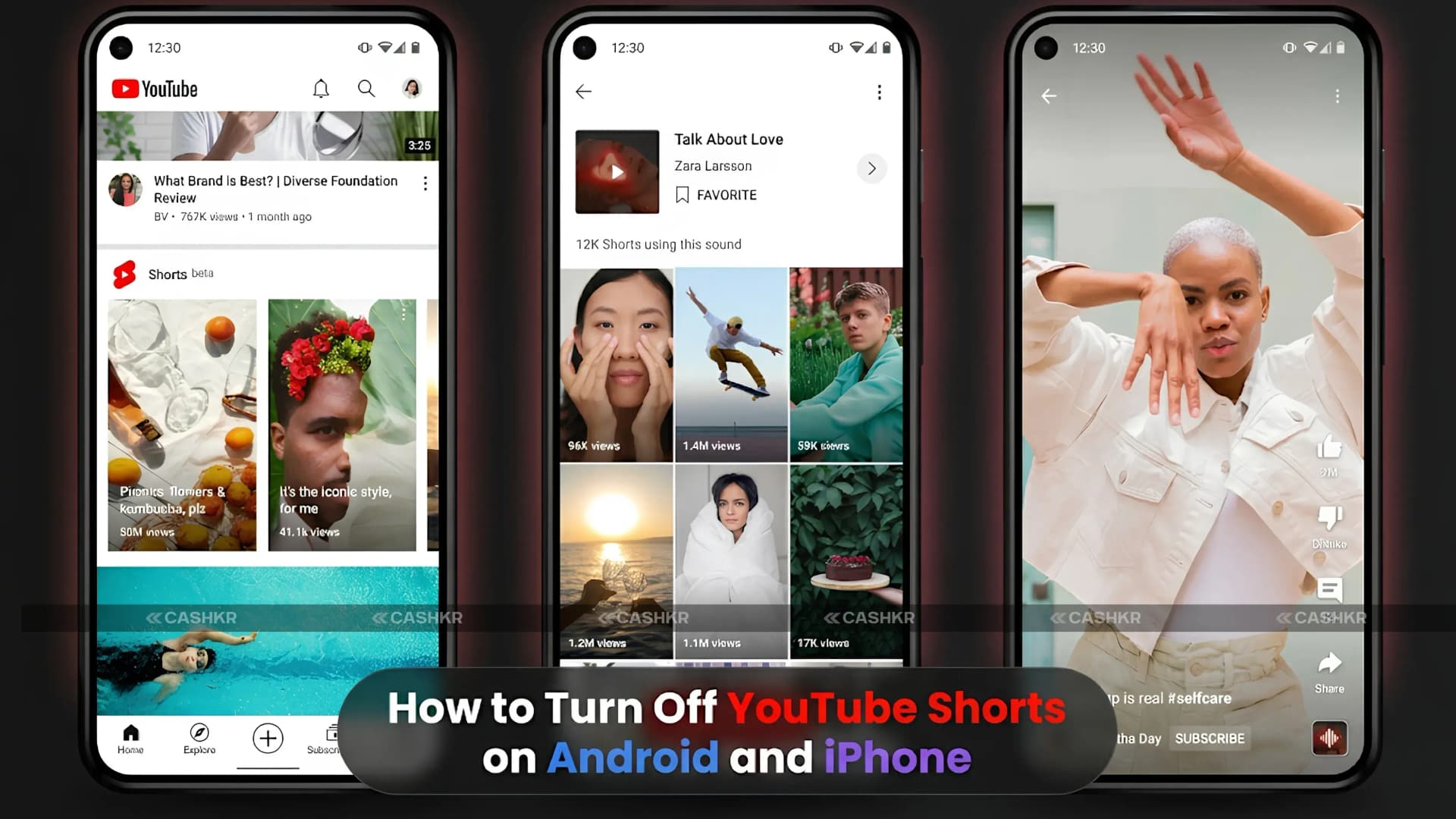
Learn how to turn off YouTube Shorts on Android and iPhone.

Get the Cashkr app for faster payouts

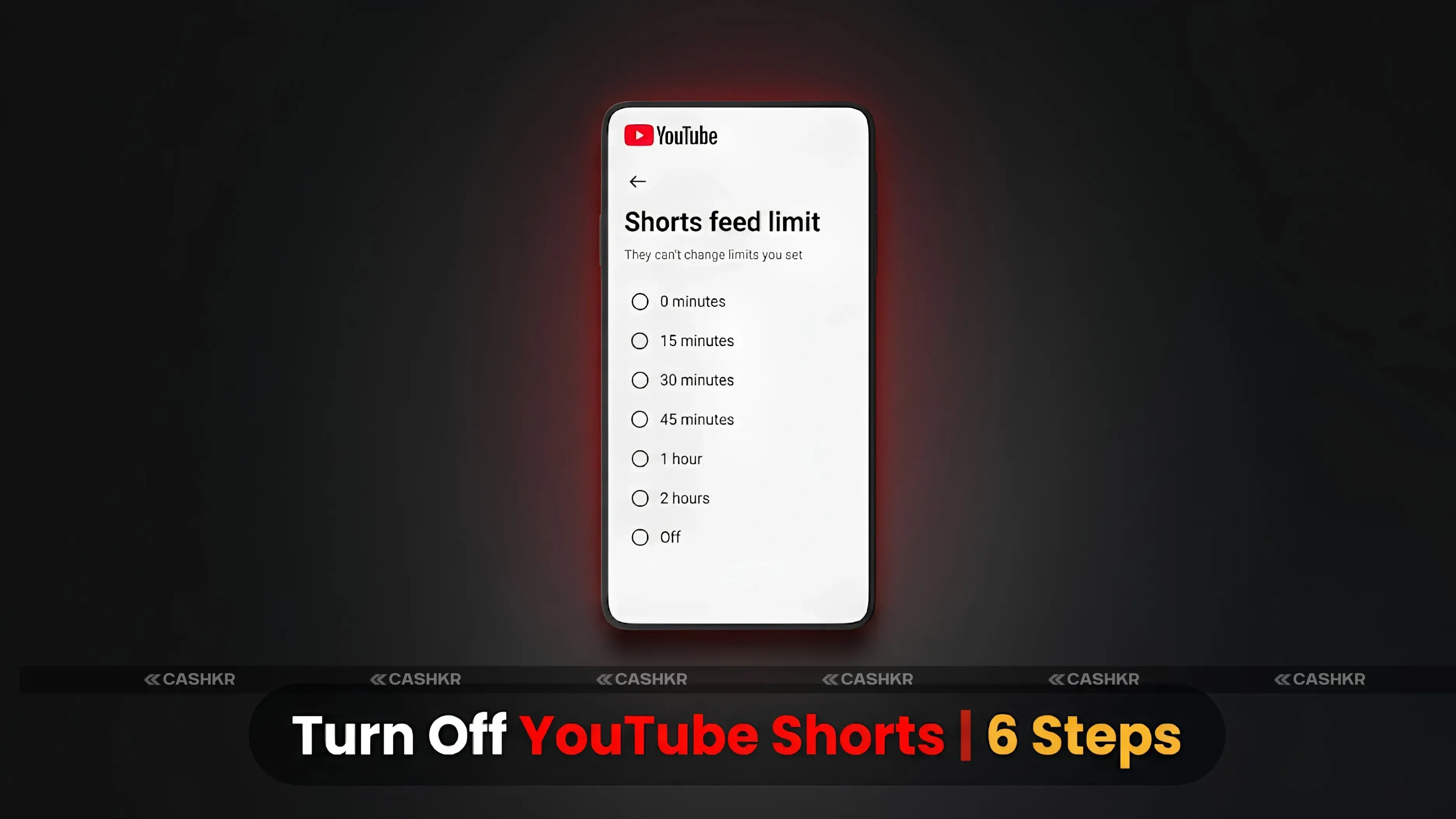
Quick steps to turn off YouTube Shorts: Open the YouTube app, tap your profile picture (top right), go to Settings, then Time Management, then Daily Limits, then Shorts Feed Limit. Turn on the toggle, then set it to 0 minutes. This works on both Android and iPhone. You can still watch individual Shorts through links, and you can change this setting back anytime.
| What Stops After Disabling | What Still Works |
|---|---|
| Endless Shorts feed scrolling stops | Individual Shorts opened from direct links still work |
| Auto-play Shorts on the homepage disappear | Shorts can still appear in search results |
| Shorts tab may stop auto-loading the feed | Shorts on creator channels remain accessible |
| Homepage becomes less cluttered | Subscription feed may still show some Shorts |
| Screen time from endless Shorts loops reduces | You can manually override the limit temporarily if needed |
Manual override: When you hit the Shorts Feed Limit (right away if set to zero), YouTube will show a message that you’ve reached your daily limit and give you the option to keep watching anyway. If you find yourself using this override a lot, the zero-minute setting might be more annoying than helpful. In that case, you might want to try Digital Wellbeing app timers for better results.
| Method | How It Works and When to Use It |
|---|---|
| Shorts Feed Limit (YouTube) | Best method for most users. Go to YouTube Settings → Time Management → Shorts Feed Limit and set it to 0 minutes. Stops endless Shorts scrolling and can be reversed anytime. |
| Not Interested Tap | Tap the three-dot menu on a Short and choose “Not Interested.” Helps train the recommendation algorithm over time, but does not instantly remove Shorts. |
| Disable Notifications | Open YouTube Settings → Notifications and disable Shorts recommendations. Reduces notification-based distractions, though the Shorts feed still exists in the app. |
| Android Digital Wellbeing | Go to Android Settings → Digital Wellbeing → App Timers and set a limit for YouTube. Useful for strict screen control, but it locks the full YouTube app, not just Shorts. |
| iPhone Screen Time | Open iPhone Settings → Screen Time → App Limits → YouTube. Helps reduce total usage by locking the full app after the daily limit is reached. |
| YouTube Kids (for children) | Use the YouTube Kids app instead of the main YouTube app. The Shorts feed is not included in the children-focused version. |
Summary: To turn off YouTube Shorts on Android and iPhone, open the YouTube app, tap your profile icon, go to Settings, then Time Management, then Daily Limits, then Shorts Feed Limit, and set it to zero minutes. This stops the endless scroll feed, but you can still watch individual Shorts through links or search. For more control, use Not Interested on Shorts, turn off recommendation notifications, or use Digital Wellbeing or Screen Time for full app limits.
1. How do I turn off YouTube Shorts on my phone?
Open the YouTube app, tap your profile picture in the top right, go to Settings, tap Time Management, scroll to Daily Limits, tap Shorts Feed Limit, enable the toggle, and set it to zero minutes. This works on both Android and iPhone and stops the endless Shorts feed from loading automatically.
2. Does turning off YouTube Shorts delete Shorts completely?
No. The Shorts Feed Limit stops the endless scroll feed but does not remove Shorts from YouTube entirely. Individual Shorts can still be opened through shared links, search results and creator channel pages. Shorts may still appear in subscription feeds. The setting targets the auto-loading endless scroll experience specifically.
3. Where is Time Management in YouTube Settings?
Open the YouTube app, tap your profile picture, go to Settings, and scroll down to find Time Management. Inside Time Management, tap Daily Limits to find the Shorts Feed Limit option. If Time Management does not appear, update the YouTube app to the latest version.
4. Does the Shorts Feed Limit work on both Android and iPhone?
Yes. The Shorts Feed Limit setting in YouTube's Time Management section works on the YouTube mobile app on both Android smartphones and iPhones. The path to the setting is the same on both platforms. It does not work on desktop browsers or Smart TVs.
5. Can I still watch a specific Short after turning off YouTube Shorts?
Yes. If someone sends a Shorts link, clicking it will open and play that individual Short. Shorts that appear in search results and on creator channel pages can also be opened individually. The limit applies to the auto-loading endless scroll feed, not to intentional individual Short access.
6. What if I want to re-enable YouTube Shorts later?
Follow the same path: Settings > Time Management > Short Feed Limit. Either disable the toggle entirely or increase the time limit to any value greater than 0 minutes. The setting is fully reversible at any time.
7. Is there a way to completely remove the Shorts tab from YouTube?
Not through any current official YouTube setting. The Shorts Feed Limit stops the feed from loading automatically but the Shorts tab remains in the navigation bar. Tapping it shows a limit message rather than the feed. Complete tab removal is not available in YouTube's official settings as of May 2026.
8. How can parents use the Short Feed Limit for children?
Set the Shorts Feed Limit to zero minutes on the family device or the child's YouTube account. This creates friction before any additional Shorts viewing, as the child would need to manually override the limit. For stronger control, use Screen Time (iPhone) or Digital Wellbeing (Android) to set a daily time limit on the entire YouTube app in addition to the Shorts Feed Limit.
9. Why does YouTube still show Shorts in search after I turned off the feed?
The Shorts Feed Limit applies to the dedicated Shorts scroll feed, not to individual Shorts appearing in search results. Search results on YouTube show all content types, including Shorts. To reduce Shorts in search results, use the Not Interested option on Shorts thumbnails consistently over time to train the algorithm to deprioritize Shorts in recommendations.
10. What is the difference between the Short Feed Limit and the Digital Wellbeing app timers?
The Shorts Feed Limit (in YouTube Settings) targets only the Shorts endless scroll feed, leaving all other YouTube content fully accessible. Digital Wellbeing app timers (on Android) or Screen Time app limits (on iPhone) restrict the entire YouTube app after the daily limit is reached, which affects regular YouTube use as well. Use the Short Feed Limit first; add Digital Wellbeing or Screen Time as an additional layer only if the override option is being used too frequently.
Sell with Cashkr
Cashkr buys used devices at a fair price with free doorstep pickup and same-day payment across 2,000+ pincodes. Get an upfront quote in seconds.
Sell Old Phone OnlineCheck your phone's value in seconds
Written by
Learn how to sell refurbished devices online and maximize profit.