How to Create AI-Generated Call Backgrounds for WhatsApp Video Calls: Complete Step-by-Step Guide
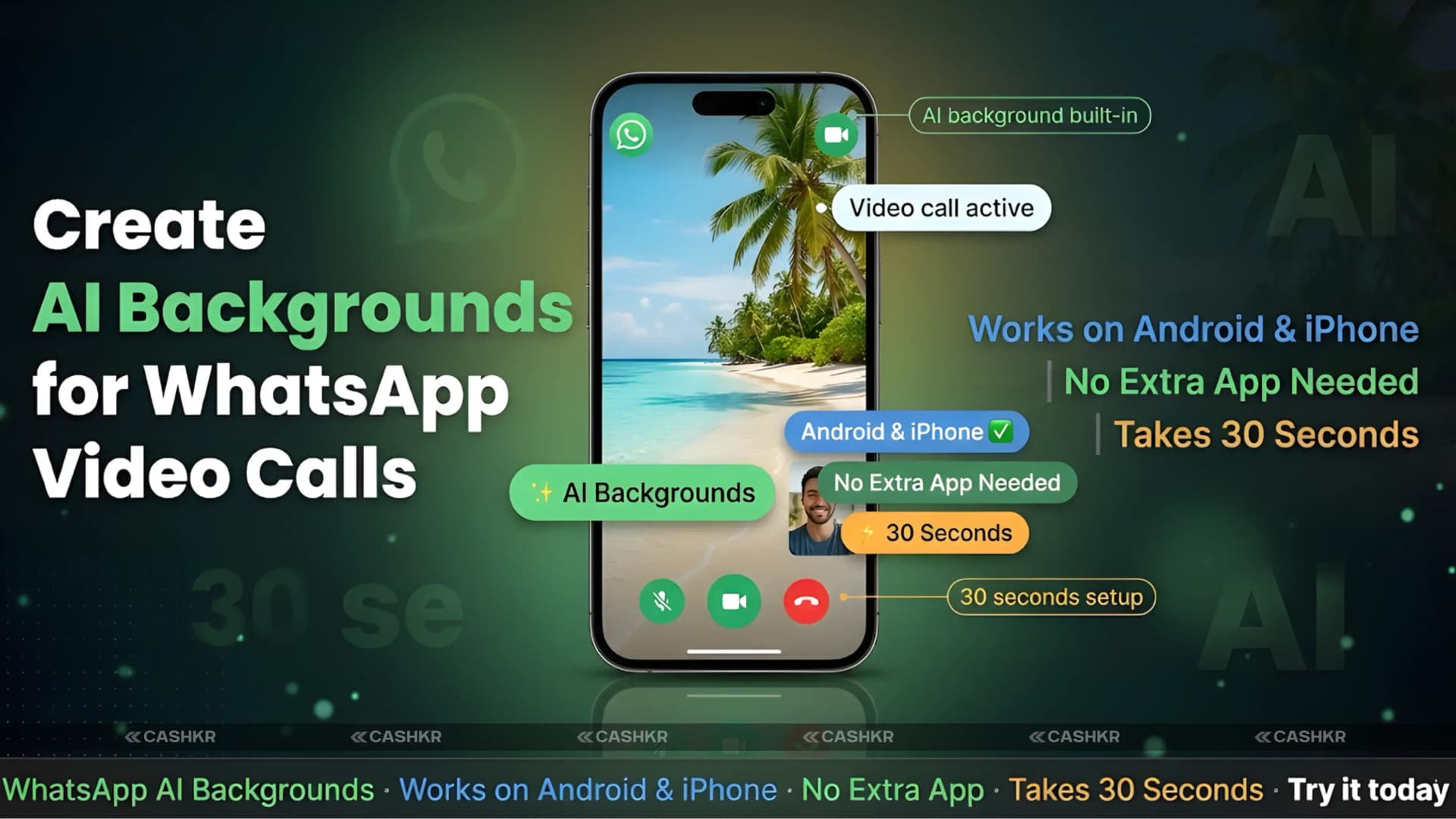
WhatsApp now lets you use AI to change your video call background to any scene you describe. If you want to hide a messy room, block out a busy workspace, or just try something fun, you can do it right in WhatsApp, no extra apps needed.
Just type in what kind of background you want, and WhatsApp’s AI will create it in seconds. You can use it right away on your call. It works on both Android and iPhone, and setup is quick once you know how.
This guide shows you each step for Android and iPhone, shares tips for writing good prompts, and explains what the feature does well and where it has limits.
What you need: The latest version of WhatsApp on Android or iPhone, a working front camera, and the ability to start a video call. You don’t need any extra apps or subscriptions, the AI background tool is built right in.
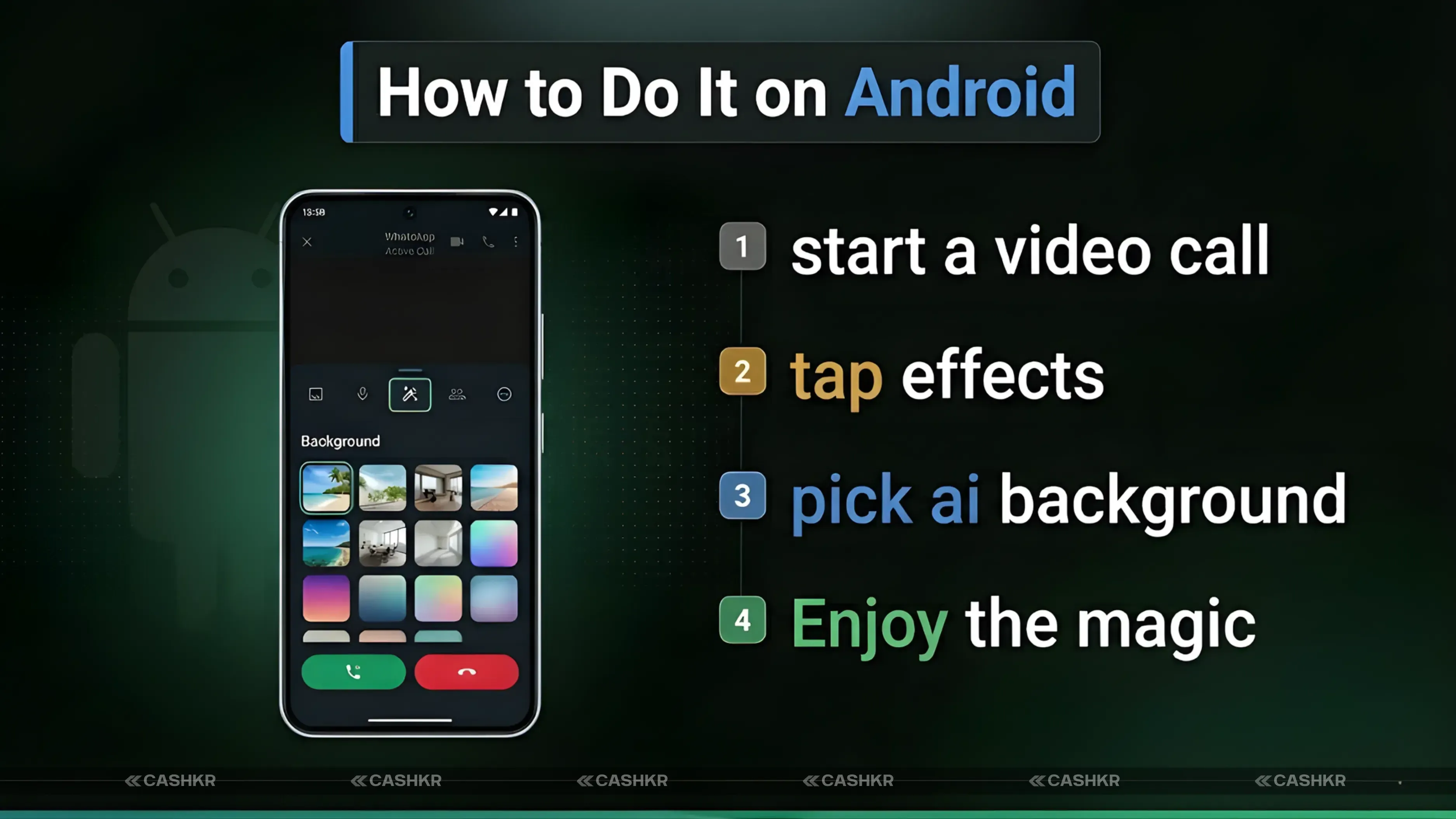
How to Create an AI Background on Android: Step by Step
Follow these steps in order. The background options only show up during a live video call, so start your call before looking for them.
Step 1. Open WhatsApp and start a video call. You can call any contact or join a group video call. The background feature works on both one-to-one calls and group calls.
Step 2. Turn on your camera. Tap the camera icon on the call screen to enable your video. The background feature only appears when your camera is active.
Step 3. Tap the Call Effects button. Look for the sparkle or effects icon on your call screen. On most Android versions, this appears as a small icon near the bottom of the screen.
Step 4. Tap Backgrounds. A menu appears showing preset background options and the AI generation option. Scroll through to find the background options section.
Step 5. Select Create with AI. This opens the AI generation interface, where you type your prompt. It is a text box where you describe the background you want.
Step 6. Type your background description. Write a clear description of what you want to see behind you. For example: a minimalist office desk with a bookshelf, or a tropical beach with blue water and palm trees.
Step 7. Tap Generate. WhatsApp will process your description and show you several background choices. This usually takes five to fifteen seconds, depending on your internet speed.
Step 8. Choose your preferred background and apply it. You will see multiple generated variations based on your description. Tap the one you like best to apply it to your video call instantly.
Android tip: If you don’t like the backgrounds you see, tap Regenerate for new options using the same prompt. You can also change your description to try a different scene.
How to Create an AI Background on iPhone: Step by Step
The steps on iPhone are almost the same as on Android. The screens might look a little different, but you’ll get the same results.
Step 1. Open WhatsApp and start or join a video call. Begin any video call with a contact. The background feature works on calls you initiate, receive, or join.
Step 2. Turn on your camera during the call. If your camera is not already on, tap the camera icon to activate your video. The background settings only appear when video is enabled.
Step 3. Tap Call Effects on iPhone. This option typically appears as a small icon with a sparkle or star symbol on the call screen. Tap it to open the effects menu.
Step 4. Select Backgrounds. The effects menu shows multiple categories. Tap on Backgrounds to see preset options and the AI generation option.
Step 5. Tap Create with AI. This opens the text input where you describe the background you want. Type clearly and specifically for the best results.
Step 6. Type your background description and tap Generate. WhatsApp’s AI will create several images for you to pick from.
Step 7. Apply the background you prefer. Tap any generated image to apply it live to your call. The background replaces your surroundings immediately.
iPhone tip: If you can’t find Call Effects, check that you have the latest WhatsApp from the App Store. Older versions might not have the AI background yet. Go to the App Store, search WhatsApp, and tap Update if needed.
Writing Prompts That Produce Good Results
The quality of your AI background depends on how clearly you describe what you want. WhatsApp’s AI works best with specific, visual details instead of vague requests.
Be specific about the scene. For example, instead of just saying "beach," try "tropical beach with turquoise water, white sand, and a few palm trees." The more details you give, the better the result.
Describe the mood and lighting. Adding details about lighting helps a lot. For example, try a sunrise mountain view with golden light or a cozy library with warm lamplight in the evening. These details help the AI make a background that looks more natural with your face.
Keep your descriptions under twenty words for faster results. Long or complicated prompts can slow things down and may not work as well. A clear, short description usually gives you the best images.
Avoid asking for people or faces in your background. Prompts with people often don’t work well. It’s best to focus on places and settings instead.
Here is a table of proven prompt categories with specific examples that consistently produce good results:
Category
Background Ideas
Work and Professional
Minimal office desk with plants, clean white background
Nature and Outdoors
Mountain view with sunrise, tropical beach with clear water
Creative and Fun
Features and Limitations: What You Need to Know
The WhatsApp AI background is very useful, but there are a few things to know before using it for important calls.
What works well: Hiding your background completely. Creating professional-looking backdrops for work calls. Generating creative and unique scenes for casual conversations. Using preset backgrounds when you want something.
Generation takes a few seconds: Unlike preset backgrounds that apply instantly, AI-generated backgrounds take five to fifteen seconds to appear, depending on your internet connection. On a slower mobile network, this can take longer. If you need a background immediately at the start of a call, choose from the preset options and switch to an AI-generated background once it finishes.
Background replacement is not always perfect: The feature replaces your surroundings by detecting the boundary between you and the background. In poor lighting or when wearing loose or light-colored clothing, edge detection can miss parts of your body or include parts of your background. Good lighting directed at your face produces the cleanest background replacement.
The background stays for one call: AI-generated backgrounds do not save automatically between calls. Each new call starts with no background applied. You can regenerate the same prompt or save a favorite description to type again quickly for future calls.
Preset backgrounds are always available: If the AI generation is slow or the results aren't what you wanted, WhatsApp includes a set of built-in preset backgrounds that apply instantly, without any generation wait. These are reliable and consistent across all lighting conditions.
Best lighting setup for background replacement: Sit facing a window or a light source rather than having light behind you. When light comes from in front of your face, WhatsApp can distinguish you from your background more clearly and the edge detection works much better. Backlit situations where the room behind you is brighter than your face produce blurry or inconsistent background edges.
How to Remove or Change Your Background During a Call
You can change or remove your background at any point during an active video call without interrupting the conversation.
Step 1. Tap Call Effects again during the call. The effects menu can be reopened at any time during the call.
Step 2. Go to Backgrounds. The same backgrounds section appears with your currently active background highlighted.
Step 3. Select a different background or tap None. Tapping None removes the background and shows your real surroundings. Tapping any preset or generating a new AI background replaces the current one.
Switching backgrounds mid-call is seamless. The other person on the call sees the change immediately, with no disruption to the call's audio or video quality.
Why Use WhatsApp AI Backgrounds
Beyond the obvious use of hiding a messy room, WhatsApp AI backgrounds serve several practical purposes for different types of users.
Remote workers: A consistent professional background during client or team calls projects a cleaner image without requiring a dedicated studio space. A minimal office or a neutral bookshelf background works well for professional video calls at home.
Students: Attending online tutoring or group study sessions in a noisy shared space becomes more manageable when the visual background is replaced with a neutral one. It also reduces the distraction of seeing different environments when multiple students are on the same call.
Privacy: If you want to keep your personal space private, background replacement is helpful. Even with friends or family, you might not want to show your home.
Creative conversations: You can match your background to your chat topic to make calls more fun. For example, use a travel background when planning a trip or a festive scene for holiday calls.
Final Thoughts
The WhatsApp AI background is one of the most useful updates in recent years. It works right in the app, needs no extra setup, and gives you results in seconds after you type a description.
The quality of your Your backgrounds will look much better if you write clear, visual prompts and use good lighting. A well-lit room with light on your face helps the background blend naturally with your video. for professional calls where you want a clean backdrop, or for fun calls where you want a creative scene, the feature gives you full control over your visual environment during any WhatsApp video call.
Quick recap: Open WhatsApp and start a video call. Turn on your camera. Tap Call Effects, then Backgrounds, then Create with AI. Type a clear description and tap Generate. Choose the result you like and apply it. To remove it at any time, go back to Call Effects and select None.
FAQs
1. How do I create an AI background for a WhatsApp video call?
Start a video call and turn on your camera. Tap Call Effects on the call screen, select Backgrounds, and then choose Create with AI. Type a description of the background you want, tap Generate, and select the image you prefer. It applies to your live call instantly.
2. Does the WhatsApp AI background feature work on both Android and iPhone?
Yes. The feature is available on both Android and iPhone. The steps are nearly identical on both platforms. Make sure your WhatsApp app is up to date from the Google Play Store or Apple App Store before trying to access the feature.
3. Why can I not find the Create with AI option in WhatsApp?
The AI background feature requires an updated version of WhatsApp. If you cannot find the option, update WhatsApp from your app store and try again. The feature may also be rolling out gradually so it might not be available in all regions simultaneously.
4. Can I use an AI background in a WhatsApp group call?
Yes. The WhatsApp AI background feature works in group video calls as well as one-to-one calls. Every participant who wants background applies it to their own device independently.
5. How long does WhatsApp take to generate an AI background?
Generation typically takes five to fifteen seconds on a good internet connection. On slower mobile data connections, it can take longer. If speed is important at the start of a call, use a preset background while the AI background generates.
6. Can I save AI-generated WhatsApp backgrounds for future calls?
WhatsApp does not automatically save AI-generated backgrounds between calls. Each new call starts without a background applied. You can save your favorite prompt descriptions in a note app to paste them quickly into WhatsApp for future calls.
7. What should I write in the WhatsApp AI background prompt?
Be specific and visual. Describe the scene, the lighting, and the mood. For example: a cozy coffee shop with warm lighting and wooden shelves, or a modern office with a city view through large windows at dusk. Short and specific descriptions of fifteen to twenty words produce the most consistent results.
8. Does WhatsApp AI background work in poor lighting conditions?
The background replacement works but performs best when your face is well-lit from the front. In poor lighting or backlit conditions, edge detection between you and your background is less precise, and the result can look uneven. Facing a window or a lamp significantly improves the result.
9. Can the other person on the WhatsApp call see my real background?
No. When an AI background is applied, only the generated background is visible to other participants. They cannot see your real surroundings. The replacement happens on your device before the video is sent to other callers.
10. Is there a cost to use WhatsApp AI background generation?
No. The AI background feature is included in the standard WhatsApp app at no extra cost. WhatsApp is free to download and use and the AI generation feature requires no subscription or payment.
If you want to sell your old devices then, click here.
 Nirajan BoharaUpdated: Jul 20, 2026·15 min read