How to Transfer Data From Old Phone to New Phone (Complete Guide 2026)
Getting a new phone is exciting—until you realize all your photos, contacts, chats, apps, and settings are still sitting on the old one. Switching phones can feel like a big headache if you don't know where to start. But the good news? It's actually pretty easy once you know the right method.
Whether you're moving from Android to Android, iPhone to iPhone, or even switching between platforms, this guide covers everything step by step. No tech knowledge needed.
Quick Summary: There are 4 main ways to transfer data—built-in phone tools, Google/iCloud backup, data transfer apps, or a USB cable/OTG. We'll cover all of them below.
Before You Start: Things to Check
Before jumping into the transfer, take care of these quick things—they'll save you a lot of trouble later.
Make sure both phones are connected to Wi-Fi (for cloud transfers).
Back up your old phone just in case something goes wrong.
Please make a note of your important passwords, PINs, and account details.
Check that your new phone has enough storage for all your data.
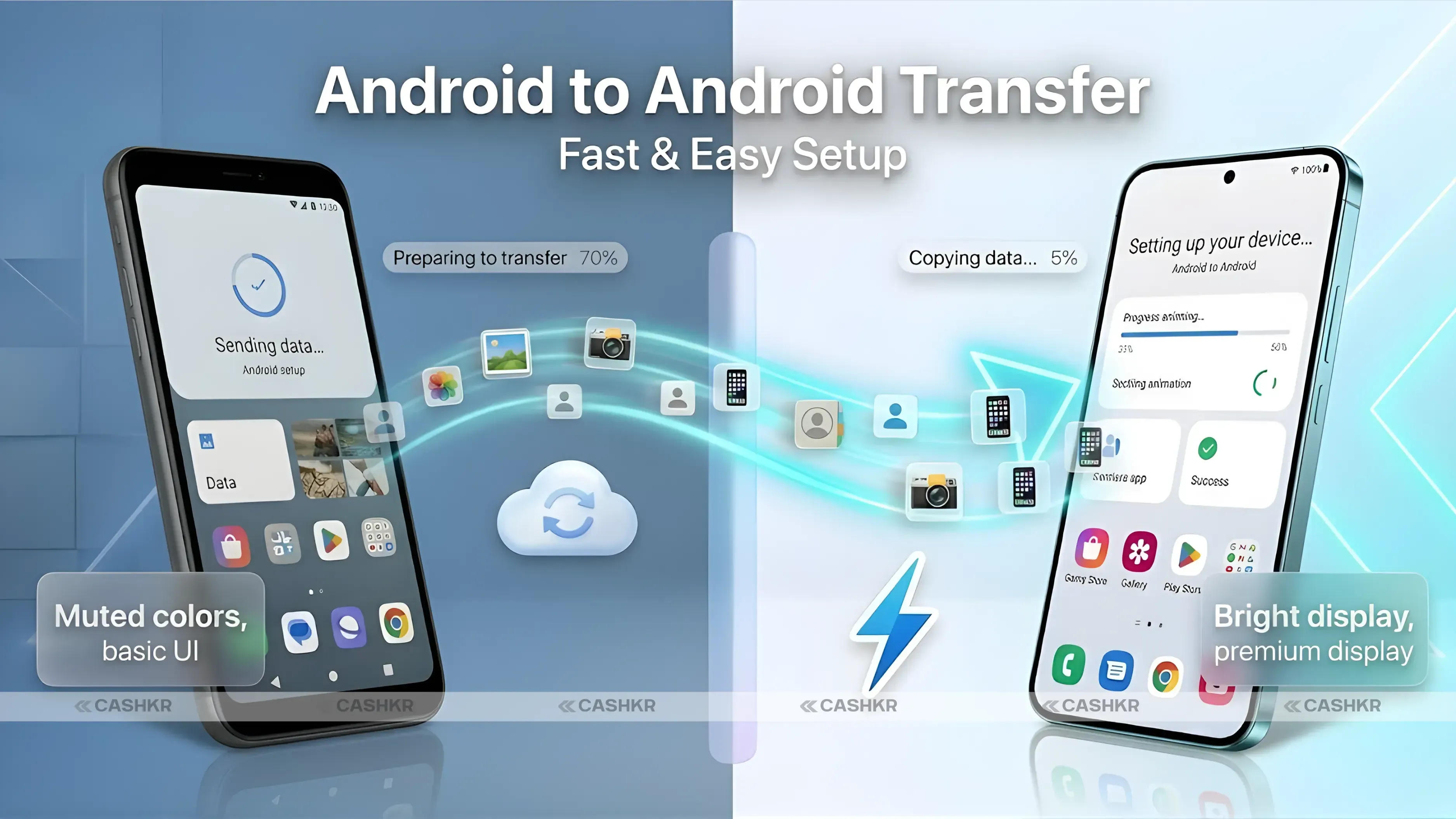
Method 1: Android-to-Android Transfer
This is the easiest situation. Android phones have excellent built-in tools, and Google's ecosystem makes the whole process smooth.
Option A: Use Google Account Backup (Recommended)
This is the simplest method: no cables, no apps, nothing extra needed.
1. Back Up Your Old Android Phone: Go to Settings > Google > Backup. Turn on 'Back up to Google Drive' and tap 'Back up now.' Wait for it to finish—this saves your contacts, apps, settings, call history, and more.
2. Set Up Your New Phone: Turn on your new Android phone and go through the setup screen. When asked, sign in with the same Google account you used on your old phone.
3 Restore From Backup: Your new phone will automatically detect the backup and ask if you want to restore it. Tap 'Restore' and wait. Apps will reinstall automatically over Wi-Fi.
Also Read: AirPods Max 2 Launched in India: Price, Features, and Specs
Option B: Use Google's 'Switch to Android' or OEM Transfer Tool
Most Android phones now come with a dedicated transfer app. Samsung has 'Smart Switch,' OnePlus has 'Clone Phone,' and Xiaomi has 'Phone Clone.' These apps transfer everything—including SMS, call logs, and WhatsApp data—directly over Wi-Fi without needing an internet connection.
Install the transfer app on both phones.
Open it on both devices and follow the pairing instructions.
Select what you want to transfer (photos, contacts, apps, messages).
Keep both phones close together and wait for the transfer to complete.
Pro Tip: Samsung Smart Switch is one of the best transfer tools available. It can even transfer data from an old iPhone to a Samsung phone!
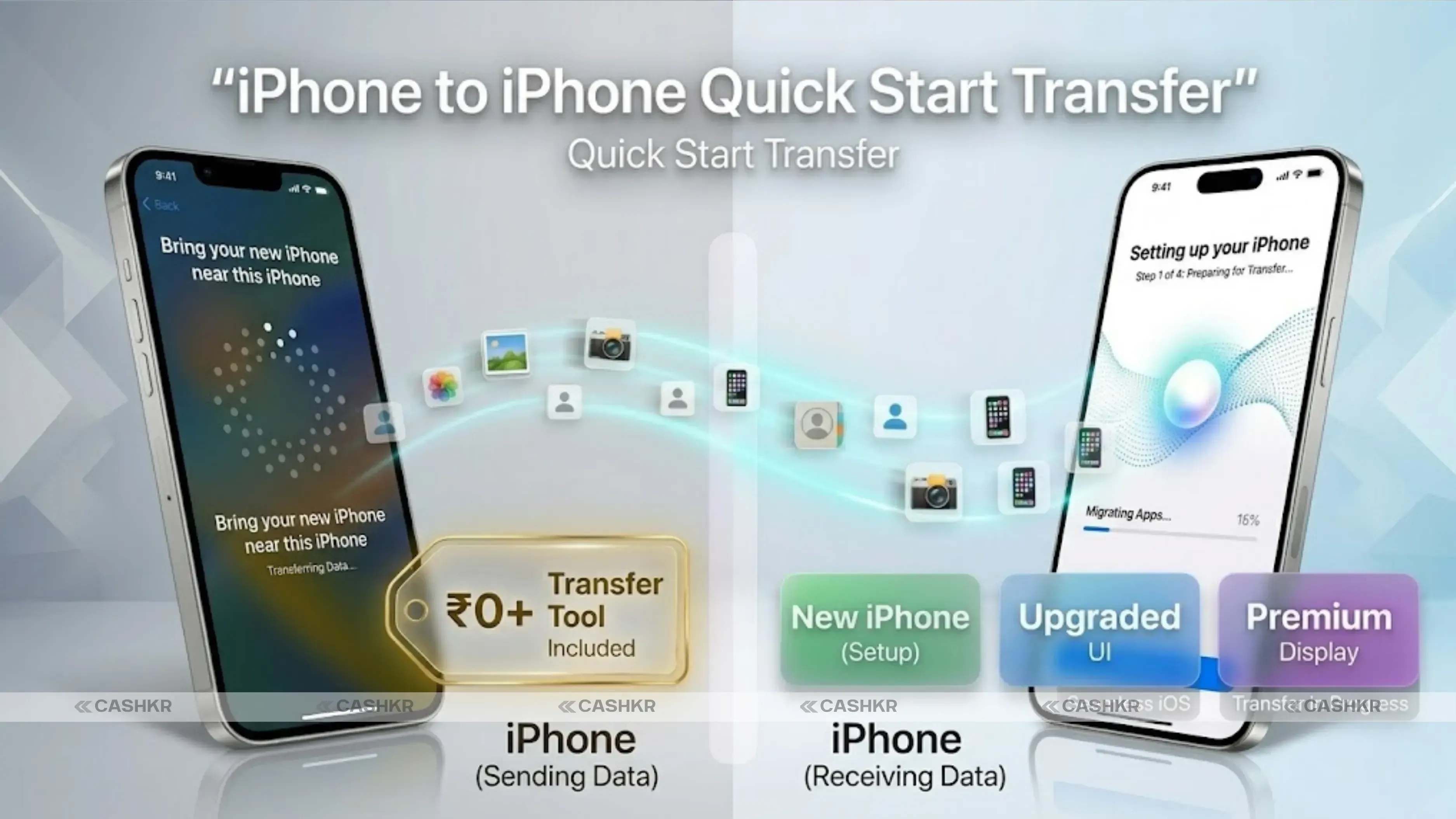
Method 2: iPhone to iPhone Transfer
Apple makes it incredibly easy to switch between iPhones. You basically just hold the two phones next to each other, and everything moves across automatically.
Option A: Quick Start (Easiest Method)
Apple's Quick Start feature transfers everything wirelessly — it's like magic if you haven't seen it before.
1. Place Both iPhones Together
Turn on your new iPhone and place it close to your old iPhone. A “Quick Start” screen will automatically appear on your old device, prompting you to set up the new iPhone.
2. Sign In With Your Apple ID
Use your old iPhone’s camera to scan the animation displayed on the new iPhone. Then, enter your Apple ID password when prompted to continue the setup.
3. Choose Your Transfer Method
You’ll be given two options:
Device-to-Device Transfer (recommended): Faster and transfers everything directly.
Restore from iCloud Backup: Useful if your old phone isn’t nearby.
For the best experience, choose device-to-device transfer if both phones are available.
4. Wait for the Transfer to Complete
The process can take anywhere from 15 minutes to over an hour, depending on your data size. Make sure both iPhones are:
Connected to the same Wi-Fi network.
Plugged into power.
Once done, your new iPhone will be ready with all your data.
Also Read: How to Spot a Fake Smartphone: Buy Genuine Devices Safely
Option B: Restore from iCloud Backup
If you backed up your old iPhone to iCloud (Settings > Your Name > iCloud > iCloud Backup), you can restore your new iPhone from that backup during initial setup. Just make sure your iCloud backup is recent before you start.
Method 3: Android to iPhone
Switching from Android to iPhone? Apple has an official app for this called 'Move to iOS'. It handles contacts, messages, photos, videos, email accounts, and even some apps.
1. Download Move to iOS
On your Android phone, download the Move to iOS app from the Google Play Store. Make sure your new iPhone is nearby before starting the process.
2. Start iPhone Setup
Turn on your new iPhone and begin the setup process. When you reach the “Apps & Data” screen, tap “Move Data from Android.”
3. Connect & Transfer Data
Open the Move to iOS app on your Android phone and tap Continue. Your iPhone will display a 10-digit code; enter it on your Android device. Once connected, select the data you want to transfer (contacts, messages, photos, etc.).
4. Wait for the Transfer to Finish
The transfer typically takes 10–30 minutes, depending on the amount of data. Keep both phones:
Turned on
Close to each other
Once completed, your data will appear on your new iPhone.
Important Note: WhatsApp data and Android-only apps cannot be transferred to iPhone using Move to iOS. You'll need to back up WhatsApp chats separately through WhatsApp's own backup feature
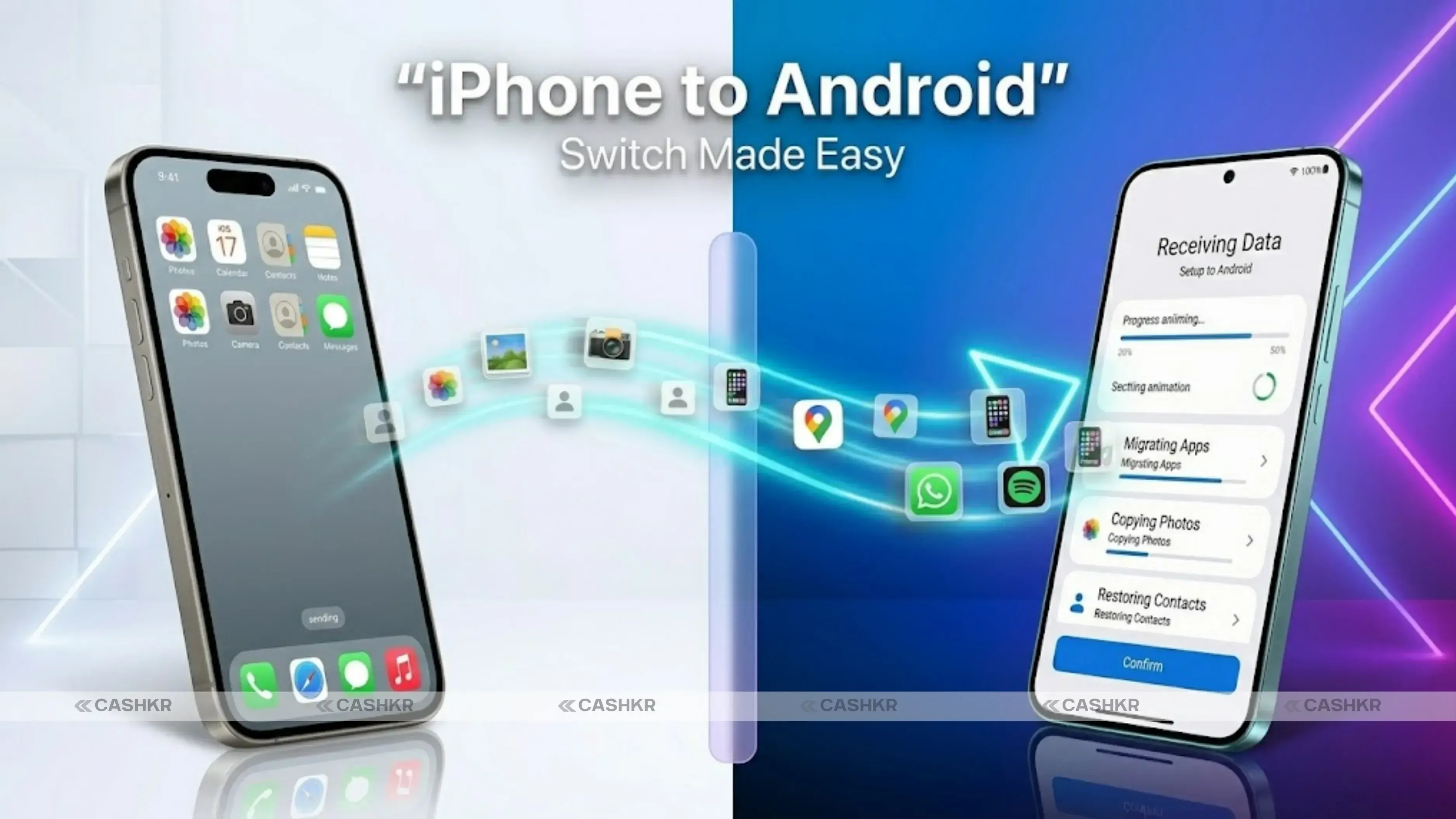
Method 4: iPhone to Android
Going from iPhone to Android is a bit more manual, but it's completely doable. Google has an app called 'Switch to Android' which works similarly to Move to iOS.
Download 'Switch to Android' from the Apple App Store on your iPhone.
Open the app and follow the on-screen instructions.
It will transfer contacts, calendar events, photos, videos, and some settings.
For WhatsApp, use WhatsApp's built-in 'Move chats to Android' feature in the app settings.
Simply log into the same Google account on your new Android phone to access Gmail and Google apps.
Advertisement
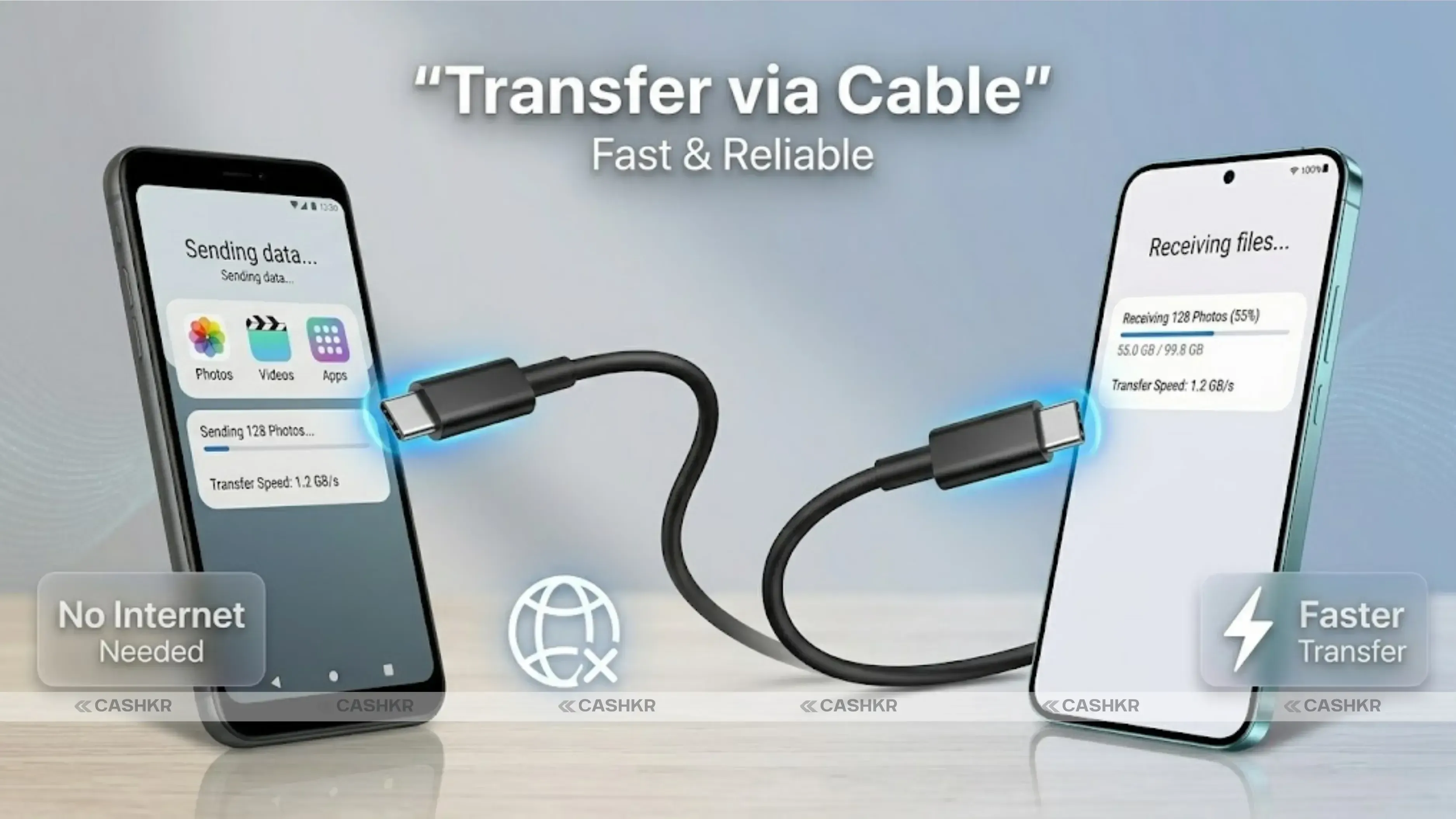
Method 5: Transfer Data via USB Cable or OTG
Sometimes you just want to move files directly, especially photos, videos, and documents. A USB cable or OTG adapter is the fastest and most reliable method for large files.
Connect your old phone to a computer using a USB cable.
Select 'File Transfer' mode on your phone when prompted.
Copy your photos, videos, and documents to your computer.
Now connect your new phone and paste the files across
For Android-to-Android transfers without a computer, use a USB-OTG adapter to connect both phones directly and transfer files with a file manager app.
What Data Actually Gets Transferred?
Here's a quick breakdown of what moves across and what might need manual attention:
Data Type
Auto Transfer?
Notes
Contacts
Yes
Via Google/iCloud
Photos & Videos
Yes
Cloud backup or direct transfer
WhatsApp Chats
Partially
Needs separate backup
SMS Messages
Android only
iPhone SMS needs a workaround.
Apps
Yes (list only)
Need to re-download on new phone
App Data/Progress
Partially
Depends on app's own backup
Wi-Fi Passwords
Yes (same OS)
Not shared across platforms
Call History
Yes
Via Google/iCloud backup
Extra Tips to Make Sure Nothing Gets Lost
Always back up WhatsApp separately; go to WhatsApp Settings > Chats > Chat Backup before switching phones.
Please consider exporting important contacts as a VCF file and saving it in Google Drive or emailing it to yourself.
Screenshot or note down any 2FA (two-factor authentication) backup codes before switching.
Check that your photos are backed up to Google Photos or iCloud before doing the transfer.
Don't factory reset your old phone until you've confirmed everything is on the new one.
Which Method Should You Use?
For most people, the built-in tools are the easiest and most reliable option. If you're on Android, use Google Backup + your phone's transfer app (Smart Switch, Clone Phone, etc.). If you're on iPhone, use Quick Start—it's one of the smoothest experiences in tech.
Switching between platforms? Use Move to iOS (Android to iPhone) or Switch to Android (iPhone to Android). They're not perfect, but they handle the big stuff well.
And for anyone who just wants to move some files quickly? A USB cable consistently delivers reliable performance.
FAQs
1. How long does phone data transfer take?
It depends on the method and how much data you have. Quick transfers for contacts and basic settings take 5–10 minutes. Full transfers with photos and apps can take 30 minutes to several hours over Wi-Fi.
2. Can I transfer WhatsApp from Android to iPhone?
Yes, but it requires using WhatsApp's official 'Move Chats to iPhone' feature. It's a bit involved but doable. You'll need a USB cable and the latest versions of WhatsApp on both phones.
3. Will my apps transfer to the new phone automatically?
The apps themselves don't transfer directly, they need to be re-downloaded. But Google and Apple both automatically restore your list of installed apps, and downloads happen in the background.
4. Do I need an internet connection to transfer data?
Not always. Methods like Samsung Smart Switch, an OTG cable, or Apple's device-to-device Quick Start work without an internet connection. Cloud-based methods (Google Backup, iCloud) do require Wi-Fi.
5. What happens to my photos if I don't back them up?
If you don't back up and don't transfer them, they stay on the old phone only. Always back up your photos to Google Photos or iCloud before you reset or sell your old phone.
6. Can I transfer data without Wi-Fi?
Yes. You can use Samsung Smart Switch, Bluetooth transfer, USB OTG adapter, or a computer with a USB cable — all without needing a Wi-Fi connection.
7. Is it safe to use third-party transfer apps?
Stick to well-known apps like Samsung Smart Switch, CLONEit, or Phone Clone. Avoid random apps from unknown developers, as they may access sensitive data on your phone.
8. What should I do after the data transfer is complete?
Verify that all your important data is on the new phone — contacts, photos, WhatsApp chats, and apps. Only then should you factory reset or sell your old phone.
9. Can I transfer data between two phones without a computer?
Yes. Both Google's and Apple's built-in transfer tools work phone-to-phone over Wi-Fi Direct, no computer needed. Android OTG also works without a computer.
10. How do I transfer contacts only?
The easiest way is to sync them with your Google account (Settings > Accounts > Google > Sync Contacts) or export them as a VCF file and import them on the new phone. How to Transfer Data From Old Phone to New Phone (Complete Guide 2026)
If you want to sell your old devices then, click here.
Weekly tech insights in your inbox. No spam, ever.


 Yaskar Jung ShahUpdated: Sep 13, 2026·11 min read