How to Factory Reset an Android Phone: Complete Guide
 Yaskar Jung ShahUpdated: Aug 23, 2026·16 min read
How to factory reset an Android phone, plus FRP lock removal.

Get the Cashkr app for faster payouts

A factory reset clears your Android phone completely and restores it to the state it was in when first purchased, deleting all your apps, accounts, files, and settings. It is an essential step when you are selling or trading in your phone, a common solution for persistent software issues, and the quickest method of bringing a device that has slowed down to a crawl back to life.
The reset process only takes a few minutes, but it is important to carry out the steps in the correct order, particularly if you intend to sell the phone, since omitting a single step might result in the device being locked and therefore almost valueless to a subsequent owner. This guide includes all three reset methods for each of the major Android brands, the essential preparation steps, and the actions you should take afterwards.
Quick summary: To factory reset an Android phone, back up your data, remove your Google account and any brand account, then go to Settings, search for Reset, and select Erase all data or Factory data reset. If the phone will not start, use Recovery Mode with the Volume and Power buttons, or erase it remotely via Find Hub at google.com/android/find. Always remove your Google account first, since a reset phone still locked to it is unusable to buyers and worth only scrap value.
There are four typical reasons. If you want to sell, swap or trade in your phone, a reset eliminates all traces of your personal data, photos and accounts. It is useful when having trouble because it removes crashes, freezes, excessive battery drain and malware that cannot be fixed in any other way. Whenever the phone's performance declines, the reset gets rid of the years' worth of accumulated applications and clutter, bringing the phone back to its fastest condition. And if you are giving the phone to a family member, it ensures them a clean start.
No matter what your reason is, the preparation described is at least as important as the reset itself.
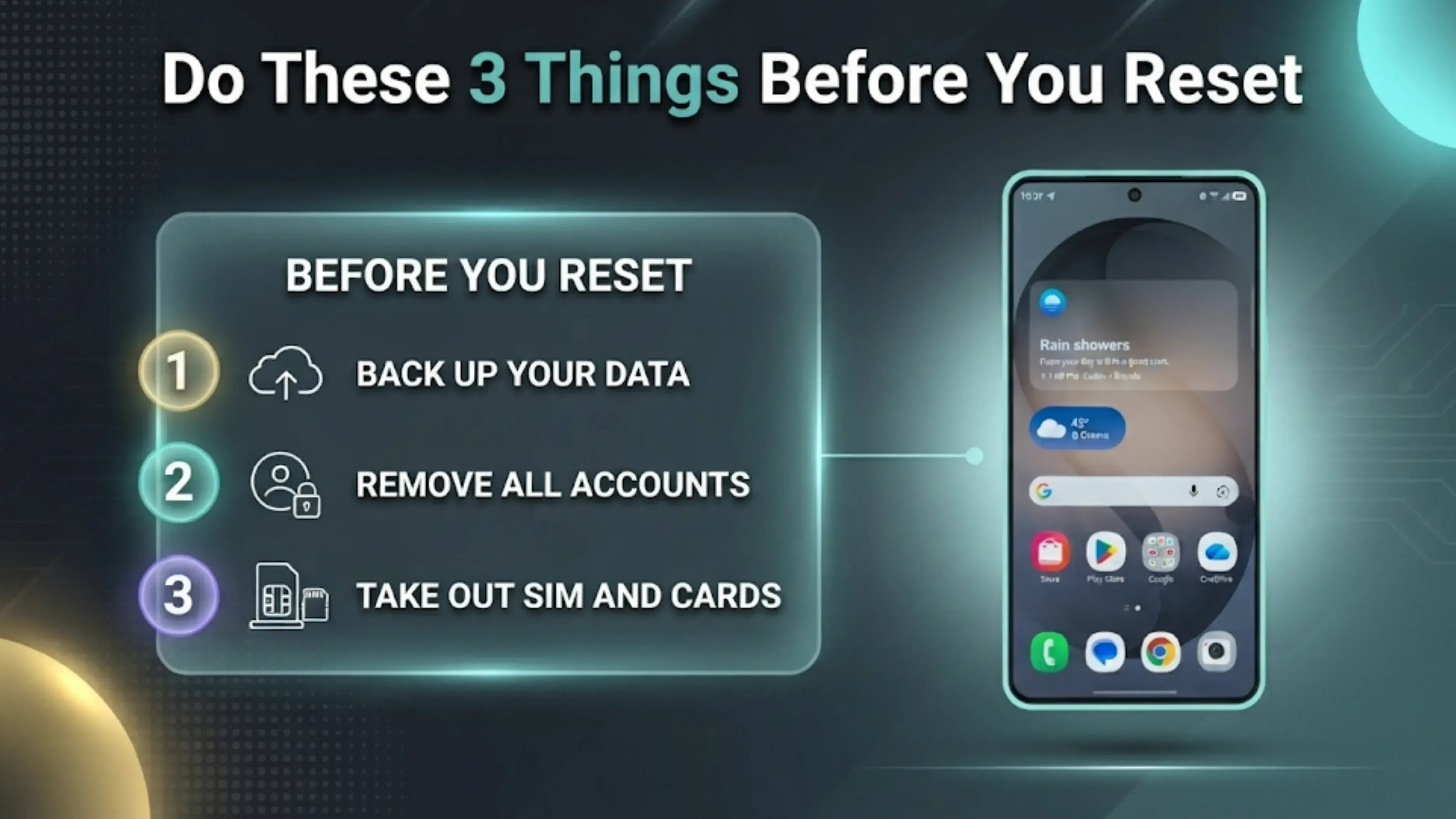
Since a factory reset removes everything in a permanent way, you should back it up first. To do this, go to Settings, then to Google, then to Backup, and carry out a Google One backup which will include your apps, call history, contacts, settings, and messages. Transfer the photos and videos to Google Photos and copy any essential files onto a computer either using a USB cable or by inserting a microSD card. After the reset has been carried out, recovery will be impossible.
This is the step most people skip, and it matters most, because of Factory Reset Protection. FRP is an anti-theft feature: if you reset a phone without first removing the Google account, the phone demands that same account's password on the next setup, and without it the device is locked. An FRP-locked phone is unusable to any buyer and collapses to scrap value of Rs. 2,000 to Rs. 5,000, regardless of its condition.
In Settings, go to Accounts (or Passwords and accounts, or Users and accounts, depending on your brand), choose your Google account and tap Remove account. You should also remove any other brand account such as a Samsung account, a Mi account, a OnePlus account, or similar, since these impose their own device locks.
Before you carry out the reset, remove the SIM card and any microSD card as well, since the reset doesn't guarantee that the memory card will be erased and you must not leave either card in the device.
Use it in the case where the phone is working properly; the phrasing may differ slightly depending on the brand but the general process is the same.
Open Settings.
Type 'Reset' into the search bar at the top; that is the quickest method of locating it on any brand.
Tap Reset options, then Erase all data (factory reset). On Samsung, this reads Settings > General management > Reset > Factory data reset. On Xiaomi, Redmi, and Poco, go to Settings > About phone > Factory reset. On Realme, Oppo, and Vivo, go to Settings, System settings or Additional settings, then Back up and reset.
Look at the list of the accounts and data which are to be erased and then tap Erase all data or Reset.
When asked, please enter your PIN, pattern, or password.
Confirm to begin.
The phone restarts, displays a screen being erased, and after a few minutes reaches the new welcome screen. Make sure it remains charged at over 50 percent and do not interrupt the process.
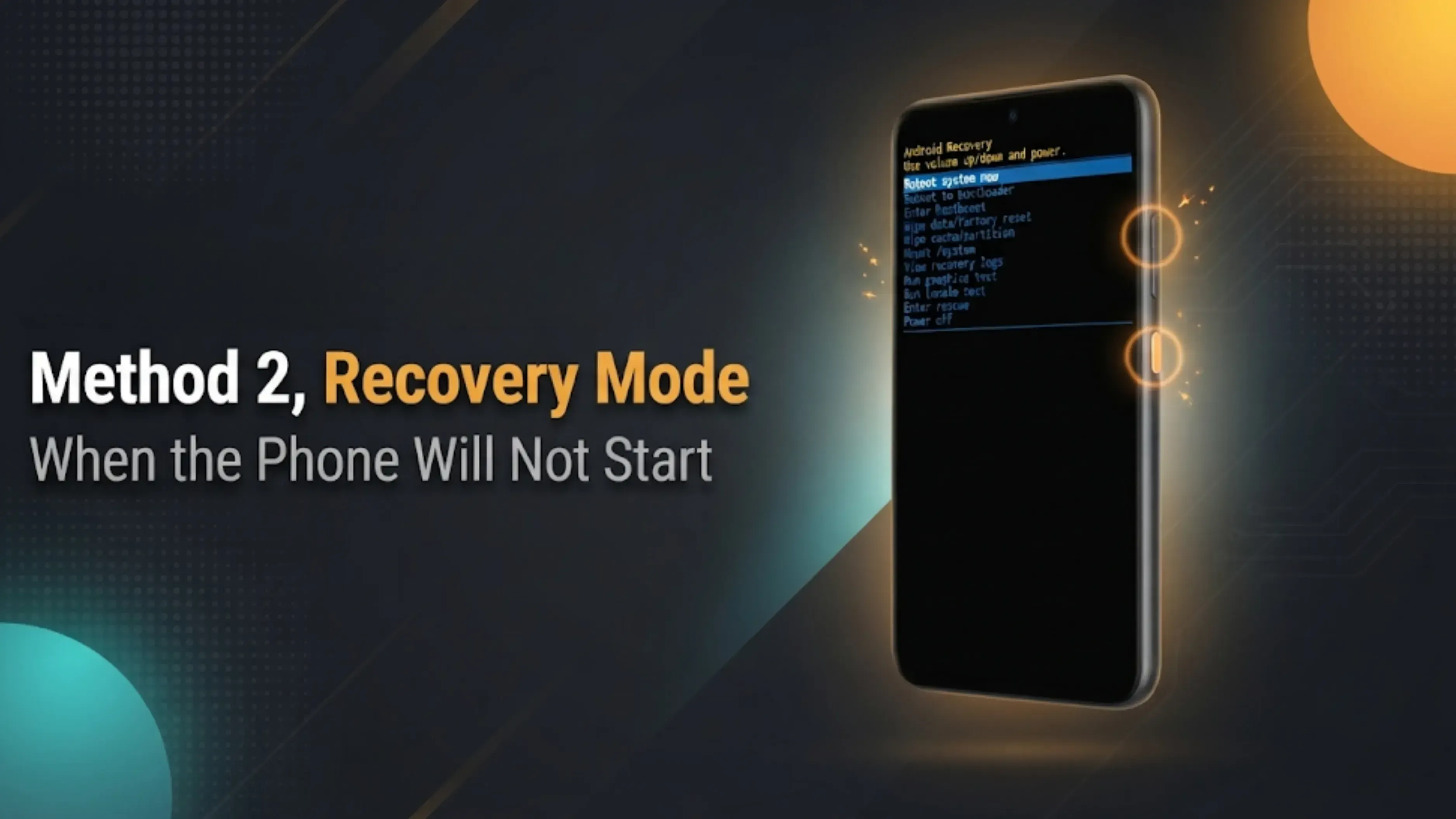
If the phone is frozen, stuck in a boot loop, or you cannot get past the lock screen, use Recovery Mode:
Switch off the phone entirely. If the phone is frozen, press and hold the Power button until it turns off.
Enter Recovery Mode with the button combination for your brand. On most Android phones, hold Volume Up and Power together until the logo appears. On some Xiaomi, Realme, and Oppo models the same combination applies, while a few older phones use Volume Down and Power.
Navigate using the Volume buttons and select with the Power button. Pick the option to wipe the data/factory reset.
Confirm your choice, typically by selecting Yes or Factory data reset.
Once it has finished, please select Reboot system now.
Important: Recovery Mode does not bypass Factory Reset Protection. If your Google account was still on the phone, you will need its password at setup, which is exactly how the anti-theft protection is meant to work.
If the phone is lost, stolen, or not with you, erase it remotely:
Go to google.com/android/find on any browser, or open the Find Hub app on another Android device, and sign in with the Google account used on the phone.
Select the phone from your device list.
Select the Erase device and then confirm.
The wipe runs the next time the phone connects to the internet. Note that a remote erase leaves the phone locked to your Google account, which is correct for a stolen device but wrong for one you are selling, so use Method 1 for sales.
If you have forgotten your Google password, recover it on Google's account recovery page before resetting, since you will need it at setup if the account is still on the device. Beware of any service or video claiming to bypass FRP, since these methods are unreliable, often malicious, and defeat a security feature that exists to protect stolen phones.
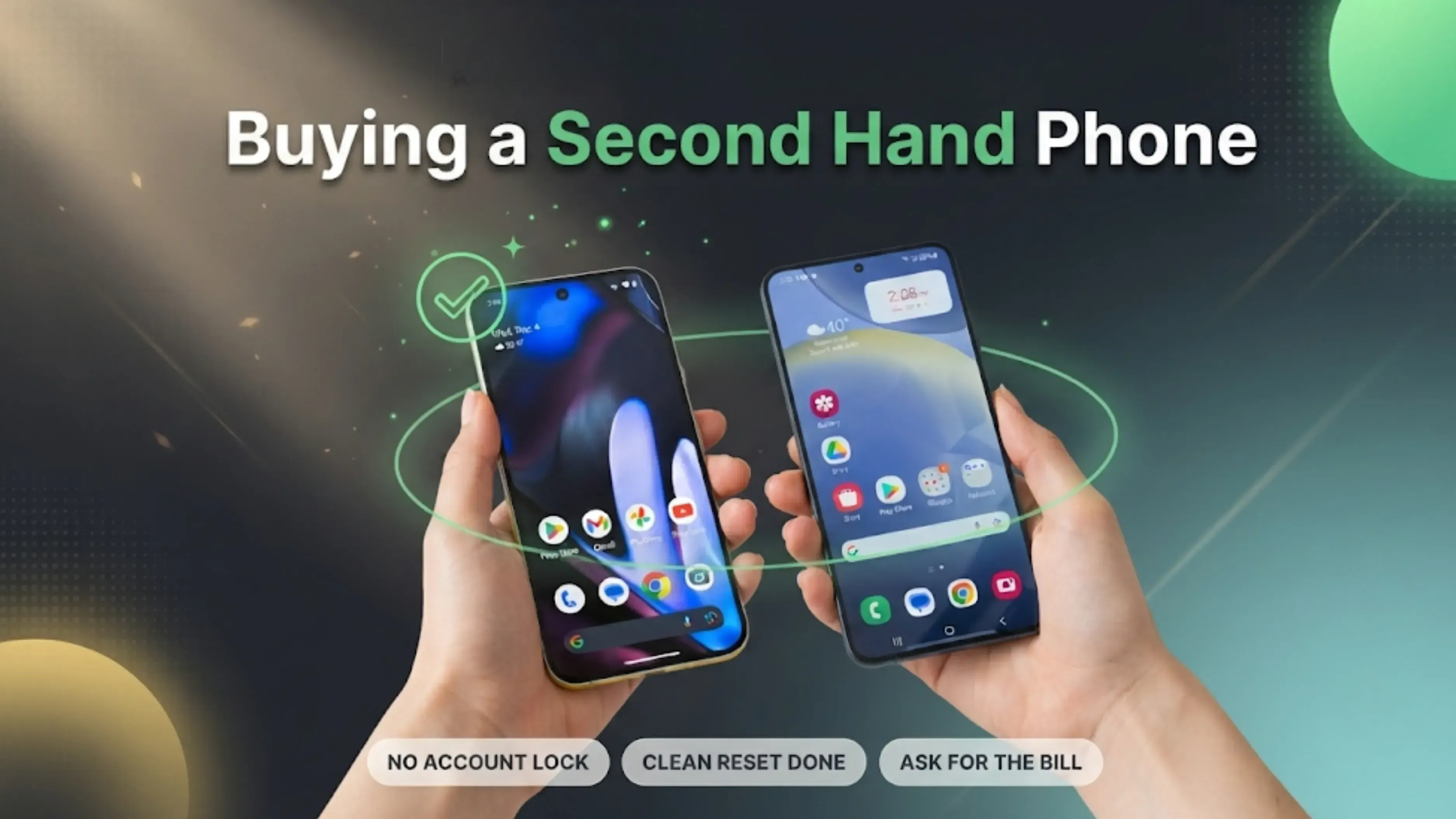
When purchasing a used phone, you should always check before making the payment that the seller has removed both their Google account and the brand account, and that the phone gets to the setup welcome screen without asking for the previous owner's password. A reliable seller will not refuse this check.
If the reset is the first step when selling, then this is the wise approach: first note your phone's model, its storage capacity and its condition, then obtain an instant quote using the Cashkr price calculator. The price is fixed at the time of booking, which means there's no room for negotiation when you meet the buyer, and Cashkr provides free doorstep collection in more than 2,000 pincodes through ID-verified partners, with same-day payment by UPI, bank transfer, or cash after verification, and a valid invoice is issued for each sale. Phones in any condition can be accepted, whether they are in mint condition, have cracks, or are completely dead.
Here's another reason why the platform is important: a standard factory reset doesn't always eliminate data that can still be recovered by forensic means, particularly on older Android phones where fragments of the data may at times be retrieved. Once a device has been collected, Cashkr carries out a certified multi-pass data wipe on it, overwriting the storage in such a way that anything you have saved can never be recovered, this being the final layer of protection that your own reset cannot fully ensure.
To factory reset an Android phone, all you have to do is follow the correct procedure: first make a backup, then remove your Google and manufacturer accounts, eject the memory cards, and finally reset it from the Settings by looking for Reset and selecting Erase all data. If the phone will not start, use Recovery Mode by pressing the Volume and Power buttons, and if the phone is out of your hands, use Find Hub.
The most important rule is to remove your Google account first. If you don't do this, Factory Reset Protection will turn your skipped step into a situation where the device becomes locked and is essentially worthless, since it will protect thieves but penalise careless sellers. If you carry out the reset correctly, then the phone is ready for its new owner, and if you decide to sell it, Cashkr will turn this into cash on the same day with a certified wipe provided.
Bottom line: Factory reset an Android phone via Settings, search Reset, then Erase all data, after backing up and removing your Google and brand accounts to avoid the FRP lock. Use Volume Up plus Power for Recovery Mode when the phone will not start, and use Find My Device at google.com/android/find for remote erases. Selling afterwards? Cashkr adds a certified data wipe, free doorstep pickup across 2,000-plus pincodes, and same-day payment.
1. How do I factory reset an Android phone?
Go into Settings, search for Reset, tap on Reset options, then select Erase all data (carrying out a factory reset), look at the warning message, put in your PIN or password and confirm it. The phone will erase all the data and restart itself and show the welcome screen a few minutes later. Firstly, back up your Google account and then remove it.
2. How do I factory reset an Android phone that will not turn on or is frozen?
Use Recovery Mode. Power the phone off, then hold Volume Up and Power until the logo appears. Use the Volume buttons to select Wipe data/factory reset and confirm with the Power button, then choose Reboot system now.
3. What is Factory Reset Protection on Android?
FRP is a feature designed to prevent theft, and it ties the phone to the Google account that was already on it prior to the reset; if you do not first remove the account then the phone will ask for that account's password when it is set up and will therefore be unusable without it, which is why it is necessary to remove the account as the very first step.
4. Do I need to remove my Google account before a factory reset?
Yes, at all times, particularly when you're selling it. You should go to Settings > Accounts, choose your Google account and tap Remove account, and then remove any brand account, for example a Samsung or Mi one. A phone that has been reset but remains locked to your account is only worth between Rs. 2,000 and Rs. 5,000 to buyers.
5. Does a factory reset delete everything on an Android phone?
It deletes all applications, accounts, files, and settings from the internal storage, although it might not erase data on a microSD card, so make sure to eject the card first. Since a standard reset does not always remove data in a way that makes it unrecoverable by forensic means on older phones, a certified wipe provides an extra level of protection if you are selling the phone.
6. How do I factory reset an Android phone remotely?
You can go to google.com/android/find or use the Find My Device app on a different device, log in with the Google account associated with the phone, select the device and then choose Erase device; the wiping process will take place the next time the phone connects to the internet. This procedure should be used in the case of a lost or stolen phone, not when selling the phone.
7. Can I factory reset an Android phone without the password?
Although Recovery Mode allows you to carry out a reset without having to enter the screen lock, Factory Reset Protection will still require the Google account password that was used when the device was set up. You should first recover the account at Google's account recovery page and avoid using any service that claims to bypass FRP, since these are generally unreliable and often malicious.
8. Does a factory reset make an Android phone faster?
Usually yes. It clears years of accumulated apps, cache, and background clutter, restoring the phone to its out-of-the-box responsiveness. Back up everything first, since the process is irreversible.
9. Do the reset steps differ by brand?
Slightly. Samsung uses Settings > General management > Reset > Factory data reset. Xiaomi, Redmi, and Poco use Settings, About phone, Factory reset. Realme, Oppo, and Vivo use Settings, then Additional or System settings, then Back up and reset. Searching "Reset" in Settings is the fastest way on any brand.
10. How do I sell my Android phone after resetting it?
Get an instant quote on the Cashkr price calculator using your model, storage, and condition. The price is locked at booking, pickup is free across 2,000-plus pincodes, every device gets a certified multi-pass data wipe, and payment arrives the same day via UPI, bank transfer, or cash with an invoice.
Also Read: How to Factory Reset a Samsung Tablet: Step by Step Guide
Also Read: Poco M8x 5G Price in India: Launched With 7,900mAh Battery
Sell with Cashkr
Cashkr buys used devices at a fair price with free doorstep pickup and same-day payment across 2,000+ pincodes. Get an upfront quote in seconds.
Sell Old Phone OnlineCheck your phone's value in seconds
Written by
Google Find My Device guide, locate your phone in minutes.

Recycle old devices in India and earn instant cash today
Learn how to sell refurbished devices online and maximize profit.
Prepare smartphones for resale & sell old phones easily with Cashkr.

Support the circular economy by selling old phones on Cashkr today.
Reduce e-waste by selling old devices through Cashkr’s eco-friendly process.


