How to Enable Two-Factor Authentication on Instagram Using Various Methods
A strong password alone can’t fully protect your Instagram account. Hackers can steal login details through phishing, data breaches, or malware that records your keystrokes. Two-factor authentication adds a second step, so even if someone gets your password, they still can’t log in without your approval.
Turning on two-factor authentication on Instagram takes less than three minutes. You can use an authentication app like Google Authenticator or Microsoft Authenticator, get a code by SMS, or receive it through WhatsApp. Instagram suggests using an authentication app because it’s the most secure and works even without a network connection.
This guide will walk you through setting up two-factor authentication on Instagram using any of the three methods. It also explains the security differences, common setup issues, and important safety tips. Choose the method that works best for you.
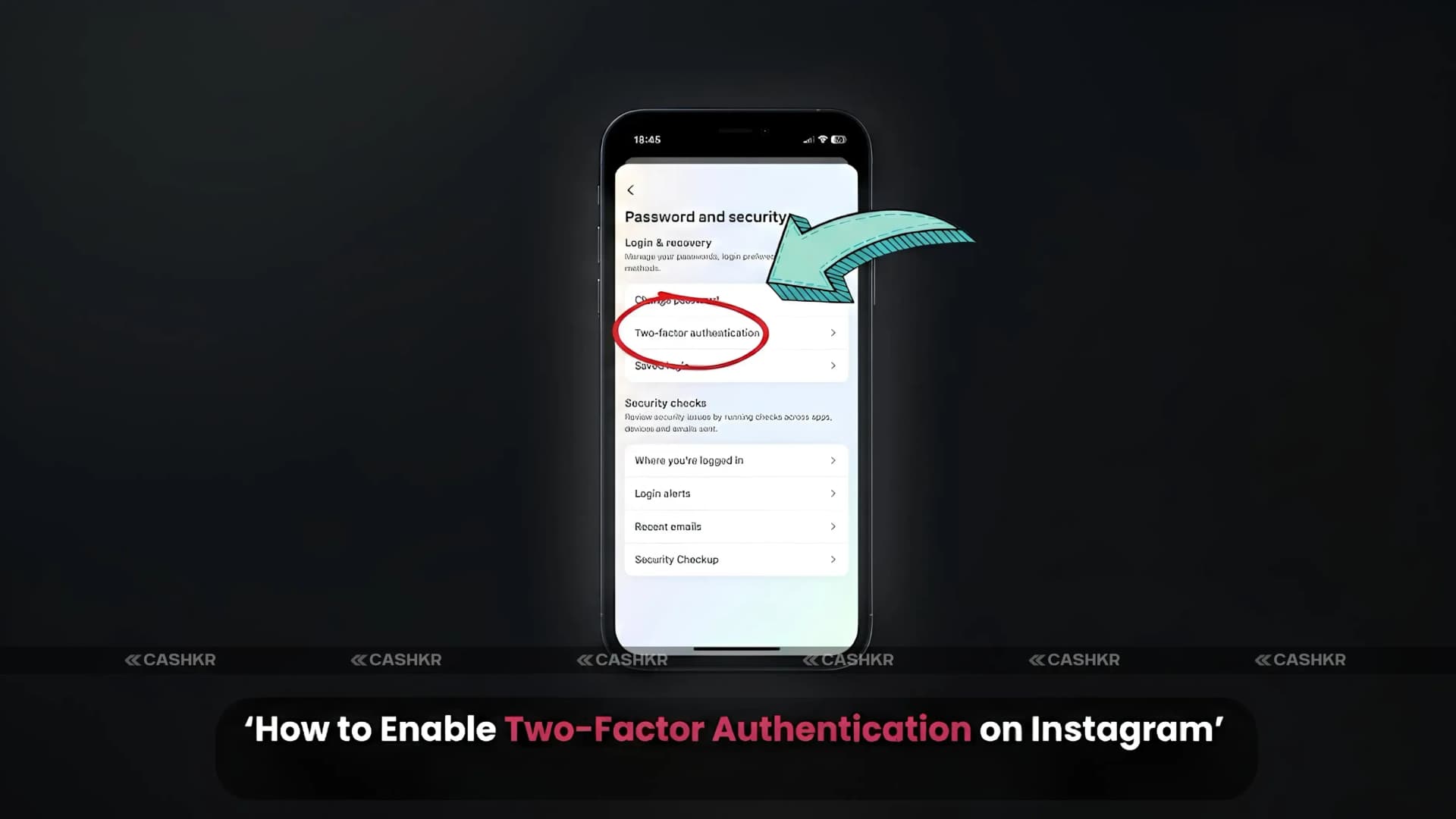
- To set up two-factor authentication on Instagram, tap your profile icon (bottom right), then the three-line menu (top right), go to Accounts Center, then Password and Security, and select Two-factor authentication. Pick your account and choose a method: authentication app (most secure and works offline), SMS carrier-dependent (on your carrier), or requiresApp (easy but needs internet). After you turn it on, save your backup codes and never share your verification codes with anyone.
What is Two-Factor Authentication on Instagram?
If you don’t use two-factor authentication, anyone with your password can log into your Instagram from any device. With 2FA turned on, Instagram asks for a second code whenever you log in from a new device. The code changes every 30 seconds if you use an authentication app, or you get a new code each time by SMS or WhatsApp. Without this second code, even someone with your password can’t get in.
Instagram also sends you a notification if someone tries to log in from a new device. Even if someone has your password and a 2FA code, you’ll get an alert so you can change your password and block access right away. You can also check which devices have logged into your account in the login activity section of your settings.
When 2FA is active on a trusted device, Instagram remembers devices the account holder has previously logged into. On a trusted device, the second code is required only at the first login from that device. This means the security step occurs at the right time (when a new device or location is detected) without interrupting regular use on familiar devices.
Benefits of Enabling Two-Factor Authentication on Instagram
Extra Account Security
Two-factor authentication helps protect your account from hackers and unauthorized logins.
Protection Against Password Leaks
If your password is leaked or stolen, your Instagram account remains secure because the hacker also needs the verification code.
Login Alerts
Instagram notifies users whenever a new login attempt is detected on another device.
Better Privacy Protection
2FA reduces the risk of:
• Account hacking
• Identity theft
• Unauthorized access to private messages and media
Types of Two-Factor Authentication on Instagram
Instagram currently supports three methods for authentication codes:
Authentication Apps
Examples include:
• Google Authenticator
• Duo Mobile
• Microsoft Authenticator
Instagram recommends using authentication apps because the codes refresh automatically every few seconds.
SMS Verification
Instagram sends a 6-digit code via text message.
WhatsApp Verification
You can also receive the login verification code directly on WhatsApp.
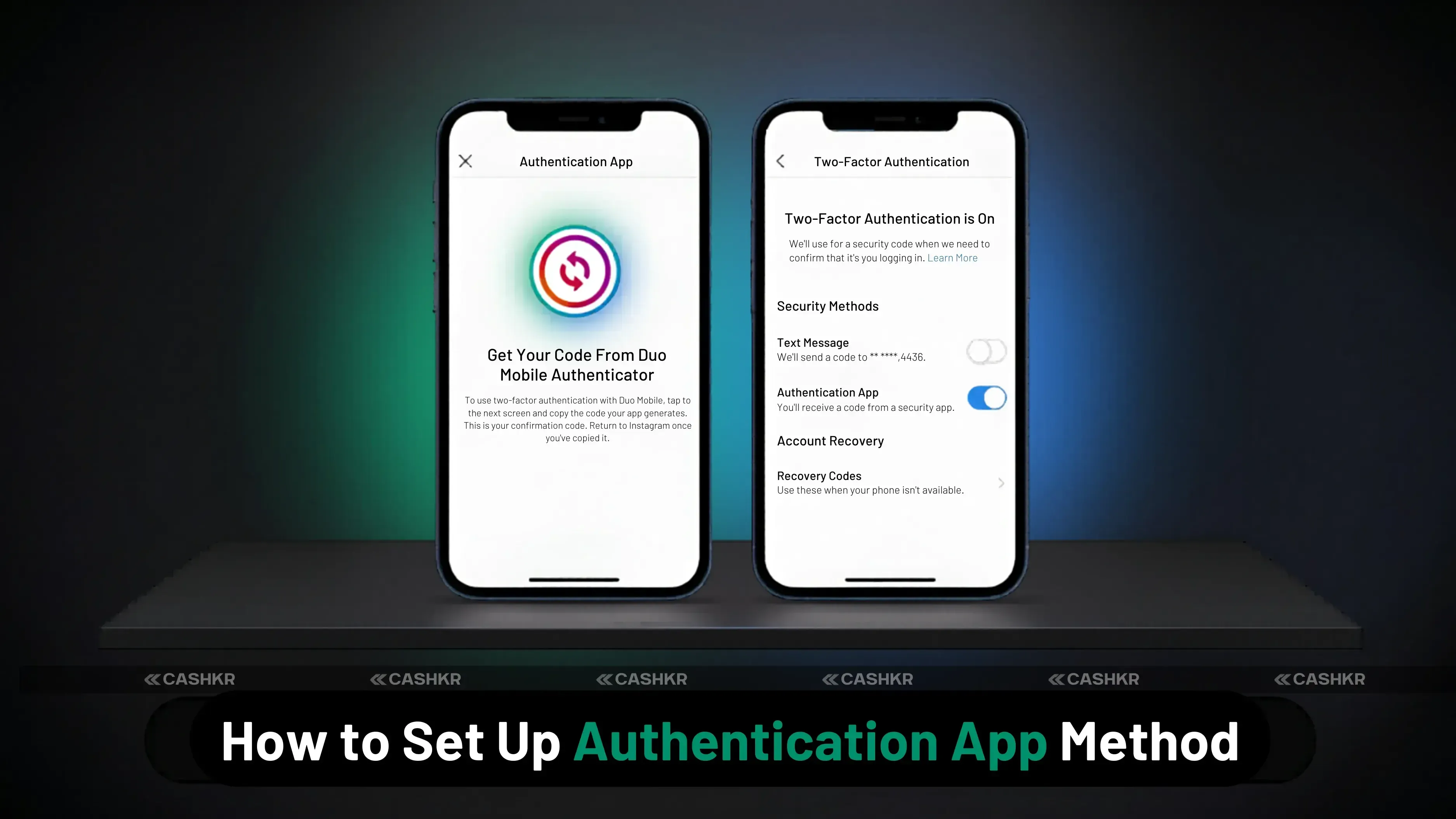
How to Enable Two-Factor Authentication on Instagram Using an Authentication App
Follow these steps carefully:
Step 1: Open Instagram
Launch the Instagram app and log in to your account.
Step 2: Go to Profile
Tap your profile picture at the bottom-right corner.
Step 3: Open Settings
Tap the three horizontal lines in the top-right corner.
Step 4: Open Accounts Centre
Select:
• Accounts Centre
Step 5: Go to Password and Security
Tap:
• Password and security
Step 6: Select Two-Factor Authentication
Choose:
• Two-factor authentication
Step 7: Choose Your Account
If you manage multiple Instagram accounts, select the account you want to secure.
Step 8: Select Authentication App
Choose:
• Authentication app
Then tap:
• Next
Step 9: Connect Authentication App
Instagram will now display:
• Authentication key
• QR code
You can:
• Copy the key manually
• Or scan the QR code using apps like Google Authenticator
Step 10: Enter Verification Code
Your authentication app will generate a six-digit code.
Enter that code on Instagram.
Your Instagram account now has two-factor authentication enabled.
How to Enable Two-Factor Authentication on Instagram via SMS or WhatsApp
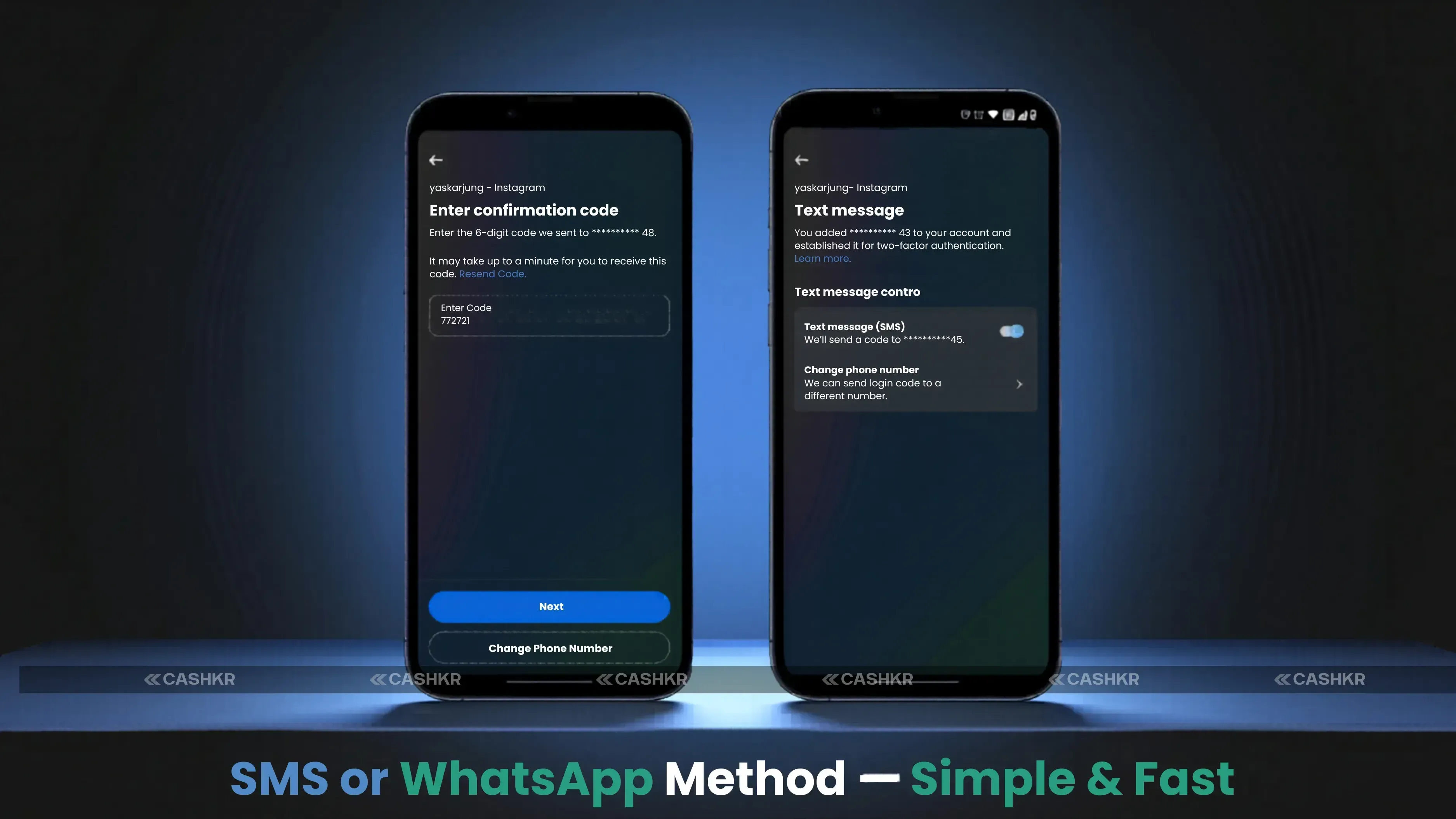
If you do not want to use an authentication app, you can receive login codes through SMS or WhatsApp.
Step 1: Open Instagram Settings
Repeat the same steps mentioned earlier:
• Profile
• Settings
• Accounts Centre
• Password and Security
• Two-factor authentication
Step 2: Select SMS or WhatsApp
Choose:
• SMS
or
• WhatsApp
Then tap:
• Next
Step 3: Enter Mobile Number
Provide the phone number where you want to receive verification codes.
Step 4: Receive Verification Code
Instagram will send a six-digit code via:
• WhatsApp
or
• SMS
Step 5: Verify the Code
Enter the six-digit code on Instagram.
Your two-factor authentication is now enabled successfully.
Authentication App vs SMS: Which is Better?
Authentication App Advantages
• More secure
• Codes refresh automatically
• Works offline
• Harder for hackers to intercept
SMS/WhatsApp Advantages
• Easier to set up
• No extra app required
• Convenient for beginners
Instagram recommends authentication apps for maximum security.
Tips to Keep Your Instagram Account Safe
Use a Strong Password
Create a password with:
• Uppercase letters
• Numbers
• Symbols
Avoid Public Wi-Fi
Public networks can expose your login details.
Never Share Verification Codes
Instagram employees never ask for your authentication code.
Keep Backup Codes Safe
Instagram may provide backup recovery codes. Store them securely.
Update Your Email and Phone Number
Make sure your recovery information is always updated.
Troubleshooting Two-Factor Authentication on Instagram
The most common problems when setting up two-factor authentication on Instagram and how to resolve them:
Not receiving SMS verification code. Check that the mobile number entered is correct and currently active on the network. Confirm the phone has an adequate signal. If the carrier is experiencing network issues, the SMS may be delayed. Wait 60 seconds and request a new code. If SMS consistently fails, switch to the WhatsApp method using the same number, or set up an authentication app instead.
The authentication app code is not accepted by Instagram. The most common cause is a time sync mismatch between the phone’s clock and the server. The authentication app generates codes based on the current time. If the phone’s time is incorrect, the code will not match. Go to the phone’s settings and enable automatic time and date. On Android, open the Google Authenticator app and use the time correction option if available. Re-scan the QR code from Instagram if the issue persists.
Lost access to the authentication app. This typically happens after losing a phone or performing a factory reset without first exporting the authenticator accounts. Use Instagram’s backup recovery codes if they were saved during setup. If backup codes are not available, use Instagram’s account recovery process: go to the Instagram login screen, tap Forgot password, and follow the account recovery steps using the registered email or linked phone number. Instagram’s identity verification process may be required.
WhatsApp not receiving the verification code. Confirm that WhatsApp is installed and active on the registered number. Check that the WhatsApp account is not restricted or suspended. Ensure the phone has an internet connection. WhatsApp codes will not arrive if the phone is offline. Switch to SMS if WhatsApp is temporarily inaccessible.
Cannot find Two-factor authentication in Settings. Instagram’s settings path goes through Accounts Center rather than the older Settings and Privacy route. The correct path is: Profile icon (bottom right), three-line menu (top right), Accounts Center, Password and Security, Two-factor authentication. If the Accounts Center is not visible, update the Instagram app to the latest version.
Final Verdict
Turning on two-factor authentication is the best way to protect your Instagram account. Even a strong password can be stolen through phishing or data leaks. With 2FA, these attacks won’t work unless someone also has your second verification method.
You can set up two-factor authentication on Instagram in less than three minutes with any of the three methods. For the best security, use an authentication app. SMS is easiest for beginners. Be sure to save your backup codes right after setup and never share them. Check your login activity from time to time. Using a strong password and 2FA together makes your account much safer from online attacks.
- Here’s a quick setup summary: Tap your profile icon (bottom right), then the three-line menu, go to Accounts Center, then Password and Security, and select Two-factor authentication. Pick your account and method. For an authentication app, scan the QR code and enter the six-digit code. For SMS, confirm your phone number and enter the code you get. For WhatsApp, confirm your number and enter the code sent there. Always save your backup codes before you finish.
FAQs
1. How do I enable two-factor authentication on Instagram?
Go to your profile, tap the three-line menu, select Accounts Center, then Password and Security, then Two-factor authentication, then select your account. Choose either the authentication app, SMS, or WhatsApp. Follow the on-screen steps to confirm the chosen method. The process takes under three minutes for any method.
2. Which is the most secure two-factor authentication method on Instagram?
The authentication app method (Google Authenticator, Microsoft Authenticator, or Duo Mobile) is the most secure. Codes are generated locally without a network connection, refresh every 30 seconds and are immune to SIM swap attacks that can compromise SMS-based 2FA. Instagram also recommends authentication apps as the preferred method.
3. What is the path to find two-factor authentication in Instagram settings?
Profile icon (bottom right corner), then three-line menu (top right), then Accounts Center, then Password and Security, then Two-factor authentication, then select the account to secure. If the Accounts Center is not visible, update Instagram to the latest version.
4. What happens if I lose my phone with the authentication app on it?
Use the backup recovery codes saved during 2FA setup to log in. Each backup code is a one-time use code that bypasses the authentication app requirement. If backup codes were not saved, use Instagram’s account recovery process from the login screen using the registered email or phone number.
5. Can I use two-factor authentication on Instagram without a phone number?
Yes. The authentication app method does not require a phone number. Install Google Authenticator or Microsoft Authenticator on any smartphone, scan the QR code shown by Instagram during setup, and use the generated codes to log in. No SMS or phone number is needed for the authentication app method.
6. Why is my authentication app code not working on Instagram?
The most likely cause is a time sync issue. The authentication app generates codes based on the device clock. If the phone’s clock is wrong by even a minute, the generated codes will not match Instagram’s expected code. Enable automatic time and date in the phone’s settings. On Android, use the time correction option in Google Authenticator’s settings. Re-scan the Instagram QR code if the problem persists.
7. Does two-factor authentication on Instagram affect all devices I am logged into?
No. 2FA is only required when logging in from a new or unrecognized device. Devices that are already logged into the account and have been verified will continue to work normally. Trusted devices bypass the 2FA step for convenience. You can review and remove trusted devices from Instagram’s login activity settings.
8. How do I disable two-factor authentication on Instagram?
Go to the same path: Accounts Center, then Password and Security, then Two-factor authentication, then select the account. Tap the active 2FA method and select the option to turn it off. Instagram will confirm the deactivation. Disabling 2FA reduces account security and is not recommended unless there is a specific reason.
9. What are Instagram backup codes, and where do I save them?
Backup codes are one-time use recovery codes provided by Instagram after enabling 2FA. They allow login if access to the primary 2FA method is lost. Each code can only be used once. Save them in a password manager on a separate device, as a secure note, or as a printed copy stored offline. Do not save them only on the same phone as the authentication app.
10. Will enabling two-factor authentication on Instagram protect against phishing?
2FA significantly reduces the risk from phishing because stolen credentials alone are not enough to access the account. However, sophisticated phishing attacks can still capture 2FA codes in real time using proxy attacks that relay the code before it expires. The authentication app method reduces this risk because codes expire every 30 seconds. Never enter verification codes on any site other than the official Instagram login page.
If you want to sell your old devices then,
click here.
 Yaskar Jung ShahUpdated: Aug 9, 2026·14 min read