How to Erase Personal Data Before Selling Device
 Yaskar Jung ShahUpdated: Jul 27, 2026·15 min read
Learn how to safely erase personal data before selling your device.

Get the Cashkr app for faster payouts

Selling your old phone, laptop, or tablet is a great way to get quick cash, but if your personal data is still on the device, it can put you at risk. Just deleting some files or photos won’t protect you, since your information can often be recovered. This guide will show you how to back up, erase, and check your data removal so you can sell your device with confidence.
Selling your old device without wiping it clean can leave you vulnerable to identity theft, financial fraud and privacy problems. Even if you remove files such as images, passwords, banking apps, and personal communications, they can still be recovered using third-party software.
Before handing over your phone, laptop, or tablet to any buyback site, be sure to remove all your data to safeguard your digital identity and give yourself peace of mind. The good news is that a complete wipe takes less than 30 minutes for most devices — a tiny price to pay for protection that lasts.
Saved passwords and autofill credentials
Banking and payment app data (UPI, wallets, net banking)
Email accounts and social media logins
Photos, videos, and personal documents
Browsing history and location data
Contact lists, call logs, and text messages
App data, chat backups, and cached files
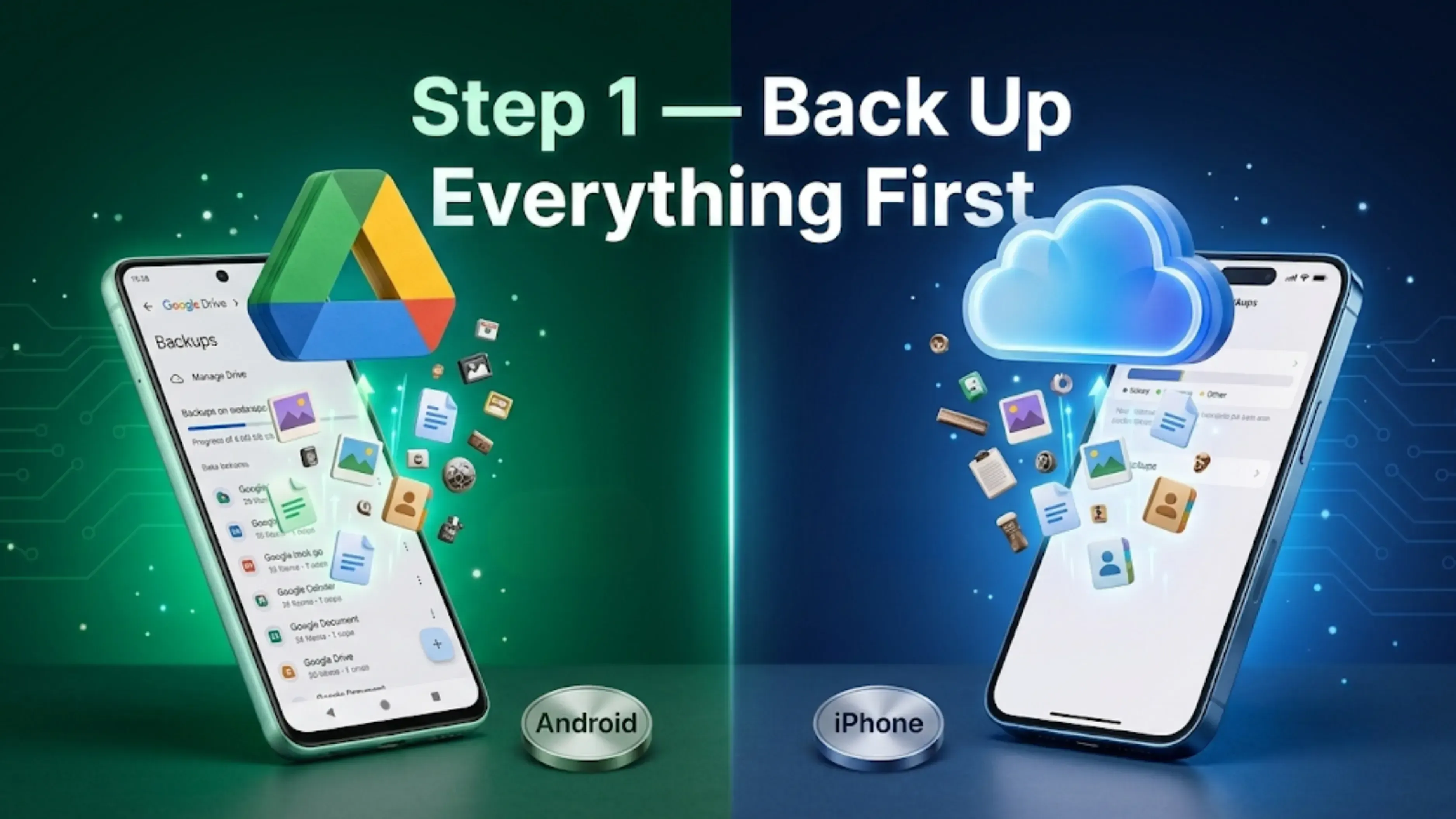
Before wiping your device clean, back up everything you want to keep. If you're moving to a new device, our guide on how to transfer data from old phone to new phone covers the fastest methods for Android, iPhone, and cross-platform switches.
Google Drive and Google Photos allow Android users to automatically back up app data, contacts, and photos to the cloud. iPhone users can back up to iCloud or to a computer using iTunes or Finder. Laptops & MacBooks: External hard drive or cloud services like Google Drive, Dropbox or OneDrive. Always ensure your backup is complete before deleting any data. Once you wipe the device, there is no way back.
Open Settings, then System, then Backup.
Enable automatic backup to save app data, call history, contacts, device settings, and photos to Google Drive.
Ensure you're connected to Wi-Fi and that your Google account has sufficient storage.
Tap Back up now and wait for completion.
Go to Settings, tap your name at the top, then select iCloud and iCloud Backup.
Turn on iCloud Backup and tap "Back Up Now."
Keep your device connected to Wi-Fi and power until the process completes.
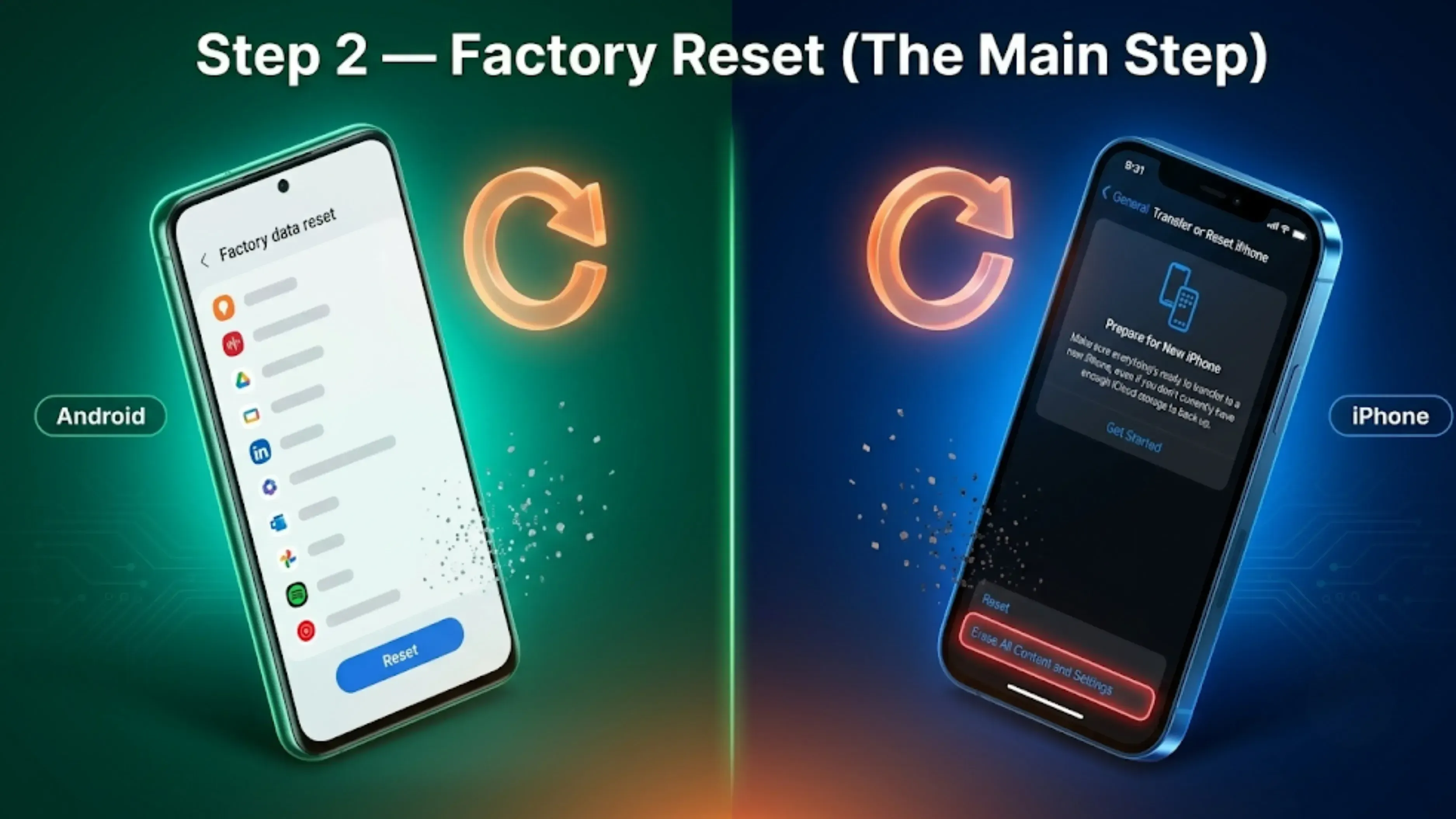
A factory reset deletes all your data and returns your device to its original settings. This is the best way to remove your personal information before selling. The steps are a bit different for Android and iOS, but both will permanently erase your data.
Go to Settings, then System, then Reset Options.
Choose "Erase All Data (Factory Reset)."
Confirm your selection and enter your PIN or password if prompted.
The device will restart and return to its out-of-the-box state.
Sign out of iCloud: Go to Settings, tap your name, scroll down, and tap Sign Out.
Disable Find My iPhone: Under Settings > [Your Name] > Find My, turn it off (you'll need your Apple ID password).
Go to Settings > General > Transfer or Reset iPhone > Erase All Content and Settings.
Enter your passcode and Apple ID password to confirm.
Laptops and MacBooks need different steps based on their operating system. Just deleting files or emptying the recycle bin isn’t enough, because deleted data can still be recovered with simple software. Wiping your device the right way makes sure all your personal information, like browser history, saved passwords, and documents, is gone for good.
Go to Settings > System > Recovery.
Click "Reset this PC" and choose "Remove Everything."
Select "Local Reinstall" or "Cloud Download" based on your preference.
When asked about additional settings, choose "Clean the drive fully" for complete, secure data removal.
Restart your MacBook and immediately hold Command + R to enter Recovery Mode.
Open Disk Utility, select your main hard drive, and click Erase.
Choose APFS or Mac OS Extended as the format.
After erasing, quit Disk Utility and select "Reinstall macOS" from the Recovery menu.
Remove your SIM card and memory card. These carry contacts, messages, and files independently of the phone's storage.
Sign out of all accounts, including Google, Apple, Samsung, Microsoft, and any other manufacturer accounts.
Deactivate device protection. Turn off Find My iPhone or Google's Find My Device before resetting.
Unpair Bluetooth devices such as smartwatches, earbuds, and car systems.
Clear saved Wi-Fi networks so no residual connections remain.
Before you do a factory restart, you should delete your main accounts manually to avoid activation lock problems that could make the device useless.
For Google accounts on Android: Go to Settings > Accounts > Google, select your account, and tap Remove Account.
For Apple devices: Go to Settings, tap your name, scroll down, and select Sign Out. Enter your Apple ID password to disable Find My iPhone and remove the device from your account. You can also verify removal later at icloud.com under your device list.
If you skip this step, it’s the most common reason why device sales get delayed. Buyback services can’t process a device that’s still linked to your account.
Cashkr follows strict data privacy protocols. After receiving your device, our team performs additional data verification checks to ensure all personal information has been removed. Devices are then either refurbished for resale or responsibly recycled. You can read exactly what happens to your old phone after you sell it.
Still, it’s your job to erase your data first. Cashkr’s checks are just a backup, not a replacement. Make sure you follow all the erasure steps in this guide before giving away your device.
Performing a soft reset instead of a factory reset. Restarting or "resetting settings" does not erase data.
Forgetting external storage. SD cards and SIM cards must be removed separately; a factory reset doesn't touch them.
Leaving accounts signed in. This triggers activation locks and exposes your account.
Skipping backup verification. Always confirm your backup opened correctly before wiping.
Selling with screen locks still enabled. This delays verification and payment.
Instant online price quotes, so you know your device's worth in minutes.
Free doorstep pickup across 2,000+ cities in India.
Transparent pricing with no hidden charges or last-minute surprises.
Fast payment upon device verification.
With thousands of satisfied customers and a trusted reputation, selling your phone at Cashkr is a hassle-free experience from quote to payment. To keep future devices in top-selling condition, also read our tips on how to maintain your phone for better resale value and how to avoid scams when selling your smartphone.
The most important thing you can do before selling a device is to properly erase all of its data. Make a copy of the important stuff, log out of all your accounts, perform a full factory reset, and confirm the wipe worked. When you sell, be sure of yourself. Once your device is clean, use Cashkr to get an instant quote. You can then enjoy free home pickup, quick payment, and no breach of privacy.
1. Is deleting files enough before selling my phone?
No. Deleted files can be recovered with data recovery software. Only a full factory reset, combined with signing out of all accounts and removing SIM and SD cards, ensures your data is truly gone.
2. How long does a factory reset take on Android and iPhone?
On most Android phones and iPhones, a factory reset takes 5 to 10 minutes. Wiping a Windows laptop with the "clean the drive fully" option can take several hours, whereas an erase-and-reinstall on a MacBook typically takes 30 to 60 minutes.
3. Can someone recover my data after a factory reset?
Not on newer phones. Android and iOS both encrypt data by default and factory reset deletes the encryption keys making it practically impossible to restore them. If you have an older laptop with an unencrypted drive, you should use the full clean reset option or dedicated wiping software to be sure.
4. Do I need to remove my SIM card before selling?
Yes, of course. Your SIM card stores your phone number and may also store contacts and messages. Remove the SIM and any memory (SD) card before you give the gadget to someone else. A factory reset does not remove them.
5. What should I do if I forgot to backup my data before erasing?
Unfortunately, data erased by a proper factory reset cannot be recovered. Check whether automatic cloud backups (Google Drive, Google Photos, iCloud) were enabled. Much of your data may already be saved there without you realizing it.
6. Will factory reset remove viruses and malware from my device?
In almost all cases, yes. A factory reset wipes all installed apps and files, including most malware. It's one more reason the device you sell and the refurbished device someone else buys start with a clean slate.
7. How do I remove activation lock on iPhone before selling?
If you’re wiping an iPhone, shut off Find My iPhone first (Settings > your name > Sign Out). If you’ve already sent the device, you can remotely delete it by logging in to icloud.com, selecting the device and clicking “Remove from Account.”
8. Do I need to erase data if my phone is broken and won't turn on?
If the device doesn’t turn on, you won’t be able to factory reset it, but you can still protect yourself: take out the SIM and SD cards, change the passwords of any essential accounts you were signed into, and remotely remove the device from your Google or Apple account. Cashkr and other verified sites also observe data-handling and recycling rules for defunct devices.
9. Does a factory reset delete my WhatsApp chats and photos permanently?
Yes, from the device itself. But if you backed up WhatsApp to Google Drive or iCloud, and your images to Google Photos or iCloud Photos, those cloud versions are still safe in your account and may be restored on your new phone.
10. Should I erase my data before or after getting a price quote?
Get your quote first. The valuation is based on the model, storage and condition—not your data. And then do the backup and factory reset right before the planned pickup so the device is clean and ready when it’s given up.
If you want to sell your old devices then, click here.
Sell with Cashkr
Cashkr buys used devices at a fair price with free doorstep pickup and same-day payment across 2,000+ pincodes. Get an upfront quote in seconds.
Sell Old Phone OnlineCheck your phone's value in seconds
Written by
Google Find My Device guide, locate your phone in minutes.
Recycle old devices in India and earn instant cash today
Learn how to sell refurbished devices online and maximize profit.
Prepare smartphones for resale & sell old phones easily with Cashkr.
Support the circular economy by selling old phones on Cashkr today.
Reduce e-waste by selling old devices through Cashkr’s eco-friendly process.


