Cashkr Logo
Mobile
  • Apple
  • Samsung
  • Google
  • OnePlus
Tablet
  • iPad
  • Samsung
  • Lenovo Tab
Laptop
  • Dell
  • HP
  • Lenovo
Mac
  • iMac
  • Mac Studio
  • Mac Mini
  • Macbook Pro
CorporateCalculatorArticlesReferralPartner
hero

Get the Cashkr app for the best experience

OPEN APP
Cashkr Logo

Popular Searches

  • Apple iPhone 13
  • iPad Pro 11-inch Wi-Fi 2020
  • OnePlus Pad Go LTE
  • Mac mini M1
  • MacBook Air M2
  • iMac Retina 5K 27-inch 2017
  • HP Victus
  • Dell Latitude
  • Lenovo Legion

Loading....

logo |

Cashkr - India’s Most Trusted Gadget Selling Platform

BigBold Technologies Pvt Ltd 5th Floor, Tandice 69, 507, Gundavali, Andheri East, Mumbai, Maharashtra 400093, India

© 2026 Cashkr Pvt. Ltd.— All Rights Reserved

CIN: U47912MH2025PTC447159 ISO Certified Registered Under Govt. of India

Check if Cashkr is right for you?

Company

  • About Us
  • Corporate Buyback
  • Partner with us
  • Price Calculator
  • Refer & Earn
  • Guides

Services

  • Mobile Phones
  • Tablets/iPads
  • Laptops
  • MacBook/iMac

Help & Support

  • Indemnity Form
  • Privacy Policy
  • Terms of Use
  • Cookie Policy
  • Sitemap

Life at Cashkr

  • Explore With Cashkr
  • Cashkr News
  • Cashables
  • Coupons
💚 Sell Your Device Faster on the Cashkr App
Download on App StoreGet it on Google Play

** All trademarks, logos, and brand identities are the property of their respective owners. Any company names, logos, product names, and service names mentioned on this website are solely for identification purposes. The use of such trademarks, logos, and brand identities does not constitute or imply any endorsement.

  • Search Results
  • No Result Found
HomeArticlesHow to Silence Unknown Callers on WhatsApp: Android & iPhone
How To

How to Silence Unknown Callers on WhatsApp: Android & iPhone

How to silence unknown callers on WhatsApp easily. Adnroid & iPhone

Yaskar Jung Shah

Yaskar Jung Shah

Senior Tech Writer

May 18, 2026
|
16 min read
|
1 views
|
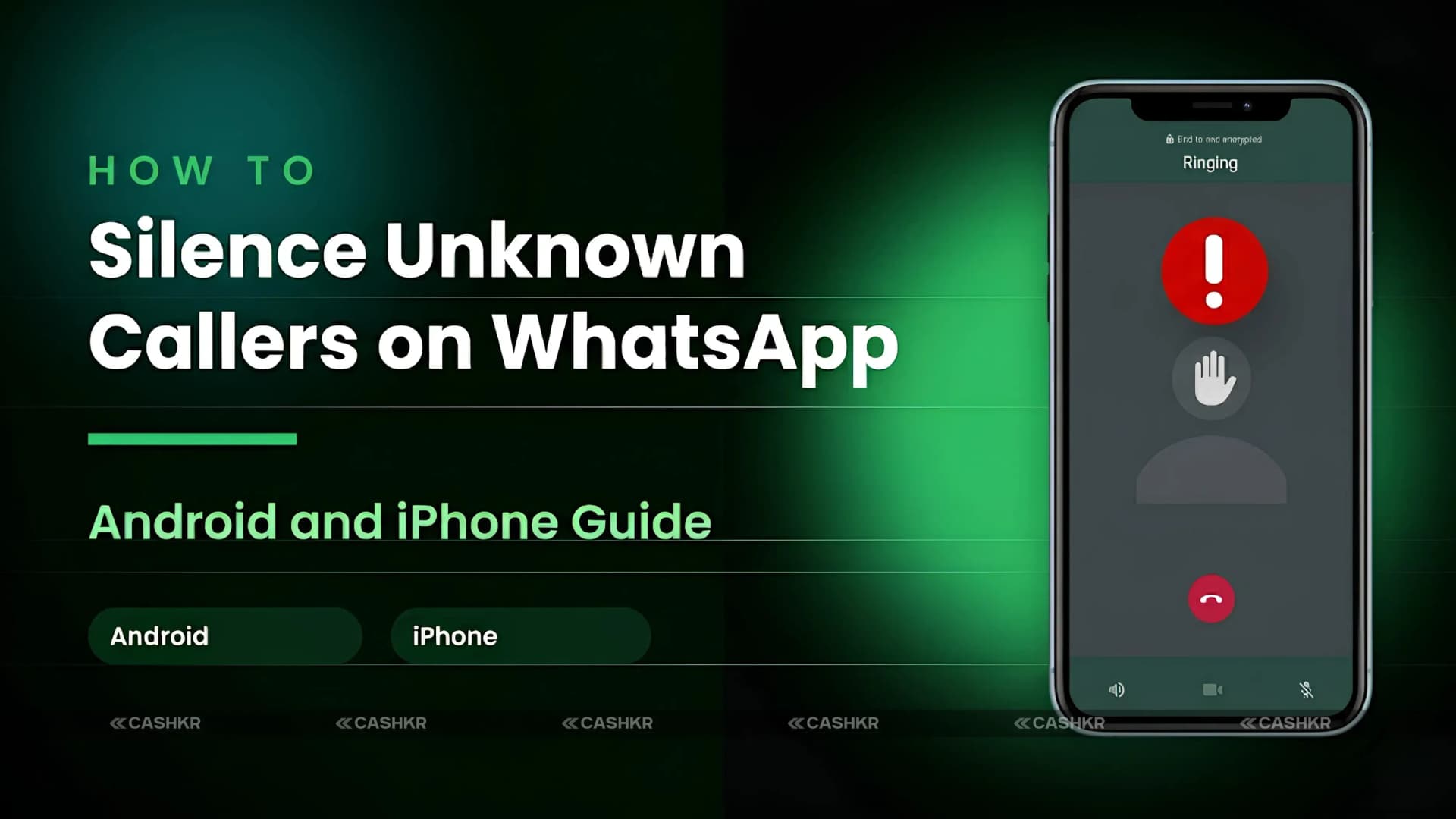
How to Silence Unknown Callers on WhatsApp: Android & iPhone

Key Takeaways

How to silence unknown callers on WhatsApp easily. Adnroid & iPhone

Explain with :ChatGPTClaudePerplexityGoogle AIGrok
Advertisement

How to Silence Unknown Callers on WhatsApp: Step-by-Step Guide for Android and iPhone

  • Quick Summary: WhatsApp has a built-in Silence Unknown Callers feature that stops your phone from ringing when calls come from numbers not saved in your contacts. The setting is available on both Android and iPhone. On Android: open WhatsApp, go to the three-dot menu, select Settings, tap Privacy, then Calls, and enable Silence Unknown Callers. On iPhone: open WhatsApp, go to Settings at the bottom, tap Privacy, then Calls, and turn on Silence Unknown Callers. Silenced calls still appear in your Calls tab and notifications so you can review and return them if needed.

If you keep getting unwanted WhatsApp calls from people you do not know, WhatsApp has a simple way to stop these interruptions. The Silence Unknown Callers feature mutes calls from numbers not in your contacts, but it does not block them completely.
This guide will show you how to turn on Silence Unknown Callers on both Android and iPhone. It also explains what happens to silenced calls, what to expect if you contact a silenced number, and answers common questions about the feature.

What Is the Silence Unknown Callers Feature on WhatsApp?

Silence Unknown Callers is a WhatsApp privacy setting that keeps your phone from ringing when you get a voice or video call from a number not saved in your contacts and that you have not interacted with before. With this setting on, these calls come in quietly. Your phone will not ring, vibrate, or interrupt you.
It is important to know that this feature does not block the caller or stop them from reaching you in other ways. The call still comes through on WhatsApp, appears in your Calls tab, and may show up as a notification. This is different from blocking, which stops all contact. Silencing only removes the interruption but still lets the caller reach you.

Why You Should Enable Silence, Unknown Callers

Many people use this feature to reduce spam and scam calls, which are becoming more common on WhatsApp. Calls from international numbers, promotions, or phishing attempts often come from numbers not in your contacts. Silence Unknown Callers mutes all of these without making you block each one individually.
Along with blocking spam, this feature helps protect your privacy by stopping strangers from calling your phone. If your WhatsApp number is public or shared with people you do not know, only contacts you have saved can ring you. You can still return any call that looks important after checking your Calls tab.

How to Enable Silence Unknown Callers on WhatsApp for Android

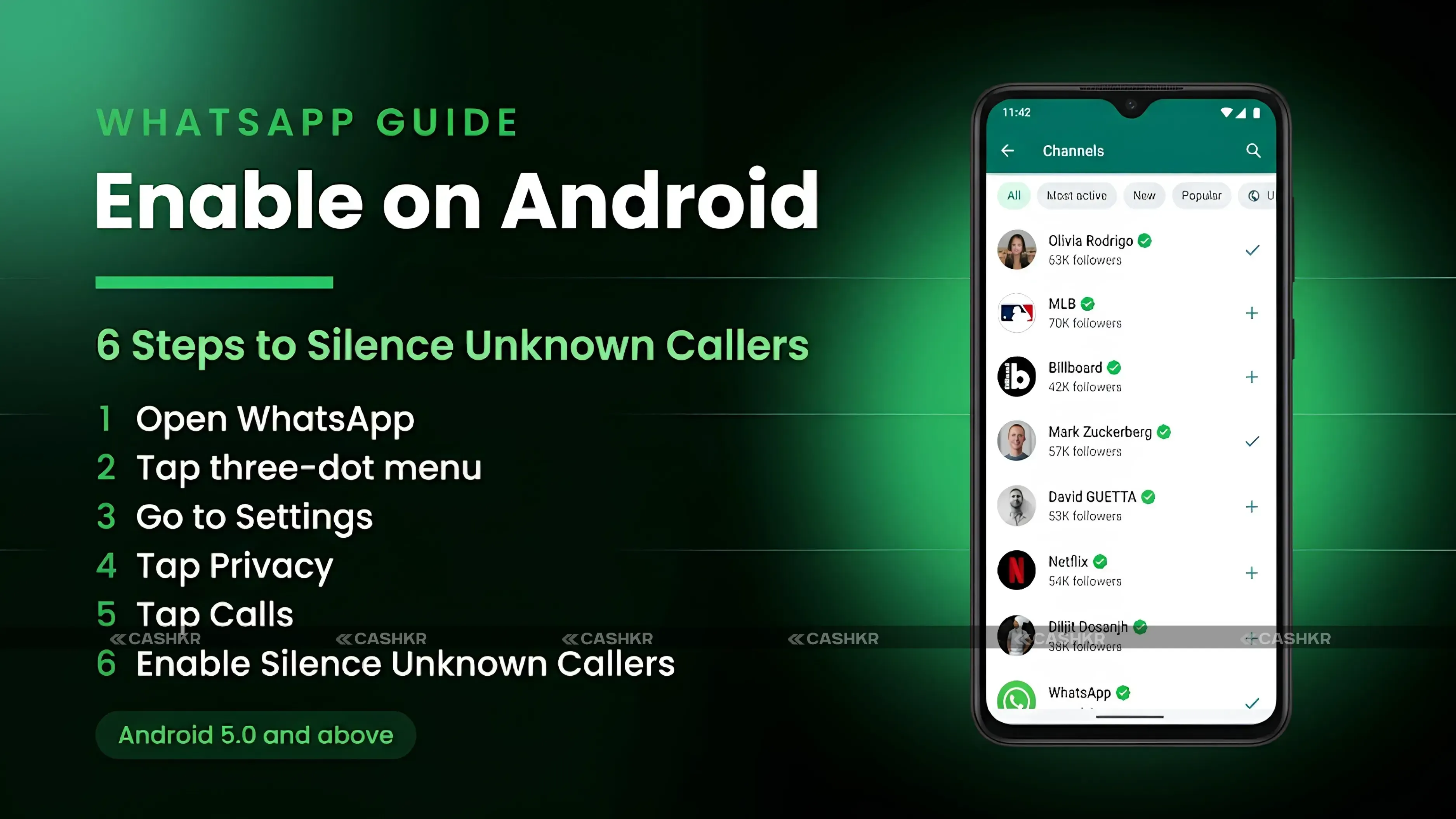
Follow these steps on your Android smartphone to turn on Silence Unknown Callers:
  1. Open WhatsApp on your Android device.

  2. Tap the three-dot menu icon in the top-right corner of the screen.

  3. Select Settings from the dropdown menu that appears.

  4. Tap Privacy from the Settings menu.

  5. Scroll down and tap Calls.

  6. Toggle on Silence Unknown Callers.

When you turn on the toggle, it turns blue. After that, your phone will not ring for WhatsApp calls from numbers not in your contacts. The change happens right away.

How to Silence Unknown Callers on Android

Also Read: How to Check Your Phone Resale Value Before Selling Online

How to Enable Silence Unknown Callers on WhatsApp for iPhone

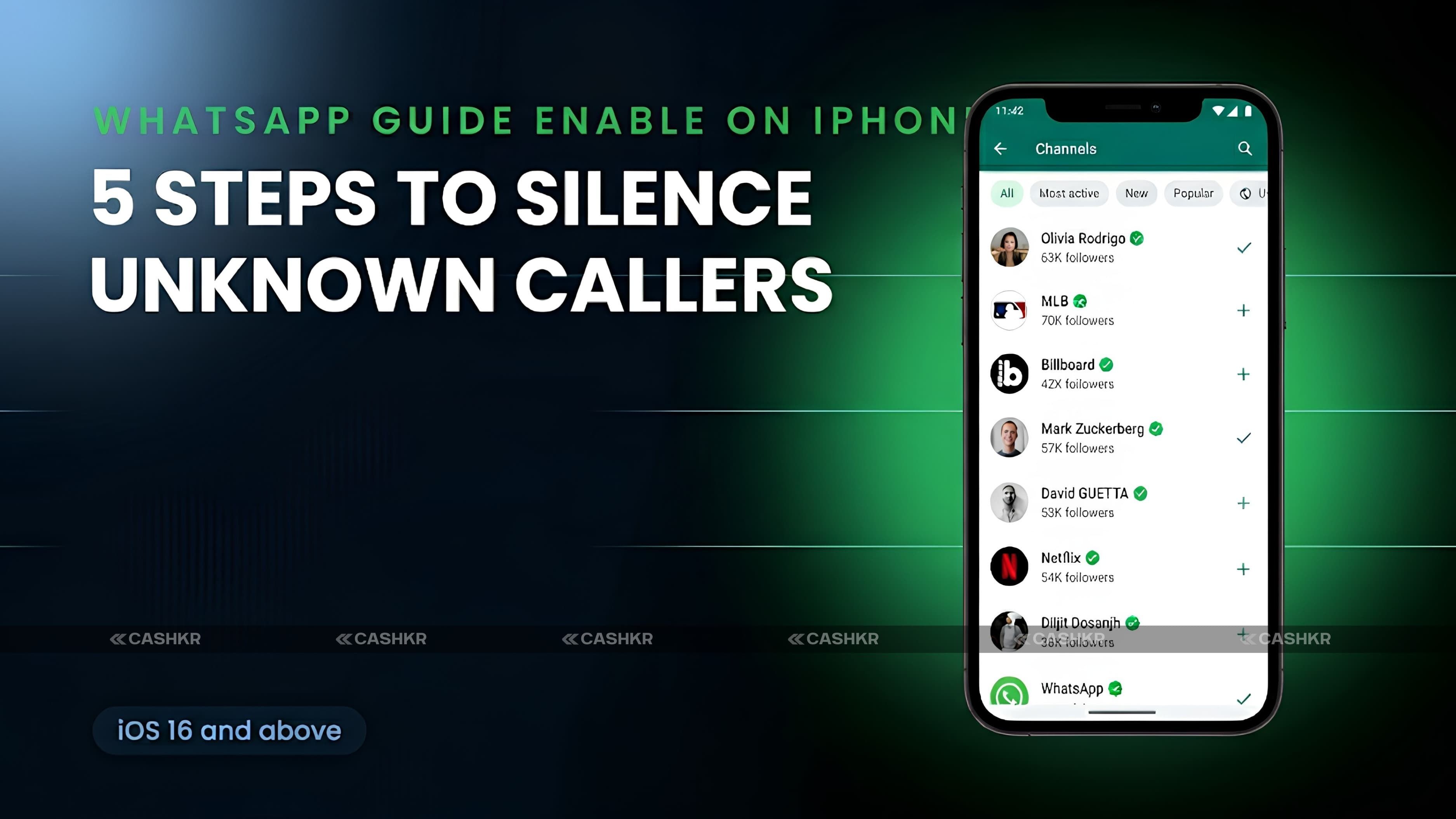
Follow these steps on your iPhone to turn on Silence Unknown Callers:
  1. Open WhatsApp on your iPhone.

  2. Tap the Settings tab at the bottom-right corner of the screen.

  3. Tap Privacy from the Settings menu.

  4. Tap Calls.

  5. Toggle on Silence Unknown Callers.

On iPhone, the toggle turns green when it is on. The setting works right away, and all WhatsApp calls from numbers not in your contacts will come in silently.

How to Silence Unknown Callers on iPhone

Also Read: Top 5 Phone Selling Apps: Which Offers the Best Deals?

What Happens After You Enable Silence Unknown Callers?

Knowing what happens when you turn on this setting helps you use it confidently and avoid missing important calls.
  • Your phone will not ring for WhatsApp calls from numbers not in your contacts.

  • All silenced calls will still appear in the Calls tab inside WhatsApp.

  • A notification for the silenced call may still appear on your phone, depending on your notification settings.

  • You can return any silenced call at any time by opening the Calls tab and tapping the number.

  • Unknown callers can still send you WhatsApp messages even when this setting is active.

  • The caller is not notified that their call has been silenced.

The Important Behavior to Know: Replying Can Restore Ringing

There is one thing to keep in mind about Silence Unknown Callers. If you message or call back a number that was silenced, WhatsApp may treat that number as trusted. After that, calls from that number might ring your phone again, even if they were silenced before.
This setting works best as a filter for numbers you do not plan to contact. If you call back a number and want to silence it again, you will need to block it or avoid contacting it. To stop all contact from a number, use WhatsApp's block feature in the contact settings.

How to Disable Silence Unknown Callers

If you want to turn this feature off and let unknown WhatsApp calls ring again, just follow the same steps you used to turn it on and switch the toggle off. On Android, go to WhatsApp, tap the three-dot menu, open Settings, tap Privacy, then Calls, and turn off Silence Unknown Callers. On iPhone, go to WhatsApp, tap Settings at the bottom, open Privacy, tap Calls, and turn off the toggle. The change happens right away.

Final Verdict

If you often get spam, scam, or unwanted WhatsApp calls from unknown numbers, turning on Silence Unknown Callers is an easy way to cut down on those interruptions. You do not have to block numbers one by one, and you will not miss calls from people already in your contacts.
There is little downside. Silenced calls still show up in your Calls tab, you still get notifications, and you can return any call whenever you want. If you want a quieter phone without losing your call history, it is a good idea to keep this setting on.
  • Bottom Line: Enable Silence Unknown Callers on WhatsApp if you are tired of unexpected calls from numbers not in your contacts. It takes under a minute to turn on, works the same on Android and iPhone, does not block anyone, and can be reversed at any time. Check your Calls tab periodically to review any silenced calls you might want to return.

FAQs

1. Does Silence Unknown Callers block the caller permanently?

No, Silence Unknown Callers does not block the caller. It only prevents your phone from ringing when a call comes in. The caller can still reach you on WhatsApp; the call still arrives, and it appears in your Calls tab so you can review and return it later. The caller is not notified that their call was silenced. If you want to permanently prevent a specific number from contacting you at all, use the block feature in the contact's profile on WhatsApp, which is a separate, more restrictive action than silencing.

2. Will I still see missed calls from unknown numbers?

Yes, all WhatsApp calls from unknown numbers will still appear in your Calls tab inside the WhatsApp app even when Silence Unknown Callers is enabled. You will be able to see the number, the call time, and the call duration if the caller left a voice message. Depending on your phone's notification settings, a notification for the silenced call may also appear in your notification panel. This means you can periodically review silenced calls at your own pace without having been interrupted by the ring.

3. Does this feature also silence unknown video calls on WhatsApp?

Yes, the Silence Unknown Callers setting applies to both WhatsApp voice calls and WhatsApp video calls from numbers not in your contacts. Both types of incoming calls from unknown numbers will be silenced without ringing your phone once the feature is enabled. Both will still appear in your Calls tab for review. The setting does not distinguish between voice and video calls when deciding which to silence.

4. Can the silenced caller still send me messages?

Yes, enabling Silence Unknown Callers only affects incoming WhatsApp calls. It does not restrict or filter WhatsApp messages. A number that has been silenced for calls can still send you text messages, voice notes, images, and other media through WhatsApp chat. If you want to prevent an unknown number from messaging or calling you, the block feature is the appropriate tool. You can block a contact directly from a chat or from the contact's profile page in WhatsApp.

5. What happens if I call back or message a silenced number?

If you call back or message a number that was previously silenced, WhatsApp may treat that interaction as a sign that you recognize and trust the number. This can cause future calls from that number to ring normally again, effectively overriding the Silence Unknown Callers filter for that contact. This behavior reflects WhatsApp's logic that a number you have proactively contacted is no longer truly unknown to you. If you want to avoid this, be cautious about calling or messaging numbers on the silenced call list unless you intend to establish contact with them.

6. Does Silence Unknown Callers work the same on Android and iPhone?

Yes, the feature works the same way on both Android and iPhone: it silences incoming WhatsApp calls from numbers not in your contacts. The path to find and enable the setting differs slightly between the two. On Android, you access it through the three-dot menu at the top-right of WhatsApp. On iPhone, you access it through the Settings tab at the bottom of the WhatsApp screen. Both lead to Privacy, then to Calls, where the Silence Unknown Callers toggle is found.

7. Will I miss calls from people who are not in my contacts but are legitimate?

Enabling Silence Unknown Callers means your phone will not ring when someone not in your contacts calls you on WhatsApp, even if the call is legitimate. For example, a delivery person, a new colleague, or someone calling from a business number that is not saved on your phone would all be silenced. However, their call will still appear in the Calls tab so you can see it and return it. If you frequently receive legitimate calls from unsaved numbers, you should check your WhatsApp Calls tab regularly when this feature is enabled to avoid missing important callbacks.

8. Does enabling this feature use more battery or data?

No, Silence Unknown Callers is a call-handling setting in WhatsApp and does not increase battery usage or data consumption. The app still receives incoming call data from WhatsApp's servers in the background, which is why the call appears in the Calls tab; the difference is that the phone does not produce an audible or vibrating alert for that call. There is no background process or additional activity created by this toggle that would affect your battery life or data usage in any measurable way.

9. Can I turn this setting on and off quickly?

Yes, the Silence Unknown Callers toggle can be turned on and off at any time through the same steps used to enable it. On Android, open WhatsApp, go to Settings > Privacy > Calls, then toggle Silence and Unknown Callers. On iPhone, the path is WhatsApp, Settings tab, Privacy, Calls, then toggle Silence, Unknown Callers. The change takes effect immediately, without requiring a restart of the app. You can temporarily switch it off if you are expecting a call from an unsaved number, then switch it back on afterward.

10. Is Silence Unknown Callers the same as Do Not Disturb on my phone?

No, Silence Unknown Callers on WhatsApp is a separate and more specific feature than your phone's Do Not Disturb mode. Do Not Disturb silences all notifications and calls across all apps on your device based on settings you configure. Silence Unknown Callers only affects incoming WhatsApp calls from numbers not in your contacts, leaving all other calls, messages, and notifications across your phone and other apps completely unaffected. You can use both features simultaneously: Do Not Disturb to silence all notifications during specific hours and Silence Unknown Callers to continuously filter unknown WhatsApp calls at all times, regardless of Do Not Disturb status.

If you want to sell your old devices then, click here.

Advertisement
Recommended for you
How To
Y

Yaskar Jung Shah

Senior Tech Writer

Yaskar Jung Shahis a technology enthusiast with over 5 years of experience covering AI, machine learning, and has contributed to major tech publications worldwide. He holds a Master's Degree in Computer Science from leading institutions.

Follow Us

Contents
  • How to Silence Unknown Callers on WhatsApp: Step-by-Step Guide for Android and iPhone
    • What Is the Silence Unknown Callers Feature on WhatsApp?
    • Why You Should Enable Silence, Unknown Callers
    • How to Enable Silence Unknown Callers on WhatsApp for Android
    • How to Enable Silence Unknown Callers on WhatsApp for iPhone
    • What Happens After You Enable Silence Unknown Callers?
    • The Important Behavior to Know: Replying Can Restore Ringing
    • How to Disable Silence Unknown Callers
    • Final Verdict
    • FAQs

Table of Contents

  • How to Silence Unknown Callers on WhatsApp: Step-by-Step Guide for Android and iPhone
    • What Is the Silence Unknown Callers Feature on WhatsApp?
    • Why You Should Enable Silence, Unknown Callers
    • How to Enable Silence Unknown Callers on WhatsApp for Android
    • How to Enable Silence Unknown Callers on WhatsApp for iPhone
    • What Happens After You Enable Silence Unknown Callers?
    • The Important Behavior to Know: Replying Can Restore Ringing
    • How to Disable Silence Unknown Callers
    • Final Verdict
    • FAQs
Advertisement
Advertisement

Stay Updated

Get the latest tech insights delivered weekly.

Sponsored

Previous Article

No previous article

Next Article

No next article

Trending Now

01

How to Check Your Phone Resale Value Before Selling Online

Oct 6, 2025
02

How to Recycle Old Devices in India & Get Paid

Sep 22, 2025
03

MacBook Resale Value Calculator: Get the Best Price Online

Oct 7, 2025
04

Top 5 Phone Selling Apps: Which Offers the Best Deals?

Jan 20, 2026
05

Best Gaming SmartPhones in India: Top 5 Picks

Mar 15, 2026

Latest Articles

How to Silence Unknown Callers

How to Silence Unknown Callers on WhatsApp: Android & iPhone

May 18, 2026
Honor Win Turbo

Honor Win Turbo Teased & Win 2 Series Leaked: What to Expect

May 18, 2026
Samsung Galaxy Z Flip 8 Design Leaked

Samsung Galaxy Z Flip 8 Design Leaked: Larger Cover Display

May 17, 2026
Honor Robot Phone

Honor Robot Phone: Rotating Gimbal Camera and Q3 2026 Launch

May 17, 2026

Categories

  • Smartphone119
  • Comparison26
  • laptop20
  • Price & Value Guides6
  • Tech News & Trends37
  • Buying & Upgrade Guides17
  • Recent News14
  • How To25
  • Review4

Trending Now

PopularFeatured
Check Phone Resale Value

How to Check Your Phone Resale Value Before Selling Online

1 min read
Recycle Old Electronics

How to Recycle Old Devices in India & Get Paid

1 min read
MacBook Resale Value Calculator

MacBook Resale Value Calculator: Get the Best Price Online

1 min read
Phone Selling Apps

Top 5 Phone Selling Apps: Which Offers the Best Deals?

1 min read
Gaming Mobile Phones

Best Gaming SmartPhones in India: Top 5 Picks

1 min read

Categories

Smartphone0Comparison0laptop0Price & Value Guides0Tech News & Trends0Buying & Upgrade Guides0Recent News0How To0Review0

Related Articles

Check Phone Resale Value

How to Check Your Phone Resale Value Before Selling Online

Oct 6, 2025
1 min read
Recycle Old Electronics

How to Recycle Old Devices in India & Get Paid

Sep 22, 2025
1 min read
MacBook Resale Value Calculator

MacBook Resale Value Calculator: Get the Best Price Online

Oct 7, 2025
1 min read