How to Factory Reset a Samsung Tablet: Complete Step-by-Step Guide
A factory reset returns your Samsung tablet to the state it was in when you first took it out of the box, removing every app, account, file and setting on the internal storage.
Most people factory reset a Samsung tablet for one of four reasons: before selling or passing it on, to clear a software problem nothing else fixes, to recover speed on a tablet that has slowed down, or to hand it over to someone else in the family.
The reset itself takes a few minutes. Getting the order right is what matters, because one missed step will lock the tablet and stop the next owner setting it up.
Advertisement
Disclosure: Cashkr is our own device buyback platform. We buy used tablets, so the closing section is us describing our own service. The reset instructions themselves are Samsung's, and nothing in them depends on using us.
The Short Version
Back up. Remove your Google and Samsung accounts. Take out the SIM and microSD card. Then:
Settings → General management → Reset → Factory data reset.
If the tablet will not start, use Recovery Mode (Volume Up + Power). If the tablet is not with you, use SmartThings Find.
The account removal is the step people skip, and it is the one that causes problems.
Before You Reset: Three Steps, In This Order
1. Back Up Your Data
A factory reset is permanent. Nothing is recoverable afterwards.
Go to Settings → Accounts and backup and use Samsung Cloud or Google backup for apps, settings and data. Copy photos, videos and documents to Google Photos, to a computer over USB, or to a microSD card.
Then check the backup actually worked by signing in on another device before you go any further. This is the step people assume rather than verify.
2. Remove Your Google and Samsung Accounts
This is the important one.
Samsung tablets have Factory Reset Protection. It is an anti-theft feature: if you reset the tablet while a Google account is still signed in, the tablet demands that same account's password at setup. Until someone enters it, the tablet cannot be used.
If you are the owner and you remember the password, this is an inconvenience — you sign in and remove the account. If you have already handed the tablet over, or you have lost access to that Google account, it becomes a real problem. It is also the most common reason a doorstep pickup cannot be completed: the tablet is in perfect condition and the sale still fails.
Go to Settings → Accounts and backup → Manage accounts, select your Google account, and tap Remove account.
Then do the same for your Samsung account. You may need to sign out via Settings → your name at the top → Sign out.
Only then move on to the reset.
3. Remove the SIM and microSD Card
A factory reset does not reliably erase a microSD card, and you almost certainly want to keep it. Take out both cards before you start.
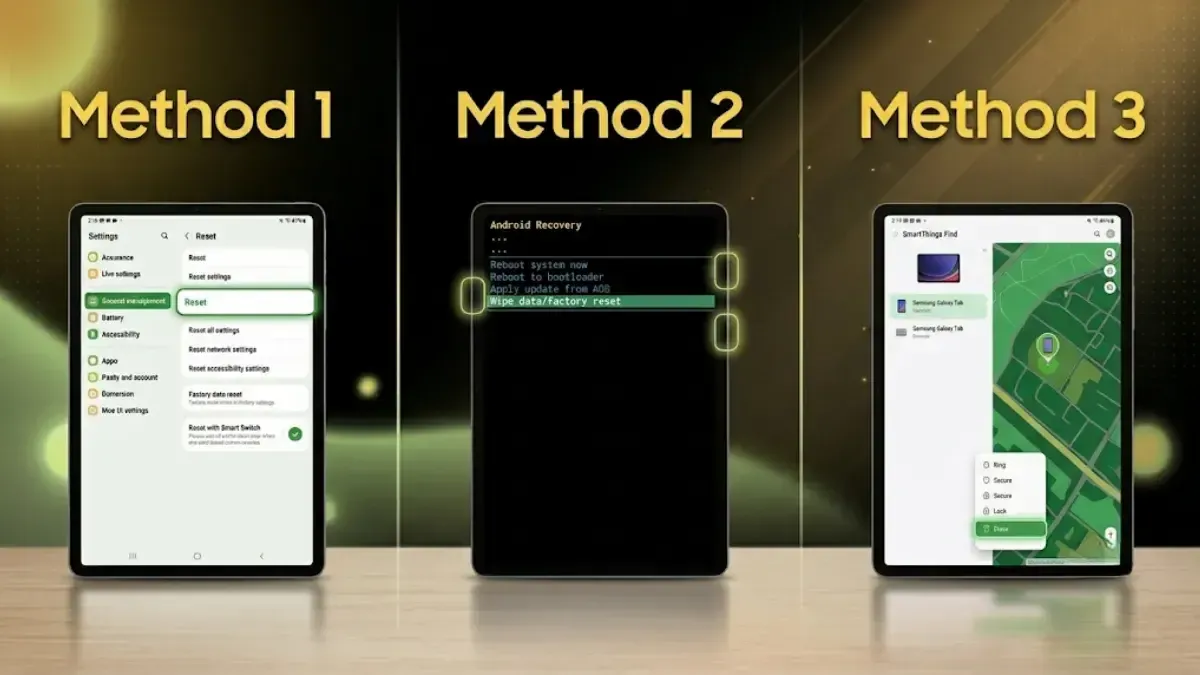
Method 1: Reset From Settings
Use this whenever the tablet is working normally. It is the method to use if you are selling.
Open Settings.
Tap General management.
Tap Reset.
Tap Factory data reset.
Review the list of accounts and data that will be erased, then scroll down and tap Reset.
Enter your PIN, pattern or password if prompted.
Tap Delete all to confirm.
The tablet restarts, shows an erasing screen, and boots to the setup welcome screen after a few minutes.
On older tablets the path may read Settings → Backup and reset → Factory data reset instead. Recent One UI versions use the wording above.
Method 2: Reset via Recovery Mode
Use this if the tablet is frozen, stuck in a boot loop, or you cannot get past the lock screen.
Switch the tablet off completely. If it is frozen, hold Power, or Power + Volume Down, until it shuts down.
Hold Volume Up + Power together until the Samsung logo appears, then release. On some models the tablet needs to be connected to a charger or computer by USB for Recovery Mode to open.
In the Android Recovery menu, use the Volume buttons to highlight Wipe data/factory reset, and press Power to select.
Highlight Factory data reset and confirm with Power.
Select Reboot system now when it finishes.
Recovery Mode does not bypass Factory Reset Protection. If a Google account was signed in, its password is still required at setup. That is deliberate — it is what makes the feature useful against theft.
Method 3: Erase Remotely via SmartThings Find
Use this if the tablet is lost or stolen, or simply not with you.
Go to smartthingsfind.samsung.com in any browser and sign in with the Samsung account that was on the tablet.
Select the tablet from the device list.
Choose Erase data and confirm.
The wipe runs the next time the tablet connects to the internet.
Do not use this method for a sale. After a remote erase the tablet stays tied to your Samsung account, which is exactly right for a stolen device and exactly wrong for one you are selling. Use Method 1.
If You Have Forgotten Your Password
Recover your Google password at Google's account recovery page before resetting, because you will need it afterwards if the account is still on the device.
If you have genuinely lost access to the account, a Samsung service centre may be able to help with proof of purchase. Nobody else can, and anyone offering to remove an FRP lock for a fee should be treated with suspicion.
Buying a Second-Hand Samsung Tablet
Check one thing before you pay: that the tablet reaches the setup welcome screen without asking for a previous owner's Google or Samsung password.
An FRP-locked tablet cannot be used, and no honest seller will refuse that check. If someone will not let you power it up and walk to the welcome screen, walk away.
Does a Factory Reset Actually Erase Your Data?
Worth answering properly, because there is a lot of outdated advice about this.
If you factory reset a Samsung tablet made in the last decade, yes. Android has encrypted storage by default since Android 6, and encryption has been mandatory since Android 10. A factory reset destroys the encryption key, which leaves the remaining data cryptographically inaccessible. There is nothing to recover.
The claim that a reset leaves data behind comes from research published in 2015 that examined Android 2.3 to 4.3 devices — hardware from 2011 to 2013, before default encryption. It was a real finding at the time. It does not describe a tablet made in the last decade.
You do not need special erasure software, and you should be sceptical of anyone selling it to you for a normal consumer device. The reset is sufficient. What matters far more is signing out of your accounts first, which is a step people actually do skip.
Selling Your Samsung Tablet After the Reset
If the reset was step one of selling, the rest is straightforward. Note the model, storage capacity and honest condition, and get a quote on the tablet calculator.
Describing the condition accurately is what keeps the quote you see the same as the amount you are paid, so mention cracks, dents and any battery problems upfront rather than hoping they go unnoticed.
FAQs
1. How do I factory reset a Samsung tablet?
Back up your data, remove your Google and Samsung accounts, take out the SIM and microSD card, then go to Settings → General management → Reset → Factory data reset. Review the warning, tap Reset, enter your PIN if prompted, and tap Delete all. The tablet erases itself and restarts at the setup screen after a few minutes.
2. How do I factory reset a Samsung tablet that will not turn on or is frozen?
Use Recovery Mode. Switch the tablet off, then hold Volume Up and Power until the Samsung logo appears. Use the Volume buttons to highlight Wipe data/factory reset and confirm with Power. Some models need a USB connection to a charger or computer for Recovery Mode to open.
3. What is Factory Reset Protection?
An anti-theft feature that ties the tablet to the Google account that was signed in before the reset. Reset without removing that account and the tablet demands its password at setup, making the device unusable until someone enters it. This is why removing accounts before resetting matters.
4. Do I have to remove my Google account before a factory reset?
Yes, particularly before selling. Settings → Accounts and backup → Manage accounts → select the account → Remove account. If you reset first and still have the password, you can sign in and clear it. If you have handed the tablet over or lost access to the account, you cannot.
5. Does a factory reset delete everything on a Samsung tablet?
It erases all apps, accounts, files and settings from internal storage. Because Android encrypts storage by default, the reset destroys the encryption key and the data is not recoverable. It does not reliably erase a microSD card, so remove that first.
6. Can I factory reset a Samsung tablet remotely?
Yes, through SmartThings Find at smartthingsfind.samsung.com. Sign in with the Samsung account, select the tablet, choose Erase data, and the wipe runs the next time it connects to the internet. Use this for a lost or stolen tablet, not for a sale, because the device stays locked to your account afterwards.
7. Will a factory reset remove a forgotten screen lock?
A Recovery Mode reset clears the screen lock, but Factory Reset Protection then asks for the Google account password that was on the tablet, so you still need access to that account. Recover the password first.
8. Does a factory reset make a Samsung tablet faster?
Usually, yes, at least for a while. It clears accumulated apps, caches and files. It does not change the hardware, so a tablet that is slow because it is old will still be old.
9. What should I check when buying a second-hand Samsung tablet?
That it powers on and reaches the setup welcome screen without asking for the previous owner's Google or Samsung password. That single check rules out an FRP-locked device.
Weekly tech insights in your inbox. No spam, ever.


 Yaskar Jung ShahPublished at: Aug 20, 2026·12 min read