Things to Check Before Buying a Second-Hand Phone: Complete 18-Point Inspection Guide
Buying a second-hand Smartphone is a smart way to get better features for less money. For example, a phone that cost Rs. 80,000 at launch might sell for Rs. 30,000 to Rs. 40,000 a year later if it’s in good shape. However, the condition is not always as good as the seller says. Issues like battery wear, replaced screens, FRP locks, water damage, and IMEI tampering are often hidden.
This guide lists 18 things to check before buying a second-hand phone. For each step, you’ll learn what to look for and what it means if something is wrong. These checks take about 15 to 20 minutes and work for both iPhone and Android. Only pay after you finish all the checks. If a seller won’t let you inspect the phone properly, it’s best to leave.
The checks are divided into hardware, software, and paperwork sections. Start with the steps that reveal the biggest problems first, then move on to the smaller details once you know the basics are fine.
Quick summary: Dial *#06# to check the IMEI. Look up battery health in Settings. Make sure there’s no iCloud Activation Lock on iPhones or FRP Lock on Android phones. Test all cameras, speakers, microphones, charging ports, and sensors. Check the screen for dead pixels and burn-in. Confirm storage and RAM match what the seller says. Ask for the invoice or original bill. Only pay after you finish all 18 checks.
Why These Checks Matter Before Buying a Second-Hand Phone
The second-hand phone market in India includes devices that are well-maintained and others with hidden problems. These issues could range from minor battery drain to major ones like stolen phones with blacklisted IMEIs or iPhones locked to a previous owner’s Apple ID, making them pretty useless.
Some sellers will hide these issues, thinking buyers won’t notice. If you only glance at the phone’s exterior and run through a couple of apps, you may well overlook these problems. Following each step in this guide helps you spot a specific issue. The more you know about what to check for, the quicker and more effectively you'll catch any issues—not just give the phone a cursory look.
If you buy from a platform like Cashkr (an Indian online platform for selling old electronics that offers instant price checks, free doorstep pickup, certified data wiping, and UPI and bank payment options), the phones are checked by professionals. Certified refurbished platforms do many of these checks for you. If you buy from an individual, make sure you do all 18 checks yourself before paying.
Section 1: Identity and Authenticity Checks
The first thing to verify when inspecting a second-hand phone is that the phone is what the seller claims it is. IMEI checking and physical inspection establish whether the device is genuine, legally owned and undamaged in ways that affect its value.
Step 1: Verify the IMEI Number. Dial *#06# on the phone to display the IMEI number. Cross-reference this number with the IMEI printed on the original box, if available, and with the IMEI on the back of the phone, either under the battery or on the SIM tray. All three should match. If the phone has been reported stolen or blacklisted by a carrier, its IMEI will be blocked, preventing it from connecting to any Indian network.
How to verify IMEI status in India: Visit IMEI.info or the TRAI Device Verification portal (sancharwibhag.gov.in) and enter the IMEI number. If the device is reported stolen or blacklisted, the check will indicate this. Never buy a second-hand phone without verifying the IMEI status. A phone with a blacklisted IMEI cannot be used on any Indian network, regardless of how good it looks.
Advertisement
Step 2: Check your phone's physical condition first. Look for screen cracks, especially tiny ones at the edges. Also, examine the frame and back for dents, bends, or deep scratches. A bent frame might show the phone took a serious drop, hiding internal damage. Inside the charging port, speaker grilles, and headphone jack (if your phone has one), look for rust or discoloration, which may indicate water damage. Finally, press the power and volume buttons to feel if they're firm and have that right springback.
Water damage indicators: Turn the phone upside down and use a flashlight to look inside the SIM tray slot. Many phones have a small white sticker there called a Liquid Contact Indicator. If it has turned red or pink, the phone has been exposed to moisture. On iPhones, you’ll find this in the SIM tray slot. On Android phones, the location can vary—check near the SIM slot, headphone jack, or inside the USB port. If the indicator is pink or red, the phone has definitely been exposed to water, no matter what the seller claims.
Section 2: Display and Screen Checks
Step 3: Test the display carefully. Open a white image, like a blank note, and look for dark spots, dead pixels, or areas that don’t light up. Dead pixels show up as dots that stay the same color no matter what’s on the screen. Open a black image and check for light leaking at the edges, which can mean OLED damage or a cracked backlight. Swipe your finger across the whole screen to make sure touch works everywhere. If some areas don’t respond or are slow, the phone may have been dropped and damaged inside. Also, check if you can adjust the brightness from low to high.
How to check for screen burn-in: OLED and AMOLED screens can get burn-in, which means a faint image of things like the navigation bar or clock stays on the screen. Show a solid grey image at medium brightness and look for any faint outlines of old screen elements. On iPhones, this is easier to see on older OLED models. On Android phones, burn-in often appears around the navigation bar or always-on display. Burn-in does not get worse but can only be fixed by replacing the screen.
How to check if the display has been replaced: On iPhones, if the screen was replaced with a non-Apple part, you’ll see a warning in Settings under General and About. It will say the display can’t be verified as genuine. Third-party screens also lose features like True Tone and automatic brightness. On Samsung phones, the Samsung Members app usually displays a warning if the display has been replaced.
Section 3: Battery Health Checks
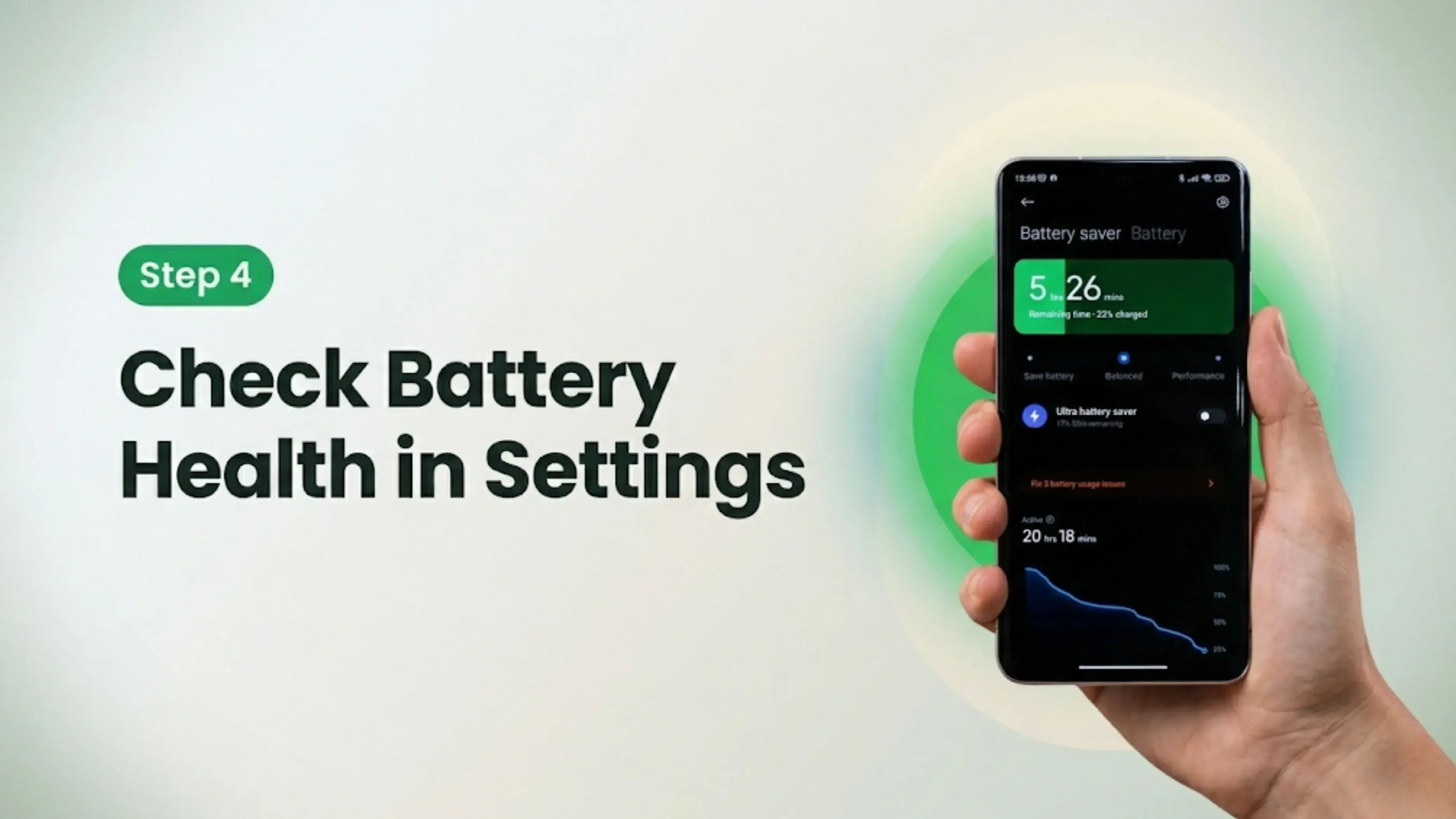
Step 4: Check Battery Health. Battery health is the most predictable point of hidden degradation in any second-hand phone. Here is how to check it on iPhone and Android:
iPhone Battery Check
Android Battery Check
Go to Settings → Battery → Battery Health & Charging
Use built-in diagnostics if available (Samsung Members, Xiaomi CIT, OnePlus Diagnostics, etc.)
Check Maximum Capacity (%)
Install AccuBattery if no built-in battery health tool is available
Above 85% = Good condition
Check estimated battery health and cycle count
Below 80% = Battery replacement may be needed soon
Watch for unusual battery drain during testing
Check battery cycle count if available
Go to Settings → Battery and review usage statistics
Battery health showing 100% on an old device may indicate a replacement battery — ask the seller
Verify whether the battery has been replaced and who performed the repair
Perform a 10-minute test: watch a video, browse, or play a game
Perform a 10-minute test: video playback, browsing, or gaming
Battery percentage should drop gradually, not rapidly
Battery percentage should remain stable under normal use
If battery health is above 85 percent, the battery still holds most of its original charge. If it’s below 80 percent, the phone will not last a full day and you should plan for a replacement, which costs about Rs. 1,500 to Rs. 4,000 depending on the model. If an iPhone that’s two years old shows 100 percent battery health, it likely means the battery was recently replaced. This isn’t a problem, but you should ask the seller about it to know the phone’s repair history.
Step 5: Test All Cameras. Open the camera app and test every camera in sequence. Start with the main rear camera: shoot a photo, check sharpness and autofocus speed. Switch to the ultrawide and telephoto if present and shoot photos with each. Switch to the front camera for a selfie. Test video recording at the highest available resolution any dust on the sensor shows as a dark spot visible in video but not always in photos. Test portrait mode on the rear and front cameras: the background blur should be smooth and edge detection around subjects should be accurate. Activate the flash and confirm it fires. Test the macro camera if the phone has one.
Step 6: Test the speaker and microphone. Play music or a YouTube video at full volume. The sound should be clear, with no crackling, distortion, or buzzing. If you hear crackling, the speaker might be damaged from a drop or water. Record a voice note and listen to it. Your voice should sound clear, not muffled or full of static. During a test call, turn on speakerphone and make sure the microphone picks up your voice clearly.
Section 5: Connectivity and Network Checks
Step 7: Test SIM, Calls and Mobile Data. Insert your own SIM card and wait for the phone to connect to the network. Make a test call and verify that the audio is clear through both the earpiece and the microphone. Check that the phone shows signal bars and connects to mobile data. Verify 4G or 5G connectivity if the phone and network support it. A phone that does not connect to the network or shows no signal with a working SIM, even when it normally works on that network, may have a network hardware problem.
Step 8: Test Wi-Fi and Bluetooth. Connect to a known Wi-Fi network and browse a website or load a video. Disconnect and reconnect to confirm the connection is stable. Enable Bluetooth and pair a wireless earbud, headphone or speaker. Confirm audio plays through the paired device. Bluetooth connectivity problems can indicate antenna damage from drops.
Step 9: Test the charging port. Plug in the original charger or one you know works. The phone should start charging within 3 to 5 seconds. Gently move the cable while it’s plugged in and watch the charging icon. If charging stops when you move the cable, the port is loose and will get worse over time. If the phone supports fast charging, check that both fast and normal charging work.
Section 6: Security and Account Lock Checks
Checking for account locks is the most important step before buying a second-hand phone. If an iPhone has Activation Lock or an Android has FRP Lock, you won’t be able to use the phone, even if everything else works. Never pay for a phone until you’ve checked for these locks.
iPhone: Activation Lock (iCloud Lock) To check for Activation Lock, go to Settings on the phone, tap the Apple ID name at the top, and confirm the phone is signed out of the seller's Apple ID before purchase. Alternatively, go to iCloud.com/find in any browser, check whether the device appears under the seller's Apple ID, and ask them to remove it. If the phone is locked to a previous owner's Apple ID and that owner is unavailable, the phone cannot be set up and is effectively a brick. A seller who cannot or will not remove iCloud Activation Lock before payment should be a firm reason to walk away.
Android: FRP Lock (Factory Reset Protection) activates after a phone is factory reset when a Google account is linked to it. If the phone was reset without signing out of Google first, the new owner must enter the previous Google account credentials to complete setup. Ask the seller to factory reset the phone in front of you after signing out of all Google accounts in Settings. If they cannot sign out of the Google account or perform the reset cleanly, do not buy the phone.
Samsung: Find My Mobile Samsung phones have a separate Find My Mobile protection layer tied to the Samsung account. Ask the seller to sign out of their Samsung account in Settings before purchase. A Samsung phone with an active Find My Mobile lock tied to a previous Samsung account can be locked remotely by the previous owner even after you take possession.
Never pay before account locks are cleared. An iPhone with Activation Lock still linked to the previous owner cannot be used. An Android with an FRP Lock that the seller cannot remove is also unusable. These locks are there to stop stolen phones from being reused. If the seller cannot remove their account before you pay, consider it a warning sign and do not buy the phone.
Section 7: Sensors and Biometrics
Step 10: Test Fingerprint and Face Unlock. Register a fingerprint in Settings, then test it 3 times from different angles. The fingerprint should unlock the phone reliably each time. If the phone has an in-display fingerprint scanner, test with both a clean and slightly damp finger as in-display scanners can be inconsistent with moisture. Enable Face Unlock if available and test with your face in different lighting conditions. Failed biometrics can indicate a damaged fingerprint sensor from a previous screen replacement.
Step 11: Test Sensors. Test auto brightness by covering the ambient light sensor at the top of the screen: the display should dim when covered and brighten when uncovered. During a test call, the proximity sensor should turn off the display when the device is held near the ear and turn it back on when moved away. Confirm screen rotation by tilting the phone 90 degrees: the content should rotate from portrait to landscape. Open a maps or navigation app and wait for GPS to lock: a GPS fix within 30 to 60 seconds confirms the GPS antenna is working.
Section 8: Documentation and Repair History
Step 12: Check the storage and RAM. Go to Settings and make sure the storage and RAM match what the seller said. On iPhones, look in Settings, then General, then iPhone Storage. On Android, go to Settings, then About Phone, then Storage and RAM. For example, a 128GB phone should show about 120GB free before you add any data. If the specs don’t match, the seller may be mistaken or not telling the truth.
Step 13: Run Hardware Diagnostics. Most major brands include built-in diagnostic tools. Use Samsung Members for Samsung phones (Hardware Tests section). For Xiaomi phones, dial *#*#6484#*#* to open the CIT diagnostic menu. OnePlus has a diagnostics option in Settings. For iPhones, Apple Diagnostics can be accessed through the Apple Support app. Run all available hardware tests to identify any failed components that normal use inspection might miss.
Step 14: Ask the seller if the display, battery, or motherboard has been replaced or repaired, or if the phone has had water damage. On iPhones, check Settings, then General, then About to see if any parts are not genuine. On Samsung phones, use the Samsung Members app to see repair history if the phone was serviced at an authorized center. A replaced display or battery is fine if genuine parts were used and the work was done at an authorized center, but the price should reflect any repairs.
Step 15: Verify Original Documents. Ask for the original purchase invoice, which proves the seller legitimately owns the phone and provides the purchase date for warranty reference. The invoice should match the phone's IMEI. If the seller has the original box, check the IMEI on the box against the phone's IMEI. A mismatch between the box IMEI and phone IMEI indicates either the wrong box or a replaced main board.
What to Do If You Find a Problem While Inspecting a Second-Hand Phone
Not every issue you find during an inspection means you should walk away. Some problems can help you negotiate a lower price. Others are serious enough that you should not buy the phone, no matter how much the seller lowers the price.
Negotiate for these: Small scratches or scuffs that don’t affect how the phone works; battery health between 80 and 85 percent (ask for a price cut equal to the battery replacement cost); a replaced display with genuine parts and no warning in Settings; or a new battery showing 100 percent health. These are normal in used phones and should mean a lower price, not a deal-breaker.
Walk away for these: If the phone has Activation Lock or FRP Lock that the seller can’t remove, a blacklisted or blocked IMEI, screen burn-in or dead pixels, water damage shown by the LCI, a charging port that doesn’t work well, a cracked screen, or a bent frame. These issues make the phone unusable or mean there could be hidden damage. No price cut is worth it unless a professional certifies the phone.
Ask for documentation for these: Battery replacement within the last 6 months, display replacement at an authorized service center, and motherboard repair. Previous repairs are acceptable if carried out with genuine parts at authorized centers. The invoice for the repair should be requested and should match the phone's IMEI.
Final Verdict
Buying a second-hand phone in India can save you Rs. 30,000 to Rs. 40,000 compared to a new phone with the same features. If you follow a careful inspection, the risks are low. The 18 checks in this guide take just 15 to 20 minutes and help you avoid buying a phone with hidden problems.
When buying a used phone, the most crucial thing is not to fork over any cash until all account locks are sorted out. Also, make sure to check the IMEI number against the blacklisted databases. Don't trust the seller when they say the battery is good; check it yourself in the Settings menu. Plus, be sure to test the charging port, cameras, and screen hands-on.
If the seller rushes you into paying right away without room for a thorough check, something's off. Legitimate sellers will give you time to ensure the phone is legit. For peace of mind, you could go for a certified refurbished device from platforms like Cashkr in India. They conduct professional inspections, handle secure data deletion, and even offer contactless payments via UPI or bank transfer.
Bottom Line: Before buying any second-hand phone: Dial *#06# for IMEI. Check battery health in Settings. Verify no iCloud Lock (iPhone) or FRP Lock (Android). Test all cameras, speakers, charging port, and sensors. Check for dead pixels and screen burn-in. Look for water damage indicator inside the SIM slot. Request the original invoice. Verify storage and RAM in Settings. Use brand diagnostic tools. Only pay after all 18 checks are complete.
FAQs
1. How do I check if a second-hand phone is stolen?
Dial *#06# on the phone to get the IMEI number. Then enter that IMEI on IMEI.info or the TRAI Device Verification portal at sancharwibhag.gov.in to check if the device has been reported stolen or blacklisted. A phone with a blacklisted IMEI cannot connect to any Indian network. Never buy a second-hand phone before checking the IMEI status.
2. How do I check battery health on a second-hand iPhone?
Go to Settings then Battery then Battery Health and Charging. The Maximum Capacity percentage shows the remaining battery capacity relative to the original. Above 85 percent is good for a used phone. Below 80 percent means the battery will struggle to last a full day, and replacement should be factored into the price negotiation.
3. How do I check if an iPhone has iCloud Activation Lock?
Ask the seller to go to Settings and tap their Apple ID name at the top. Confirm they are signed into the phone with their Apple ID and then ask them to sign out before payment. Alternatively, check icloud.com/find from any browser to see if the device appears in the seller's account. The seller must remove the device from their Apple ID before you pay. An iPhone with Activation Lock still linked to a previous Apple ID is unusable as a primary device.
4. What is FRP Lock and how do I check for it on Android?
FRP (Factory Reset Protection) locks an Android phone to the Google account it was linked to if the phone is factory reset without signing out of Google first. To check for FRP, ask the seller to factory reset the phone in front of you after signing out of Google accounts in Settings. If the setup screen asks for a previous Google account after the reset, the FRP Lock is active. The seller must be able to complete the reset cleanly and set up the phone without needing a previous Google account.
5. What is the Liquid Contact Indicator and how do I check it?
The Liquid Contact Indicator (LCI) is a small sticker inside the SIM card slot that turns from white to red or pink when it comes into contact with liquid. On iPhones, it is visible inside the SIM tray slot. On Android phones, the location varies but is often near the SIM slot or charging port. Use a flashlight to look inside the SIM slot before buying any second-hand phone. A red or pink LCI confirms the phone has been exposed to water or moisture, regardless of what the seller says.
6. How do I check if the display has been replaced on an iPhone?
Go to Settings> General> About on the iPhone. If the display has been replaced with a non-genuine Apple part, a message appears under Display saying it cannot be verified as a genuine Apple component. Non-genuine replacement displays also lose True Tone and may show different colour characteristics from the original. A replaced display from an Apple Authorized Service Provider using genuine Apple parts should not trigger this warning.
7. Which diagnostic apps or tools should I use to inspect a second-hand Android phone?
Samsung phones: Samsung Members app under Hardware Tests. Xiaomi phones: dial *#*#6484#*#* to open the CIT menu. OnePlus phones: Settings, then About then Diagnostics. Most Android phones also respond to *#*#4636#*#* which opens phone information including battery statistics. These tools run automated checks on sensors, cameras, speakers and other components that visual inspection may miss.
8. Is it safe to buy a second-hand phone without the original box?
Yes, as long as you can confirm the phone's IMEI from another source, such as an original invoice or a government database. The box helps to match the IMEI, model, and storage size, but you don't need it if you've got the receipt. If neither is around, just double-check the IMEI and model info in Settings, and make sure the IMEI isn't on the blacklist online.
9. What is a fair battery health percentage for a second-hand phone?
Above 85 percent is considered good. Between 80 and 85 percent is acceptable with a negotiated price reduction to cover battery replacement cost of approximately Rs. 1,500 to Rs. 4,000, depending on model. Below 80 percent means the battery will not reliably last a full day, and replacement should happen promptly after purchase. A battery health of exactly 100 percent on a phone that is 18 months or older is unusual and may indicate a recent battery replacement.
10. Should I buy from a certified refurbished platform or from an individual seller?
Certified refurbished platforms professionally inspect the phone before listing, certify battery health, clear all account locks, certify data wiping and provide a return period or limited warranty. Individual sellers offer lower prices but require you to complete all 18 checks yourself and have no recourse after payment. For buyers who are confident completing the inspection, individual sellers offer better prices. For buyers who want assurance without doing the inspection themselves, certified platforms are the recommended approach.
If you want to sell your old devices then, click here.
Advertisement
Stay in the loop
Weekly tech insights in your inbox. No spam, ever.


 Yaskar Jung ShahPublished at: Jun 4, 2026·25 min read