How to Factory Reset an Android Phone: Complete Step by Step Guide
 Yaskar Jung ShahPublished at: Aug 23, 2026·13 min read
How to factory reset an Android phone without locking it.
How to Factory Reset an Android Phone: Complete Step by Step Guide
A factory reset wipes your Android phone and returns it to the state it was in when you bought it. Every app, account, file and setting goes.
The reset itself takes a few minutes. The order you do things in matters far more, because one skipped step can leave the phone locked and unsellable.
This guide covers all three ways to reset, the preparation that actually matters, and the steps for each major brand.
The short version. Back up your data. Remove your Google account and any brand account. Take out the SIM, memory card and eSIM. Then go to Settings, search for Reset, and choose Erase all data. If the phone will not start, use Recovery Mode. If the phone is not with you, use Find Hub.
The One Step People Skip
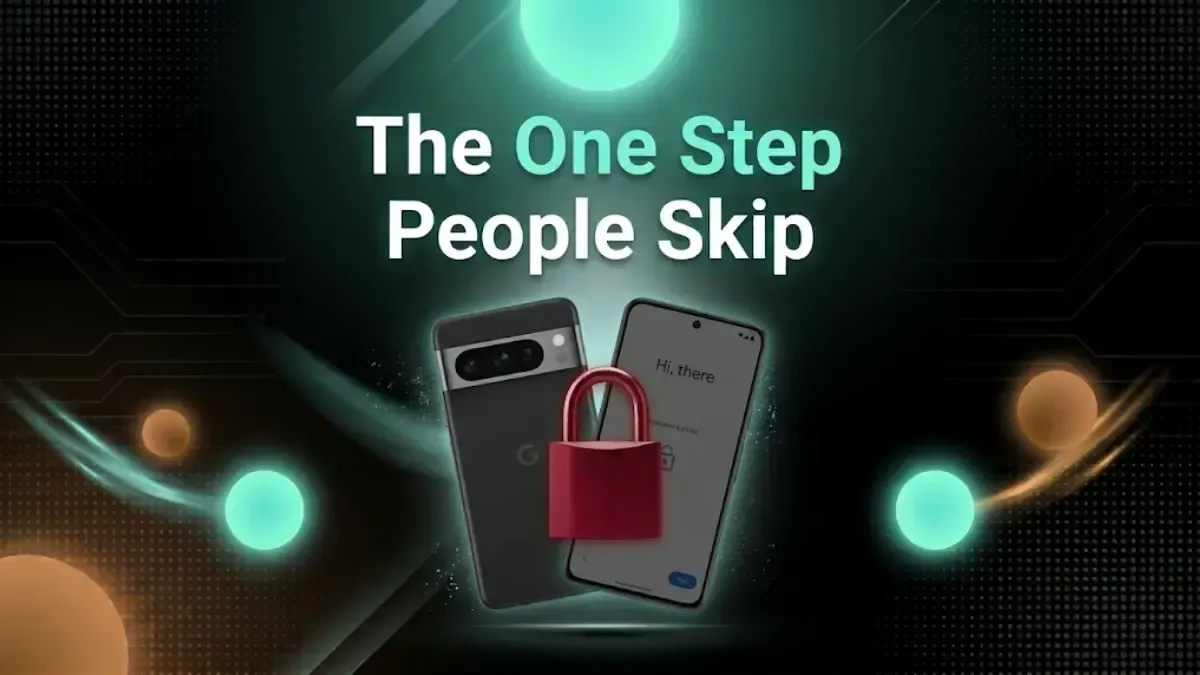
Remove your Google account before you reset. This is the whole game.
Android has a feature called Factory Reset Protection. If you reset a phone while a Google account is still signed in, the phone demands that same account's password the next time anyone sets it up. Without the password, the phone is locked.
It exists to make stolen phones useless, and it works. It also catches out sellers who reset in the wrong order.
An FRP-locked phone cannot be set up by a buyer, so it is worth a fraction of a working one. The phone is usually in perfect condition when this happens, which is what makes it so frustrating.
Remove the brand account too. Samsung, Mi, OnePlus, Oppo, Vivo and others each add their own lock on top of Google's. Removing your Google account does not clear theirs.
Before You Reset
1. Back up your data. Settings, Google, Backup, then Back up now. That covers apps, contacts, call history, messages and settings. Photos and videos go through Google Photos separately, so check that is syncing. Copy anything else to a computer.
Then verify the backup by signing in on another device. A backup that stopped working three months ago looks exactly like a working one until you check. After the reset there is no way back.
2. Move your authenticator app. If you use Google Authenticator or similar for login codes, move those accounts to your new phone now. They are usually not in your backup and they are the hardest thing to recover.
3. Remove your Google account. Settings, then Accounts (some brands call it Passwords and accounts, or Users and accounts). Select your Google account and tap Remove account.
4. Remove any brand account. Same place. Samsung account, Mi account, OnePlus account, and so on.
5. Take out the SIM, the memory card and any eSIM. A reset does not wipe a microSD card and does not always clear an eSIM profile. For the eSIM: Settings, Network and internet, SIMs, then remove the profile.
Method 1: Reset From Settings
Use this when the phone works normally. The wording differs slightly by brand, the process does not.
Open Settings.
Type Reset into the search bar at the top. This is the fastest route on any brand.
Tap Reset options, then Erase all data (factory reset).
Read the list of accounts and data that will be removed.
Tap Erase all data, enter your PIN, pattern or password, and confirm.
The phone restarts, shows an erasing screen, and reaches the welcome screen a few minutes later.
Keep it above 50 percent charge and do not interrupt it.
Where to find it by brand
| Brand | Factory Reset Path |
|---|---|
| Samsung | Settings → General management → Reset → Factory data reset |
| Xiaomi / Redmi / POCO | Settings → About phone → Factory reset |
| Realme / Oppo / Vivo | Settings → System settings or Additional settings → Back up and reset |
| Pixel / Stock Android | Settings → System → Reset options → Erase all data |
Method 2: Recovery Mode, When the Phone Will Not Start
Use this if the phone is frozen, stuck restarting, or you cannot get past the lock screen.
Switch the phone off completely. If it is frozen, hold the Power button until it shuts down.
Hold the button combination for your brand until the logo appears.
Move through the menu with the Volume buttons and select with the Power button.
Choose Wipe data / factory reset and confirm.
Choose Reboot system now.
The button combinations vary more than most guides admit.
| Brand | Recovery / Boot Menu Button Combination |
|---|---|
| Samsung | Volume Up + Side button together. On some recent models, connect to a charger or computer first. |
| Xiaomi / Redmi / POCO | Volume Up + Power |
| Pixel | Power + Volume Down to reach the bootloader, then use Volume buttons to select Recovery Mode |
| OnePlus / Realme / Oppo / Vivo | Usually Volume Down + Power, though it varies by model |
If none of these work on your phone, search your exact model plus "recovery mode" on the manufacturer's own support site. Guessing with button combinations is harmless, but guides that claim one combination works everywhere are wrong.
Recovery Mode does not get around Factory Reset Protection. If your Google account was still on the phone, the password will be demanded at setup. That is the feature working as intended.
Method 3: Erase Remotely With Find Hub
Google renamed Find My Device to Find Hub in May 2025. Some older guides still use the old name.
Go to google.com/android/find in any browser, or open the Find Hub app on another Android device.
Sign in with the Google account that was on the phone.
Select the phone, choose Erase device, and confirm.
The wipe runs the next time the phone connects to the internet.
Use this for a lost or stolen phone, not for a sale. A remote erase leaves the phone tied to your Google account, which is exactly what you want if someone has taken it, and exactly what you do not want if you are selling it. For a sale, use Method 1.
Our guide on finding a lost Android phone covers the rest of what Find Hub does.
Does a Factory Reset Really Erase Everything?
This gets misrepresented a lot, often by people selling erasing services. Here is the accurate position.
Android encrypts your storage by default. It has since Android 6, and it has been required since Android 10. Your files sit on the phone scrambled.
A factory reset destroys the encryption key. That is the important part. Without the key, whatever bytes remain are unreadable noise.
Some encrypted bytes do remain on the drive. A 2023 forensic study of Pixel and Redmi phones found that a reset does not overwrite every byte. But the same study confirmed the encryption keys are securely erased, so reading that leftover data would need the key, which is gone. What the researchers could read in the clear was system data: battery diagnostics and connection logs. Not your photos, messages or passwords.
So do you need special erasing software, or a multi-pass wipe? No, not for an ordinary consumer phone. Your personal data is already unreadable. And on flash storage, which is what every phone uses, repeated overwriting does not reliably reach specific physical blocks anyway, because the controller moves data around to spread wear. Multi-pass wiping is a hard-drive idea that does not transfer cleanly to phones.
What actually deserves your attention is signing out of your accounts. That is the step that gets skipped, and it is the one with real consequences.

Forgot Your Password, or Buying Second Hand?
If you have forgotten your Google password, recover it at Google's account recovery page before you reset. You will need it at setup if the account is still on the phone.
Avoid any service, app or video promising to bypass Factory Reset Protection. They are unreliable, frequently malicious, and they exist to defeat a feature that protects stolen phones.
If you are buying a used phone, check two things before you hand over money. The seller must have removed both their Google account and the brand account. And the phone must reach the setup welcome screen without asking for anyone's password.
Ask to power it on and walk to that screen yourself. An honest seller will not mind. Our 18-point check before buying a second-hand phone covers the rest.
After the Reset, If You Are Selling
Get your quote before you wipe, not after. The price depends on the model, the storage and the condition, not on your data, so there is no reason to erase the phone for a sale you have not decided on yet.
Once you have decided: back up, move your authenticator, remove your accounts, take out the cards, then reset. Then take off the case and screen protector, clean it, and find the box and charger if you still have them.
Describe any faults honestly when you get the quote. An accurate description is what keeps the number you were quoted the same as the number you are paid.
We buy phones in any condition, including ones that will not switch on. If the phone is dead and you cannot reset it, say so when you book, and remove it from your Google account remotely at myaccount.google.com under Security and Your devices. That clears the lock even when the phone itself cannot be reached.
Check what your phone is worth.
FAQs
1. How do I factory reset an Android phone?
Back up your data and remove your Google and brand accounts first. Then open Settings, search for Reset, tap Reset options, choose Erase all data (factory reset), enter your PIN and confirm. It takes a few minutes and ends at the welcome screen.
2. How do I reset a phone that will not turn on or is frozen?
Use Recovery Mode. Power it off, then hold the button combination for your brand until the logo appears. Samsung uses Volume Up and the Side button. Xiaomi, Redmi and Poco use Volume Up and Power. Pixel uses Power and Volume Down to reach the bootloader. Navigate with Volume, select with Power, choose Wipe data / factory reset, then Reboot system now.
3. What is Factory Reset Protection?
An anti-theft feature. If you reset while a Google account is still signed in, the phone asks for that account's password at setup, and without it nobody can use the phone. Remove the account first and this never comes up.
4. Do I have to remove my Google account before resetting?
Yes, always, and especially before selling. Settings, Accounts, select your Google account, Remove account. Remove any brand account too, because Samsung, Mi and the others add their own locks.
5. Does a factory reset delete everything?
It removes everything from the phone's internal storage. It does not wipe a microSD card and does not always clear an eSIM, so take both out first.
6. Can my data be recovered after a reset?
Not in any practical sense. Android encrypts storage by default and the reset destroys the key, so anything left behind is unreadable. You do not need special erasing software for an ordinary phone.
7. How do I reset a phone remotely?
Go to google.com/android/find or open Find Hub on another Android device, sign in with the account that was on the phone, select it and choose Erase device. Use this for a lost or stolen phone. It leaves the phone locked to your account, which is wrong for a sale.
8. Can I reset without the password?
Recovery Mode resets without the screen lock, but Factory Reset Protection will still ask for the Google account password at setup. Recover that account at Google's recovery page first. Do not use services claiming to bypass FRP.
9. Does a reset make the phone faster?
Usually, yes. It clears years of apps, caches and background clutter. Back everything up first, because it cannot be undone.
10. Do the steps differ by brand?
Only slightly. Samsung: General management, Reset, Factory data reset. Xiaomi, Redmi, Poco: About phone, Factory reset. Realme, Oppo, Vivo: System or Additional settings, Back up and reset. Searching "Reset" in Settings is the quickest route on any of them.
Sell with Cashkr
Got an old phone lying around?
Cashkr buys used devices at a fair price with free doorstep pickup and same-day payment across 2,000+ pincodes. Get an upfront quote in seconds.
Sell Old Phone OnlineCheck your phone's value in seconds
Written by