How to Use Android Phone as Webcam on Windows 11: Full Guide
 Yaskar Jung ShahUpdated: Aug 20, 2026·19 min read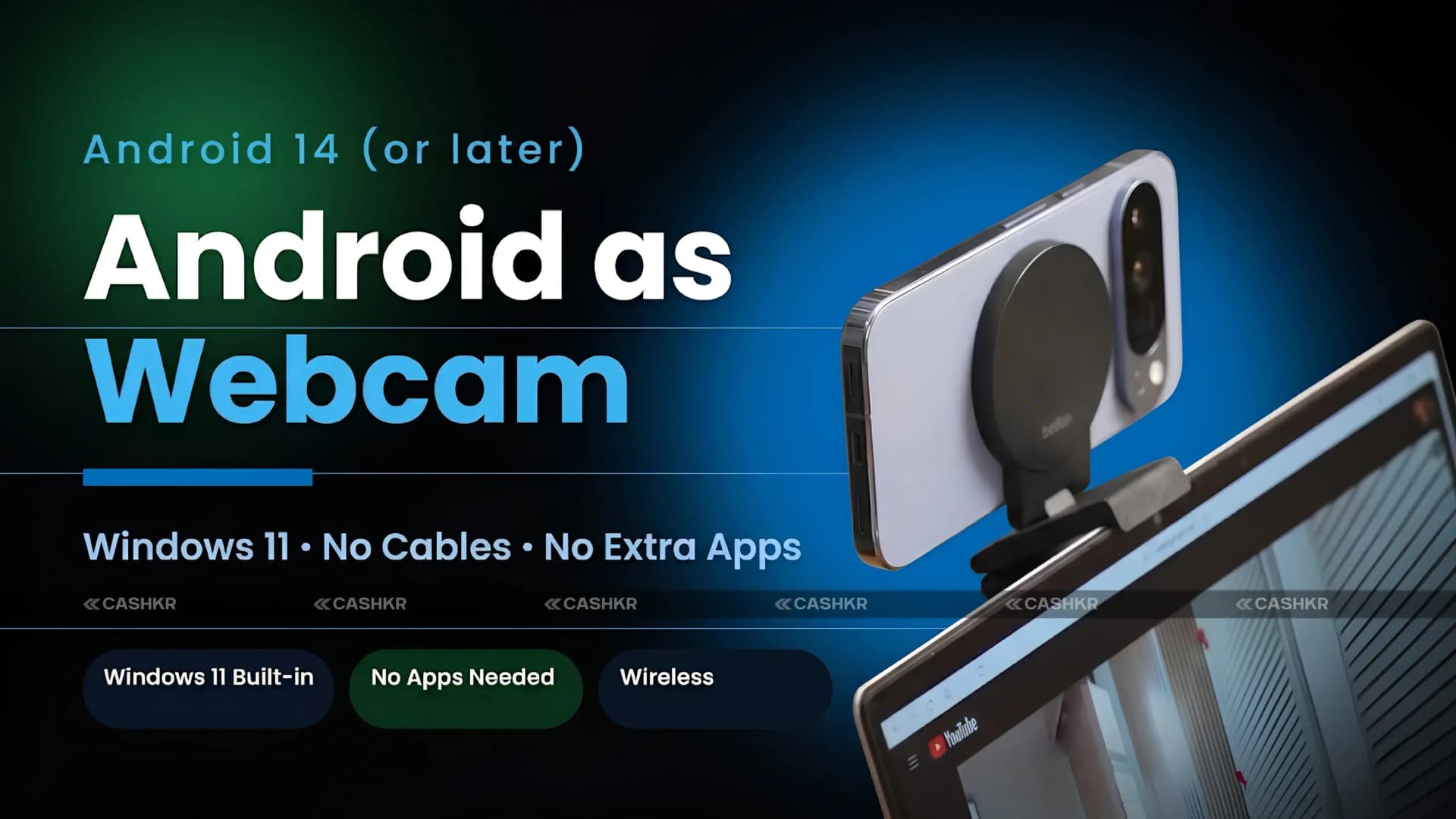
Use your Android phone as a webcam on Windows 11 with Phone Link app.

Get the Cashkr app for faster payouts

Quick Summary: Windows 11 lets you use your Android phone as a wireless webcam using the Phone Link app on PC and the Link to Windows app on Android, with no third-party software required. Requirements: Windows 11, Android 10 or newer, and Link to Windows app version 1.24022.0 or later. The setup works over Bluetooth and Wi-Fi. Seven steps: install Link to Windows on Android, open Phone Link on PC and sign in, pair via QR code scan, go to Bluetooth and Devices settings and find your phone, enable Use device as a camera, open Manage Cameras and select your phone, then grant camera permission on Android. After setup the phone appears as a camera source in Google Meet, Zoom, Teams, OBS, and Discord.
| Requirement | Details |
|---|---|
| PC Operating System | Windows 11 (latest updates recommended) |
| Android Version | Android 10 or newer |
| Android App | Link to Windows, version 1.24022.0 or later |
| PC App | Phone Link (built into Windows 11) |
| Connection Type | Bluetooth pairing plus Wi-Fi communication |
| Microsoft Account | Required for Phone Link sign-in |
Open the Start menu and search for Phone Link.
Open Phone Link from the search results.
Sign in with your Microsoft account when prompted.
On your Android phone, open the Link to Windows app.
Follow the in-app prompts and select the option to scan a QR code.
Point your phone camera at the QR code displayed on your PC screen.
Once scanned, the apps will establish a wireless connection between your phone and PC.
Open Windows Settings by pressing Windows plus I on your keyboard.
Click Bluetooth and devices from the left sidebar.
Find your Android phone under connected devices, then click it.
In Windows Settings, search for Manage Cameras or navigate to Bluetooth and devices and find the camera settings.
Your Android phone should appear in the list of connected cameras.
Select your phone from the list to confirm it as an active camera source.
Click Resend Permission Request in the Windows camera settings.
On your Android phone, a permission prompt will appear asking whether Link to Windows can access the camera.
Tap Allow or Accept on the Android phone.
The camera feed should now appear in the preview window on your PC.
Bottom Line: Using your Android phone as a webcam on Windows 11 is free, wireless, and works with all major video call and streaming apps. Just install Link to Windows on your phone, open Phone Link on your PC, pair them with a QR code, turn on Use device as a camera in settings, and allow camera access on your phone. For the best quality, use the rear camera on a stand with good lighting. This is a big upgrade over most built-in laptop webcams.
Also Read: MacBook Resale Value Calculator: Get the Best Price Online
1. Does using an Android phone as a webcam require any third-party apps?
No third-party apps are required. The feature uses two official first-party apps: Phone Link, built into Windows 11, and Link to Windows, available free on the Google Play Store and pre-installed on many Samsung, Honor, and OnePlus devices. As long as the Link to Windows app is updated to version 1.24022.0 or later and your PC is running Windows 11, the native webcam feature works without any additional downloads. This differs from older methods of using a phone as a webcam, which required third-party camera streaming apps on both the phone and the PC.
2. Does this work with all Android phones?
The feature requires Android 10 or newer on the phone and the Link to Windows app at version 1.24022.0 or later. Most Android smartphones sold in the last four years will meet the Android 10 requirement. The Link to Windows app is available on the Google Play Store for all Android phones regardless of brand, though Samsung, Honor, and OnePlus phones typically have it pre-installed. Phones running customized Android versions heavily tailored by manufacturers, with their own app restrictions, may encounter compatibility issues, but the feature works across a broad range of mainstream Android devices.
3. Does this work on Windows 10?
No, the native Android phone webcam feature through Phone Link and Link to Windows is exclusive to Windows 11. Windows 10 does not include the updated version of Phone Link that supports this functionality. If you are on Windows 10 and want to use your phone as a webcam, you would need a third-party app such as DroidCam or EpocCam. Upgrading to Windows 11 on an eligible PC enables the native feature, eliminating the need for third-party software and offering a more seamless setup experience.
4. What video call apps work with the Android phone webcam?
Any video call or webcam app on Windows 11 that lets you select a camera source will work with the Android phone's webcam. Confirmed compatible applications include Google Meet, Zoom, Microsoft Teams, Discord, OBS Studio, Streamlabs, and any other application that reads from Windows camera devices. The Android phone appears as a standard camera device in Windows, so the selection process is identical to choosing any other external webcam in the application's video or camera settings.
5. Does this feature use mobile data?
No, the Android phone webcam feature works over your local Wi-Fi network and does not use mobile data. The phone and PC must be connected to the same Wi-Fi network for the video stream to function. The initial pairing uses Bluetooth, and the ongoing video transmission happens over Wi-Fi. This means there is no additional cost to your mobile data plan when using this feature, and the video quality and stability depend on the strength and speed of your local Wi-Fi network rather than your mobile data connection.
6. Can I use the rear camera instead of the front camera?
Yes, Windows 11 and the Phone Link webcam feature support switching between the front-facing selfie camera and the rear camera on your Android phone. When your phone is selected as the camera source in a video call application, there should be an option to switch cameras in Phone Link's camera management settings. Using the rear camera typically produces significantly better video quality due to its larger sensor, higher-resolution lens, and better image processing capabilities compared to front-facing cameras on most Android phones.
7. Will the phone battery drain faster when used as a webcam?
Yes, using your Android phone as a webcam will increase battery drain because the camera sensor, Wi-Fi connection, and Bluetooth are all active simultaneously during the webcam session. The exact drain rate depends on the phone model, the camera in use, and the length of the session. For extended video calls or long streaming sessions, it is advisable to keep your Android phone plugged into a charger during use. This prevents the phone battery from depleting mid-call, which would interrupt the webcam connection.
8. What should I do if the camera feed is laggy or stuttering?
A laggy or stuttering video feed is usually caused by a weak or congested Wi-Fi connection. The most effective fix is to move both your Android phone and Windows 11 PC closer to your Wi-Fi router. If your router supports dual-band Wi-Fi, switching both devices to the 5GHz band rather than 2.4GHz reduces congestion and improves bandwidth availability. Closing background applications on both the phone and PC that are using the network or processing power also reduces lag. If the problem persists, restarting both the Link to Windows app on the phone and the Phone Link app on the PC resets the connection.
9. Can I use my iPhone as a webcam on Windows 11 the same way?
No, the Phone Link and Link to Windows webcam feature is exclusive to Android devices. iPhone does not support the Link to Windows app. Apple does offer a similar feature called Continuity Camera that lets an iPhone act as a webcam, but it works only with Apple Mac computers running macOS 13 Ventura or later, not with Windows 11 PCs. iPhone users who want to use their phone as a webcam on Windows 11 would need to use a third-party application such as EpocCam or Camo, which work cross-platform.
10. Do I need to set this up every time I want to use the phone as a webcam?
No, after the initial setup is complete, using the phone as a webcam should be much faster on subsequent occasions. The pairing between the phone and PC persists after the first connection, so you do not need to scan the QR code again or go through the full pairing process each time. For the webcam to be available, both the Phone Link app on the PC and the Link to Windows app on the Android phone need to be running. If either app was closed, reopening it and allowing the devices to reconnect should restore the webcam availability without any additional steps.
If you want to sell your old devices then, click here.
Sell with Cashkr
Cashkr buys used devices at a fair price with free doorstep pickup and same-day payment across 2,000+ pincodes. Get an upfront quote in seconds.
Sell Old Phone OnlineCheck your phone's value in seconds
Written by
Learn how to sell refurbished devices online and maximize profit.