WhatsApp Encrypted Backup: How to Enable It Right Now
 Yaskar Jung ShahUpdated: Aug 18, 2026·13 min read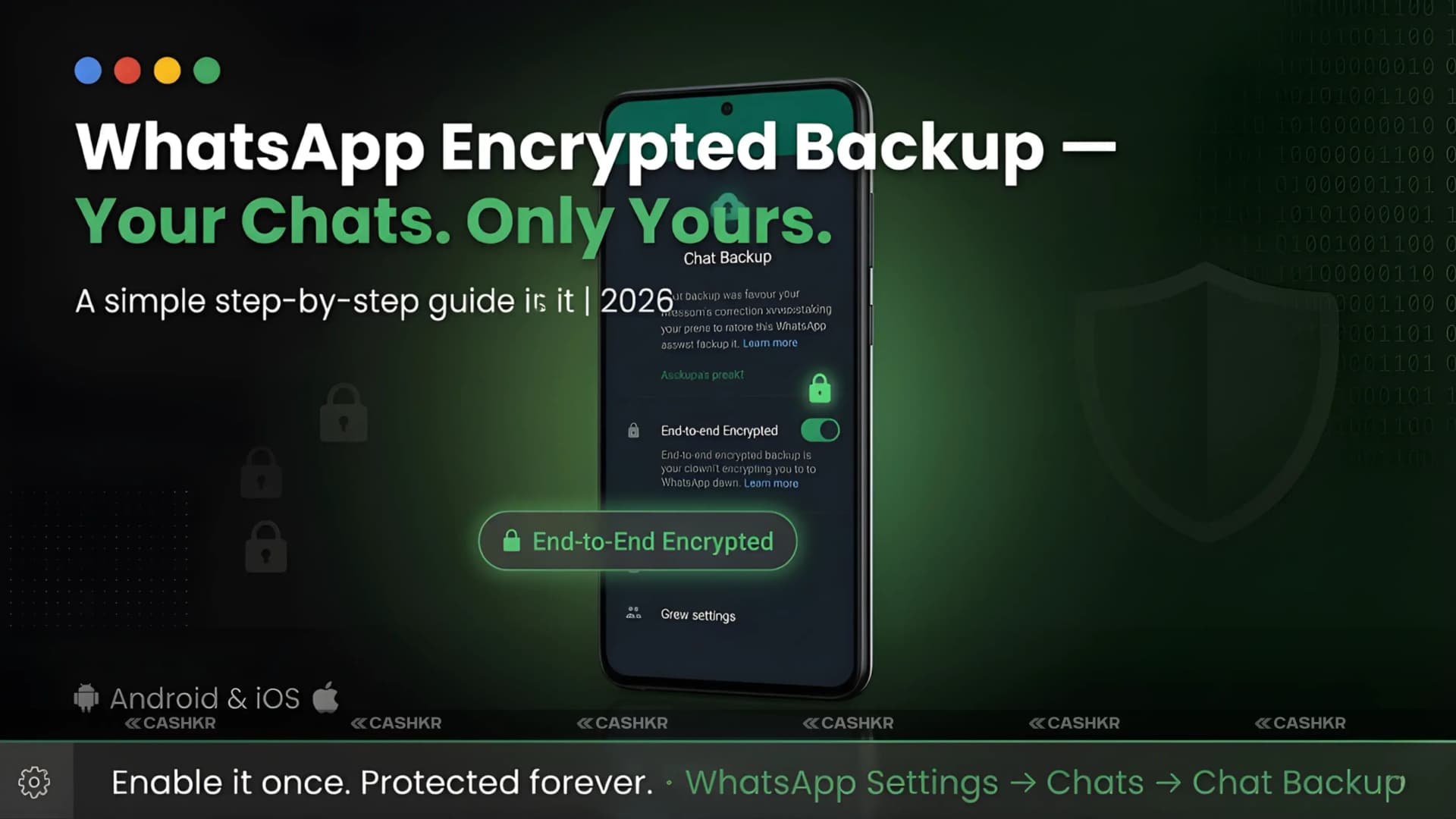
WhatsApp encrypted backup guide for Android and iPhone.

Get the Cashkr app for faster payouts

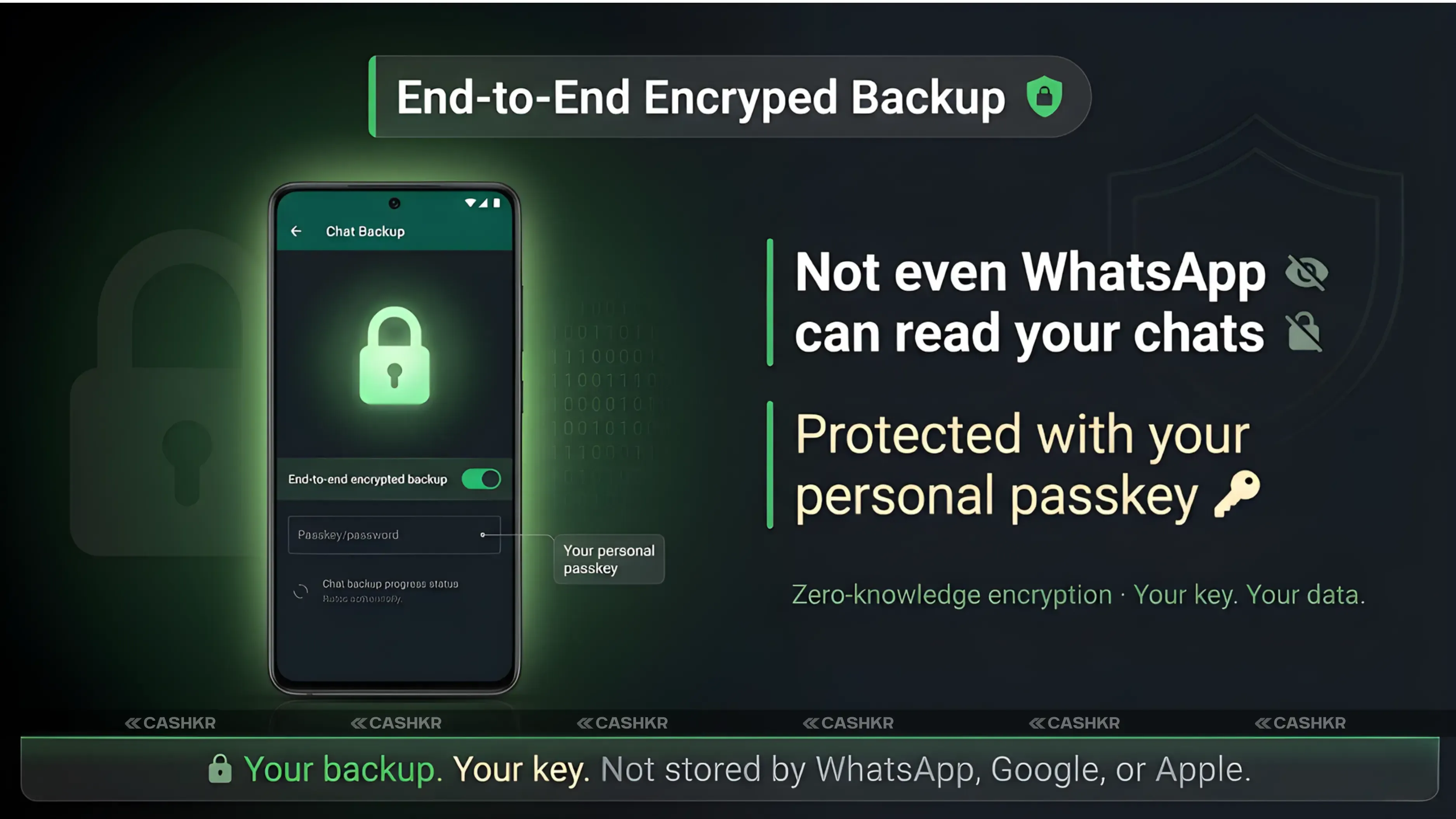
This feature encrypts your WhatsApp chat backup in Google Drive or iCloud using a personal passkey. Only you can restore the backup on a new device with that passkey. Even if someone gets into your cloud account, your chats stay protected.
Simply put, before this feature, your WhatsApp backup was like a locked house where the cloud provider had the key. Now, it is like a safe inside the house, and only you have the key.
Also Read: Samsung Galaxy S26 FE Leaked on Geekbench: Android 17
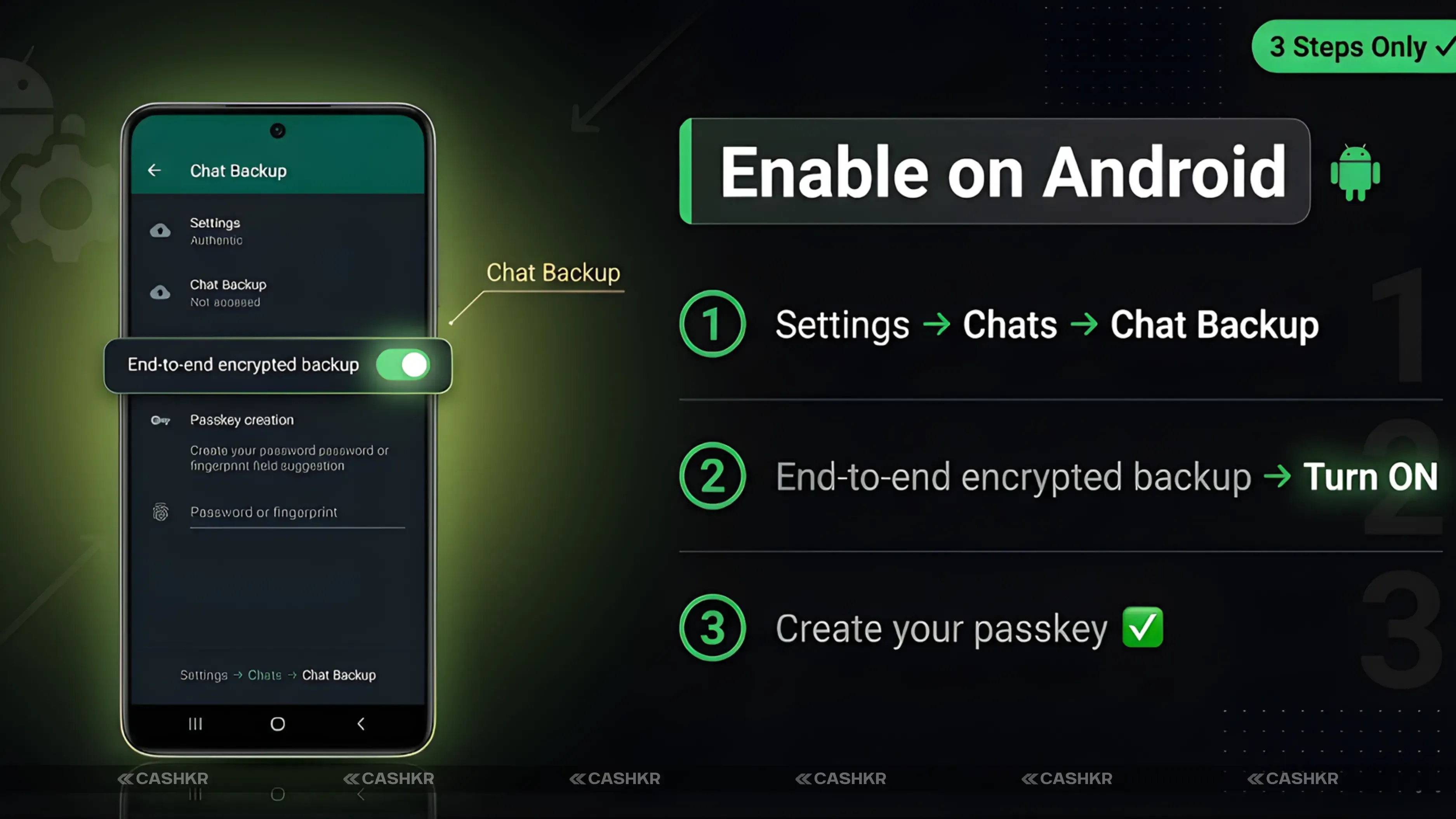
Step 1: Open WhatsApp | Launch the app from your home screen or app drawer
Step 2: Open Settings | Tap the three-dot menu in the top right and select Settings
Step 3: Tap Chats | Find the Chats option in the Settings menu
Step 4: Select Chat Backup | Tap Chat Backup to open your backup settings
Step 5: Tap End-to-end encrypted backup | This option appears within the Chat Backup screen
Step 6: Tap Turn On | Confirm that you want to enable the feature
Step 7: Create your passkey | Choose a passkey using your fingerprint, face unlock, or screen lock PIN
Step 8: Follow the on-screen instructions | WhatsApp will complete the setup and begin your first encrypted backup
Once setup is finished, all future backups on Android will be encrypted with your passkey. The backup process stays the same, and you will not notice any changes in daily use.
Also Read: Google Pixel 11 Pro XL Leaked: Tensor G6 and 5500mAh
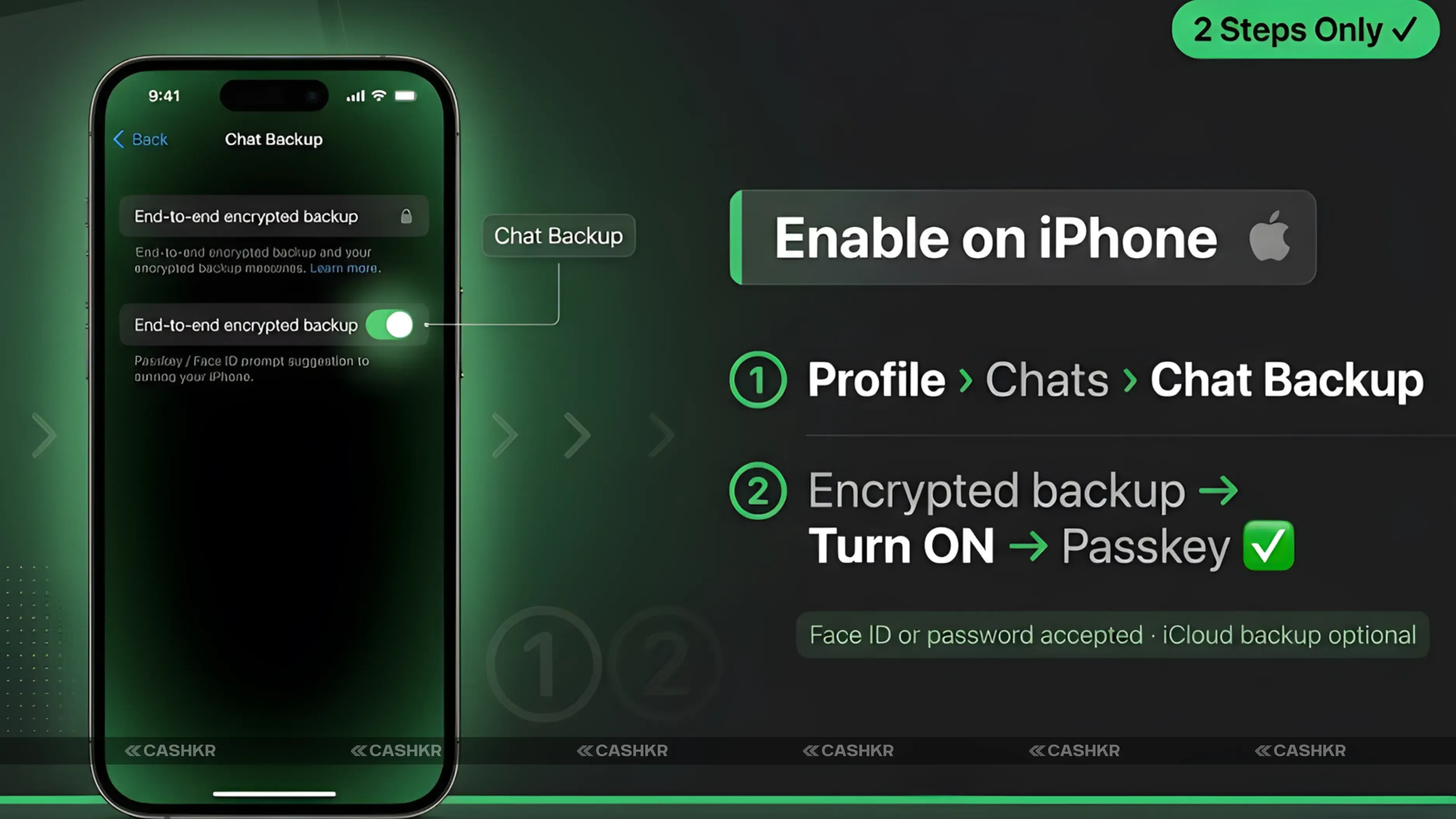
Step 1: Open WhatsApp | Launch the app on your iPhone
Step 2: Tap your Profile icon | Your profile picture is in the top left of the Chats screen
Step 3: Tap Chats | Find Chats in the Settings list
Step 4: Select Chat Backup | Open your backup settings from the Chats menu
Step 5: Tap End-to-end encrypted backup | Find this option within the Chat Backup screen
Step 6: Tap Turn On | Enable the encrypted backup feature
Step 7: Create your passkey | Set your passkey using Face ID, Touch ID, or your iPhone passcode
After setting up on iPhone, your WhatsApp backup to iCloud is now encrypted with your passkey. Backups continue automatically, and iCloud cannot read the contents of your backups.
| Ease of use | Very easy | Requires careful storage |
| Linked to | Device biometrics or screen lock | A 64-character random string |
| Recovery if lost | Reset via device security | No recovery possible |
| Security level | High (device-backed) | Very high (manual) |
| Best for | Most everyday users | Advanced users only |
| Risk | Low | High if key is lost |
A warning about the 64-digit key: If you choose this option and lose the key, WhatsApp cannot help you recover your backup. There is no 'forgot my key' option and no customer support can restore access. This is by design—no one else has your key, not even WhatsApp.
Tip for safe device switching: Before you sell or reset your old phone, check that your encrypted backup is complete. Look at the last backup date in WhatsApp Settings, then Chats, then Chat Backup. Only reset your old phone after you see a recent backup date.
Quick tip: Open WhatsApp, go to Settings, tap Chats, then Chat Backup, then End-to-end encrypted backup, tap Turn On, and set your passkey. It takes less than three minutes, and your chats are protected.
1. Is WhatsApp's end-to-end encrypted backup safe?
Yes. The encryption is applied on your device before the backup is uploaded. The cloud provider receives an encrypted file it cannot read. Not even WhatsApp or Meta can access your backup content.
2. What happens if I forget my WhatsApp backup passkey?
If you forget your passkey, you cannot restore your encrypted backup. WhatsApp cannot recover it for you. If you used your phone’s screen lock PIN as the passkey, you may be able to reset your PIN through your phone’s account recovery process, but the WhatsApp backup key is separate.
3. Can WhatsApp read my encrypted backup?
No. The encrypted backup is designed so that WhatsApp, Meta, Google, and Apple cannot read the content. Only someone with your passkey and access to your backup file can decrypt it.
4. Does encrypted backup work when I switch from Android to iPhone?
Yes. Encrypted backup works across platforms. When restoring on a new phone, whether Android or iPhone, you enter your passkey, and WhatsApp decrypts and restores your chats.
5. Which is better: a passkey or a 64-digit key for WhatsApp backup?
Passkey is recommended for most users. It integrates with your device security and is easy to use. The 64-digit key provides stronger protection but requires you to securely store a long, random key. Losing it means permanently losing backup access.
6. Is WhatsApp's encrypted backup available on all phones?
It requires Android 9 or above for Android users and iOS 16 or above for iPhone users. Most phones in active use in 2026 meet these requirements. Older unsupported devices cannot use the feature.
7. Does an encrypted backup cost extra storage?
No. Encrypted backups use approximately the same storage space as unencrypted backups. The encryption process does not significantly increase the file size.
8. Can I disable WhatsApp's encrypted backup after enabling it?
Yes. Go to Settings, then Chats, then Chat Backup, then End-to-end encrypted backup, and select Turn Off. Your next backup will be stored unencrypted. You can re-enable it at any time.
9. What happens to my old unencrypted WhatsApp backup after I enable the feature?
Your existing backup files remain unchanged. Only new backups created after enabling the feature are encrypted. WhatsApp does not retroactively encrypt old backup files.
10. Does WhatsApp notify anyone when I enable encrypted backup?
No. Enabling encrypted backup is a private setting change on your device. No contacts, groups, or third parties are notified.
If you want to sell your old devices, then click here.
Sell with Cashkr
Cashkr buys used devices at a fair price with free doorstep pickup and same-day payment across 2,000+ pincodes. Get an upfront quote in seconds.
Sell Old Phone OnlineCheck your phone's value in seconds
Written by
Google Find My Device guide, locate your phone in minutes.
Recycle old devices in India and earn instant cash today
Learn how to sell refurbished devices online and maximize profit.
Prepare smartphones for resale & sell old phones easily with Cashkr.

Support the circular economy by selling old phones on Cashkr today.
Reduce e-waste by selling old devices through Cashkr’s eco-friendly process.


