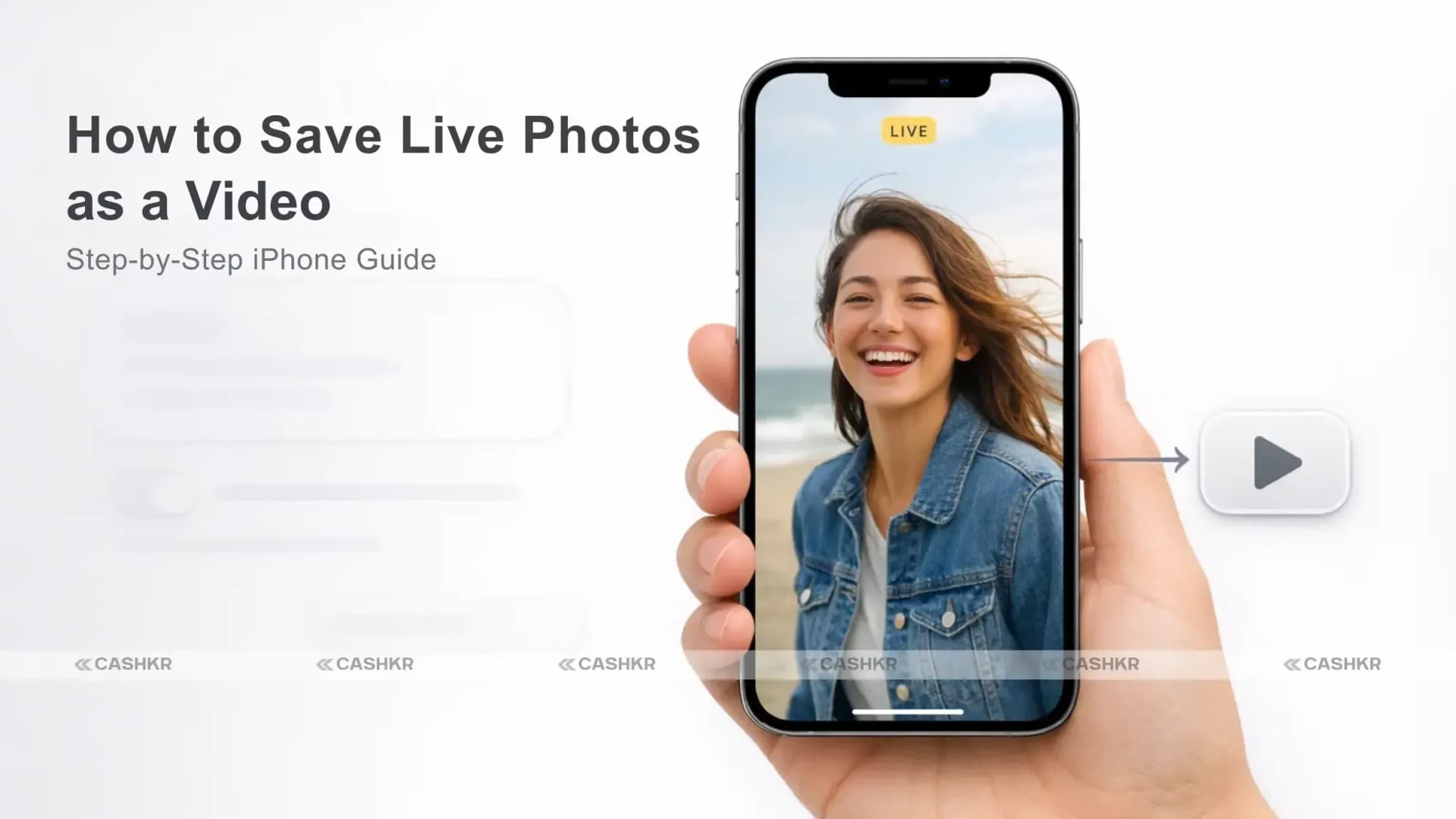
How to Save Live Photos as a Video on Your iPhone (Step-by-Step Guide)
If you’re wondering how to save Live Photos as a video on your iPhone, you’re not alone. Many iPhone users love the Live Photos feature because it captures a few seconds of motion along with a still image. However, sharing Live Photos isn’t always convenient, especially when sending them to non-Apple devices.
In this guide, you’ll learn how to save Live Photos as a video on your iPhone, why converting them can be useful, and how to combine multiple Live Photos into one video.
What Are Live Photos on iPhone?
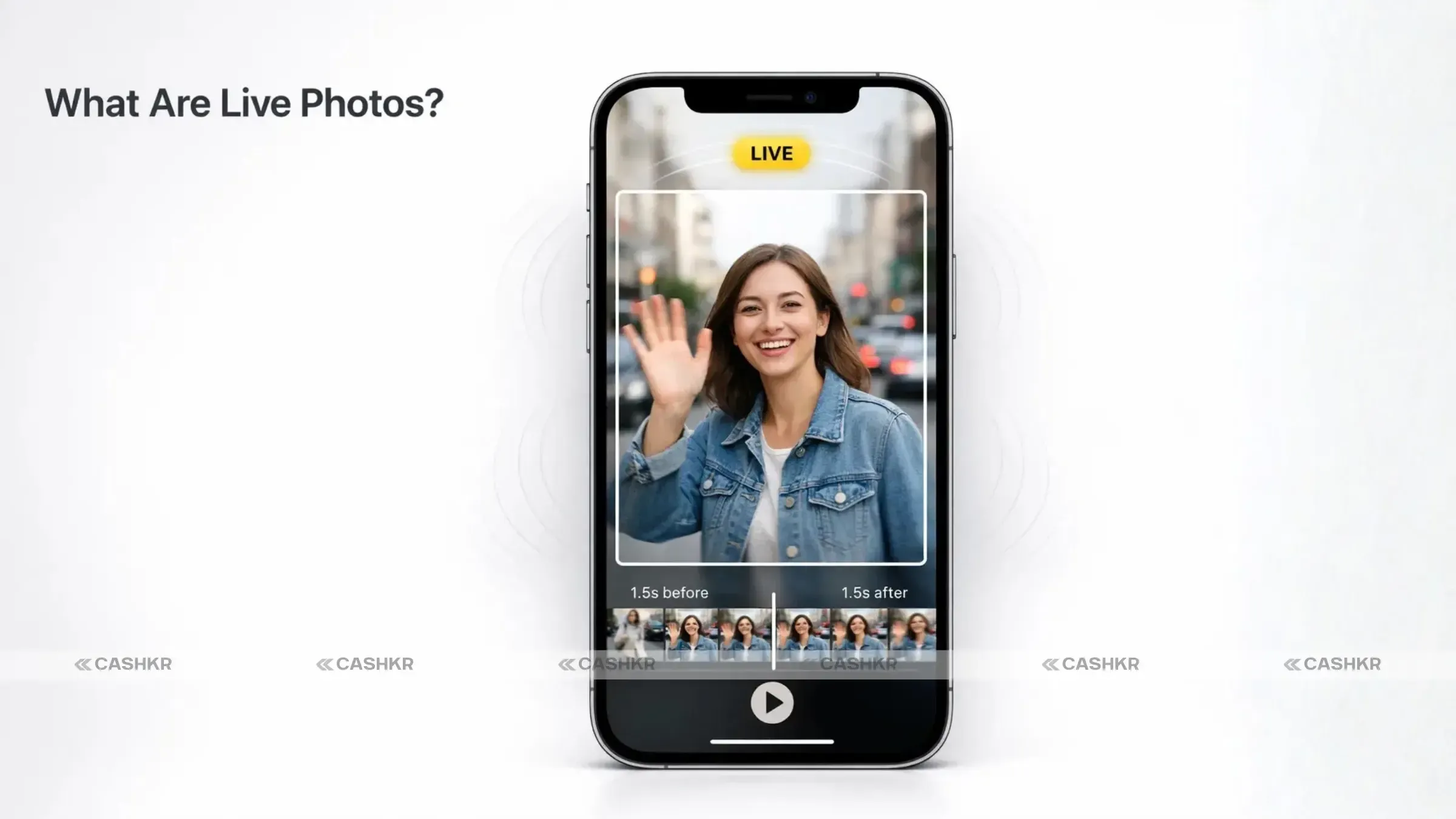
The Live Photos feature was introduced by Apple with iOS 9 in 2015. Instead of capturing just a still image, Live Photos record 1.5 seconds before and after the photo, creating a short motion clip.
While Live Photos are fun and interactive, they are not always the easiest format to share or edit. That’s why many users want to convert them into videos.
Before learning how to save Live Photos as a video on your iPhone, it’s helpful to understand why people convert them.
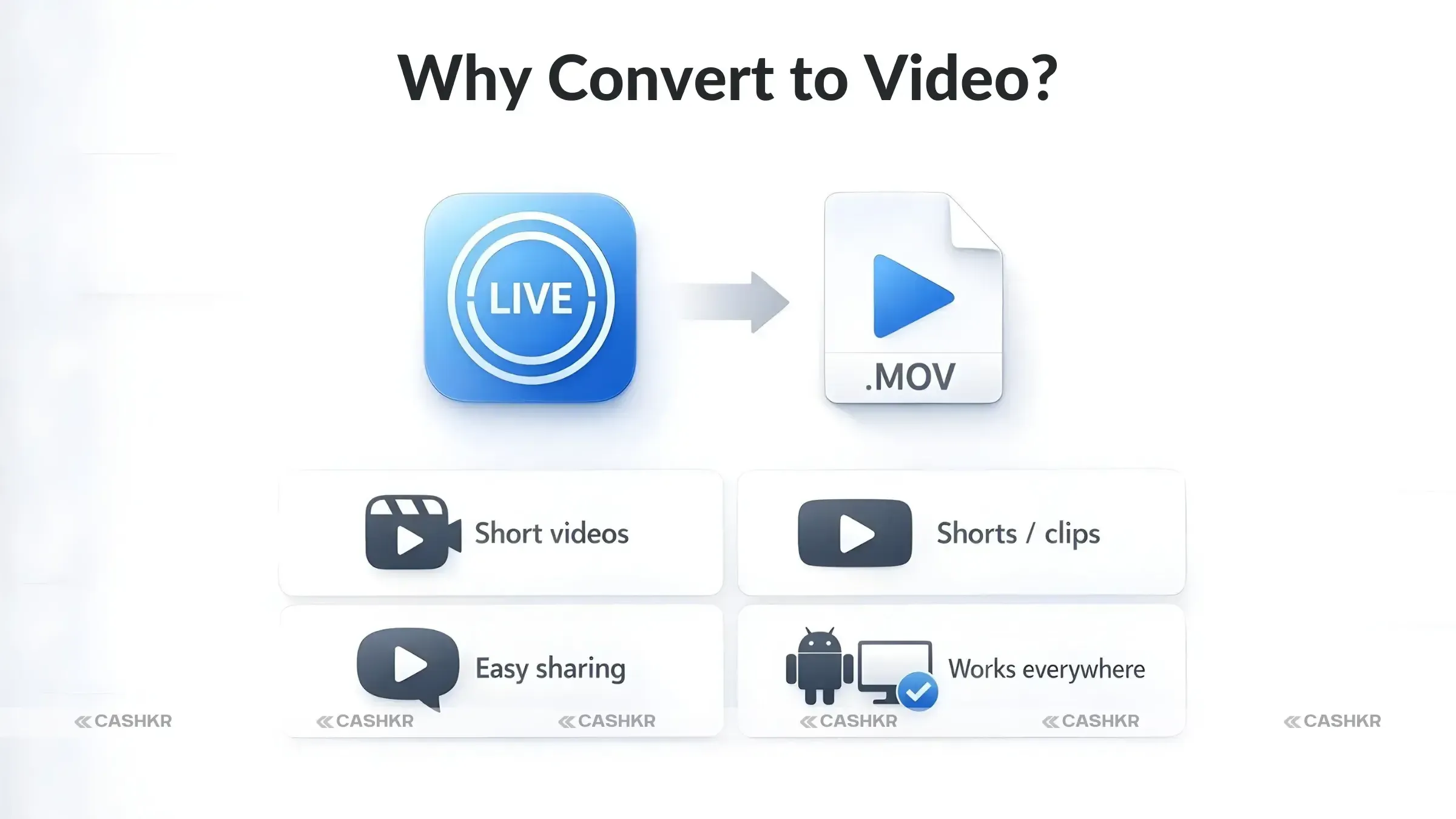
Easier Sharing
Many platforms do not fully support Live Photos. Converting them into videos makes it easier to share them on apps like Instagram, Facebook, or messaging platforms.
Better Social Media Uploads
On some platforms, a Live Photo may appear as a still image when uploaded. Saving it as a video lets you upload it as:
Instagram Reels
YouTube Shorts
Social media videos
Easier Editing
Video files are easier to edit compared to Live Photos. Once converted, you can:
Trim the clip
Add music
Apply filters
Stabilise the footage
Better Compatibility
Live Photos may not work well on Windows PCs or Android devices. A video file ensures universal compatibility.
Better Storage Options
Some cloud services and external drives save Live Photos as still images only. Converting them into videos prevents this issue.
How to Save Live Photos as a Video on Your iPhone
Follow these simple steps to learn how to save Live Photos as a video on your iPhone.
Step 1
Unlock your iPhone and open the Photos app.
Step 2
Go to the Collections section.
Step 3
Tap Live Photos to see all your Live Photo images.
Step 4
Select the Live Photo you want to convert.
Step 5
Tap the More (•••) option in the top-right corner.
Step 6
Tap Save as Video.
Once you do this, your iPhone automatically creates a video version of that Live Photo.
The newly created video will appear in the Recently Saved section of your Photos library. Your original Live Photo will still remain unchanged.
How to Save Multiple Live Photos as One Video
Sometimes you may want to combine several Live Photos into a single video. This can be useful for creating quick clips or short memories.
Follow these steps:
Step 1
Open the Photos app on your iPhone.
Step 2
Go to Collections → Live Photos.
Step 3
Tap the Select button in the top-right corner.
Step 4
Choose the Live Photos you want to combine.
Step 5
Tap the More (•••) button.
Step 6
Select Save as Video.
Your iPhone will combine all selected Live Photos into a single video file, which will appear in the Recently Saved album.
Here are a few useful tips when working with Live Photos:
Disable Live Photos to save storage space.
Convert Live Photos into videos before sharing them.
Use the Photos editing tools to trim or enhance the video.
Upload video versions to social media for better compatibility.
Final Thoughts
Learning how to save Live Photos as a video on your iPhone can make sharing and editing your memories much easier.
While Live Photos are great for capturing motion moments, converting them into videos offers several benefits:
Easier sharing on social media
Better compatibility across devices
More editing options
Reliable backups and storage
If you frequently capture Live Photos, converting them to videos can help you organize, edit, and share your memories more efficiently.
FAQs
1. What are Live Photos on an iPhone?
Advertisement
Live Photos are a feature available on iPhones that captures more than just a still image. When you take a Live Photo, the camera records a few seconds of motion before and after the shot, creating a short moving clip. This feature was introduced by Apple with iOS 9 and is available on most modern iPhones. It allows users to relive moments with sound and motion instead of viewing only a single image.
2. Why would you want to save Live Photos as a video?
Saving Live Photos as a video can make sharing and editing much easier. Many platforms such as Instagram, YouTube, or messaging apps do not fully support the Live Photo format. When converted into a video, the motion clip becomes easier to upload, edit, and view across different devices including Android phones and Windows computers.
3. How do you save a Live Photo as a video on an iPhone?
To save a Live Photo as a video, open the Photos app on your iPhone and locate the Live Photo you want to convert. Tap the image, select the More (three-dot) option, and choose Save as Video. Your iPhone will automatically generate a video version of the Live Photo and store it in your photo library.
4. Where can you find the video after converting a Live Photo?
Once you convert a Live Photo into a video, the newly created video will appear in the Recently Saved or Recents section of the Photos app. It will be stored alongside your other videos, allowing you to edit, share, or move it to another album.
5. Can you convert multiple Live Photos into a single video?
Yes, the iPhone lets you combine multiple Live Photos into a single video. To do this, open the Photos app, go to the Live Photos collection, tap Select, and choose the images you want to merge. After selecting them, tap More, then choose Save as Video. The device will create one continuous video from the selected Live Photos.
6. Does converting a Live Photo to video remove the original Live Photo?
No, converting a Live Photo to a video does not delete the original file. The iPhone simply creates a separate video version, while the original Live Photo remains unchanged in your photo library. This allows you to keep both formats if needed.
7. Can you edit the video after converting a Live Photo?
Yes, once a Live Photo is saved as a video, you can edit it using the built-in tools in the Photos app. You can trim the clip, adjust brightness or contrast, apply filters, or stabilise the footage. You can also use third-party video editing apps to add music or special effects.
8. Are Live Photos supported on all devices?
Live Photos work best on Apple devices such as iPhones, iPads, and Macs. When shared with Android phones or Windows computers, the motion part may not always play correctly. Converting the Live Photo into a video ensures it can be viewed properly on almost any device.
9. Do Live Photos take more storage space than regular photos?
Yes, Live Photos usually take more storage space than standard photos. This is because a Live Photo stores both the still image and the short motion clip captured before and after the photo. If you take many Live Photos, they can use up more storage on your device than regular photos.
10. When should you convert Live Photos into videos?
Converting Live Photos into videos is useful when you want to share them on social media, edit them easily, or send them to people using non-Apple devices. Videos are also easier to upload to platforms like Instagram Reels, YouTube Shorts, or messaging apps, making them more versatile for sharing memories.
If you want to sell your old devices then, click here.


 Yaskar Jung ShahUpdated: Sep 3, 2026·11 min read