WhatsApp New Features 2026: 5 Updates You Need to Know
 Yaskar Jung ShahUpdated: Aug 13, 2026·14 min read
New WhatsApp features 2026 — what is new and how to use.

Get the Cashkr app for faster payouts

WhatsApp just launched a major update that you should know about.
In the past, moving between Android and iPhone meant losing all your WhatsApp chats. That’s finally fixed. iPhone users can now use two WhatsApp accounts, just like on Android. Plus, new AI tools are now built right into your chats.
These changes aren’t just for show. Each new feature makes a real difference in how you use WhatsApp daily. Here’s what’s new and why it matters.
What’s new: Cross-platform chat transfer (Android and iPhone), improved storage management, dual accounts on iPhone, AI photo editing before sending, and AI writing help. These features are rolling out worldwide now.
This is the biggest change in the update, and users have been waiting for it for years.
Before, moving from Android to iPhone meant losing all your WhatsApp chats, photos, videos, group chats, and call history. The only solution was a clunky workaround that didn’t always work and only moved some data.
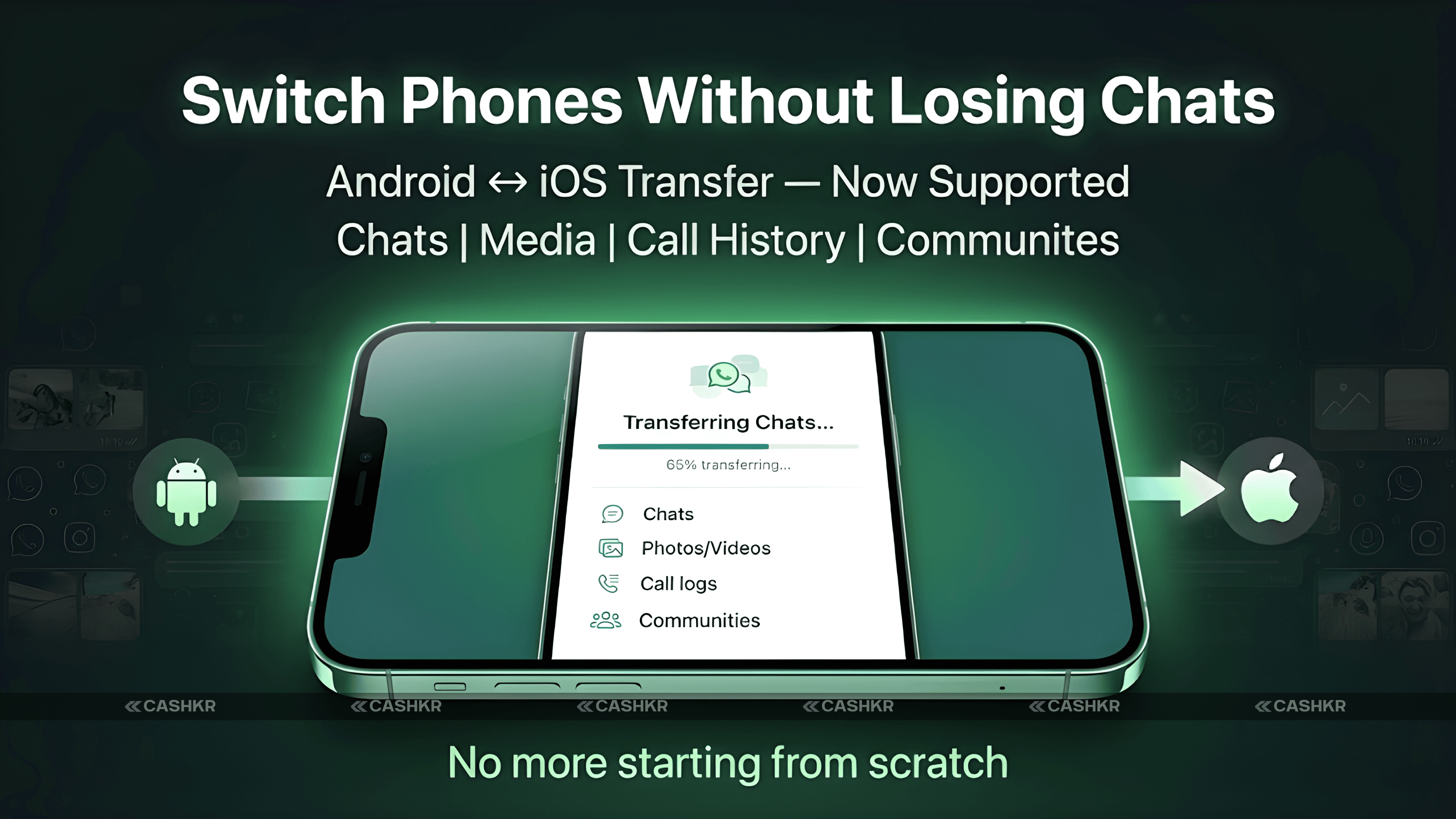
Now, the new cross-platform chat transfer tool moves everything for you. When setting up WhatsApp on a new phone, you can transfer your account and all your data, whether you’re switching from Android to iPhone or the other way. The app guides you through each step.
Here is exactly what transfers successfully:
Individual chats and all message history.
Group chats and message history,
Communities and channel updates.
Call history log.
Media files, including photos, videos, and voice messages.
Account information and settings.
This is especially helpful for families or coworkers who use different types of phones. Now, if you switch from Samsung to iPhone, you don’t have to give up your chat history.
The transfer uses a direct connection between your old and new phones, so your data never goes through WhatsApp’s servers. This approach helps protect your privacy.
Also Read: OnePlus 15T Specs: Snapdragon 8 Elite, 7500mAh and 100W
Why does this matter? Imagine a group chat with years of family photos, voice messages from someone special, or important business conversations. Before, you lost all of this when switching phones. Now, you can keep everything.
Transfer Direction | Android to iPhone and iPhone to Android (both ways) |
What Transfers | Chats, groups, communities, calls, media, settings |
How It Works | Direct local connection between old and new phone |
Server Involvement | Data does not pass through WhatsApp servers |
Where to Find It | Settings during new device setup or account transfer |
Managing WhatsApp storage used to be a hassle. The app might show it’s using gigabytes of space, but finding and deleting the files taking up room was difficult.
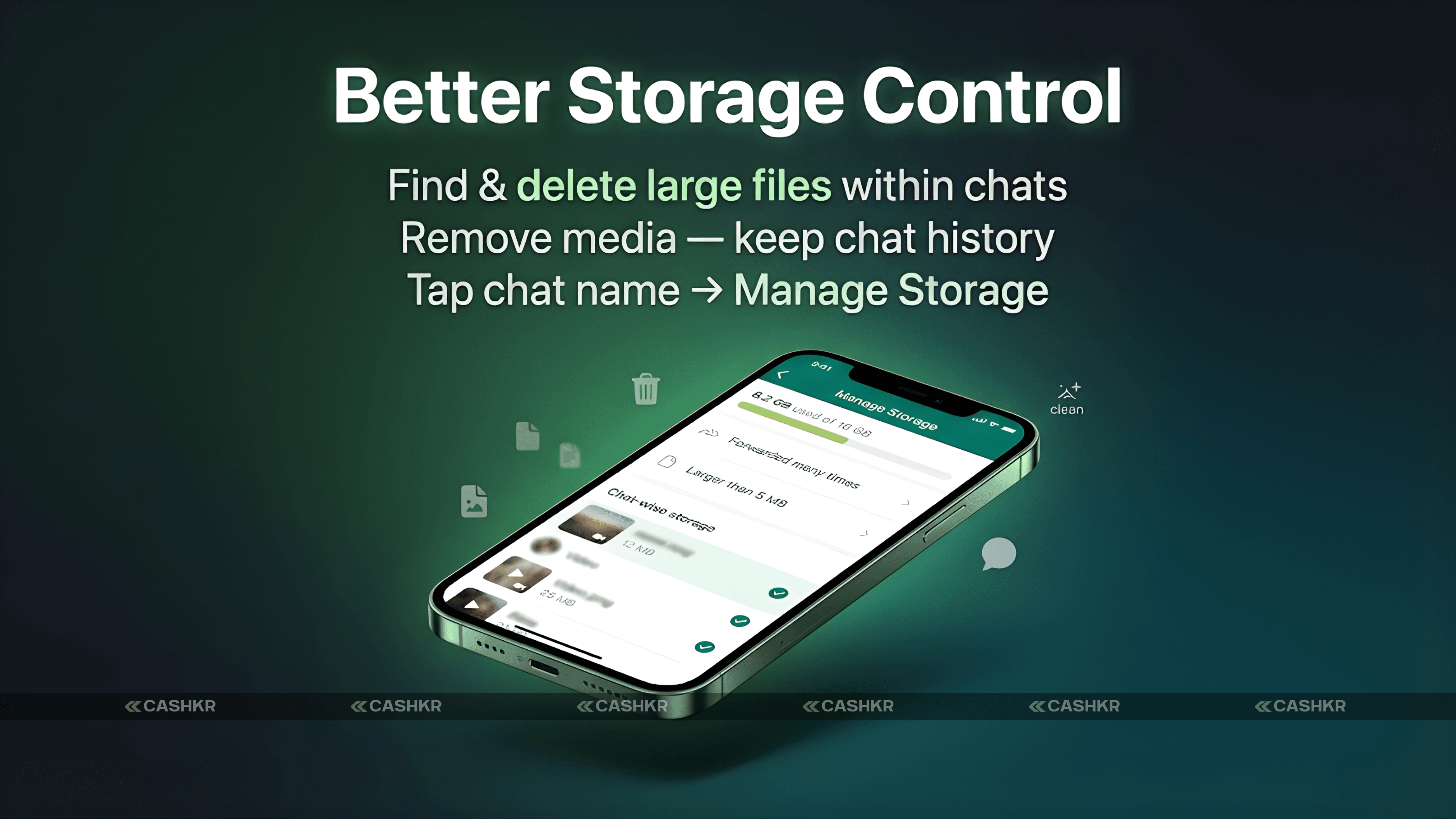
The new storage management tool makes things easier. Now, you can see which files in each chat take up the most space. Large photos, long videos, voice messages, and documents are all listed by size, so you know what’s using your storage.
The best part is you have more control. You can delete just one old video without removing the whole chat. Before, you had to clear all media at once. Now, you choose what to keep and what to delete.
The Manage Storage section in Settings has also been updated to show a cleaner overview of where storage is being used across all chats. If WhatsApp is eating up 4GB of your phone storage, you can now find the specific chats and files responsible in just a few taps.
If your phone has 64GB or 128GB of storage, stopping WhatsApp from filling up with auto-downloaded media is a real concern. This update makes it much easier to manage, so you don’t have to search through every chat.
To check your storage: Open WhatsApp, go to Settings, then Storage and Data, and tap Manage Storage. You’ll see which chats use the most space. Tap a chat to see large files and delete what you don’t need without losing the conversation.
Also Read: iQOO Z11 Specs and Price: Best Gaming Phone Under Rs. 35K
Android users have had two WhatsApp accounts on one phone for some time. Now, iPhone users can do the same.
It’s simple: you have a personal WhatsApp number and a work number, but don’t want to carry two phones. On Android, you could already add both accounts and switch between them. On iPhone, you had to pick one or use unofficial tricks.
The new dual-account feature on iOS is easy to use. Both accounts show up in the app, and you switch between them with a simple toggle. Each has its own profile, so you always know which one you’re using. Notifications for each account are separate and clearly labeled.
If you manage business messages, this means you no longer need a second phone. Your personal and business numbers stay separate, notifications are organized by account, and switching is just one tap.
This feature is rolling out to iOS users around the world. If you don’t see it yet, check for an app update in the next few weeks.
Previously available on | Android |
Now available on | iPhone (iOS) as well |
Account limit | Two WhatsApp accounts on one device |
Switching | One-tap toggle between accounts |
Notifications | Separate and labelled for each account |
Profile indicator | Shows which account is currently active |
WhatsApp now lets you edit photos with AI right in the chat, so you can make changes before sending without needing another app.
There are three main editing tools: object removal, background change, and style effects. You can tap to remove something from a photo, and the AI fills in the background. You can also swap out the background, which is great for making product photos look better.
Style effects let you turn a photo into a sketch, painting, or graphic. These tools are like what you find in Google Photos or Samsung Gallery, but now you can use them right in WhatsApp without leaving your chat.
This is handy if you often share photos in WhatsApp groups or business chats where how things look matters. You can remove clutter from a product photo before sending it to a client or clean up a screenshot before sharing it in a group—all without using another app.
To use these tools, attach a photo in WhatsApp and look for the edit button before you send it. The AI editing options show up with the usual crop, text, and sticker tools. Not everyone will see them right away, since the rollout is gradual.
WhatsApp’s AI assistant is now better at helping you write and reply to messages.
The writing help feature looks at your chat and suggests replies based on what’s been said. If someone asks you a question, the AI offers different response options—short, detailed, formal, or casual. You pick the one you like or edit it before sending.
If you get lots of WhatsApp messages, this tool saves time. Instead of writing every reply from scratch, the AI drafts responses for you to review and send, making it much quicker to answer many questions in a group chat.
Meta says the AI uses your chat context to suggest replies, but your messages stay end-to-end encrypted. Suggestions are made on your device when possible, and your messages aren’t shared with Meta’s servers for AI training unless you give permission.
What it does | Suggests replies based on conversation context |
Tone options | Brief, detailed, formal, casual |
How to use it | Tap the AI button in the text field to see suggestions |
Privacy | End-to-end encryption maintained |
Message sharing | Messages not used for AI training without consent |
Chat Transfer | Move full chat history between Android and iPhone in both directions |
Storage Management | See large files by chat, delete specific media without losing conversations |
Dual Accounts iOS | Use two WhatsApp numbers on one iPhone with one-tap switching |
AI Photo Editing | Remove objects, change backgrounds, apply styles before sending photos |
AI Writing Help | Get reply suggestions based on conversation context |
Rollout Status | Rolling out globally, full availability in coming weeks |
All five features are included in the latest WhatsApp update and are gradually rolling out to Android and iOS users.
To check if you have the latest version:
Open the Google Play Store (Android) or App Store (iPhone).
Search for WhatsApp.
Tap Update if an update is available.
Once updated, open WhatsApp and check Settings for new options.
You might not see all the new features right after updating. WhatsApp activates some features in the background, so if something is missing, it should show up within a few days or weeks as the rollout finishes.
For users in India: All five features are part of the global rollout and are available in India. Since WhatsApp has a huge user base there, updates usually arrive quickly. Chat transfer, storage management, and dual accounts should be available with the latest update.
This is one of the most useful WhatsApp updates in recent years.
The cross-platform chat transfer finally fixes a problem that’s bothered millions for years. Dual accounts on iPhone now match what Android offers, which is great for anyone with more than one number. Better storage management helps keep WhatsApp from using too much space, and the new AI tools make photo editing and message writing easier without extra apps.
These aren’t just flashy features for show—they actually improve your daily WhatsApp experience. Update the app, check the Settings menu for new options, and try the chat transfer if you’re thinking about switching phones.
Bottom line: Update WhatsApp now. This update brings cross-platform chat transfer, dual accounts on iPhone, better storage control, and new AI editing tools. The chat transfer alone makes this one of WhatsApp’s most user-friendly updates yet.
1. How do I transfer WhatsApp chats from Android to iPhone?
Use the new cross-platform transfer tool in WhatsApp settings. During setup on the new iPhone, choose to transfer your WhatsApp account. Follow the steps to connect your old Android phone, and the app will transfer chats, media, call history, and account information over a direct local connection.
2. Can I transfer WhatsApp from iPhone to Android now?
Yes. The new update supports transfers in both directions: Android to iPhone and iPhone to Android. Previously, only limited one-way transfers were possible. The full chat history, media files, groups, and call history all transfer.
3. How do I use two WhatsApp accounts on an iPhone?
After updating to the latest WhatsApp version on iOS, go to Settings in WhatsApp and look for the option to add a second account. You will need a second phone number. Both accounts appear in the app, and you switch between them using a toggle in the top corner.
4. Does a WhatsApp dual account work on an iPhone?
Yes. The dual account feature is now available on iPhone with this update. It was previously only available on Android. You can run two different WhatsApp numbers on one iPhone and receive separate notifications for each.
5. How do I free up WhatsApp storage on my phone?
Go to WhatsApp Settings, then Storage and Data, then Manage Storage. You will see which chats are using the most space. Tap any chat to see large files within it. You can delete specific photos or videos without deleting the entire chat conversation.
6. Is WhatsApp AI photo editing available in India?
Yes. The AI photo editing feature is part of the global rollout that includes India. After updating to the latest WhatsApp version, look for the AI editing option when attaching a photo before sending. The feature may take a few days to activate after the app update.
7. Are WhatsApp AI features private and secure?
Meta states that end-to-end encryption is maintained with the AI writing assistance feature. Messages are not shared with Meta's servers for AI training without explicit user consent. The AI processes conversation context to suggest replies while keeping the messages encrypted.
8. When will these WhatsApp features be available for everyone?
The features are rolling out globally over the coming weeks. If you do not see a specific feature after updating, it has not reached your account yet through the server-side rollout. Most users should have all features within a few weeks of the update going live.
9. What media files transfer when switching from Android to iPhone on WhatsApp?
The cross-platform transfer moves photos, videos, voice messages, documents, GIFs, stickers, and other media files shared in chats. Call history logs are also transferred. The transfer happens over a direct local connection between the two phones.
10. Can I delete individual photos in WhatsApp without deleting the chat?
Yes. The updated storage management feature lets you delete specific media files in a chat without removing the chat or other messages. Go to Manage Storage, select a chat, and choose individual files to delete.
If you want to sell your old devices then, click here.
Sell with Cashkr
Cashkr buys used devices at a fair price with free doorstep pickup and same-day payment across 2,000+ pincodes. Get an upfront quote in seconds.
Sell Old Phone OnlineCheck your phone's value in seconds
Written by
Best camera phones 2026 — ranked for every type of shooter.

Top Google Gemini AI photo editing prompts to boost creativity
Xiaomi HyperOS update 3.1 : Check the full list of eligible devices.

Reduce e-waste by selling old devices responsibly with Cashkr.
Cashkr makes it easy and safe to sell your used phone. No hassle!
Phone recycling with Cashkr helps reduce e-waste and support sustainability.


