How to Safely Erase Personal Data Before Selling Your Device
Your phone holds more of your life than almost anything else you own. Saved passwords, UPI and banking apps, email, photos, chats, your contacts.
Before you sell it, all of that has to come off. This guide shows you how, in the right order, for Android and iPhone. The order matters more than any single step.
It takes about thirty minutes, and most of that is waiting.
Advertisement
What People Get Wrong About This
You will read that deleting a file does not really delete it, so your data can be recovered by anyone with free software.
That was true, and on an old device it still is. On a modern phone it is not, and the reason is worth understanding.
Android and iPhone both encrypt your storage by default. Android has done this since Android 6 and required it from Android 10. iPhones have done it for much longer. Your files sit on the phone scrambled.
A factory reset throws away the key. Without the key, the leftover data cannot be read. It is not hidden, it is scrambled beyond use.
So why do all these steps? Because the data is only half the problem. The other half is your accounts, and a reset does not deal with those on its own. If you reset while still signed in, the phone locks itself to you and the sale fails. That is what the steps below really protect you from.
When the old warning still applies: an older laptop with a spinning hard drive and no encryption. There, deleted files genuinely can be recovered, and the extra steps matter a lot.
What Is Actually on Your Device
Worth seeing the list, because people underestimate it.
Saved passwords and autofill details
UPI, wallets and net banking
Email and social accounts that can reset your other passwords
Photos, videos and documents
Browsing history and location history
Contacts, call logs and messages
App data, chat backups and cached files
Two factor codes, if you use an authenticator app
That last one catches people out. Authenticator codes are the hardest thing to get back once the phone is gone.
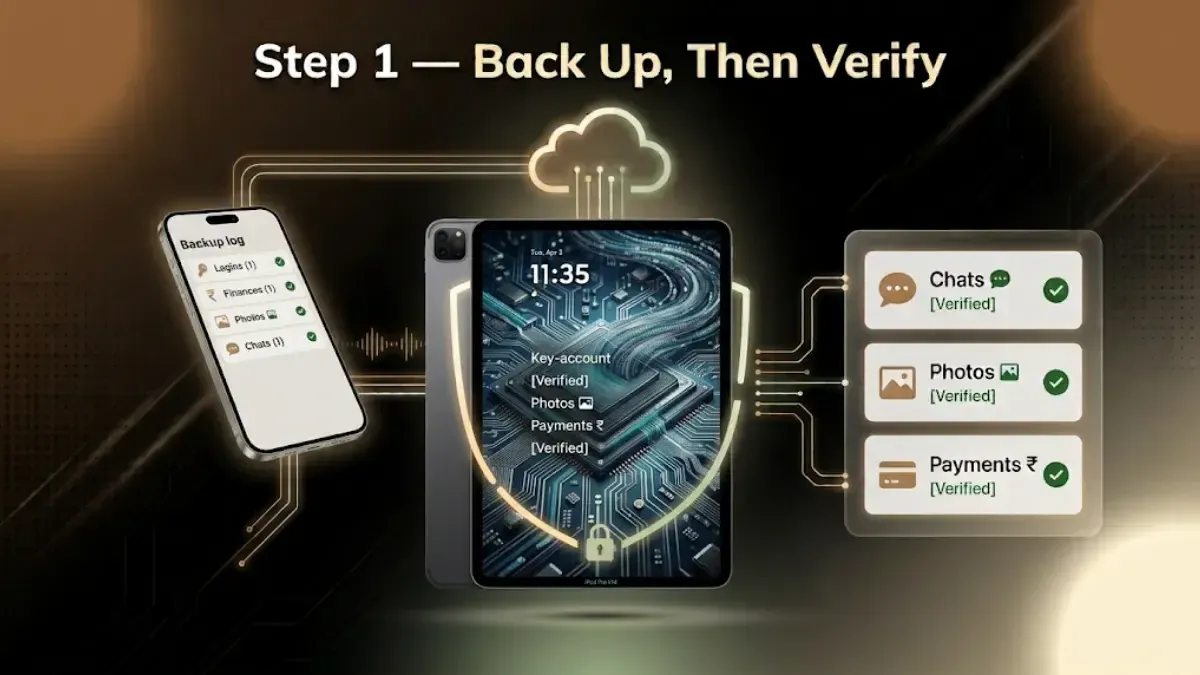
Step 1: Back Up What You Want to Keep
After the reset it is gone. Back up first, then check the backup really worked.
On Android. Settings, System, Backup. Switch on automatic backup, make sure you are on Wi-Fi and have space in Google Drive, then tap Back up now. Photos go through Google Photos separately, so check that is syncing too.
On iPhone. Settings, tap your name, iCloud, iCloud Backup. Turn it on and tap Back Up Now. Keep the phone on Wi-Fi and charging until it finishes. If iCloud storage is short, plug the phone into a computer and back up through Finder on a Mac or iTunes on Windows.
Then verify it. Sign in to your Google or Apple account from another device and look at the photos and files. A backup that stopped working three months ago looks exactly like a working one until you check.
If you use Google Authenticator, Microsoft Authenticator or similar for login codes, move those accounts to your new phone now.
Do this before anything else gets wiped. Unlike photos, these codes are usually not in your backup, and recovering an account without them can take days.
Step 3: Sign Out of Your Accounts
This is the step people skip, and it is the one that stops sales.
On Android: Settings, Accounts, Google, select your account, Remove account.
On iPhone: Settings, tap your name, scroll to the bottom, Sign Out. Enter your Apple ID password. This switches off Find My iPhone and clears Activation Lock.
Also sign out of Samsung, Mi, OnePlus or any other manufacturer account on the phone. These cause the same problem as a Google account.
Why it has to come first. Reset while still signed in and Activation Lock on iPhone, or Factory Reset Protection on Android, ties the phone to your account. Nobody else can set it up. The phone is usually in perfect condition when this happens, which is what makes it so frustrating.
This is the single most common reason a doorstep pickup cannot be completed.
Step 4: Take Out What Is Physically Yours
The SIM card. It carries your number, and on older SIMs, contacts and messages. A reset does not touch it.
The memory card. Same. A reset does not wipe an SD card.
Any eSIM profile. This is the one most guides miss. A factory reset does not always remove an eSIM. On Android look under Settings, Network and internet, SIMs. On iPhone, Settings, Mobile Data, then the plan, then Delete eSIM.
While you are here, unpair your watch, earbuds and car from Bluetooth, and forget your home Wi-Fi network.
Step 5: Now Factory Reset
Android. Settings, System, Reset options, then "Erase all data (factory reset)". Confirm and enter your PIN. Takes five to ten minutes.
iPhone. Settings, General, Transfer or Reset iPhone, then "Erase All Content and Settings". Enter your passcode and Apple ID password. Takes a few minutes.
When it is done the phone should start at the first setup screen, asking for a language, exactly as a new one would.
Step 6: Check It Worked
Switch the phone on and look at what you get.
It starts at the language or Hello screen
No apps, no photos, nothing of yours anywhere
No lock screen asking for your old PIN
No prompt asking for a previous owner's Google or Apple ID
That last one is the real test. If it asks for an account, the reset happened but the sign-out did not, and the phone is locked. Go to myaccount.google.com under Security, Your devices, or appleid.apple.com under Devices, and remove the phone from your account there. That clears it remotely.
Laptops Are Different
Windows and Mac need their own steps, and they are longer than this page has room for. The short version:
Windows. Settings, System, Recovery, Reset this PC, choose "Remove everything", then choose to clean the drive rather than the quick option. Note that Windows 11 since the 24H2 update switches Device Encryption on by default, on Home as well as Pro, so most modern Windows laptops are already encrypted.
Mac. If it has Apple Silicon or the T2 chip and runs macOS Monterey or later, use System Settings, General, Transfer or Reset, then Erase All Content and Settings. That one button does everything including signing you out. Only older Intel Macs need the Recovery route, and on an Apple Silicon Mac the old Command and R shortcut does not work at all.
Our full guide on removing personal data from a laptop before selling has every step for both.
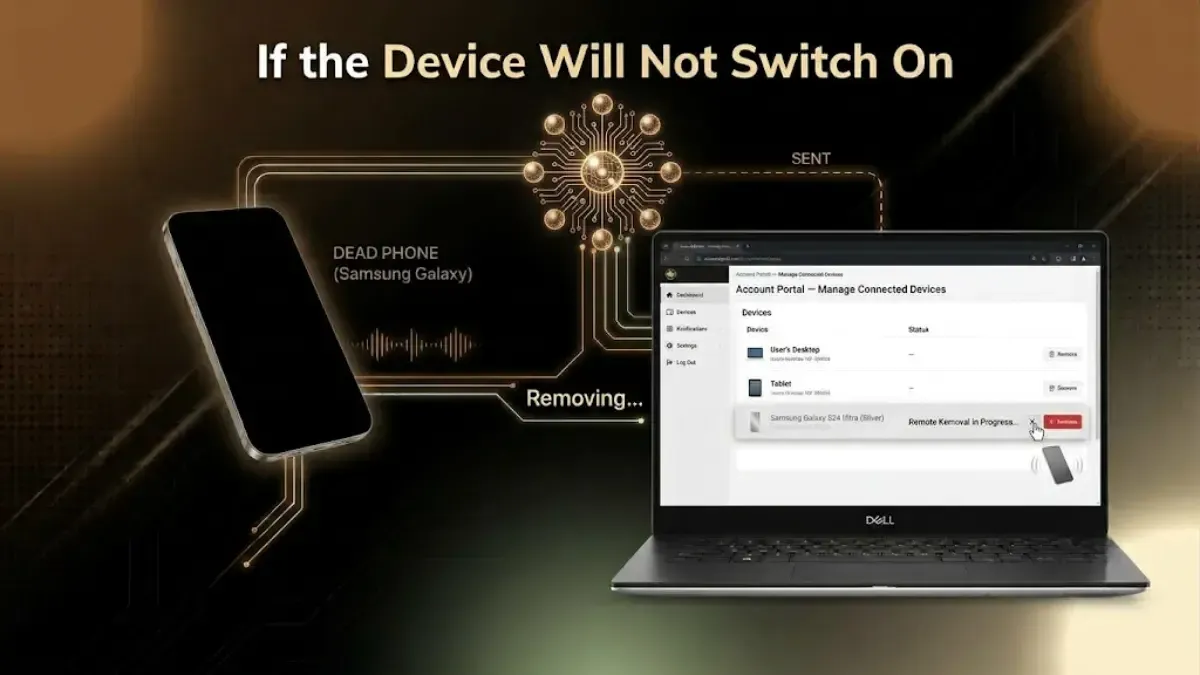
If the Device Will Not Switch On
You cannot reset a dead phone. You can still protect yourself.
Take out the SIM and memory card.
Change the passwords on your important accounts, starting with your email, since that can reset the others.
Remove the device from your account remotely, at myaccount.google.com or appleid.apple.com. This also clears the lock so the phone can be processed.
Then say clearly when you get a quote that the device does not power on. It still has part value, and an honest description means the number does not change at your door.
Mistakes That Cost People Money
Doing a soft reset instead of a factory reset. Restarting the phone, or "reset settings", erases nothing.
Forgetting the SIM, SD card or eSIM. A factory reset does not touch any of them.
Resetting before signing out. The phone locks itself to your account and the sale stops.
Not checking the backup. Verify it from another device before you wipe anything. This is irreversible.
Leaving the screen lock on after the reset. If the phone still asks for a PIN, something did not complete. Start again.
Buying data erasing software for a phone. You do not need it. The storage was encrypted and the reset destroyed the key. Be careful of anyone selling you otherwise.
When to Do This
Get your quote first, then wipe.
The price depends on the model, the storage and the condition. It has nothing to do with your data. So check the number while the phone is still usable, and do the backup and reset shortly before the pickup. That way the phone is clean when it leaves and you have not wiped it for a sale you decided against.
After You Hand It Over
If the device can be repaired and resold, it is refurbished and goes to a new owner. If it is beyond economic repair, it goes for recycling. Our guide on recycling old devices in India covers what that involves.
Wiping the device is your job, not the buyer's. Any checks a buyback service runs afterwards are a second pair of eyes, not a substitute. Your data should leave your phone while the phone is still in your hands.
No. Deleting removes the signpost, not the file. Run a proper factory reset, and sign out of your accounts before you do, which is the step that actually matters most.
2. Can anyone recover my data after a factory reset?
Not on a modern phone. Android and iPhone both encrypt storage by default, and the reset destroys the key, so what is left cannot be read. On an older laptop with an unencrypted hard drive, use the full clean option during the reset.
3. How long does it take?
Five to ten minutes on most phones. A Windows laptop with the clean drive option can take a few hours. A Mac erase takes twenty minutes to an hour.
4. Do I need to remove my SIM card?
Yes, and your memory card, and any eSIM. A factory reset does not remove any of them. The eSIM is the one people forget.
5. What if I forgot to back up before erasing?
Data removed by a proper reset is gone. Check your cloud accounts first though. Google Photos, Google Drive and iCloud often have more than people realise, because the backup was running quietly all along.
6. Does a factory reset remove viruses?
In nearly every case, yes. The reset removes all installed apps and files along with everything else.
7. How do I clear Activation Lock on an iPhone?
Sign out of your Apple ID before resetting: Settings, your name, scroll down, Sign Out. If the phone has already gone, sign in at appleid.apple.com, open Devices, select the iPhone and choose Remove from Account.
8. What if my phone is broken and will not turn on?
Take out the SIM and memory card, change the passwords on your important accounts, and remove the device from your Google or Apple account online. Then say it does not power on when you get your quote.
9. Does a reset delete my WhatsApp chats for good?
From the phone, yes. If WhatsApp was backing up to Google Drive or iCloud, that copy is still in your account and can be restored on your new phone. Check the backup is there before you wipe.
10. Should I wipe the phone before or after getting a quote?
Get the quote first. The price depends on the model, storage and condition, not on your data. Do the backup and reset shortly before the pickup.
Advertisement
Stay in the loop
Weekly tech insights in your inbox. No spam, ever.


 Yaskar Jung ShahPublished at: Jul 5, 2026·12 min read