How to Remove All Personal Data From a Laptop Before Selling
You have decided to sell your old laptop. Maybe you upgraded to a new one, or it has just been sitting unused. Either way, selling it is a smart move. Old laptops can be valuable, and platforms like Cashkr make it easy to get a quote online and schedule a free home pickup.
But before you do anything else, there is one thing you must get right: removing all your personal data from the laptop completely and permanently.
This step is more important than many people think. Your laptop holds years of personal information, such as saved passwords, banking details, photos, work documents, browser history, email accounts, and logins for many websites. Simply deleting your files does not protect this information. Deleted files can often be recovered with free tools anyone can download in minutes.
This guide will show you exactly what to do, step by step, whether you have a Windows laptop or a MacBook. You do not need any technical knowledge.
Many people believe that moving files to the Recycle Bin and emptying it, or doing a quick format, will permanently remove their data. This is not true. When you delete a file, the operating system does not erase the data from your hard drive or SSD. It only removes the pointer that tells the system where the file is stored. The data itself stays on the drive and can be recovered with free recovery software that is easy to use. This means that the person who buys your laptop could potentially recover your deleted photos, documents, saved passwords, and files even after you think they are gone.
A quick delete or format does not erase your data; it only hides it. Anyone with a free recovery tool can bring it back. The safest way to sell a laptop is to do a full factory reset and turn on drive encryption.
The good news is that the right process is simple. You just need to follow the steps in order, and this guide will show you how.
Step 1: Back Up Everything You Want to Keep
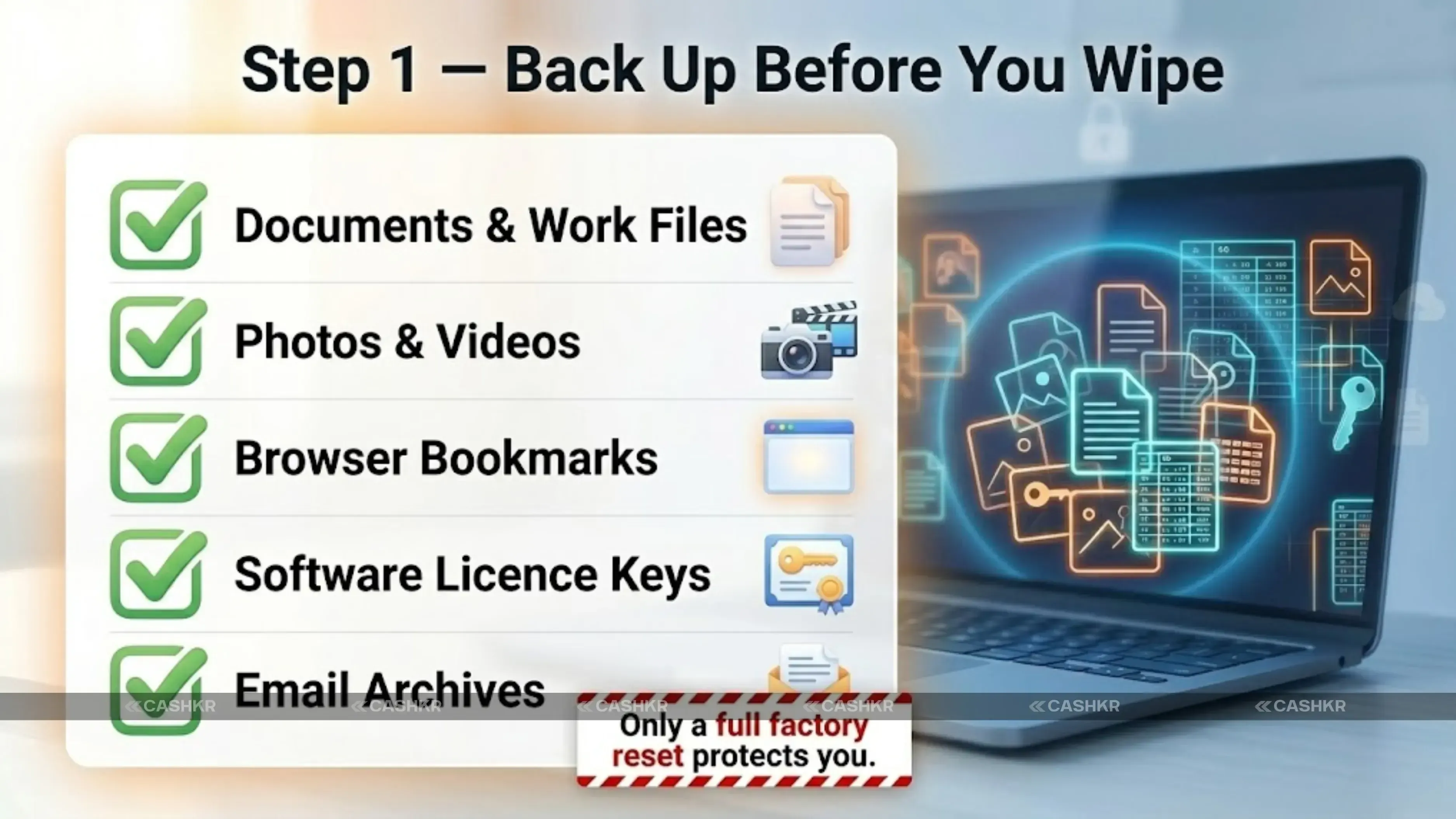
Before you erase anything, make sure to save all the files and data you want to keep. After you reset the laptop, everything will be gone, including things you might forget at first, like bookmarks, saved Wi-Fi passwords, and app settings.
What to back up:
All documents, spreadsheets, and work files: copy to an external hard drive or USB
Photos and videos: back up to Google Photos, iCloud, or an external drive
Desktop files and Downloads folder: easily forgotten but often contain important items
Browser bookmarks: export from Chrome via Settings → Bookmarks → Export, or from Safari via File → Export Bookmarks
Email archives: if you use a desktop email client like Outlook or Thunderbird, export your mailbox before resetting
Software licence keys: note down any paid software licences you may need to reinstall on your new laptop
TIP: Cloud storage services like Google Drive, OneDrive, and Dropbox automatically sync your files. If you use these, most of your documents may already be stored online. Check by logging in from another device to make sure everything is there before you wipe your laptop.
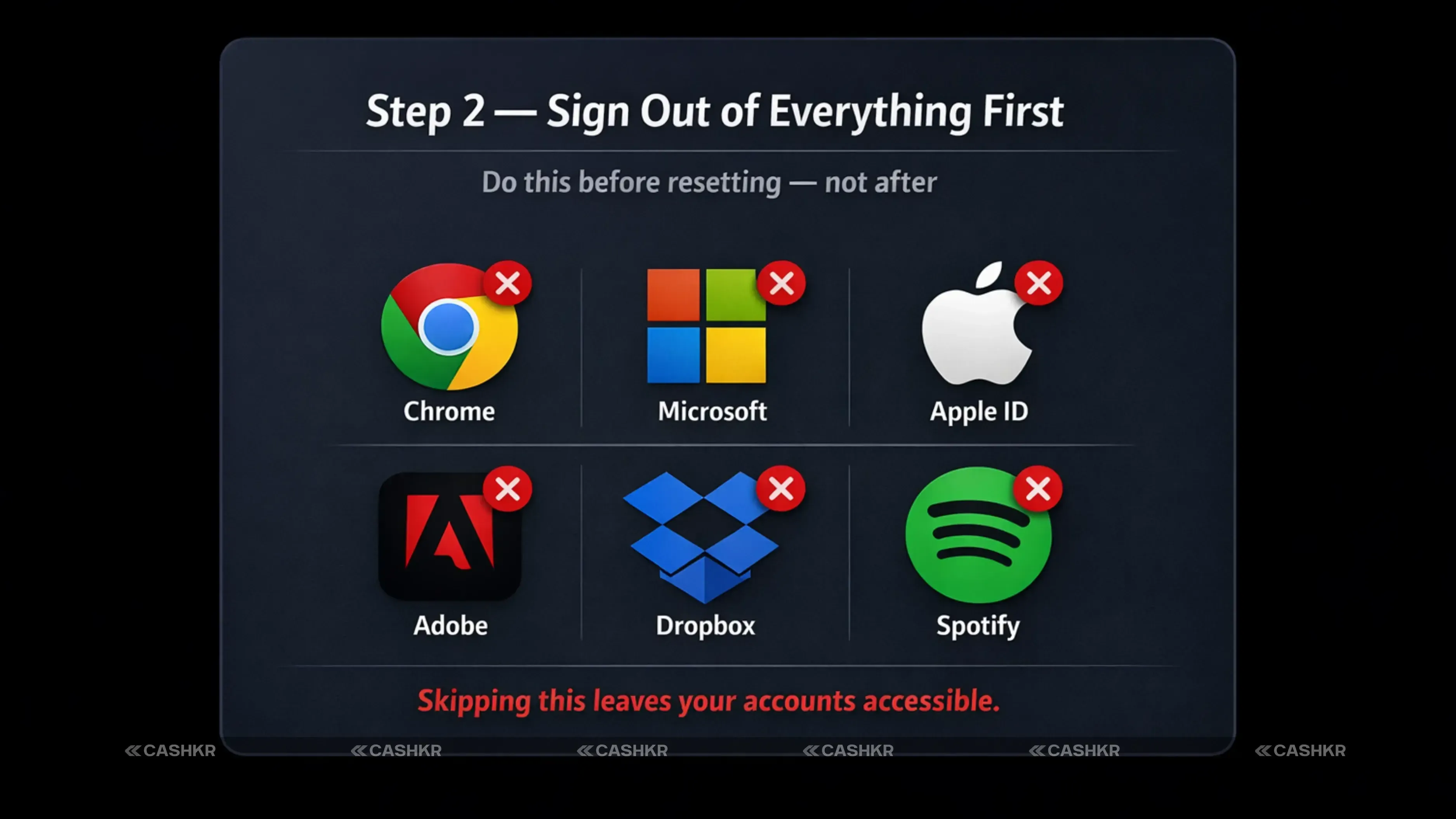
Many people skip this step, but it is important. Any app or service that stays logged in on your laptop can be accessed by the next person who uses it. Signing out properly removes your credentials from the laptop before you reset it.
Sign out of these before resetting:
Google Chrome: click your profile picture in the top right → Turn off sync → turn off sync for all data. Then go to Settings → Privacy and Security → Clear browsing data → select All time → clear everything.
Microsoft account (Windows): go to Settings → Accounts → Your Info → Sign in with a local account instead. This disconnects your Microsoft account from the laptop.
Apple ID (Mac): go to System Preferences → Apple ID → Overview → Sign Out. This removes your account from iCloud, iMessage, FaceTime, and the App Store.
Adobe Creative Cloud, Spotify, Microsoft Office, or any other paid software: sign out from within each app so your licence is freed up for use on another device.
Email clients: if you use Outlook, Thunderbird, or Apple Mail, remove your accounts from within the app before resetting.
In Dropbox, Google Drive, or OneDrive, right-click the icon in the system tray or menu bar and choose Sign Out or Quit. This stops sync and removes the local account.
NOTE: If you use a password manager like LastPass, Bitwarden, or 1Password, sign out of it on the laptop but do not delete your account — your passwords are safely stored in the cloud and will be available on your new device.
Advertisement
Step 3: How to Factory Reset a Windows 10 or Windows 11 Laptop
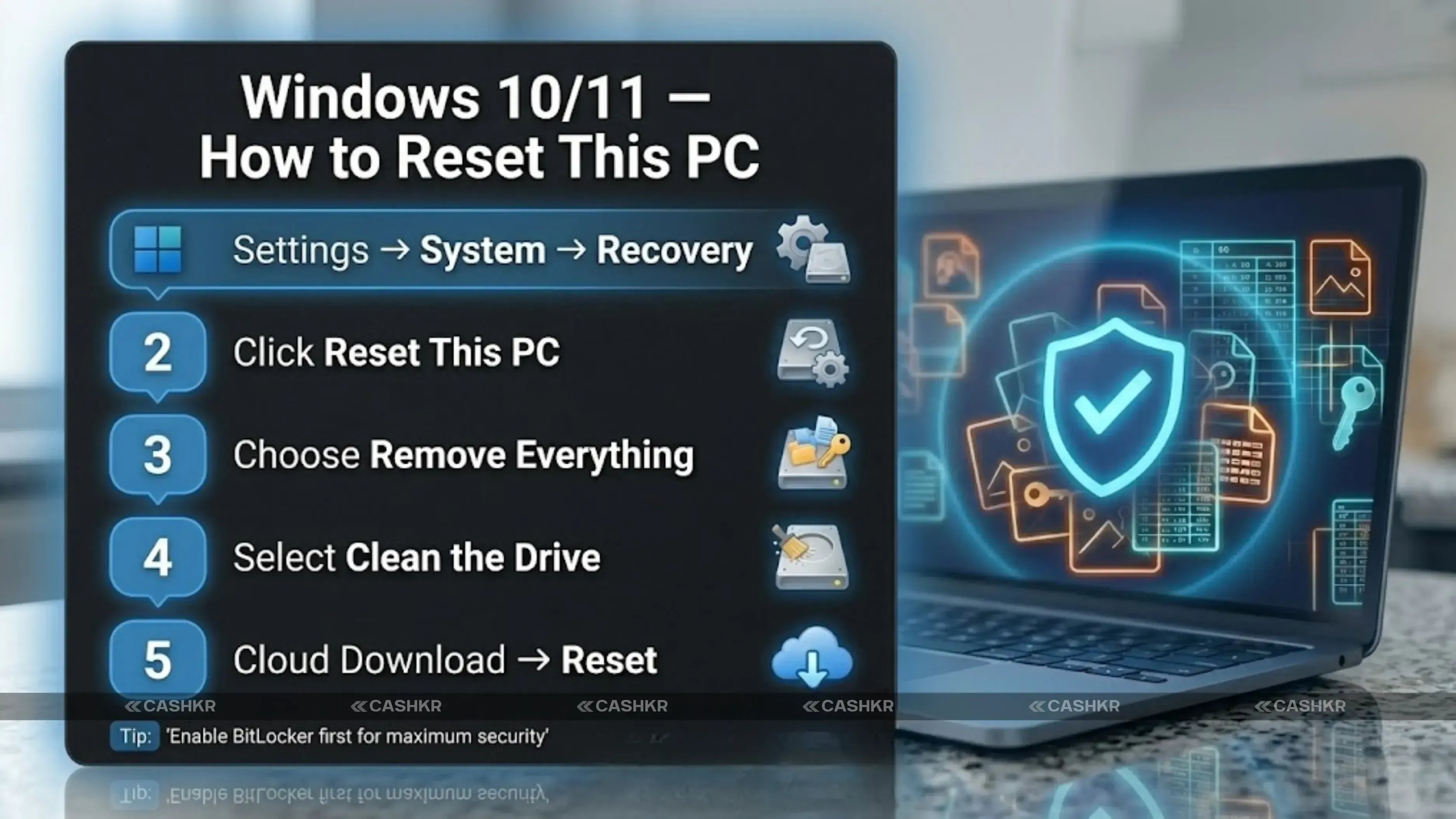
Windows has a built-in "Reset this PC feature that makes wiping your laptop easy. For extra security, turn on BitLocker encryption before you reset. This feature makes deleted data impossible to recover, even with professional tools.
Recommended: Enable BitLocker before resetting (Windows 10/11 Pro)
If your laptop uses Windows 10 or 11 Pro or Enterprise, you can use BitLocker. Turning it on before resetting encrypts your whole drive. When you reset and choose ‘Remove everything,' the encrypted data cannot be read without your key.
Press the Windows key and search BitLocker
Click "Manage BitLocker" and then "Turn on BitLocker."
Follow the prompts; choose to save the recovery key to your Microsoft account or a USB drive Wait for encryption to complete. This can take 30 minutes to a few hours, depending on drive size
How to Reset this PC on Windows 10 and Windows 11:
Step 1: Open Windows Settings
Click the Start button, then click the Settings gear icon. Alternatively, press the Windows key and the letter I at the same time. Settings open instantly.
Step 2: Go to System → Recovery
On Windows 11, click System in the left menu, then scroll down to Recovery. On Windows 10, click Update and Security, then Recovery on the left side.
Step 3: Click Reset this PC
You will see a button or link labeled "Reset this PC." Click it. A window will appear asking how you want to reset the PC.
Step 4: Choose "Remove everything."
Two options appear: Keep my files and Remove everything. Always select "Remove everything" when selling. This wipes all your personal files, apps, and settings.
Step 5: Select how to reinstall Windows
Windows will ask if you want to reinstall from the cloud or from the local drive. If you have a good internet connection, choose Cloud download. This installs a fresh copy of Windows, which is cleaner and gives the buyer more confidence.
Step 6: Choose ‘Remove files and clean the drive.'
This is the most important step. Windows will ask if you want to just remove your files or also clean the drive. Always choose to remove files and clean the drive. It takes longer, but it overwrites the drive and makes recovery very difficult.
Step 7: Click Reset and wait
The laptop will restart and start the reset process. Do not interrupt it. This can take 30 minutes to 2 hours. When it is done, the laptop will show the Windows setup screen, ready for the next owner.
NOTE: If your laptop uses Windows 10 Home or Windows 11 Home and you do not have BitLocker, still choose ‘Remove files and clean the drive’ during the reset. This is not as secure as using BitLocker, but it is much better than just deleting files or doing a quick format.
Also Read: Top 10 Latest Acer Laptops Models 2025: Features & Specs
Step 3: How to Erase All Data From a MacBook Before Selling
Apple has made this process very simple on modern Macs. If your MacBook was made after 2017 and runs macOS Monterey or later, it only takes a few minutes and handles everything, including signing out of your Apple ID, in one step.
For MacBooks running macOS Ventura or macOS Sonoma (2022 and later):
Step 1: Open System Settings
Click the Apple logo in the top left corner of the screen and choose System Settings from the dropdown menu.
Step 2: Go to General → Transfer or Reset
In the System Settings sidebar, click General. Scroll down and click Transfer or Reset. You will see the option Erase All Content and Settings.
Step 3: Click Erase All Content and Settings
Click this option. Your Mac will ask for your administrator password to confirm. Enter it and click OK.
Step 4: Follow the Erase Assistant
A setup wizard called the Erase Assistant will guide you through the process. It will show you what will be removed, including all your apps, accounts, and data. It will also sign you out of iCloud, iMessage, and the App Store automatically.
Step 5: Click "Continue" and confirm
Click Continue to start erasing. The MacBook will restart and wipe everything. When it is done, you will see the Hello setup screen, just like on a new Mac. The next owner can set it up with their own Apple ID.
For older MacBooks running macOS Big Sur or earlier:
Restart the Mac and hold Command + R as it boots to enter Recovery Mode
Select Disk Utility from the macOS Utilities menu
Select your startup disk (usually called Macintosh HD) in the left panel
Click Erase and choose the APFS or Mac OS Extended format
After erasing, quit Disk Utility and select Reinstall macOS from the Utilities menu
Follow the prompts to install a clean version of macOS
TIP: Modern Macs use Apple’s T2 chip or Apple Silicon (M1, M2, M3, M4), which automatically encrypts storage. This makes erasing very thorough, as data is cryptographically destroyed and cannot be recovered, even with professional tools.
Windows vs Mac: Quick Comparison
Here is a quick summary of how the wiping process is different for Windows and macOS. This will help you see which steps apply to your laptop.
Feature
Windows 10 / 11
macOS
Reset method
Settings → System → Recovery → Reset this PC
System Preferences → General → Transfer or Reset
Remove everything option?
Yes — "Remove everything" option available
Yes — Erase All Content and Settings
Encryption before reset?
Recommended — use BitLocker first
FileVault encrypts automatically on modern Macs
How long it takes
30 minutes to 2 hours depending on drive size
20 minutes to 1 hour on most MacBooks
Removes all accounts?
Yes — if "Remove everything" is selected
Yes — signs out of Apple ID automatically
Safe to sell after?
Yes — buyer gets a clean Windows setup
Yes — buyer goes through macOS Setup Assistant
tep 4: What to Do After the Reset
Once the laptop is wiped, there are a few final steps to complete before handing it over or scheduling a pickup.
Remove the laptop from your Google account — go to myaccount.google.com → Security → Your Devices → find the laptop and click Remove.
Remove the laptop from your Microsoft account — go to account.microsoft.com → Devices → find the laptop → Remove Device.
Remove the Mac from iCloud — go to appleid.apple.com → Devices → click the MacBook → Remove from Account.
If you still have them, gather the original charger, box, and accessories. These can add value to your sale.
Clean the keyboard, screen, and body with a dry cloth. A clean laptop makes a better first impression and can help you get a higher offer on Cashkr.
Get your serial number ready. For MacBooks, it is printed on the bottom. For Windows laptops, it is usually on a sticker on the base. You will need this number when getting a quote.
Complete Pre-Sale Checklist: Tick These Off Before You Sell
Use this checklist to ensure you haven't missed anything before selling your laptop through Cashkr or elsewhere.
1. Backed up all documents, photos, and files to an external drive or cloud storage
Exported browser bookmarks and noted any software license keys
Signed out of Google Chrome, cleared all browsing data, and saved passwords
Signed out of Microsoft account (Windows) or Apple ID (Mac)
Signed out of Adobe, Spotify, Microsoft Office, and all other paid apps
Signed out of Dropbox, Google Drive, OneDrive, and other cloud sync services
Removed the laptop from the Google account, Microsoft account, or iCloud device list
Completed factory reset: chose Remove everything (Windows) or Erase All Content (Mac)
Selected the clean the drive option during reset (Windows) or confirmed Erase Assistant finished (Mac)
Gathered original charger, accessories, and box if available
Cleaned the screen and body with a dry cloth
Located the serial number for the quote process
Do’s and Don’ts When Wiping Your Laptop Before Selling
Feature
DO THIS
AVOID THIS
Data safety
✓ Back up your data before starting the reset
✗ Think deleting files or emptying the Bin is enough
Account management
✓ Sign out of all accounts before resetting
✗ Skip signing out of Adobe or paid software licences
Reset option
✓ Use “Remove everything” — not just “Keep my files”
✗ Forget to export bookmarks and important documents
Security
✓ Enable BitLocker before reset for extra security
✗ Hand over the laptop with your Microsoft or Apple ID still active
Reinstallation
✓ Choose Cloud download reinstall for a cleaner result
✗ Rush the reset and interrupt it before it finishes
Ownership cleanup
✓ Remove the laptop from your online account devices list
✗ Forget to include the charger — it reduces the sale value
Final prep
✓ Clean the laptop before handing it over
✗ Use water or liquid to clean the keyboard or screen
elling Your Laptop on Cashkr After Wiping It
Once your laptop is wiped and ready, you can get an instant cash quote on Cashkr in about two minutes. Just select your laptop brand and model, answer a few questions about its condition, and get a transparent, guaranteed price — no negotiation, no surprises. Cashkr accepts all major laptop brands: Apple MacBook, Dell, HP, Lenovo, Asus, Acer, Microsoft Surface, and more.
Whether your laptop is in perfect condition or showing some wear and tear, there is a fair buyback price for it. After you accept the quote, a Cashkr pickup agent will come to your home at a time you choose. They will quickly check that the laptop works, matches the condition you described, and has been properly wiped. Payment is sent instantly to your UPI ID or bank account after verification.
Cashkr also does a certified data wipe during every laptop verification. This gives you extra protection, even after your factory reset. You can sell with confidence, knowing your personal information is fully removed.
CASHKR TIP: If you are selling a MacBook, make sure your Apple ID is signed out, and the laptop is removed from your iCloud account before the pickup. A MacBook with Activation Lock still enabled cannot be verified and your payment will be delayed until the lock is cleared.
Final Verdict
Selling an old laptop is a great way to get cash from a device that is just sitting unused. But removing your data properly is just as important as getting a good price, because mistakes can have serious consequences. The good news is that the process is simple. Back up what you need, sign out of all your accounts, do a full factory reset, and make sure the laptop is removed from your online accounts. Follow these four steps in order, and your data will be gone for good. Once you have done that, Cashkr makes the selling part effortless. Get a quote in two minutes, schedule a free home pickup, and get paid the same day.
Your old laptop is worth real money, and now you know exactly how to prepare it for sale the right way.
FAQs
1. Is it enough to just delete my files and empty the Recycle Bin before selling my laptop?
No. Deleting files and emptying the Recycle Bin only removes the system’s reference to those files — the actual data remains on the drive and can be recovered using free tools. The only safe approach is a full factory reset, with the option to clean or overwrite the drive, or BitLocker encryption followed by a Windows reset.
2. Does a factory reset permanently erase all my data?
A standard factory reset removes your files and reinstalls the operating system, but on older hard drives, some data may still be recoverable. For maximum security on Windows, enable BitLocker encryption before resetting, then select the option to clean the drive during the reset. On modern Macs with Apple Silicon or T2 chips, the Erase All Content and Settings option permanently destroys data in a cryptographic manner, making recovery essentially impossible.
3. What happens to my Microsoft Office or Adobe licence when I reset my laptop?
Most modern software licences are tied to your account rather than your device. As long as you sign out of the app before resetting, your licence is freed up and can be activated on your new laptop by signing in again. If you do not sign out first, some software may count your old laptop as an active device and limit your total number of installations.
4. Do I need to reinstall Windows after wiping my laptop to sell it?
Yes — or more accurately, the Reset this PC process reinstalls Windows automatically when you choose the Cloud download option. You do not need to do anything manually. The buyer receives a laptop that boots directly to the Windows setup screen, resulting in the cleanest, most professional outcome.
5. Can Cashkr accept my laptop even if I cannot reset it myself?
Yes. If your laptop has a technical issue that prevents you from completing the factory reset yourself, the Cashkr team can assist during verification. However, it is always better to reset the laptop yourself before the pickup so your data is protected as soon as possible — rather than relying on the process happening after you hand over the device.
6. How do I find my laptop’s serial number for the Cashkr quote?
For MacBooks, the serial number is printed on the bottom of the laptop in small text. For Windows laptops, it is usually on a sticker on the base — look for a label that says S/N or Serial Number. You can also find it on Windows by pressing Windows + R, typing cmd, and entering the command: wmic bios get serialnumber.
7. Does Cashkr accept laptops in damaged or non-working condition?
Yes. Cashkr accepts laptops in any condition — including cracked screens, battery issues, non-working keyboards, and laptops that do not turn on. Just describe the condition honestly when getting your quote, and you will receive a fair price based on the device's current condition. Even a non-functional laptop has parts value.
8. What should I do if I forgot my Windows or macOS password and cannot log in to reset it?
On Windows, you can reset your password using a Microsoft account recovery at account.microsoft.com. If that does not work, you can boot from a Windows installation USB drive to access recovery options. On Mac, restart while holding Command + R to enter Recovery Mode, then use the Utilities menu to reset the password or erase the drive directly from Disk Utility.
If you want to sell your old devices, then click here.
Stay in the loop
Weekly tech insights in your inbox. No spam, ever.


 Yaskar Jung ShahUpdated: Sep 22, 2026·19 min read