How to Remove All Personal Data From a Laptop Before Selling
Your laptop stores a lot of your personal information, like saved passwords, banking details, work files, photos, emails, and your browsing history.
This guide will show you how to remove all your data safely from both Windows and Mac laptops, step by step. You do not need any technical skills.
It also clears up a common mistake found in most other guides, which affects what you really need to do.
Advertisement
First, the Thing Most Guides Get Wrong
You will read everywhere that deleting a file does not really delete it, so anyone can recover your data with a free tool.
That used to be true, and it still is for older laptops. For most modern laptops, though, it is not the case, and the reason is important.
Your drive is probably already encrypted.
On Windows: since the 24H2 update, Windows 11 turns Device Encryption on by default. Not only on Pro. On Home too. It happens on a clean install or a reset, though not when you upgrade from an older Windows.
On Mac: every Mac with Apple Silicon or the T2 chip encrypts its storage automatically. There is nothing to switch on.
This changes things because, on an encrypted drive, your files are scrambled. When you reset the laptop, it deletes the key. Without that key, any leftover data cannot be read, no matter how good the recovery tool is. The data is not just hidden; it is completely unusable.
When the old warning still applies. An older laptop, roughly pre-2018, with a spinning hard drive and no encryption switched on. There, a deleted file really can be recovered, and the extra steps below matter a great deal.
So what should you do? The steps are the same for both old and new laptops: back up your data, sign out of your accounts, and reset the laptop properly. On a modern laptop, you do not need to buy extra wiping software, so be cautious if someone tries to sell it to you.
How to Check Whether Your Windows Laptop Is Encrypted
It only takes thirty seconds to check, and it helps you know how careful you need to be.
Press the Windows key and search for Device encryption. If you see a switch and it is On, you are encrypted.
If that setting does not exist, search for Manage BitLocker instead. It will say whether BitLocker is on or off for your drive.
If both come back empty, your laptop is older or your hardware does not support it. Follow Step 3 and pay close attention to the "clean the drive" option.
A quick warning: if encryption is on, Windows saves a recovery key, usually in your Microsoft account. You do not need this key to sell your laptop, but you would need it if you ever had to recover your drive. Make sure you know where it is before you reset anything.
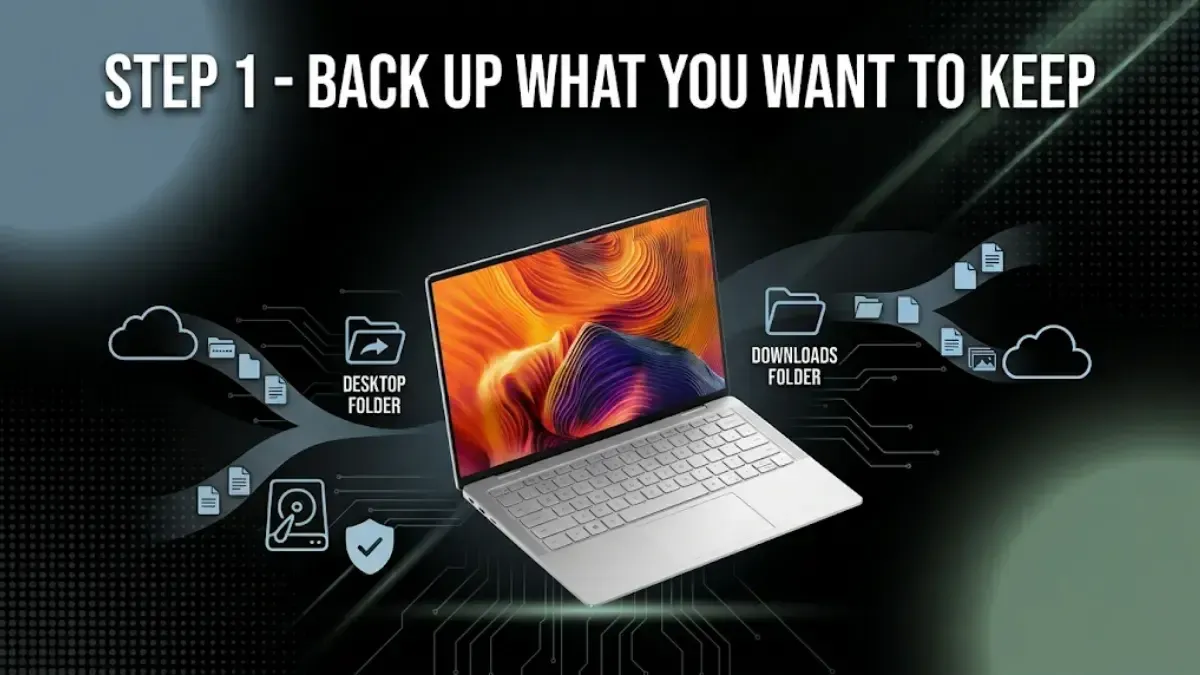
Step 1: Back Up What You Want to Keep
After the reset everything is gone. Including the things people forget.
Documents, spreadsheets and work files. Copy to an external drive or cloud storage.
Photos and videos. Google Photos, iCloud or an external drive.
Your Desktop and your Downloads folder. These two are forgotten most often.
Browser bookmarks. In Chrome: Settings, Bookmarks, Export. In Safari: File, Export Bookmarks.
Email, if you use a desktop app like Outlook or Thunderbird. Export the mailbox.
Software licence keys for anything paid you will reinstall.
A check worth doing. If you use Google Drive, OneDrive or Dropbox, most of your files may already be online. Sign in from your phone or another computer and confirm they are really there before you wipe anything. A sync that stopped working three months ago is a nasty surprise.
Step 2: Sign Out of Everything
People skip this step. It is the one that causes real problems later.
Google Chrome. Click your profile picture, turn off sync, then Settings, Privacy and Security, Clear browsing data, All time, clear everything.
Your Microsoft account (Windows). Settings, Accounts, Your info, then "Sign in with a local account instead". This disconnects the laptop from your Microsoft account.
Your Apple ID (Mac). On the latest macOS, go to System Settings, click your name at the top, scroll down, and choose Sign Out. If you use the full erase in Step 3, this will happen automatically, but it is safer to do it yourself first.
Paid Paid software like Adobe, Microsoft Office, Spotify, and others: sign out from each app to free up the licence for your new device. If you skip this, some apps may still count your old laptop as an active install.ud sync apps. Right-click the Dropbox, Google Drive or OneDrive icon and choose Sign Out or Quit.
Email apps. Remove your accounts from inside Outlook, Thunderbird or Apple Mail.
Your For your password manager, sign out on the laptop but do not delete your account. Your passwords are stored in the cloud and will be available on your new device.p 3a: Reset a Windows Laptop
1. Open Settings. Press the Windows key and the letter I together.
2. Find Recovery. On Windows 11: System, then scroll to Recovery. On Windows 10: Update and Security, then Recovery.
3. Click Reset this PC.
4. Choose "Remove everything". Not "Keep my files". You are selling it.
5. Choose Cloud download if your internet is good. It pulls a fresh copy of Windows, which is cleaner for the next owner. Local reinstall works too and uses no data.
6. Choose "Remove files and clean the drive". This is the step that matters. The quick option just deletes. This one works through the drive properly. It takes much longer and it is what you want when the laptop is leaving your hands.
7. Click Reset and leave it alone. Thirty minutes to two hours. Do not interrupt it. Keep it plugged in. When it finishes you will see the Windows setup screen, exactly as the next owner will.
If your laptop is older and not encrypted, step 6 is doing all the work. Do not skip it, and do not stop it early.
Step 3: Erase a MacBook
If your Mac has Apple Silicon or a T2 chip and runs macOS Monterey or later, Apple provides a single button that handles everything for you.
1. Apple menu, System Settings.
2. General, then Transfer or Reset.
3. Click Erase All Content and Settings.
4. Enter your administrator password.
5. The Erase Assistant shows you what will go and walks you through it. It signs you out of your Apple ID, iCloud, iMessage and the App Store on its own.
6. Confirm. The Mac restarts and wipes itself. You end on the Hello screen, like a new Mac.
This is Apple’s recommended method, and it is thorough because the storage has always been encrypted. Erasing the Mac deletes the encryption key.
If your Mac is older than that, which means an Intel Mac without a T2 chip, or macOS Big Sur or earlier:
First, sign out of your Apple ID and turn off Find My Mac. This step is important. If you skip it, the next owner will be blocked by Activation Lock.
Restart and hold Command and R as it starts, to reach Recovery.
Open Disk Utility, select your startup disk, usually Macintosh HD, and click Erase.
Quit Disk Utility, choose Reinstall macOS, and follow the prompts.
Note for Apple Silicon Macs: Command and R does not work on these models. To reach Recovery, shut down the Mac, then press and hold the power button until you see "Loading startup options." If Erase All Content and Settings is available, you should not need to use Recovery.
Windows and Mac Side by Side
Step
Windows
Mac
Where to go
Settings → System → Recovery → Reset this PC
System Settings → General → Transfer or Reset
What to choose
Remove everything → Clean data/clean the drive
Erase All Content and Settings
Is it encrypted already?
Usually yes on Windows 11 24H2 and later, including Home. Check your device.
Yes on Apple Silicon and T2 Macs.
Time
30 minutes to 2 hours
20 minutes to 1 hour
Signs you out?
Yes, when you choose Remove everything
Yes, automatically
The step people miss
Choosing the quick option instead of cleaning the drive
Leaving Find My Mac on, especially on an older Mac
Step 4: After the Reset
There are four quick tasks to do after the reset, and the first three only take about a minute each.
Remove the laptop from your Google account.myaccount.google.com, Security, Your devices, find it, Remove.
Remove it from your Microsoft account.account.microsoft.com, Devices, find it, Remove device.
Remove the Mac from your Apple account.appleid.apple.com, Devices, click the MacBook, Remove from account. This is the one that clears Activation Lock if anything went wrong.
Next, prepare your laptop for sale. Gather the charger, box, and any accessories. Clean the screen and body with a dry cloth—never use anything wet. Find the serial number, which is on the base of a MacBook or on a sticker under most Windows laptops. On Windows, you can also press the Windows key and R, type cmd, and run wmic bios get serialnumber.
The Checklist
Tick these off before the laptop leaves your house.
Backed up documents, photos, Desktop and Downloads
Checked the cloud backup actually contains everything
Exported bookmarks and noted licence keys
Signed out of Chrome and cleared browsing data
Signed out of your Microsoft account or Apple ID
Signed out of Adobe, Office, Spotify and any other paid app
Signed out of Dropbox, Google Drive and OneDrive
Switched off Find My Mac, if you have an older Mac
Reset with "Remove everything" and "clean the drive", or used Erase All Content and Settings
Removed the laptop from your Google, Microsoft or Apple account online
Found the charger, box and accessories
Cleaned it with a dry cloth
Found the serial number
Mistakes Worth Avoiding
Thinking the Recycle Bin is enough is a mistake. On an old, unencrypted laptop, it really is not. On a modern laptop, the reset will do the job, but only if you actually complete it.
Keeping your files option. "Keep my files" leaves your account and your data on the machine. Always "Remove everything".
Do not stop the reset early, even if it looks stuck. It is not. Leave the laptop plugged in and let it finish.
Forgetting to sign out of paid apps. Your licence stays stuck to a laptop you no longer own.
Leaving Find My Mac on. The next owner cannot set the Mac up. The sale stops there.
Buying extra wiping software is unnecessary for most laptops. If your drive is encrypted, which is likely, the reset already does more than any third-party tool can.
Cleaning with liquid. A dry cloth only. Water near a keyboard is how a working laptop becomes a damaged one.
Selling It Afterwards
After you have wiped your laptop, get a quote online and book a free pickup. We will check the laptop’s condition as you described before paying you by UPI or bank transfer.
Please reset your laptop yourself before the pickup, instead of handing it over with your data still on it. Your data should be removed while the laptop is still in your home. That is the main purpose of this guide.
We take all the major brands, working or not. A laptop that will not switch on still has part value, so say so honestly when you get the quote and the number will not change at the door.
Our guide on how long a laptop lasts is worth a look if you are deciding whether to sell or keep going, and where to sell in India covers the other options including the ones that are not us.
1. Is deleting my files and emptying the Recycle Bin enough?
No. Deleting removes the signpost, not the file. Run a proper reset instead. On Windows choose "Remove everything" and then "clean the drive". On a modern Mac use Erase All Content and Settings.
2. Does a factory reset really erase everything?
On a modern laptop, yes, because the drive was encrypted and the reset destroys the key. On an older laptop with a plain hard drive, choose the "clean the drive" option during the Windows reset, as the quick option is not enough on its own.
3. Do I need to turn on BitLocker before resetting?
Probably not. Windows 11 since the 24H2 update turns Device Encryption on by default, on Home as well as Pro, after a clean install or a reset. Search Windows for "Device encryption" to see whether yours is already on.
4. Do I need to buy data wiping software?
No, not for an ordinary laptop. The built-in reset does the job. Be careful of anyone selling you erasing tools for a normal consumer machine.
5. What happens to my Office or Adobe licence?
Most licences follow your account, not the machine. Sign out inside each app before you reset and the licence frees up for your new laptop. Skip that and some apps keep counting the old one as an active install.
6. Do I need to reinstall Windows myself?
No. "Reset this PC" reinstalls it for you. Choosing Cloud download gets a fresh copy. The buyer receives a laptop that starts at the Windows setup screen.
7. Which Macs support Erase All Content and Settings?
Apple says it needs macOS Monterey or later and a Mac with Apple Silicon or the T2 chip. On an older Intel Mac, sign out of your Apple ID, switch off Find My Mac, then erase the disk in Recovery and reinstall macOS.
8. I forgot my password and cannot log in.
On Windows, reset it through account.microsoft.com if you use a Microsoft account. If that fails, you can reinstall Windows from a USB, which wipes the drive and gives you a clean machine. On an Intel Mac, hold Command and R while it starts to reach Recovery. On an Apple Silicon Mac, shut it down and hold the power button until startup options appear.
9. How do I find my laptop's serial number?
On a MacBook it is printed in small text on the base. On a Windows laptop look for a sticker underneath marked S/N. You can also press Windows and R, type cmd, and run wmic bios get serialnumber.
10. Can I sell a laptop that does not switch on?
Yes, at a lower price, because the parts still have value. Say clearly that it does not power on when you get the quote. If you cannot reset it because it will not start, say that too when you book, rather than assuming it will be handled later.
Weekly tech insights in your inbox. No spam, ever.


 Yaskar Jung ShahPublished at: Mar 27, 2026·15 min read