How to Transfer Google Authenticator to a New Phone Before You Wipe
Make sure to do this before wiping your old phone. Don’t wait until after.
Authenticator codes are the only thing on your phone that won’t be restored from a backup. If you lose them without transferring, you could get locked out of important accounts like your bank, email, or work login.
The good news is that most people don’t need to transfer anything. Here’s how to find out if that applies to you.
Rabin Khadka covers smartphones, laptops and India’s growing market for used devices. She spends most of her time tracking launch prices, price drops and resale values, and has a particular interest in why two phones that cost the same on launch day can be worth very different amounts two years later.
Advertisement
Advertisement
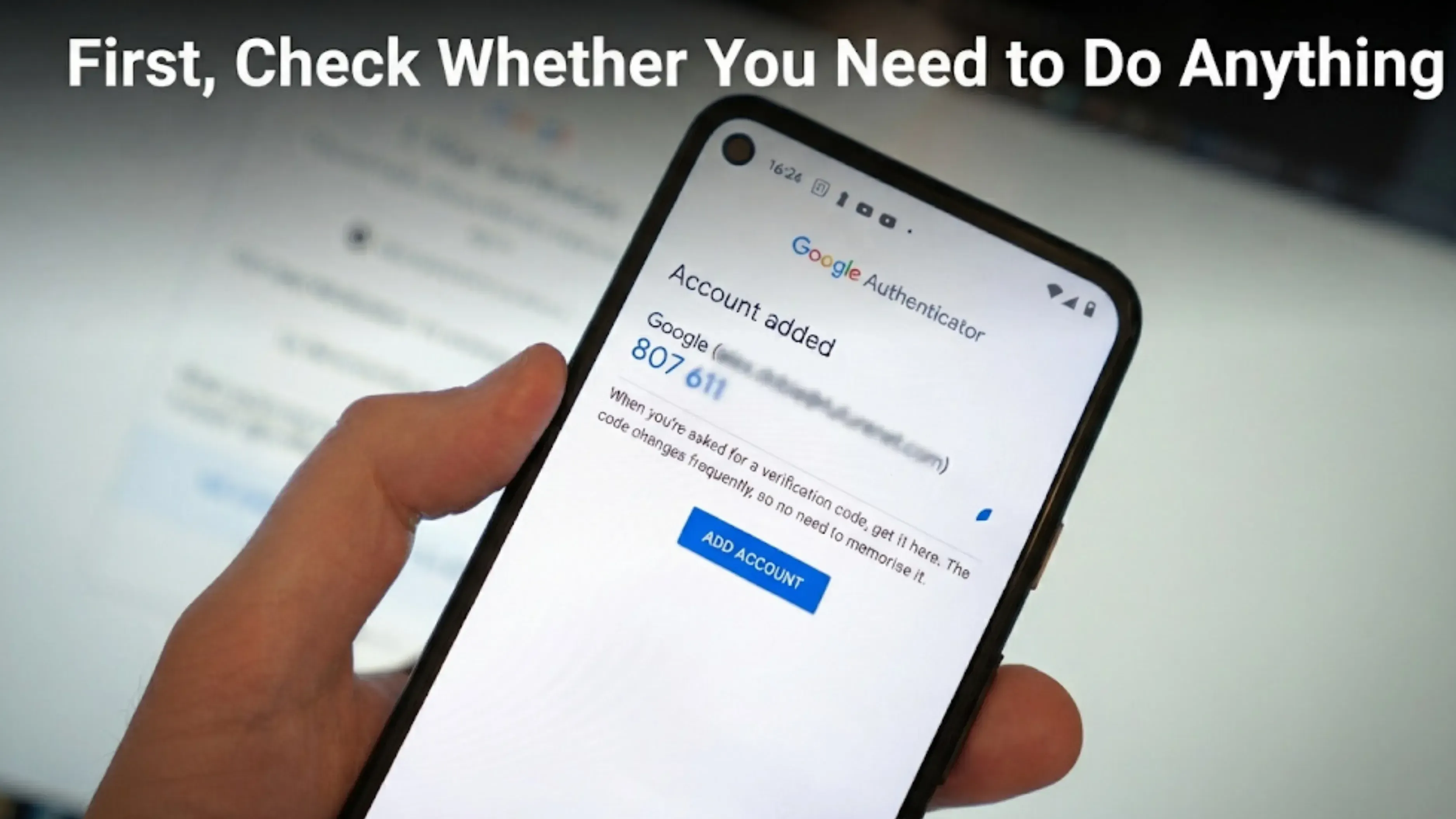
Google Authenticator now lets you save your codes to your Google Account. In Google’s words: "you can synchronize your verification codes across all your devices, simply by signing in to your Google Account."
If you’re signed in, you don’t need to transfer anything. Just install Authenticator on your new phone, sign in with the same Google Account, and your codes "are automatically synced to this device" according to Google.
To check, open Authenticator on your old phone and look at the top right. If you see your profile picture, your codes are saved to your account. If it says you’re using it without an account, the codes are only stored on that phone.
Make sure you have app version 6.0 or higher on Android, or 4.0 or higher on iOS.
If Your Codes Are Not Synced
In that case, you’ll need to transfer them using a QR code, and your old phone must be working to complete the process.
Menu names are different on Android and iPhone. Many guides only show one set of names, which can make it hard to find the right menu.
On Android
On the old phone:
Open Google Authenticator and tap the menu.
Tap Transfer codes, then Export codes.
Unlock the phone when asked.
Select the accounts you want to move, then tap Next.
A QR code will appear. If you have many accounts, you might see more than one code.
On the new phone:
Install Google Authenticator.
Tap Transfer codes, then Import codes.
Scan the QR code from the old phone.
You’ll see a confirmation once the codes have transferred.
On iPhone
The process is the same, but the menu names are different.
On the old phone: tap the menu, then Transfer accounts, then Export accounts.
On the new phone: tap Transfer accounts, then Import accounts, and scan.
Check everything before you wipe your old phone.
On your new phone, make sure a code appears for every account you moved. The codes update every thirty seconds, so you should see them changing.
Don’t touch your old phone until you’ve confirmed all codes are working on the new one.
What Happens If You Wipe First
This is the detail Google’s help page leaves out, and it’s what often trips people up.
If your codes were synced to your Google Account, you are fine. Install the app on the new phone, sign in, and they come back. Google also suggests removing the old device from your Google Account afterwards.
If they were not synced, the codes are gone. There is no backup and no recovery. Google's own instruction in that situation is that "you need to visit every site that you have Google Authenticator set up on to remove the codes, and then relink your new device."
You’ll have to visit each account one at a time, prove your identity without the code, turn off two-factor authentication, and set it up again. For banks or work accounts, this process can take days.
This is why it goes first in the handover sequence, before the backup, before the sign out, before the reset.
The Same Applies to Other Authenticator Apps
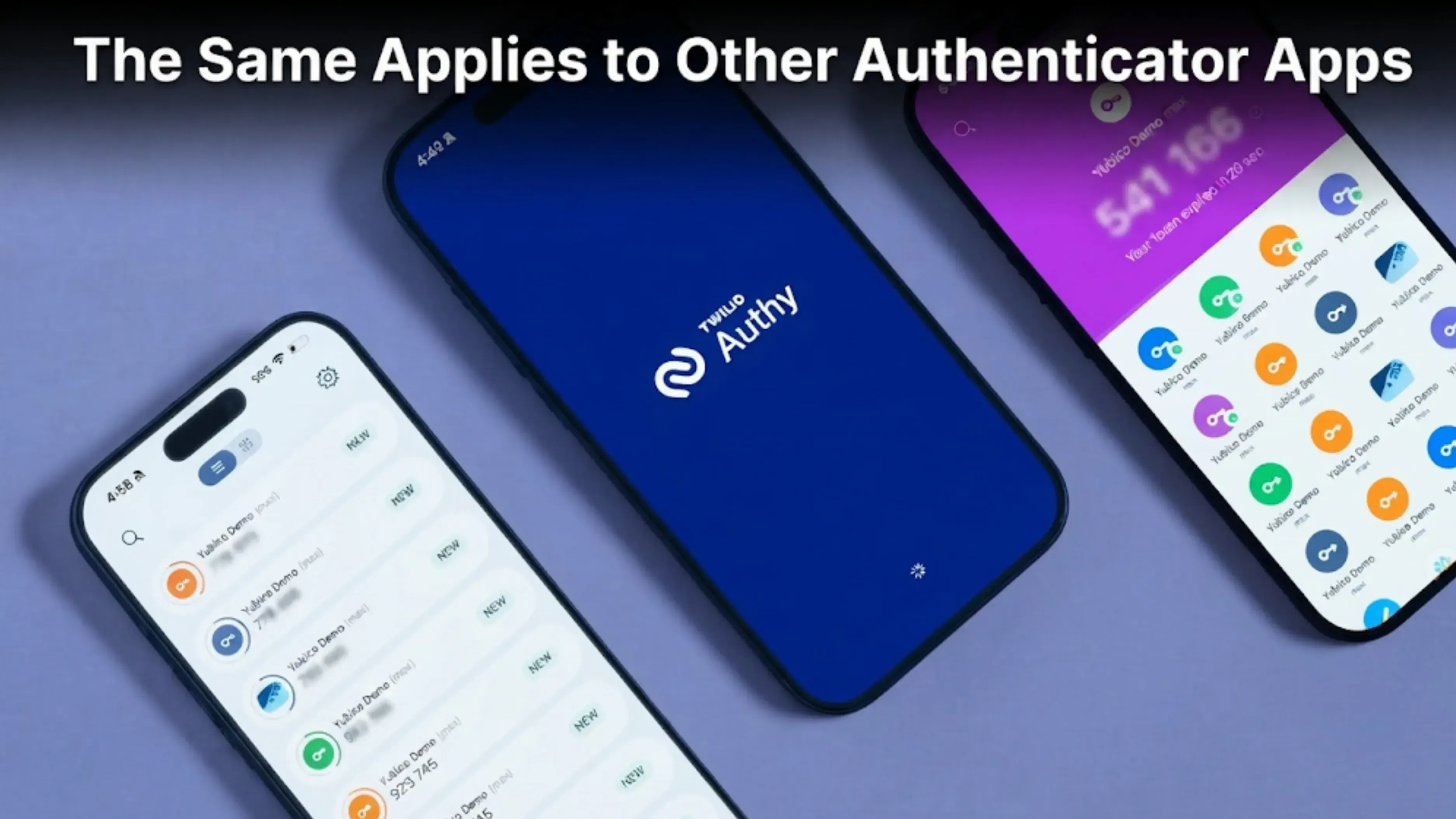
Microsoft Authenticator, Authy, and other apps each have their own way to transfer or back up codes, and you can’t use one app’s method for another. If you use more than one, make sure to move them all.
Some banking apps in India create their own codes inside the app instead of using an authenticator. These usually re-register when you install the app on your new phone and verify your number, but it’s best to check to be sure.
Where This Fits in Switching Phones
The full order, with this step in its place:
Back up the old phone, then open the backup and check it worked.
Transfer your authenticator codes and make sure they work on your new phone.
Sign out of your Google account or your Apple Account.
Take out the SIM and memory card. Deal with the eSIM separately.
Factory reset.
Step 3 must come before step 5. Otherwise, the phone will lock itself to your account and will be almost impossible for someone else to use.
A Note on Turning Sync Off
If you prefer not to save your codes to a Google Account, you can use Authenticator without signing in. Tap your profile picture, then select Use Authenticator without an account.
Google warns what this does: it "will remove codes from all of your Google Accounts and store them on your device".
This is a real trade-off. Codes stored on just one device are more private but harder to recover. If you choose this, you’ll need to do the manual QR transfer every time you switch phones, and you risk losing everything if your phone stops working.
FAQs
1. How do I transfer Google Authenticator to a new phone?
If your codes are synced to your Google Account, just install the app on the new phone and sign in. They sync automatically. If not, export them from the old phone as a QR code and scan it on the new one.
2. Where is the transfer option in Google Authenticator?
On Android, choose Transfer codes, then Export codes on your old phone and Import codes on your new one. On iPhone, the options are called Transfer accounts, Export accounts, and Import accounts.
3. Can I transfer codes if the old phone is already wiped?
You can only transfer codes if they were synced to your Google Account. If not, the codes are lost, and you’ll need to visit each site, remove the old code setup, and set it up again on your new phone.
4. Do I need both phones for the transfer?
Yes, for the QR code method, you need both phones. The old phone generates the code, and the new one scans it. If your codes are synced to a Google Account, you don’t need the old phone.
5. How do I know if my codes are synced?
Open Authenticator and check the top right. If you see a profile picture, your codes are saved to your Google Account. If it asks if you want to use the app without an account, the codes are only on that phone.
6. Does Google Authenticator back up automatically?
Your codes are only backed up if you’re signed in to a Google Account in the app. If you’re signed out, there’s no backup. Google added the sync feature in recent versions, so you may need to update the app if you don’t see it.
7. What version of the app do I need?
You need version 6.0 or higher on Android, or 4.0 or higher on iOS, to use Google Account sync.
8. Should I move my codes before or after I transfer my photos and contacts?
Move your authenticator codes first. Photos and contacts can be restored from a backup, but authenticator codes can’t. Make sure they work on your new phone before doing anything else.
Sources
Google Account Help, "Get verification codes with Google Authenticator", for the sync wording, the minimum app versions, the platform-specific menu names, and the instruction for a lost or stolen device


 Rabina KhadkaPublished at: Nov 10, 2026·9 min read