How to Transfer Data From iPhone to iPhone: All Four Methods
If you want to know how to transfer data from iPhone to iPhone, it is actually pretty simple. Apple gives you four ways to do it, and each one works well.
You just need to decide which method to use and what to check before erasing your old phone. Both steps are quick and easy.
Disclosure: Cashkr is our own device buyback service. We buy used iPhones, so we benefit when people sell the old one rather than leave it in a drawer. That matters for the last section and we have said so again there.
Advertisement
The Four Methods
There are four ways to transfer data from iPhone to iPhone, but for most people the first option is the best choice.
Quick Start. Apple says, "Use your iPhone or iPad to automatically set up a new device." Just hold the two phones next to each other and the new one copies the old one. You do not need a computer or a cable.
Yaskar Jung Shah leads content at Cashkr, an Indian device buyback service. He writes about resale value, data safety and what actually happens to a device after it is sold. He checks every figure against a dated, named source, and says so when a number cannot be verified.
Advertisement
Advertisement
iCloud. Restore the new phone from your previous phone's iCloud backup.
A computer backup, made with the Apple Devices app, iTunes or the Finder.
A cable connecting the two phones to transfer the data directly.
If you have both phones with you and they are working, use Quick Start. The other methods are for situations where that is not possible.
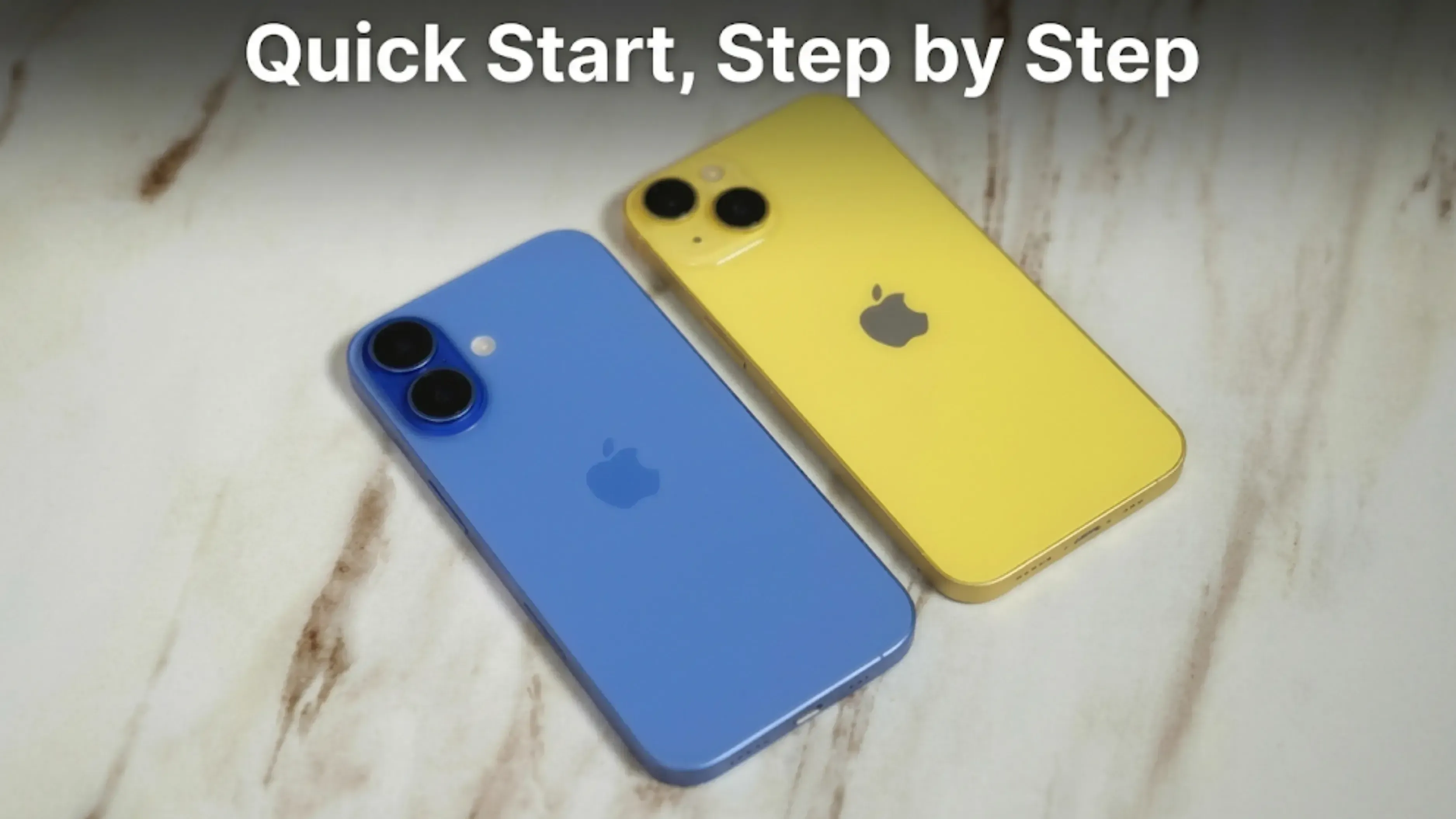
Quick Start, Step by Step
What you need first
Your old device should have iOS 11 or later, or iPadOS 13 or later. Apple also recommends updating both devices to the latest version.
Wi-Fi on, Bluetooth on, on the old phone. Apple's wording: "Make sure that your current device is connected to Wi-Fi and Bluetooth is on."
Set aside some time for this. Apple says to "choose a time when you won't need to use your current device for several minutes." Your old phone will be busy during the transfer, so do not start right before you need to go somewhere.
The steps
Turn on your new iPhone and put it next to your old one. Then follow the instructions that appear on the screen.
Connect your new phone to Wi-Fi or mobile data. You may also be asked to activate cellular service now.
Set up Face ID or Touch ID.
Next, choose how you want to move your data. This is the main decision. If you use iCloud, Apple says "your apps and data download in the background," so you can use your phone sooner while it finishes. If you transfer directly from the old phone, you "need to wait for the transfer to complete on both devices" before you can use them.
Keep both phones close together and plugged in until the transfer is done. Apple is clear about this step.
How long it takes
Apple does not give a specific time, and honestly, no one can. Apple says: "Transfer times can vary based on factors such as network conditions and the amount of data being transferred."
Transferring 200GB of photos takes much longer than 20GB. It is best to let the process run on its own instead of waiting by your phone.
If the setup prompt does not appear
Apple's solution is simple and usually works: restart both devices.
There is one situation where Quick Start will not work at all. If your new device is managed by Apple School Manager or Apple Business Manager, Quick Start is not available. In that case the organisation controls the phone.
The Cable Route, and the Exact Cable You Need
This is where things can get confusing, since the cable you need depends on which two iPhones you have. Apple lists the right cable for each model pair.
iPhone 15 or lateriPhone 15 or laterA USB-C Charge CableiPhone 14 or earlieriPhone 15 or laterA USB-C to Lightning CableiPhone 14 or earlieriPhone 14 or earlierA Lightning to USB 3 Camera Adapter, a Lightning to USB Cable, and a 12W or higher power adapter
The third row is the tricky one. If you have two older iPhones, you will need an adapter and a separate power supply, which usually means buying extra parts. For most people moving between two older iPhones, using Quick Start over Wi-Fi is simpler.
Apple does not explain why you might choose a wired transfer instead of wireless. Usually it is because your Wi-Fi is not reliable, or you have a lot of data to move.
The Thing Apple Does Not Tell You
Let us be clear about this, since most other guides on how to transfer data from iPhone to iPhone just guess at this part.
Apple does not say whether Quick Start can be used after the new iPhone is already set up. Its instructions are written for a phone being set up for the first time, and none of its pages say what to do if you have already finished setup and started using the phone.
This is different from switching from Android, where Apple clearly says you have to erase the iPhone and set it up again. For iPhone to iPhone, Apple does not mention this at all.
So if your new iPhone is already set up and you want to move everything from your old one, it is safest to restore from an iCloud or computer backup instead of counting on Quick Start. Check Apple's support pages for your iOS version before erasing anything.
On iCloud Storage
If your backup is larger than your free iCloud storage, this is where the process can get stuck.
Apple mentions one thing that helps: "If you purchased a new iPhone or iPad, you may be eligible for temporary iCloud storage." It is worth checking, because it is designed for exactly this moment.
Apple does not say what to do if you do not have enough storage and are not eligible for extra. In that case you can use the cable method, which does not use iCloud, or make a computer backup.
Your SIM and Your eSIM
Apple's instruction is to transfer your SIM card or eSIM from the old device, and if the new device needs a different SIM, to contact your carrier.
Handle the eSIM separately, and do it before erasing your old phone. The eSIM is linked to your operator, not your data, and you usually need a code sent to your current number to move it. If you wipe the old phone first, you will need to call or visit your operator.
What Does Not Come Across
There are two things people often lose during the transfer.
Authenticator codes. If you use an authenticator app for two factor codes, those accounts are not included in your phone backup. Move them on purpose, and make sure they work on your new phone before you get rid of the old one.
Banking and UPI app registrations. The app itself will install, but you will often need to register again on the new phone. Open your apps and check before moving on.
Before the Old iPhone Goes Anywhere
Take a moment to check your new phone. Look at your photos, messages, and the apps you use every day. Scroll back a few months in anything important.
Next, do these three steps in order.
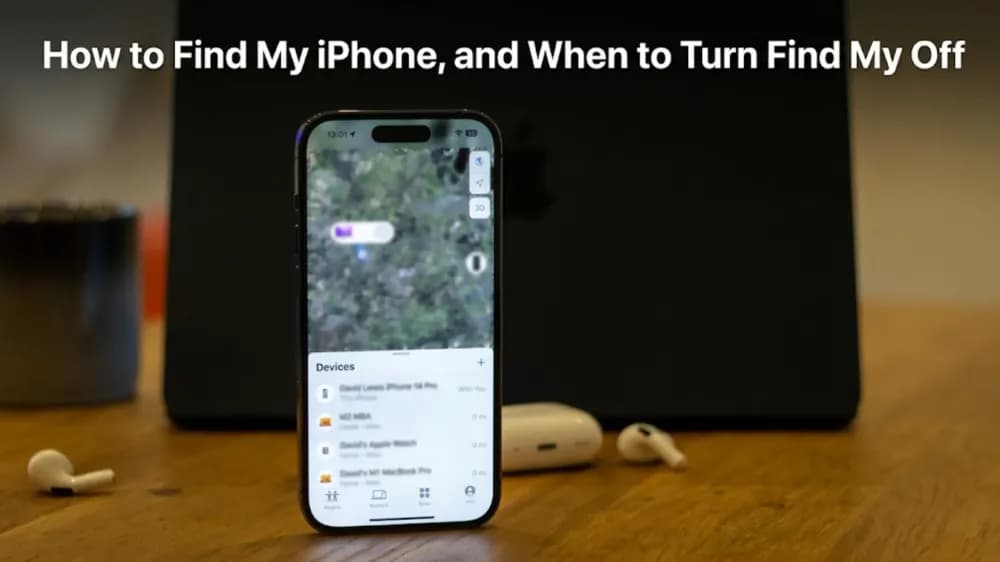
One. Sign out of iCloud. Settings, tap your name, scroll down and tap Sign Out.
Two. Remove the SIM card.
Three. Erase the old phone from its own Settings. Go to Settings, then General, then Transfer or Reset iPhone, and finally Erase All Content and Settings.
Erasing your phone this way turns off Activation Lock, so the next owner can set it up. It will not delete anything from iCloud, so your photos and files stay in your account.
We have a guide on selling your phone safely that covers the whole process and what to look out for.
And Then the Old One
This is where our own interest comes in, so please keep that in mind.
A working iPhone keeps its value better than most other used devices, but it loses value every month it sits unused. Your old phone is probably worth more than you think, and it is usually worth the most right now.
1. How do I transfer data from an iPhone to another iPhone?
Use Quick Start if both phones work. Turn on the new iPhone, place it next to the old one, and follow the instructions. Make sure the old phone has Wi-Fi on and Bluetooth on, keep both plugged in, and leave them alone until it finishes. Alternatives include restoring from an iCloud backup, restoring from a computer backup, or connecting the two phones with a cable.
2. How long does an iPhone-to-iPhone transfer take?
Apple does not give a time and says transfer times vary with network conditions and how much data there is. Apple also advises choosing a moment when you will not need your current phone for several minutes. Treat it as something to leave running.
3. Can I use Quick Start if my new iPhone is already set up?
Apple does not say. Its instructions are written for a phone being set up for the first time, and its pages do not cover the already set up case. If the new phone is in use, restoring from an iCloud or computer backup is the dependable route, and it is worth checking Apple's support pages for your iOS version first.
4. Which cable do I need to transfer between two iPhones?
It depends on the pair. Two iPhone 15 or later models use a USB-C Charge Cable. An iPhone 14 or earlier to an iPhone 15 or later uses a USB-C to Lightning Cable. Two iPhone 14 or earlier models need a Lightning to USB 3 Camera Adapter, a Lightning to USB Cable, and a 12W or higher power adapter.
5. Do I need a computer to move to a new iPhone?
No. Quick Start works phone to phone with no computer involved. A computer is only needed if you prefer to restore from a backup made with the Apple Devices app, iTunes or the Finder.
6. What if I do not have enough iCloud storage?
Apple says you may be eligible for temporary iCloud storage if you have bought a new iPhone or iPad, so check that first. If not, the cable route does not use iCloud at all, and a computer backup is the other option.
7. Does my eSIM transfer automatically?
Treat it as a separate step. Apple says to transfer your SIM or eSIM, and to contact your carrier if the new device needs a different SIM. Do it while the old phone still has your number, because re-issuing an eSIM usually needs a code sent to that number.
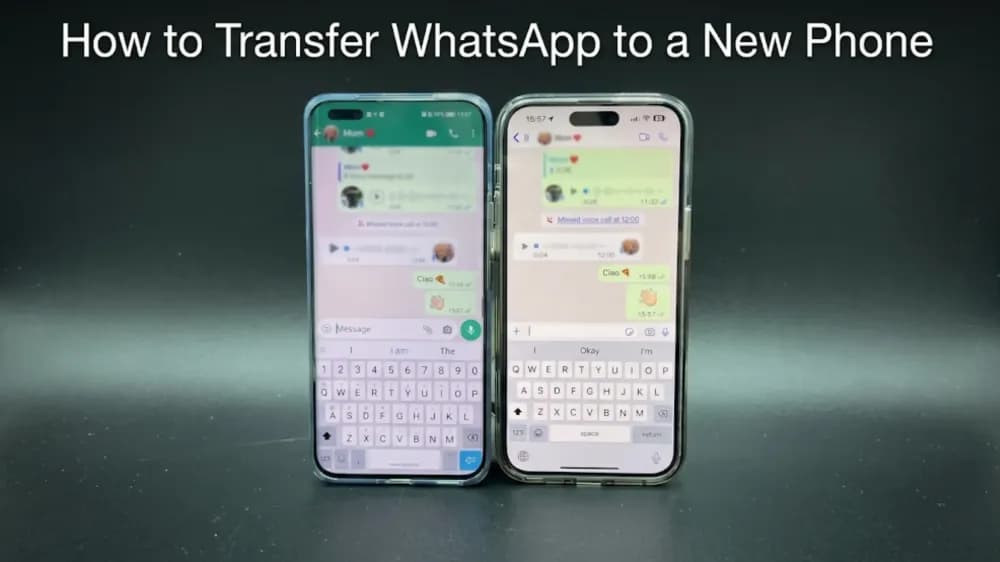
8. Will my WhatsApp chats come across?
When moving between two iPhones, your WhatsApp data is included in your backup, so you do not need a separate transfer. Check WhatsApp's help pages for the latest instructions, and open the app on your new phone to make sure everything is there before erasing your old one.
9. Why will Quick Start not start on my new iPhone?
Apple recommends restarting both devices first. Make sure Wi-Fi and Bluetooth are turned on for your old phone, and that both phones have the latest iOS. If your new phone is managed by Apple School Manager or Apple Business Manager, Quick Start will not work.
10. What should I do with the old iPhone?
Make sure all your data has transferred to the new phone, take care of your authenticator codes and eSIM, sign out of iCloud, and remove the SIM card. Then erase the old phone in Settings. After that you can sell, give away or recycle it. Erasing in Settings turns off Activation Lock, so the next owner can use it.
Sources
Apple, "Use Quick Start to transfer data to a new iPhone or iPad", for the iOS 11 requirement, the Wi-Fi and Bluetooth conditions, the several minutes advice, the ordered steps, the iCloud against direct transfer behaviour, the instruction to keep both devices plugged in, the statement that transfer times vary, the restart fix, and the Apple School Manager and Apple Business Manager exclusion
Apple, "Transfer data from your previous iOS or iPadOS device to your new iPhone or iPad", for the four methods, the temporary iCloud storage eligibility, and the SIM and eSIM instruction
Apple, "Use a wired connection to transfer data to a new iPhone or iPad", for the cable and adapter requirements by model pair


 Yaskar Jung ShahPublished at: Nov 24, 2026·14 min read