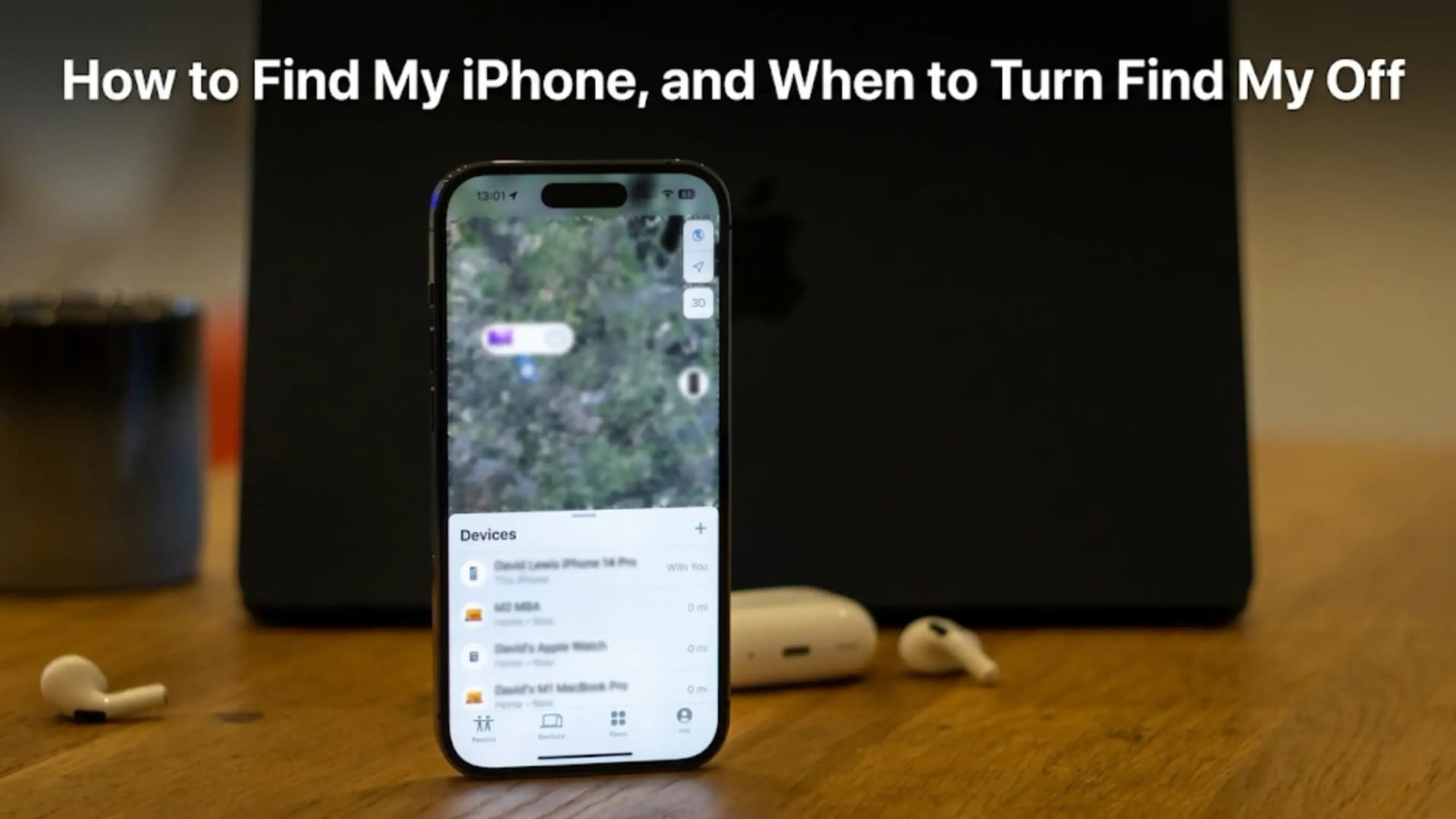
How to Find My iPhone, and When to Turn Find My Off Before Selling
Your iPhone has a single setting that can do two very different things, depending on what you need.
If your phone is lost or stolen, keep this setting on. It lets you find your phone, lock it, and prevent anyone else from using it.
If you are selling your phone, turn this setting off. If you don't, the new owner won't be able to set up the phone.
Advertisement
It is the same setting, but you need to do the opposite depending on your situation.
Most guides on how to find your iPhone only talk about lost phones and don't mention what to do when selling. That's why people sometimes make mistakes at the wrong time.
Disclosure: Cashkr is our own device buyback service. We buy used iPhones, so we know what happens when this step is missed. A phone that arrives with Find My still on can't be used by anyone.
Yaskar Jung Shah leads content at Cashkr, an Indian device buyback service. He writes about resale value, data safety and what actually happens to a device after it is sold. He checks every figure against a dated, named source, and says so when a number cannot be verified.
The quickest way to find your iPhone is by using a browser. Go to icloud.com/find, or open the Find My app on another Apple device where you are signed in.
There is one hard requirement, and no way round it. Apple states it plainly: "If Find My wasn't turned on for your device before it was lost, it won't appear at icloud.com/find or in the Find My app and you can't mark it as lost or remotely erase it."
So you can only find your iPhone if you turned on this setting before losing it. If you still have your phone, check this setting now.
Here is a helpful tip if your phone is already missing. When you sign in at iCloud.com to find your lost device, Apple says "You don't need a verification code to sign in." This matters because the code usually goes to the phone you lost.
Reading the map
Pick your device from the list under All Devices.
Apple makes this clear. The device "only appears online and in Lost Mode if the device has been turned on and is connected to Wi-Fi or cellular". So if your phone is off or has no signal, you will only see its last known location, not a live one.
Mark as Lost, and What It Actually Does
If there is any chance someone else has your phone, this should be your first step.
Apple calls it Mark as Lost, and it puts the phone into Lost Mode. According to Apple, the device "is locked with your passcode, and payment cards and passes that you use with Apple Pay are suspended". You can also add a phone number and a message to the lock screen.
One important exception. If the phone was stolen rather than lost, don't include your contact details. Apple advises this because a thief could use them to trick you.
So: misplaced at a restaurant, add a number. Taken from your pocket, do not.
Erasing It Remotely, and the Mistake to Avoid
Erasing is permanent. Apple says: "erasing your device can't be undone." Only do this when you are sure the phone is gone.
Two things Apple says about it that are worth knowing.
It still waits for the phone. "If your device is offline, the remote erase process begins the next time it's online."
You do not lose tracking. On iOS 15 or later, "you can still use Find My or icloud.com/find to locate it after you erase it."
Here is the mistake. After erasing a stolen phone, people often try to clean up by removing the device from their Find My list. Apple warns against this directly:
"Don't remove the device from Find My, even if you remotely erase it. Removing the device from your Find My list removes Activation Lock, which will make it easier for the thief to unlock and resell your device."
Removing it from the list is the thing you do when selling. It is the opposite of what you do when the phone is stolen. Doing it at the wrong moment hands a thief a working, sellable phone.
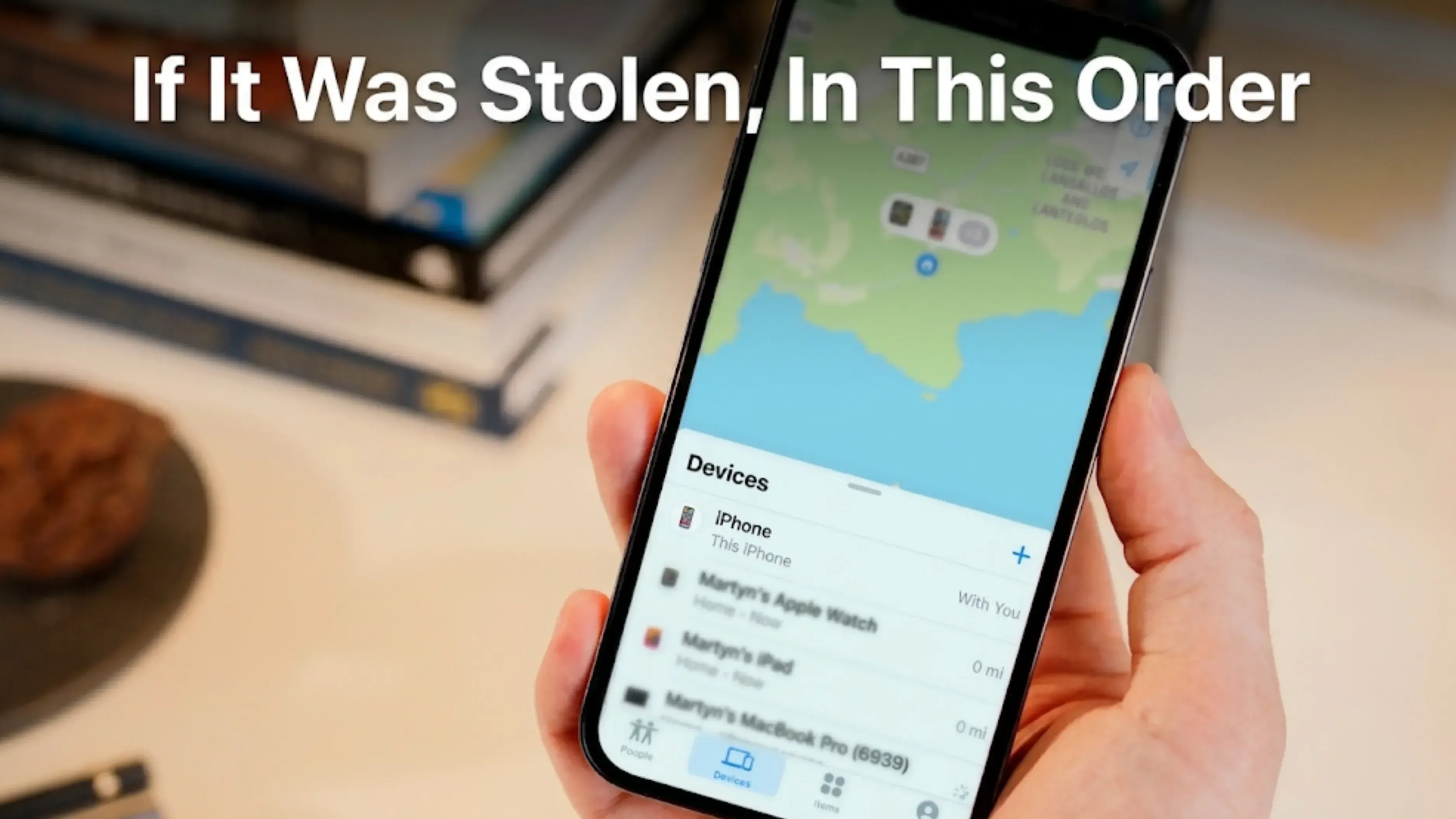
If It Was Stolen, the Full Order
Apple's steps, with the India-specific parts added at the end.
Mark it as lost straight away, with no contact details on the screen.
Do not try to get it yourself. If the map shows a place you don't know, Apple says to contact local police instead of going there. The phone isn't worth the risk.
Report it to the police. They may ask for the serial number, so have it if you can.
Call your phone company. Apple says to ask them to suspend your account. In India, call Jio, Airtel, Vi or BSNL to block your number, then get a replacement SIM with the same number. Until then, anyone with the phone can get your one-time passwords.
Change your Apple Account password, especially if Find My was never switched on, in which case the phone cannot be marked or erased at all.
Then block the IMEI. This is an India-specific step Apple doesn't mention. The IMEI is a 15-digit number unique to your phone. You can block it nationwide through the government CEIR service on the Sanchar Saathi website at ceir.sancharsaathi.gov.in. A blocked IMEI can't connect to any Indian network. Our guide on checking an IMEI number in India explains how this system works when buying or selling.
Call your bank if any banking app used Face ID or Touch ID on that phone, and ask them to remove the device. People often forget this, but it is the most important step for your money.
Now the Other Direction: Turning Find My Off to Sell
Everything above is about keeping the lock on. When you sell the phone, you have to turn the lock off, or the buyer will have an expensive paperweight.
Apple says it plainly: "Before you sell, give away, trade in or service a device, you should turn off Find My."
The path. Settings, then tap your name at the top, then Find My, then Find My iPhone, and turn it off.
What that does. Turning Find My off automatically removes Activation Lock. That is exactly what you want now and exactly what you didn't want earlier in the stolen phone section.
If the phone is already with the buyer and you forgot this step, you can still fix it from a browser. Sign in to Find My on iCloud.com and remove the device from your list. Do it quickly, because until then the person with your old phone can't set it up.
Where this sits in the handover
Turning Find My off is one step of several, and the order matters.
Back up the phone and make sure the backup worked. Move your authenticator codes, because they don't come back from any backup. Move your eSIM across while the old phone still has your number on it. Sign out of iCloud. Remove the SIM. Then erase the phone from Settings.
One reassurance, since people worry about this: erasing the phone does not delete anything from iCloud. Your photos and files remain in your account.
Does Any of This Affect What the Phone Is Worth?
Not directly, but it decides whether it can be sold at all.
An iPhone that arrives still locked to an Apple Account cannot be processed, fixed, or resold by anyone. Not a private buyer, not a buyback service, not an Apple Store. The value isn't reduced, it is just unusable until the previous owner signs in and unlocks it.
Go to icloud.com/find in any browser, or open the Find My app on another Apple device signed in to your account. Pick the phone from the list under All Devices. This only works if Find My was switched on before the phone went missing. Apple says that if it was not, the device will not appear and you cannot mark it as lost or erase it.
2. Can I find my iPhone if it is switched off?
You will see its last known position rather than a live one. Apple says a device appears online and in Lost Mode only if it is turned on and connected to Wi-Fi or mobile data.
3. What does Mark as Lost do?
It locks the phone with your passcode and suspends the payment cards and passes you use with Apple Pay. You can add a phone number and message to the lock screen. If the phone was stolen rather than mislaid, Apple advises leaving your contact details out, because a thief can use them for phishing.
4. Should I erase my iPhone remotely?
Only once you have accepted it is gone, because Apple says erasing cannot be undone. If the phone is offline the erase starts the next time it connects. On iOS 15 or later you can still locate the device after erasing it.
5. Should I remove the phone from Find My after erasing it?
No, not if it was stolen. Apple warns that removing a device from your Find My list removes Activation Lock, which makes it easier for a thief to unlock and resell the phone. You remove it when selling, not when it has been taken.
6. How do I turn Find My iPhone off before selling?
Settings, tap your name, then Find My, then Find My iPhone, and turn it off. Apple says to do this before you sell, give away, trade in or service a device. Turning it off also removes Activation Lock, which is what lets the next owner set the phone up.
7. I sold my iPhone and forgot to turn Find My off. What now?
Sign in to Find My on iCloud.com and remove the device from your list. Do it quickly, because until you do, the buyer cannot set the phone up at all.
Sources
Apple, "How to find your lost iPhone or iPad", for the icloud.com/find address, the requirement that Find My was turned on beforehand, the Lost Mode description, the statement that erasing cannot be undone, the offline erase behaviour, and the ability to locate a device after erasing on iOS 15 or later
Apple, "If your iPhone or iPad was stolen", for the ordered steps, the advice not to include contact information on a stolen device, the warning not to remove the device from Find My, the sign in without a verification code, and the law enforcement and carrier steps
Apple, "Turn off Find My on your devices and items", for the Settings path, the statement that turning Find My off removes Activation Lock, and the advice to turn it off before selling, giving away, trading in or servicing a device
Department of Telecommunications, Sanchar Saathi portal, for CEIR IMEI blocking in India


 Yaskar Jung ShahPublished at: Nov 20, 2026·12 min read