If you want to remove a Google account from your phone, it only takes four taps. The main thing people worry about, losing their account, does not happen. Removing the account from your phone does not delete it.
This is the first thing you should do before giving your phone to someone else. It is also important if you have bought a second-hand phone that still has someone else's account on it. These are two different situations, and the second half of this page explains the second one clearly.
Disclosure: Cashkr is our own device buyback service. We buy used phones and often see what happens when this step is skipped. It is the main reason a phone arrives unusable.
Advertisement
How to Remove a Google Account From Your Phone, Step by Step
Open Settings, then tap Passwords & accounts. Under Accounts, tap the account you want to remove, then tap . Confirm by tapping again, then .
Yaskar Jung Shah leads content at Cashkr, an Indian device buyback service. He writes about resale value, data safety and what actually happens to a device after it is sold. He checks every figure against a dated, named source, and says so when a number cannot be verified.
Advertisement
Advertisement
Remove account
Remove account
Delete
If you do not see Passwords & accounts, Google says the menu might have a different name depending on your phone. It could be called Users & accounts, Passwords, passkeys & autofill, Password, passkeys & accounts, or Manage accounts.
Searching for "accounts" in Settings is usually faster than looking through menus. Google also says that some steps only work on Android 14 or newer, so older phones may be a bit different.
One thing to keep in mind. If this is the only Google Account on your device, Google says you will need to enter your phone's pattern, PIN or password for security. This is normal and just confirms you are the owner.
What Removal Actually Does
Read this before you do anything.
Google's own wording: "When you remove an account, you also delete everything associated with that account from your device. This includes email, contacts, and settings."
Pay close attention to that. It says from your device. Your Gmail, contacts, photos and Drive files all stay in your Google account. You are just disconnecting the phone from the account, not deleting anything from the account itself.
If you remove your account and then sign in again on the same phone, your mail and contacts will return. If you remove it before giving the phone to someone else, none of your data stays on the device.
The phone loses that account's email, contacts, settings, and anything else that needed you to be signed in.
Your account keeps everything.
Remote Sign Out Is a Different Thing
These two things are often confused, but the difference is important.
If the phone is no longer in your hands, you can sign it out from your account on the web. Go to your Google Account, then Security & sign-in, then under Your devices tap Manage all devices, tap the device, and tap Sign out.
Google describes this as being for devices "that are lost or you no longer own" or that "don't belong to you". Once done, the device shows as Signed out in your list.
But it is important to know what it does not do. Google does not say that signing a device out erases, wipes or locks it. It only ends the sessions. This is not a remote wipe, and it is not the same as removing the account in the phone's Settings.
One practical tip. Google says that sessions with the same device name "could come from the same device or multiple devices." If you see several entries for one phone, sign out of all of them.
If the device still appears in your list after you reset it, that is normal. Google says a device "could still show up" after a factory reset.
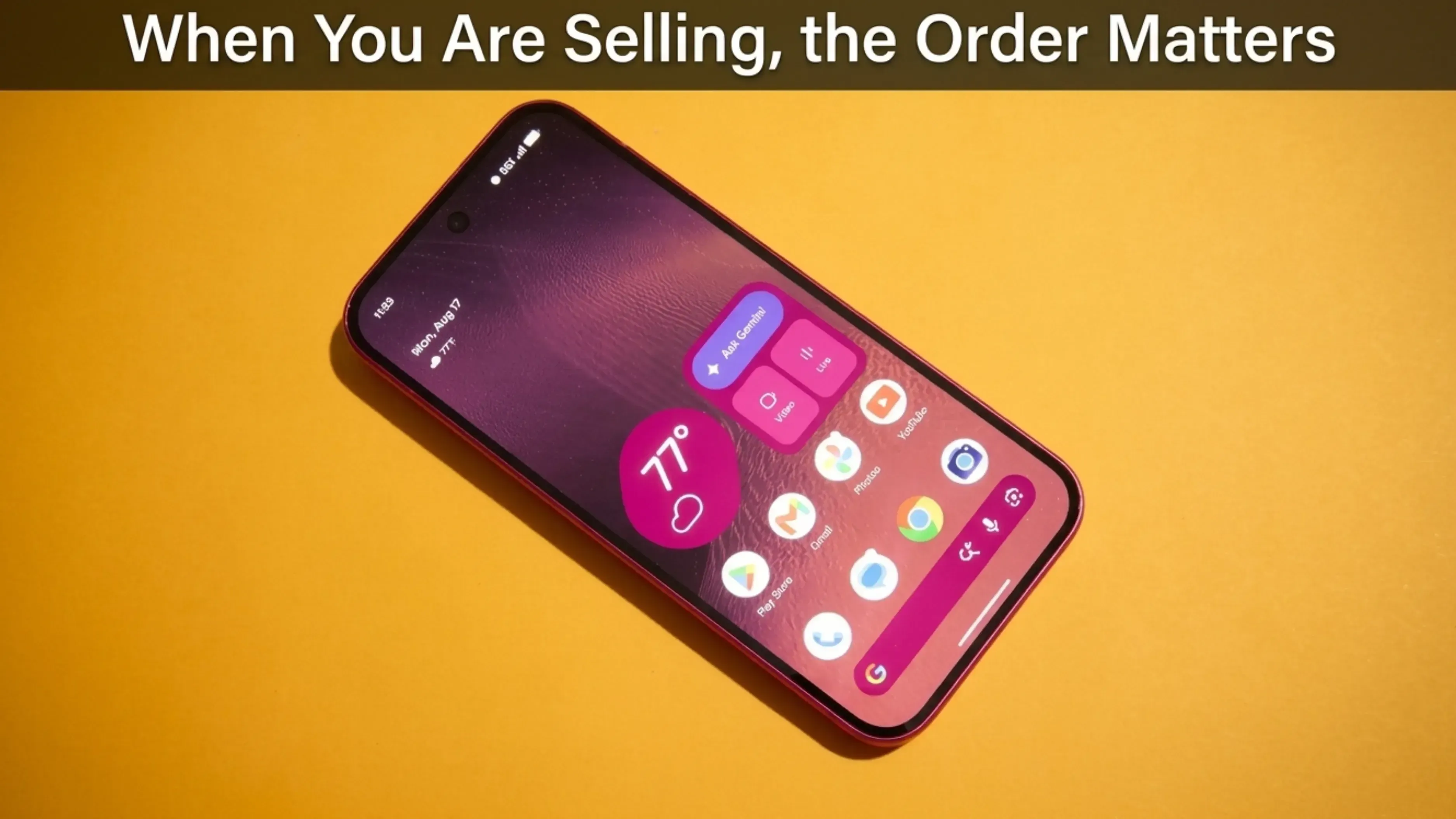
When You Are Selling the Phone
This is where the order of steps matters most, and it is where many sales go wrong.
Knowing how to remove a Google account from your phone is just one part. It is one of several steps, and doing them in the wrong order can cause problems.
Back up your data first, and check the backup to make sure it worked. Once the account is removed from the phone, its data is gone from that device.
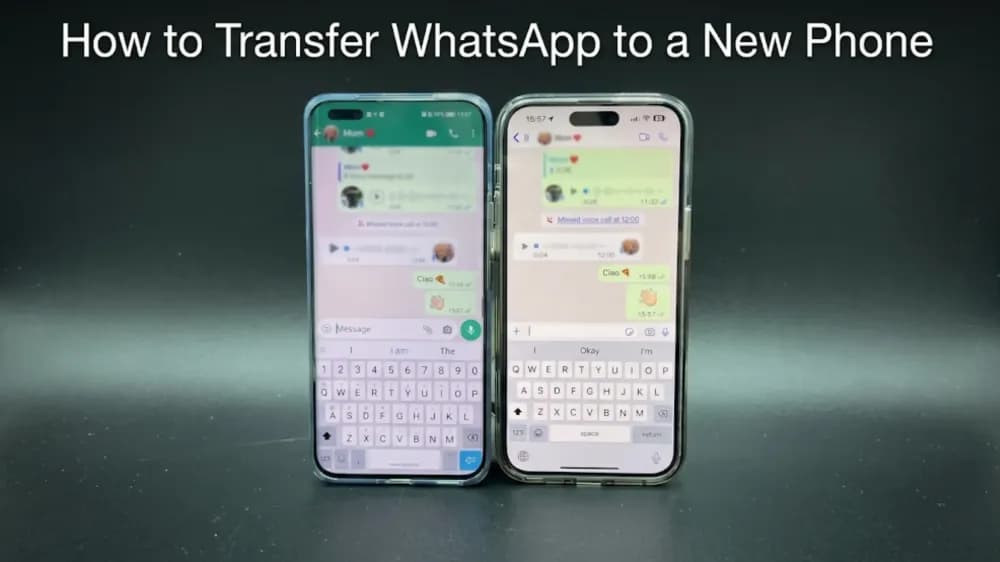
Move your authenticator codes before anything else. If you use an authenticator app for two factor codes, those will not come back from any backup. Losing them can lock you out of your email and bank accounts.
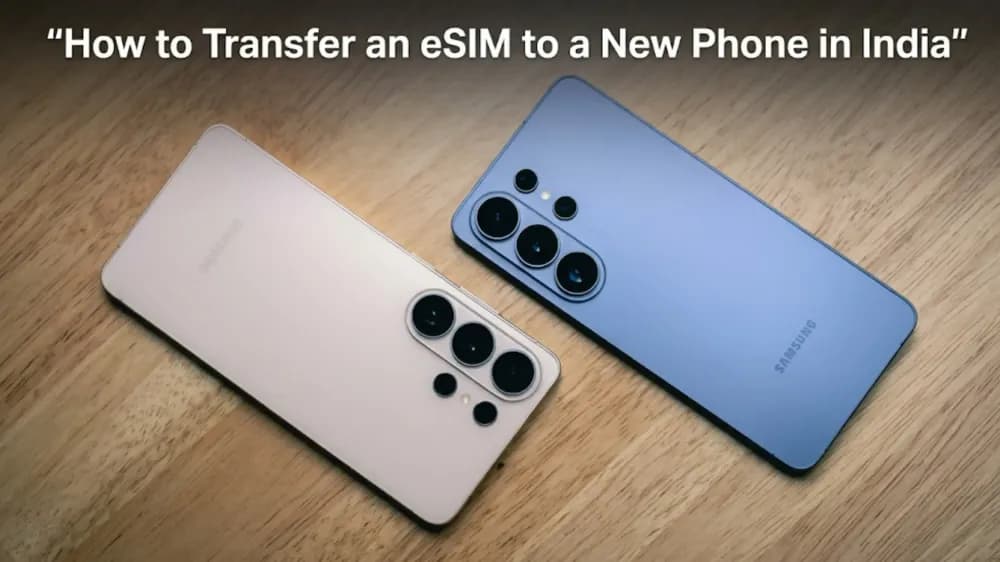
Deal with your eSIM while the phone still has your number on it.
Then remove the Google account using the steps above. Also remove any Samsung, Mi or OnePlus account, as these are separate.
Remove the SIM card and memory card.
Then do a factory reset from the phone's Settings yourself.
Here is why that last point matters. On most current phones, doing a reset from Settings after unlocking the device usually clears the account lock. Removing the account first makes sure of it, and on older phones it is required. The lock causes problems if the phone is wiped another way, such as through recovery mode or the bootloader, or if it is handed over without being erased.
Now for the other reason people look this up, and we will be direct about it.
If you have a phone that asks for a Google account you do not have the password to, the person who owns it has to remove that account. There is no legitimate way around it.
That is the whole point of this protection. If anyone could unlock a found phone, it would be worth stealing. Since they cannot, it is not.
So here are the real answers.
If the account is yours and you have forgotten the password, use Google's own account recovery. That is the route, and it is the only one.
If you bought the phone second-hand, go back to the seller and ask them to remove it. They can do it from their own Google account on the web using the sign-out steps above, or by signing in on the phone and removing it properly. It takes them two minutes.
If the seller will not help, you have bought a phone you cannot use. This is a dispute with the seller, not a technical issue. If you paid by UPI or card, contact your payment provider.
No service can clear this for you legitimately, including us. Anyone offering to unlock a phone from someone else's Google account for a fee will either fail or use methods you should not want to be involved in.
This is why you check before you pay. Ask the seller to factory reset the phone in front of you and take it through the first setup screen. If it asks for an account, walk away. While you are there, check the IMEI too, because that catches the other problem. Our guide on checking an IMEI number in India explains how.
If You Already Sold the Phone and Forgot
This can be fixed quickly.
Sign in to your Google Account on the web, go to Security & sign-in, then Manage all devices, find the phone and sign it out. Then change your Google password if you are unsure what else was signed in.
If the phone still asks the buyer for your account during setup, they will need you to confirm the removal. Respond to them, because the buyer cannot do anything until you do, and the phone will not work for them in the meantime.
And Then the old phone
This is where our interest sits, so weigh it accordingly.
A phone that has been properly released from your account is worth what it is worth. One that still asks for an account is worth almost nothing to anybody, no matter how good its condition, because nobody can set it up.
So these four taps are not just admin work. They decide whether your phone has value or not.
What decides the actual number is the model, the age, the condition, and the battery health. Our guide on what affects a phone's resale value sets out the order, and our guide on where to sell an old phone compares the routes honestly, including the ones that are not us.
1. How do I remove a Google account from my phone?
Open Settings, tap Passwords & Accounts, tap the account under Accounts, then tap Remove account. Confirm with Remove account again, then Delete. If the menu is named differently on your phone, search Settings for "accounts." If it is the only Google account on the device, you will be asked for your PIN, pattern, or password.
2. Does removing the account delete my Gmail or photos?
No. Google's wording is that removal deletes everything associated with that account "from your device," which means the email, contacts and settings stored on the phone. Your Gmail, Drive and Google Photos all stay in your account, and signing in again on any device brings them back.
3. Why does my phone ask for my PIN when I remove the account?
Google says that if it is the only Google account on the device, you need to enter your pattern, PIN or password for security. The phone is confirming you are the owner rather than someone who found it.
4. What is the difference between removing the account and signing out remotely?
Removing it in Settings disconnects the phone from the account and deletes that account's data from the phone. Signing out remotely from your Google Account on the web ends the sessions on a device you no longer have. Google does not say remote sign-out erases, wipes or locks the phone, so the two are not interchangeable.
5. How do I sign out of a phone I no longer have?
Go to your Google Account, then Security & Sign-in, then Manage all devices under Your devices. Tap the device and tap Sign out. If several entries share the same device name, Google advises signing out of all of them.
6. Do I need to remove the account before a factory reset?
This is the safest way to do it. On most current phones, resetting from Settings after unlocking usually removes the account lock, but taking the account off first guarantees it. For older phones, removing the account first is required. Problems happen if a phone is wiped through recovery mode or given away without being wiped.
Sources
Google, "Add or remove an account on Android," for the Settings, Passwords & accounts, Remove account path, the alternative menu names on different devices, the Android 14 note, the statement that removal deletes everything associated with the account from the device including email, contacts and settings, and the requirement to enter a pattern, PIN or password when it is the only Google account
Google, "Add or remove Google and other accounts on your Pixel phone or Pixel Tablet", which gives the same removal steps for Pixel devices
Google, "Manage devices that have access to your Google Account", for the Security and sign-in, Manage all devices, Sign out path, the guidance to sign out of devices you have lost or no longer own, the note that sessions sharing a device name may come from more than one device, and the note that a device may still appear after a factory reset


 Yaskar Jung ShahPublished at: Nov 26, 2026·12 min read